









To start fresh, open World rules, choose Change world and type a new Save name. The server starts a new save at its next start, and the old save stays on the server. To wipe a save for good, stop the server and delete its folder in Files. Back up first.
What a reset clears
A save holds the buildings, the players with their levels and items, land claims and bedrolls. A reset starts all of that again. Players keep their Steam accounts, and they can join the new world as new characters.
These stay when you reset:
- Your admins, bans and whitelist. They are in
data/Saves/serveradmin.xml, outside the save folders. - Your server settings and your World rules.
- Your mods.
Option 1: a new save, keep the old one
This is the safest way. Nothing is deleted.
- Open the World rules page.
- In the World card, choose Change world.
- Leave World as it is to play the same map again from the start, or pick another one. Navezgane is the made map.
- Type a new Save name, for example
Season2. A new name starts a new save. - Choose Use this world (3).
- Choose Restart at the top of the server page. The change is used from the next start.
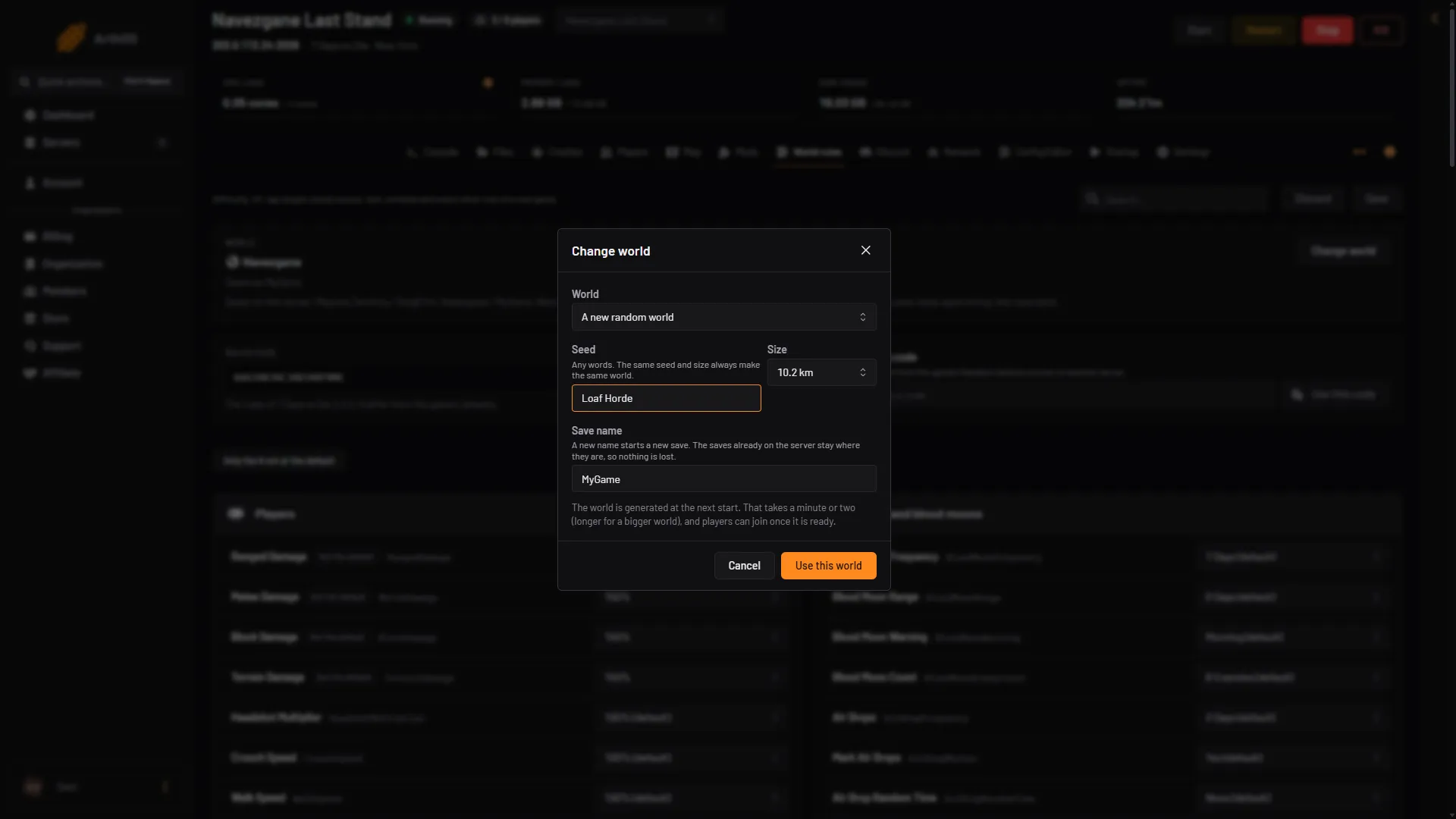
- World
- Type a new save name
- Use this world
The card lists the saves on the server. Choose the same world and Save name again later and the old save comes back, with everything in it.
Option 2: a new random world
- Open World rules and choose Change world.
- In World, pick A new random world.
- Type a Seed. Any words work. The same seed and size always make the same world.
- Pick a Size: 6.1, 8.2 or 10.2 km in this box.
- Type a new Save name, then choose Use this world.
- Restart the server.
The game makes the world at the next start. That takes a minute or two, and longer for a bigger world. Players can join once it is ready.
Option 3: wipe the save for good
Use this when you want the old save gone.
- Back up the server. See 7 Days to Die backups and saves.
- Stop the server.
- Open Files and go to
data/Saves/<world>/. A new server hasdata/Saves/Navezgane/MyGame/. - Delete the save folder, for example
MyGame. Do not deleteserveradmin.xmlnext to it. - Start the server. The game makes a fresh save under the same name.
A random world made earlier stays in data/GeneratedWorlds/. The same seed loads the same world again. To get a different map, use a new seed.
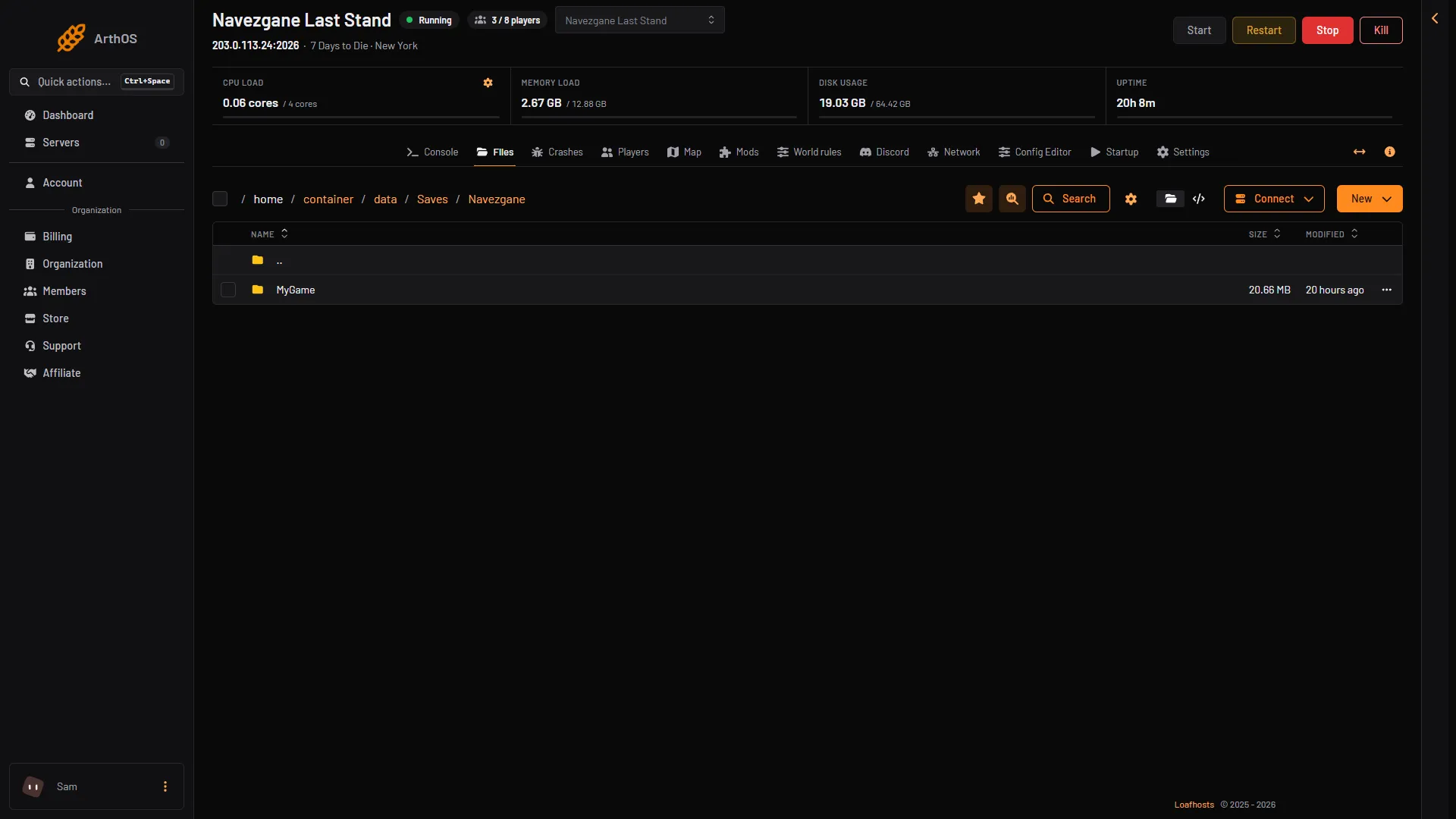
- The save
If it does not work
- The old world came back. The World and Save name match the old save. Pick a new Save name.
- The new world is taking long. A random world is made at the first start. Wait a few minutes. The Console page shows when the game is ready.
- Players still have their old items. The server is still on the old save. Open World rules and check the Save name.
- Admins are gone.
serveradmin.xmlwas deleted. Restore it from a backup, or add the admins again.
More about the game: 7 Days to Die servers.
Sources: 7daystodie.wiki.gg: Server