









Open the Crashes page and the Mods page. They name the mod that failed and say why. A mod that could not be loaded usually has a faulty ModInfo.xml. A mod whose changes did not apply is usually made for another game version.
What the Crashes page says
The Crashes page lists the ten newest starts of the server. Pick a start, then read What the panel can tell. Two findings are about mods.
A mod could not be loaded. The fix it gives: “Its ModInfo.xml is missing a Name or a DisplayName, or is not valid XML. The Mods page names the folder; fix the file or remove the mod.”
A mod’s changes did not apply. The fix it gives: “The game started without them. The Mods page shows which mod and which file; a mod made for an older game version usually needs its update.”
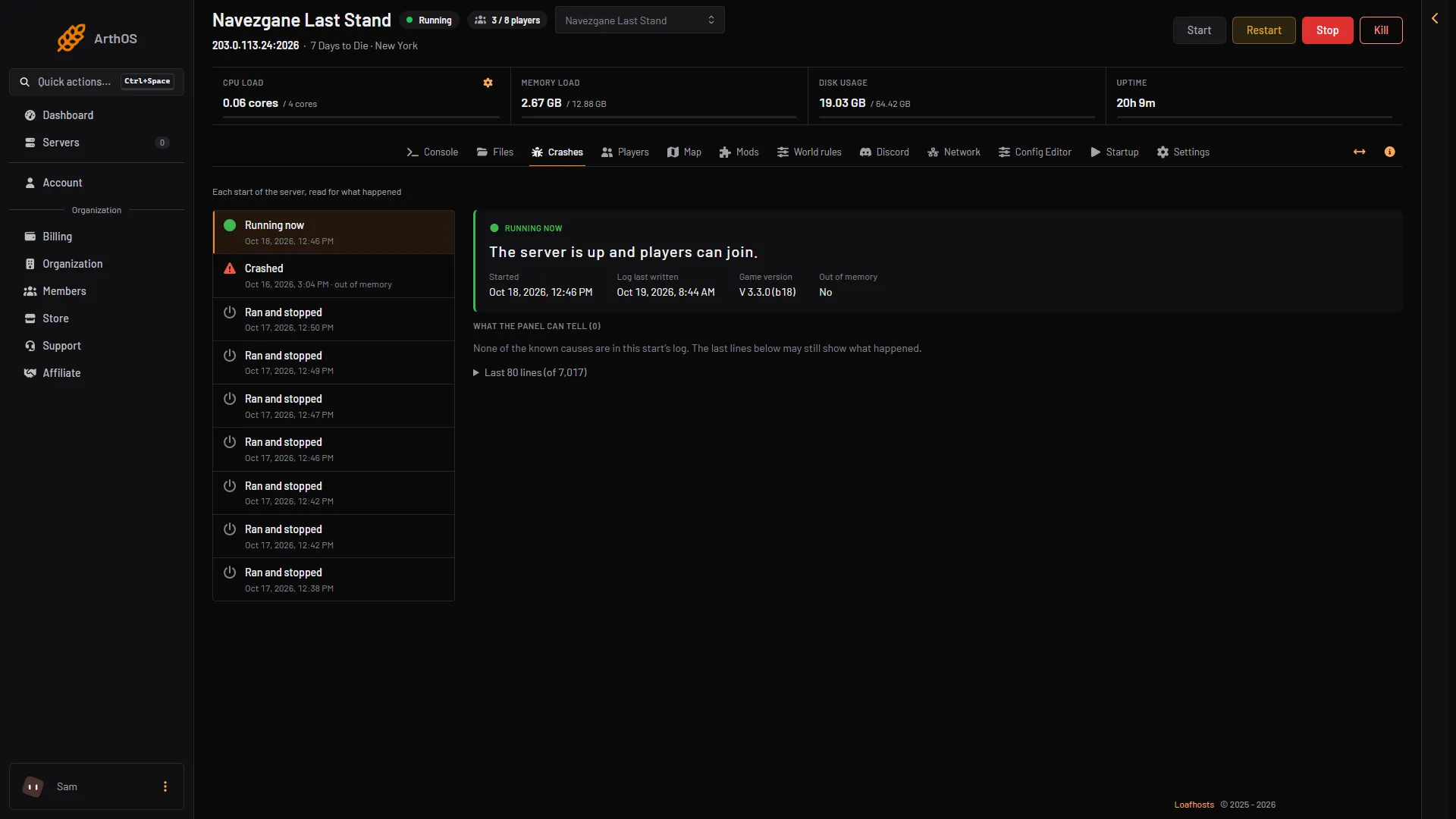
- Pick a start
- What the panel can tell
What the Mods page says
Open the Mods page. Each mod shows what the game made of it at the last start:
- Did not load. The game skipped it. The page shows the game’s reason.
- Loaded, some changes did not apply. It loaded, but part of its XML did not fit the game.
- A reason line. When something went wrong, the mod also shows the game’s reason, for example that its ModInfo.xml needs a Name and a DisplayName.
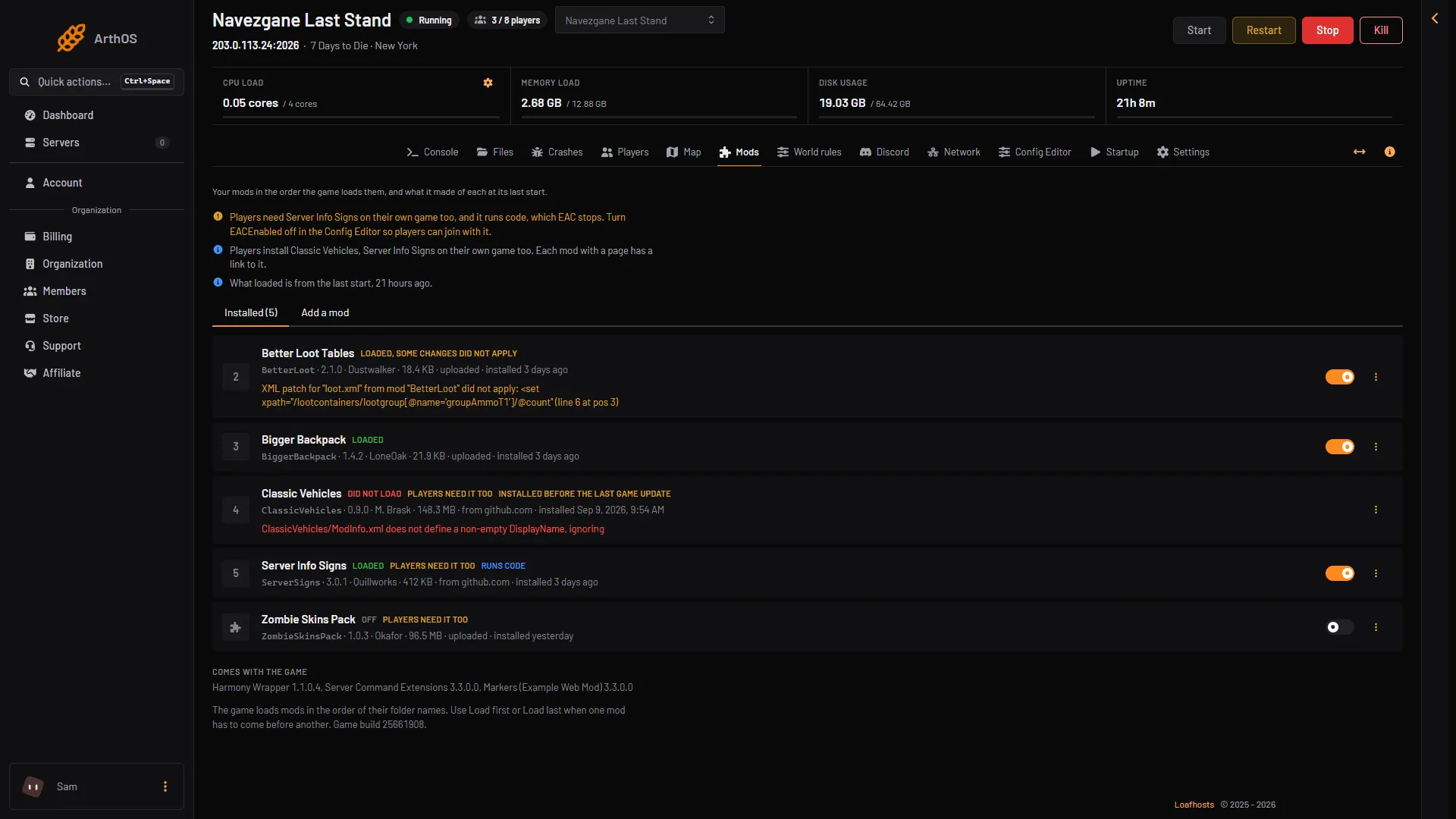
- Did not load
- Partly loaded
- Switch
- Mod menu
Box 1 is a mod that did not load, box 2 one that loaded in part, box 3 the on and off switch, box 4 the three-dot menu. The mods in the picture are demo data.
The log lines
Each start writes its own log in logs, named server_<date>_<time>.log in UTC. Open it in Files and search for [MODS] and for XML patch. For one faulty file the game writes a reason line, then a second line, with your mod’s folder in place of MyMod:
... ERR [MODS]     MyMod/ModInfo.xml does not define a non-empty DisplayName, ignoring
... ERR [MODS]     Could not parse MyMod/ModInfo.xml, ignoring
A missing Name gives a line that says the file does not have exactly one ‘Name’ element. A patch that read fine but changed nothing gives a WRN line that says the XML patch did not apply. That is the usual sign of a mod made for another game version.
Fix a ModInfo.xml
Every mod folder in Mods needs a ModInfo.xml. The game’s own log requires Name and DisplayName, and skips a mod without them. The example also has Version. This is the layout the game’s own example mod uses:
<?xml version="1.0" encoding="UTF-8" ?>
<xml>
	<Name value="TFP_MarkersExample" />
	<DisplayName value="Markers (Example Web Mod)" />
	<Version value="3.3.0.0" />
</xml>- Open the mod’s folder in Files.
- Open
ModInfo.xml. Check thatNameandDisplayNameboth have a value, and that every tag is closed. - Save the file and choose Restart at the top of the server page.
If the file is fine but the mod comes from a download, you may have put the wrong folder in Mods. ModInfo.xml must be directly inside the mod’s own folder.
Find the mod that causes it
When you cannot tell which mod does the damage:
- On the Mods page, look at Loaded, some changes did not apply and Loaded mods first. A mod that shows Did not load has no on/off switch: it was not loaded, so it is not the cause of what the game does. Fix it with the steps above, or remove it.
- Use the switch on the right of half of the other mods to turn them off.
- Choose Restart at the top of the server page and check the server.
- If the problem is gone, it was in the half you turned off. Turn those back on half at a time, and repeat. If it is still there, it is in the other half.
A mod you turn off or on changes only at the next start, and the page shows Loads at the next start until then. A turned off mod shows Off.
A mod made for another game version
Look at the mod’s page for its game version, download the one that matches your server and install it again. See Update 7 Days to Die mods after a game update. If no version matches yours, choose Remove in the mod’s menu.
If it does not work
- Everything breaks after one install. Remove that mod, or turn it off. The mod you added last is the first suspect.
- The chip says Loaded but the mod does nothing. The game loads mods in the order of their folder names. Use Load first or Load last on the mod that has to come before another.
- Players cannot join. A mod that runs code is stopped by Easy Anti-Cheat (EAC) while Anti-cheat is on. Players also need the mod on their own game when it shows Players need it too.
More about the game: 7 Days to Die servers.