









When 7 Days to Die updates, a mod made for the old version may stop working. Open the Mods page, find the mods that need an update, download each mod’s new version and install it again. The new archive replaces the old folder. Players update the same mods on their own game.
See which mods are affected
Open the Mods page. Each mod in the Installed tab shows chips:
- Installed before the last game update. The mod was installed through this page on an older game build than the one the server runs now. Check the mod’s page for a new version.
- Did not load. The game skipped the mod at its last start.
- Loaded, some changes did not apply. The mod loaded, but some of its changes did not fit the new game. This is the usual sign of a mod made for an older version.
The page shows what happened at the last start (“What loaded is from the last start”). Choose Restart at the top of the server page after a game update, then look. The version name is on the Crashes page, Game version. The build number at the bottom of the Mods page is a Steam build number, not the version name. The Crashes page may list the same problems under What the panel can tell. See Fix 7 Days to Die mod errors.
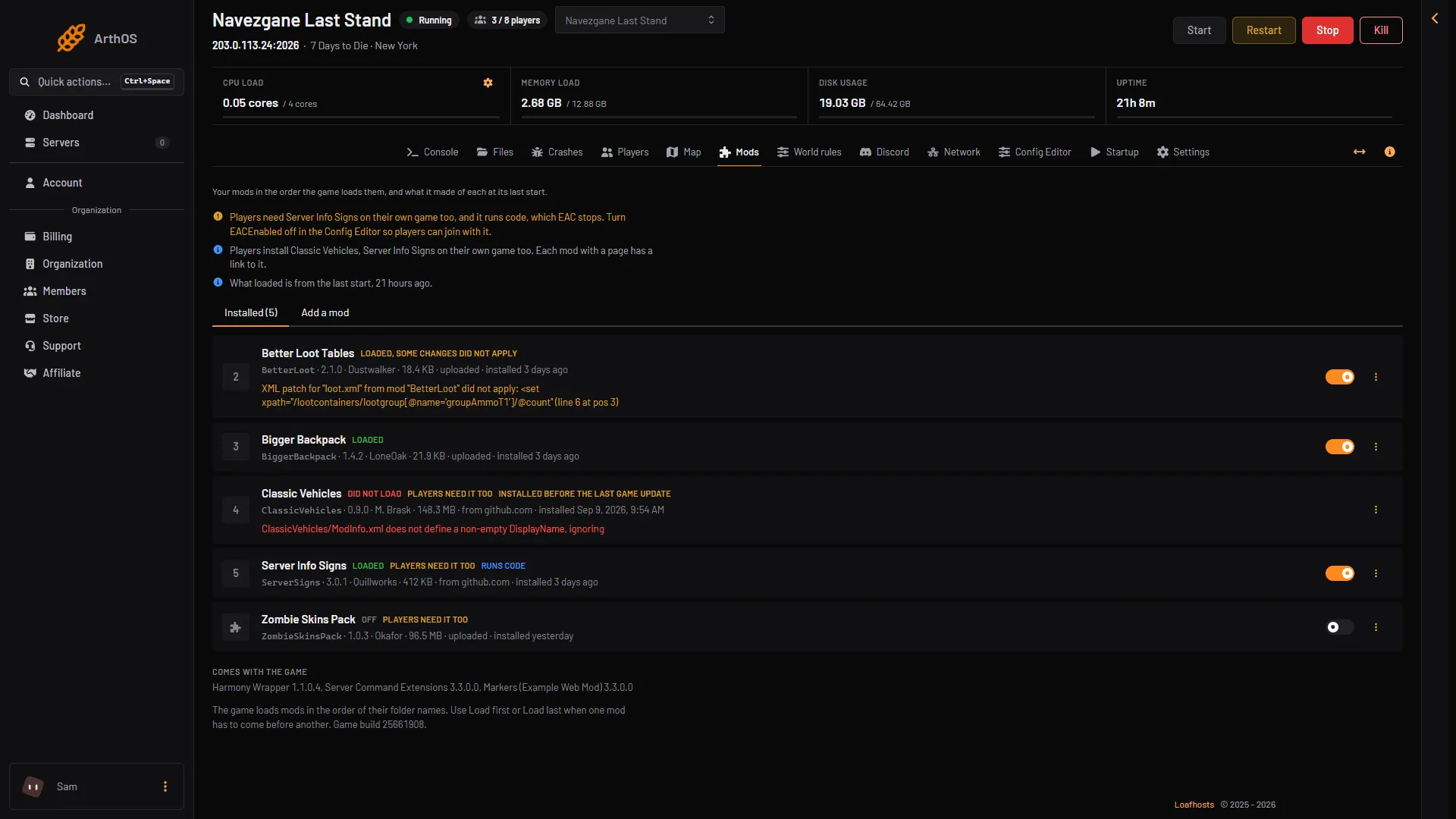
- Loaded, some changes did not apply
- Did not load
- Installed before the last update
Box 1 shows a mod that loaded in part, box 2 one that did not load, box 3 one installed before the last game update. The mods in the picture are demo data.
Update one mod
- Open the mod’s own page and look at its game versions. Download the newest file that names your server’s version. A mod that names an older version only will not be fixed by installing it again.
- On the Mods page, choose the Add a mod tab.
- Choose Upload an archive and pick the file, or paste a GitHub download into Download link and choose From a link.
- Choose Install and confirm. The server stops, the mod is unpacked into
Mods, and the server starts again if it was running. A mod with the same folder is replaced.
If the new archive uses a different folder name, the old folder stays. Choose Remove on the old one so only one copy stays.
When the server is back, check the chips again. Loaded is what you want.
Players update too
A mod that players need shows Players need it too. Each player installs the new version of that mod on their own game. Tell your players when you update.
Hold a version while mods catch up
After a game update, mod makers need time. You can keep the server on the version it has now.
- Open the Startup page.
- Set Update on start to 0 (1 is on, 0 is off), then choose Save. The server no longer checks Steam for a newer build when it starts.
Setting Update on start to 0 only stops the next update. It does not undo one that already happened. To go back, pin the older version (see Play an older 7 Days to Die version); a world played on the newer version may not load.
This is a choice with a cost. Players can only join with the same game version as the server. Players whose game updates through Steam will not match a server that stayed behind. For a version you want to keep on purpose, pin it in Game version instead. With Update on start at 1, the next restart fetches that version.
Set Update on start back to 1 when your mods have caught up.
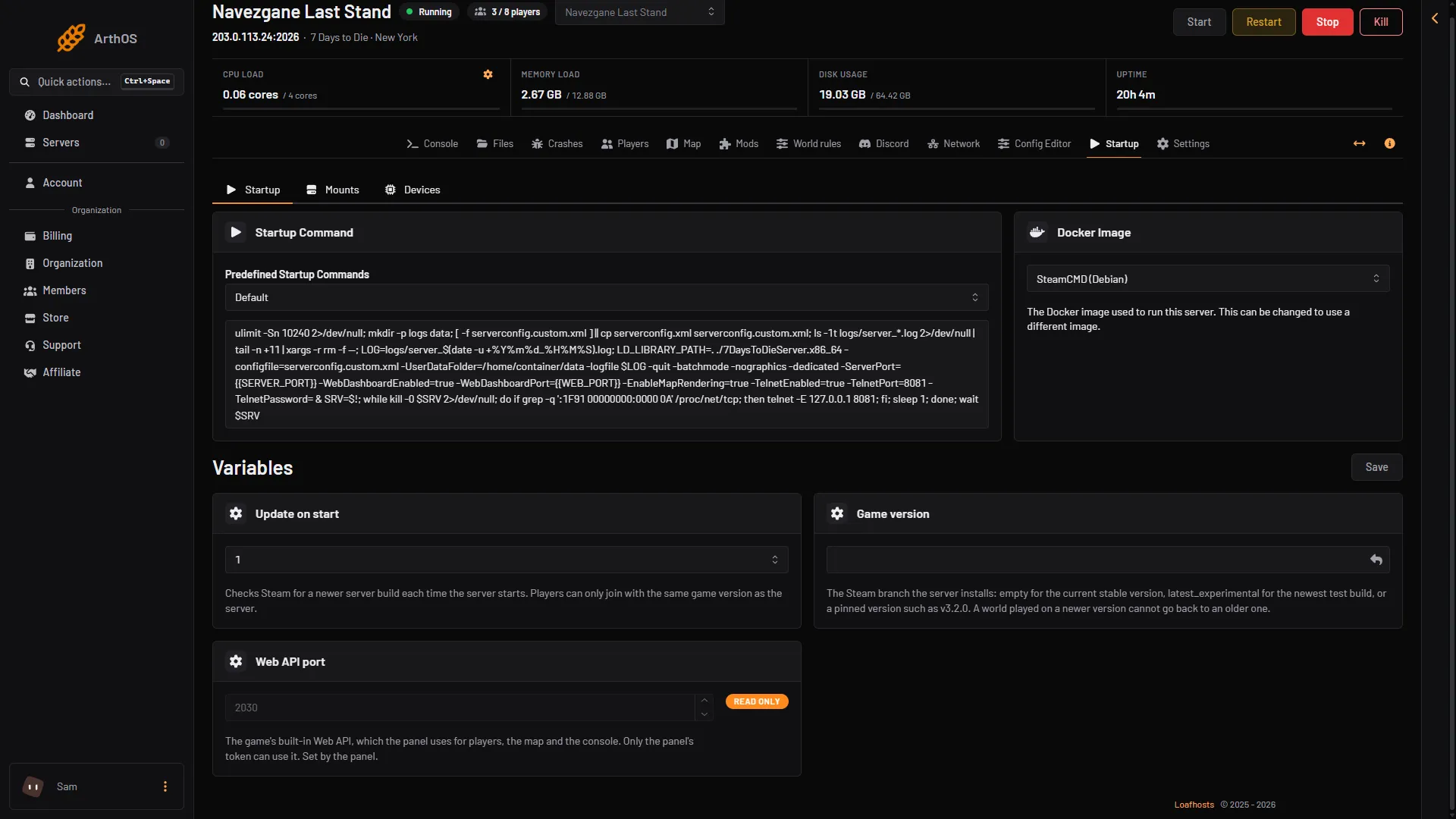
- Update on start
If it does not work
- The chip stays after the update. The new file is for the same old version. Look for a newer file on the mod’s page, or ask its maker.
- Players cannot join after you updated. Their game version or mod version differs from the server’s.
More about the game: 7 Days to Die servers.