









An overhaul mod changes much of the game at once: items, zombies, crafting, sometimes the map. Each one is made for one game version. Set the server to that version first, install the mod on the server, then have every player install it too. Most overhauls want a new world.
Read the mod’s page first
On the mod’s page, find three things:
- Game Versions. The page lists the version the mod is made for. At the time of writing, the page of The Asylum Overhaul lists “V3 Mods” and says “now updated for 3.3”. The Vikings Mod page lists “V3 Mods” and says “A5.2 UPDATE FOR VANILLA 3.3”. The Darkness Falls Mod page lists “V1 Mods” and “Alpha 21”.
- Server & Client Side. The pages of these three mods carry this label. Take it to mean that the mod is needed on the server and on each player’s game.
- The download. Some overhauls are very large. The Asylum Overhaul is listed at 17.4 GB.
If the page does not name a version, do not guess. Ask the mod’s maker, or choose a different mod.
A mod made for an older game does not run on the current version. Darkness Falls is listed for Alpha 21, so it is not a mod for V3.3.0. Not checked on V3.3.0 as of 19 October 2026: whether Steam still offers a server branch for that old version.
Step 1: Pin the server to the mod’s version
The current stable version is V3.3.0. If the mod is made for it, leave Game version empty. If the mod is made for another version that Steam offers as a branch, pin it:
- Open the Startup page.
- In Game version, type the branch name, for example
v3.2.0. Use the exact version the mod page names. - Keep Update on start at 1. At every start the server runs the Steam update for the branch in Game version.
- Choose Save at the top right of the variables.
- Choose Restart at the top of the server page. The change applies at the next start. You do not need to reinstall the server.
- When the server is back, open the Crashes page and read Game version to see which version it runs.
A world played on a newer version cannot go back to an older one. Take a backup first if you already play on this server. See Play an older 7 Days to Die version.
If Update on start is 0, a new Game version is not fetched at a start. Set it to 1 for one restart, or use Reinstall Server in Settings.
Players must run exactly the same game version as the server.
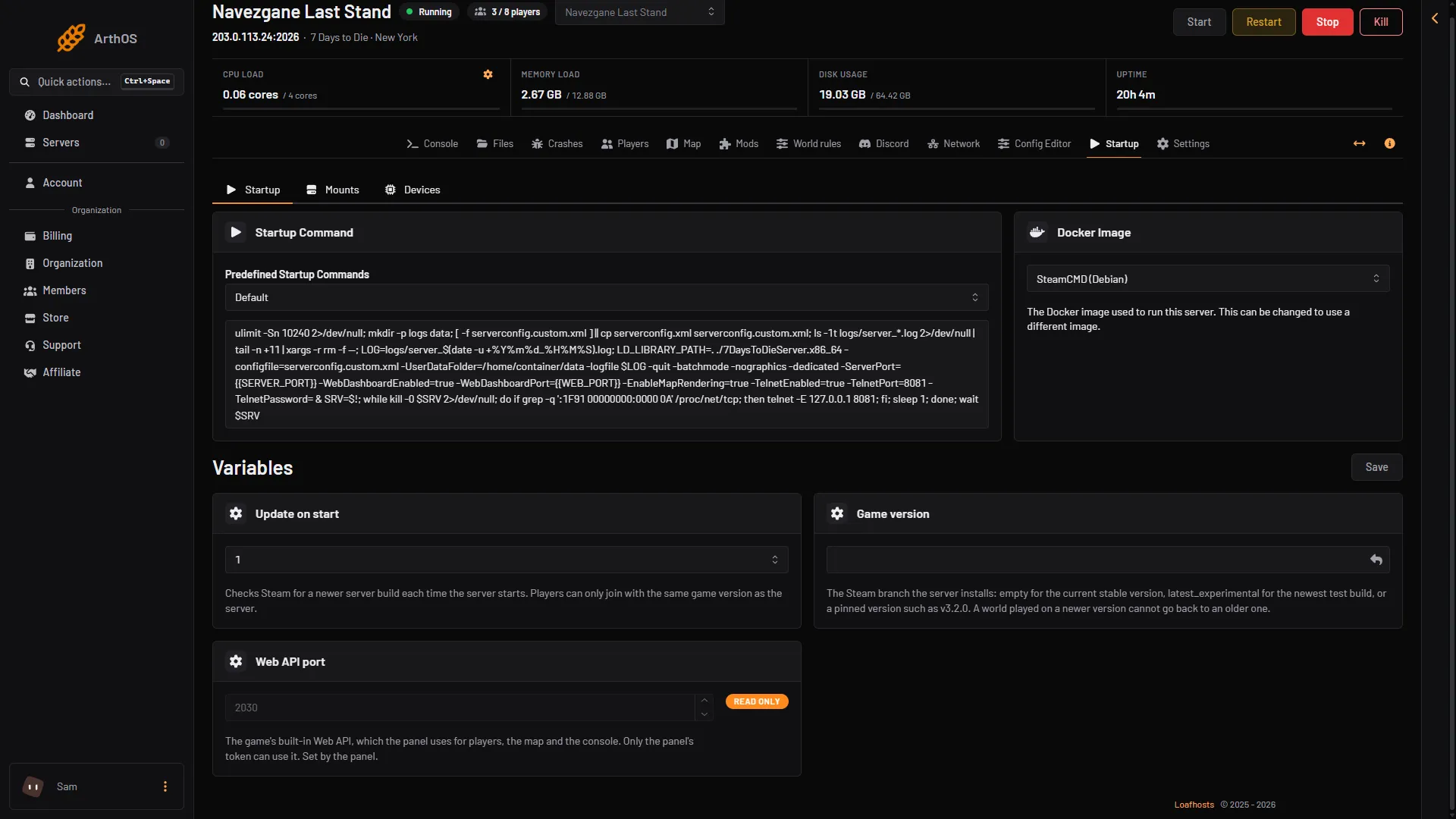
- Update on start
- Game version
The hint under Game version reads: “The Steam branch the server installs: empty for the current stable version, latest_experimental for the newest test build, or a pinned version such as v3.2.0.” Box 1 is Update on start, box 2 is Game version. Save with the Save button at the top right of the variables.
Step 2: Install the mod on the server
- Download the mod from its page. Some pages give a file; some link to the maker’s own download.
- Open the Mods page and the Add a mod tab.
- Choose Upload an archive and pick the .zip, .7z, .rar or .tar.gz file. Or paste a GitHub download into Download link and choose From a link.
- Choose Install, then confirm. The server stops, the mod is unpacked into
Mods, and the server starts again if it was running.
Some overhauls come as several folders. All of them go in Mods. See Install 7 Days to Die mods.
Step 3: Players install it too
Each player installs the same mod, at the same version, on their own game. The Mods page marks such a mod with the chip Players need it too. A mod that runs code is marked Runs code. Easy Anti-Cheat (EAC) stops code mods, so players cannot join until you turn Anti-cheat off in the Config Editor (the Mods page note calls it EACEnabled). With crossplay on, console players cannot join a server that runs mods.
Step 4: Start a new world
An overhaul usually changes items and blocks, and a save made without it may not fit. Use a new world unless the mod page says your old save works.
- Open the World rules page.
- In the World card, choose Change world.
- Pick the World. Type a new Save name. A new name starts a new save. The old save stays on the server.
- Choose Use this world, then restart the server.
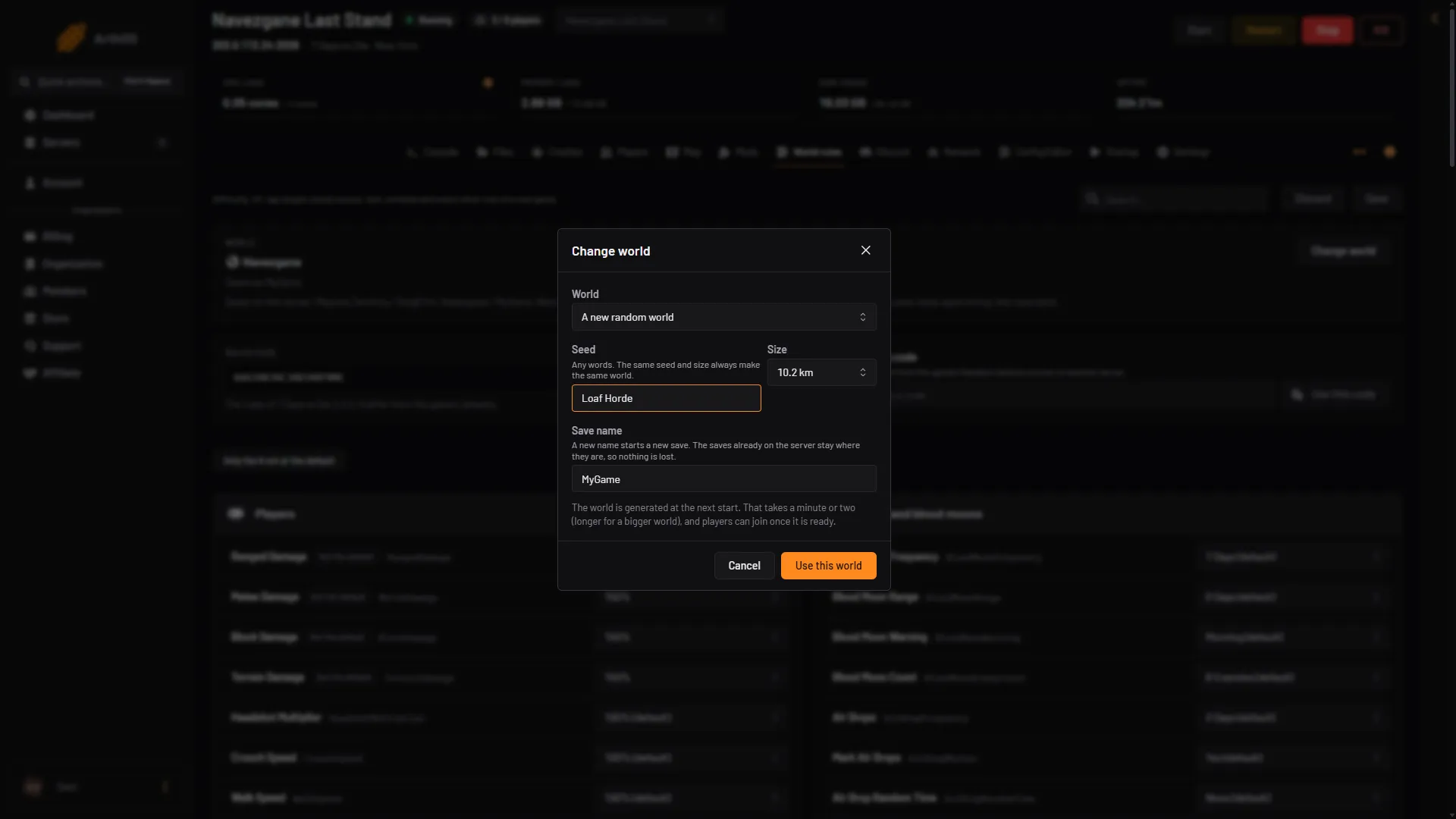
- World
- Save name
- Use this world
For a new random map, choose A new random world and give a Seed and a Size. The world is generated at the next start, and a big one takes a few minutes.
Give it more memory
Overhauls add many items and zombies, and use much more memory. If the server stops for using all its memory, its start on the Crashes page shows Crashed, Exit code 137 and Out of memory Yes. If that happens, remove mods that add many items or zombies, or move the server to a plan with more memory (Billing, the Services tab, the server’s Customize).
If it does not work
- Players cannot join. Their game version or mod version differs from the server’s. Compare both with the mod page.
- Players cannot join a server with a mod that runs code. Anti-cheat is on. Turn it off and restart.
- The Mods page shows Did not load. See Fix 7 Days to Die mod errors.
More about the game: 7 Days to Die servers.
Sources: 7daystodiemods.com: Darkness falls mod, 7daystodiemods.com: The asylum overhaul, 7daystodiemods.com: Vikings mod