









Open the Map page. It shows your whole world, the places in it, and where players, zombies and animals are right now. Land claims, trader grounds and bedrolls can be switched on as layers. Click a player to act on them.
In the panel
The first time
The panel draws the map from the world’s own files. The first time takes about a minute, and the page says “Drawing the map from the world’s files”. Leave it open. It fills in by itself.
If the server has never started, there is no world yet. Start it once. A new generated world can take several minutes. A generated world is drawn like any other. So is Navezgane, the game’s own map.
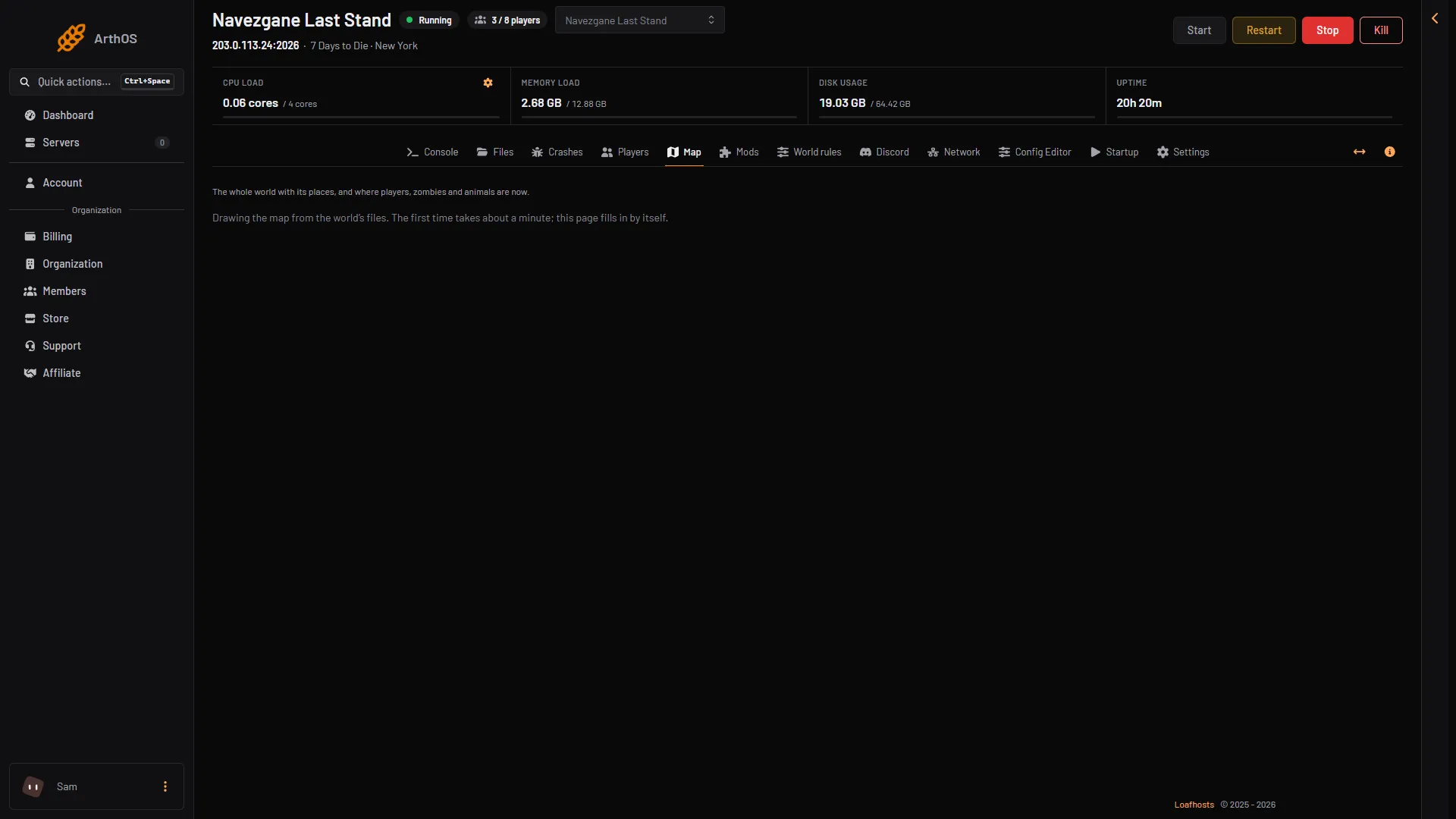
- Drawing the map
Read the map
Zoom with the mouse wheel and drag to move.
- Places are grouped, for example Traders, Homes, Military, Camps and Caves. Switch groups on or off. A place shows its name and its tier, the game’s difficulty level for that place.
- Zombies (N) and Animals (N) are layers. They update every few seconds while the server runs.
- Land claims shows the area each claim protects. The Land claims (N) list names each owner and allies.
- Expired land claims shows claims whose owner has been away longer than the claim’s expiry time. They no longer protect anything.
- Trader grounds shows the area around each trader where nobody can build or do harm.
- Bedrolls shows where players placed a bedroll.
A layer is offered only when there is something to show. A server with no claims has no Land claims layer.
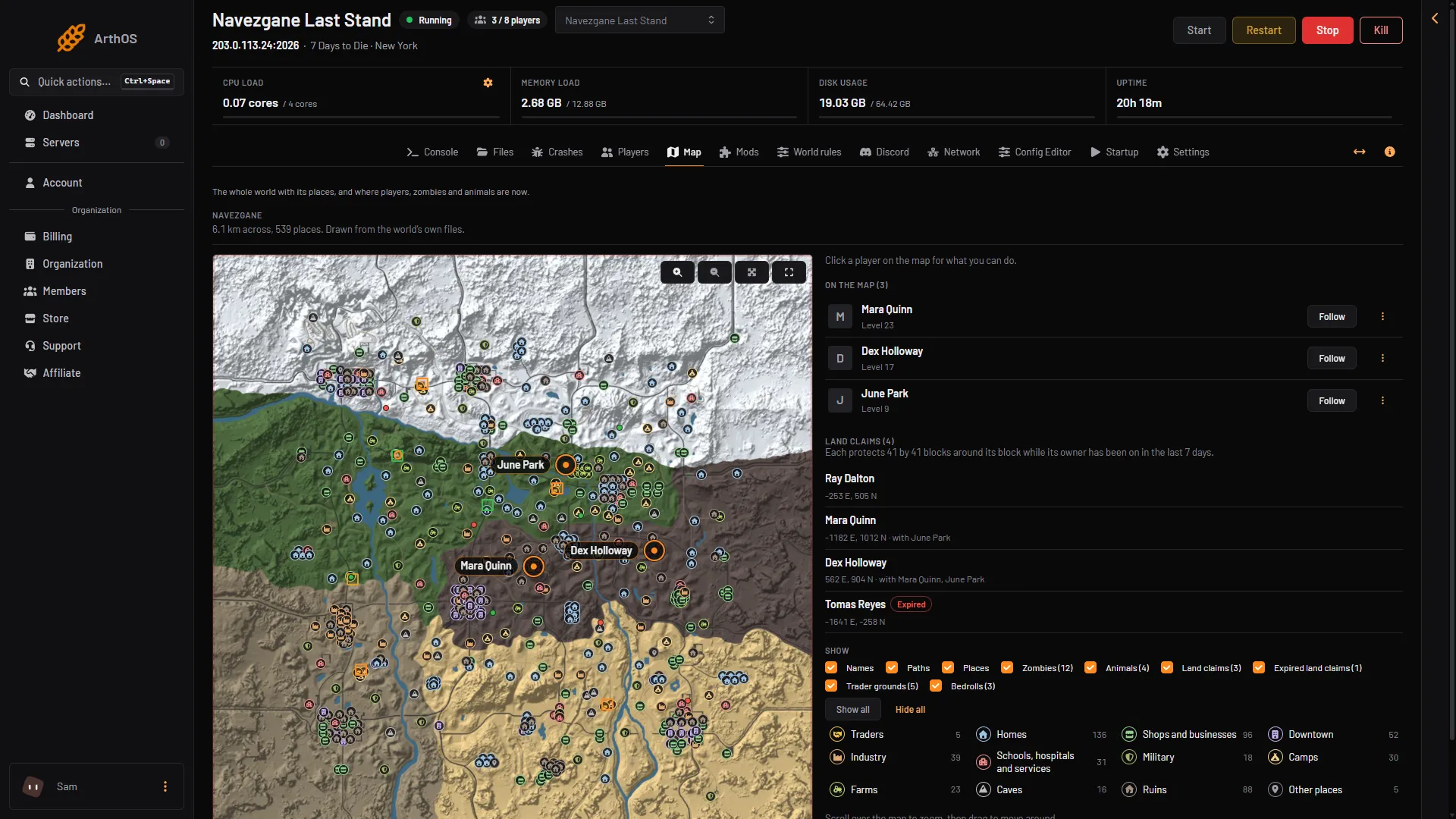
- Players on the map
- Land claims list
- Zombies layer
- Land claims layer
- Trader grounds layer
The list on the right is On the map. Its Follow button keeps the map on one player. The Show switches at the bottom turn each layer on or off. Show all and Hide all do them all at once.
The Land claims list
On the right, Land claims (N) lists every claim: the owner, the allies and where it is, as coordinates like “x E, z N”. A claim whose owner has been away longer than the expiry shows Expired. By default a claim protects 41 by 41 blocks around its block, and it expires after 7 days of its owner being away. The list shows the numbers your server really uses.
Act on a player
Click a player’s marker. A card opens with their level, health and place.
- Character opens their inventory and skills.
- Move: choose Pick a spot on the map, then click where to send them. The Teleport window opens with that spot filled in. Or choose Teleport to type the spot or send them to another player.
- In the game: Give an item, Message, Buffs.
- Moderate: Kick, Ban.
You see only the buttons your role allows. Moving, giving and messaging need the right to run game actions. Kick and ban need the right to moderate players.
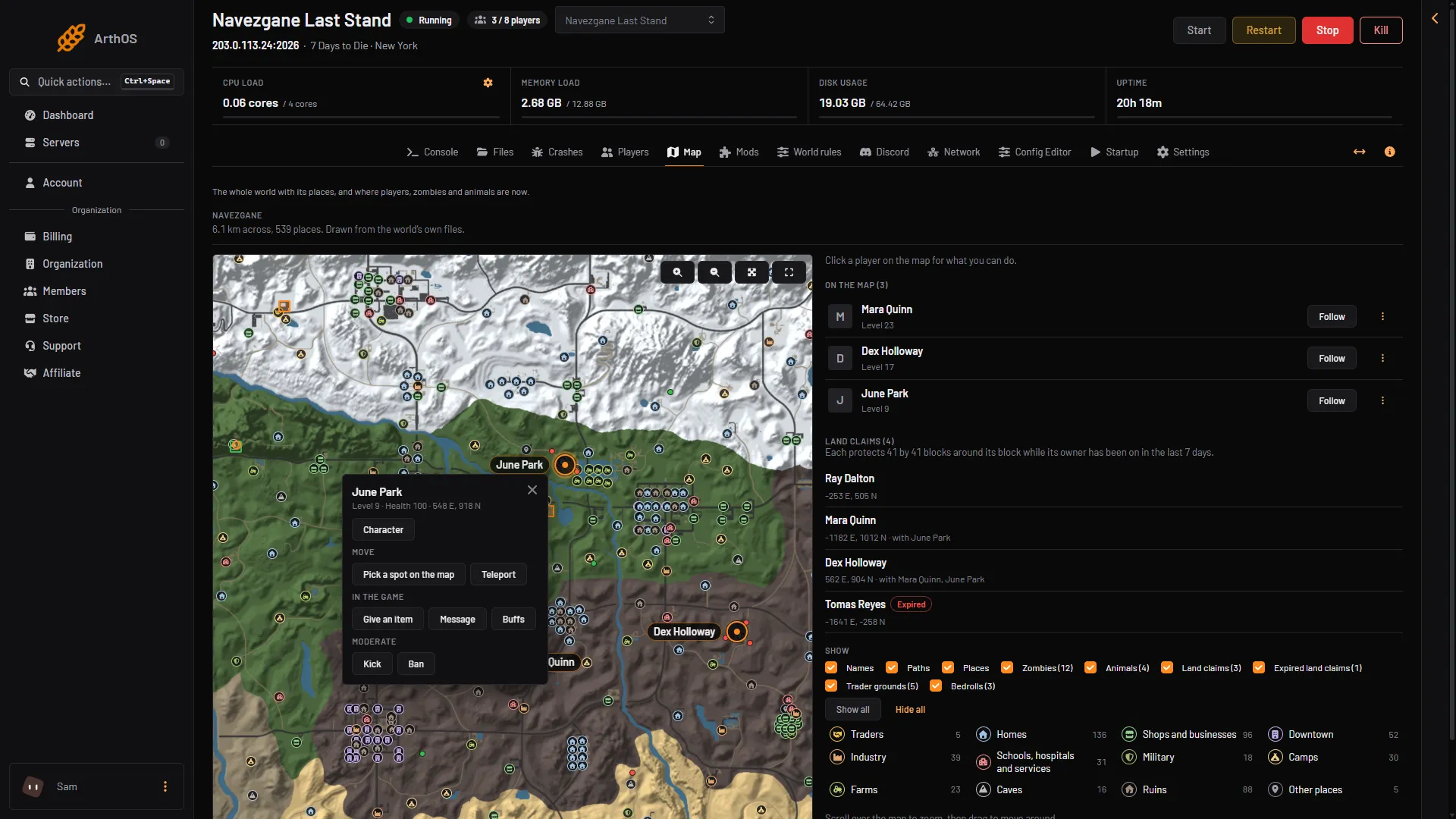
- Character
- Pick a spot on the map
- Give an item
- Kick
Who can see it
The Map page needs the live map permission. If you cannot see Map in the server’s pages, ask the server owner to add it to your role.
If it does not work
- “Nobody is online.” The map shows no players until someone joins.
- “The server is stopped.” Start it to see who is where. The world and the claims still show from the files.
- “The map could not be drawn. It is tried again in 10 minutes.” The panel could not read the world’s files. Wait and look again.
- A player is on the map but has no card. The card needs the right to see players.
More about the game: 7 Days to Die servers.