









Your server has five ports. Open the Network page to see them. Players type the game port with the address. The panel sets all five when it makes the server, so there is nothing to forward and nothing to open.
The five ports
The numbers come in a row. A new server gets five ports in a row between 26900 and 27299. If the game port is 26900, the others are 26901, 26902, 26903 and 26904. Your own numbers can be different, because each server gets its own row of five.
On the listed V3.3.0 staff server we measured this: the game listened on the game port (TCP and UDP) and on the game port plus 2 (UDP). The game port plus 1 and plus 3 were not open. The panel’s Web API was on the fifth port (TCP). Telnet was on the server itself only (127.0.0.1, port 8081).
| Port | Protocol | What it is for |
|---|---|---|
| Game port | TCP and UDP | Players connect here. It is the port in the address you give players. |
| Game port plus 2 | UDP | Used by the game. |
| Web API port (the fifth) | TCP | Used only by the panel. |
The ports in between are kept for your server too, so leave all five as they are.
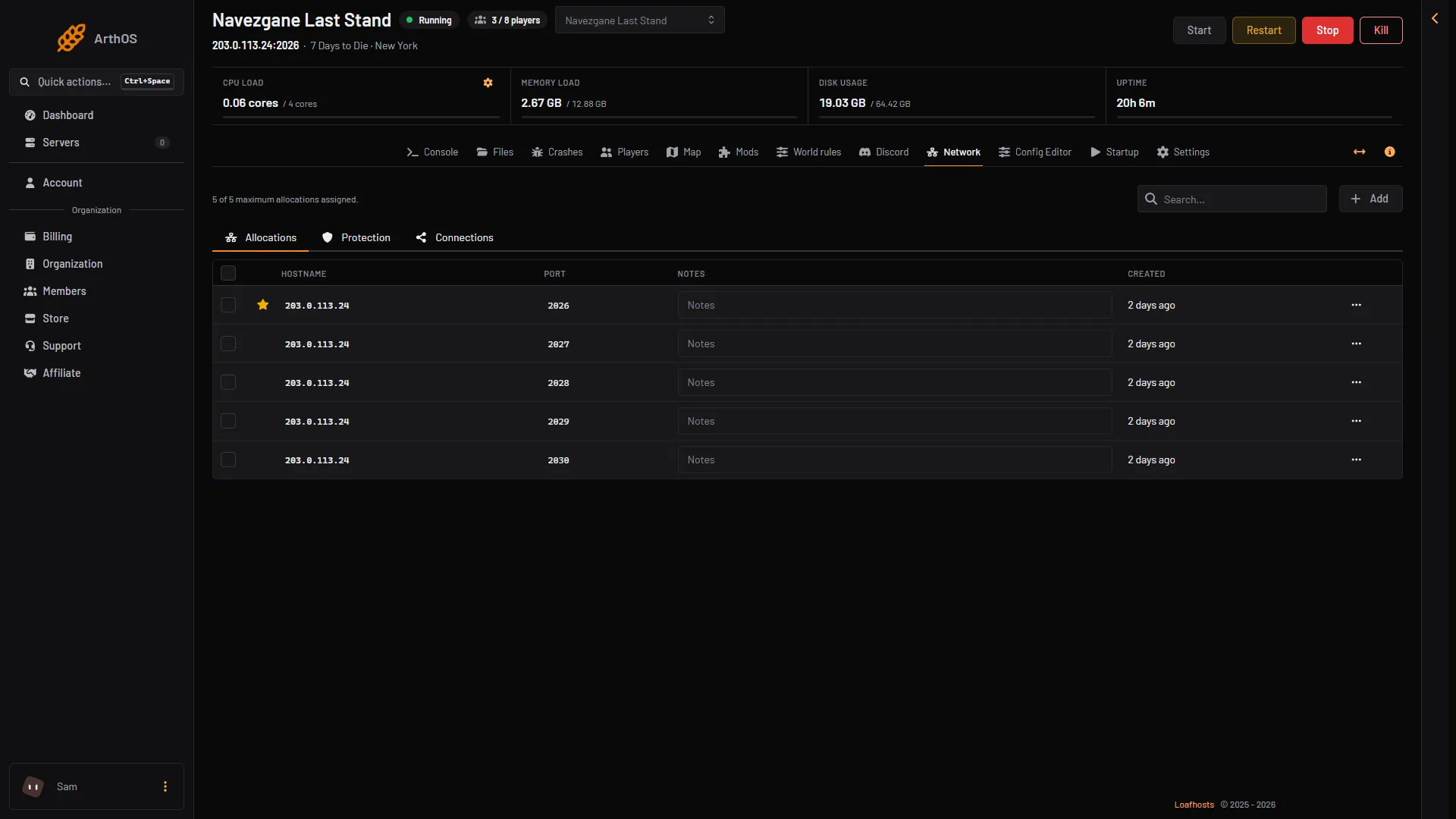
- Game port, starred
- Second game port
- Third game port
- Fourth game port
- Web API port
The pictures are of a staff server whose ports are 2026 to 2030. A new Loafhosts server gets ports between 26900 and 27299.
The first port (box 1) is starred. It is the game port, the one players use. The next three (boxes 2 to 4) are kept for the game. The fifth (box 5) is the panel’s Web API port. It also shows on the Startup page as Web API port.
Players type the game port after the address when they use Connect to IP. The Players page shows the full address in the card Joining, ready to copy. See connect to a 7 Days to Die server.
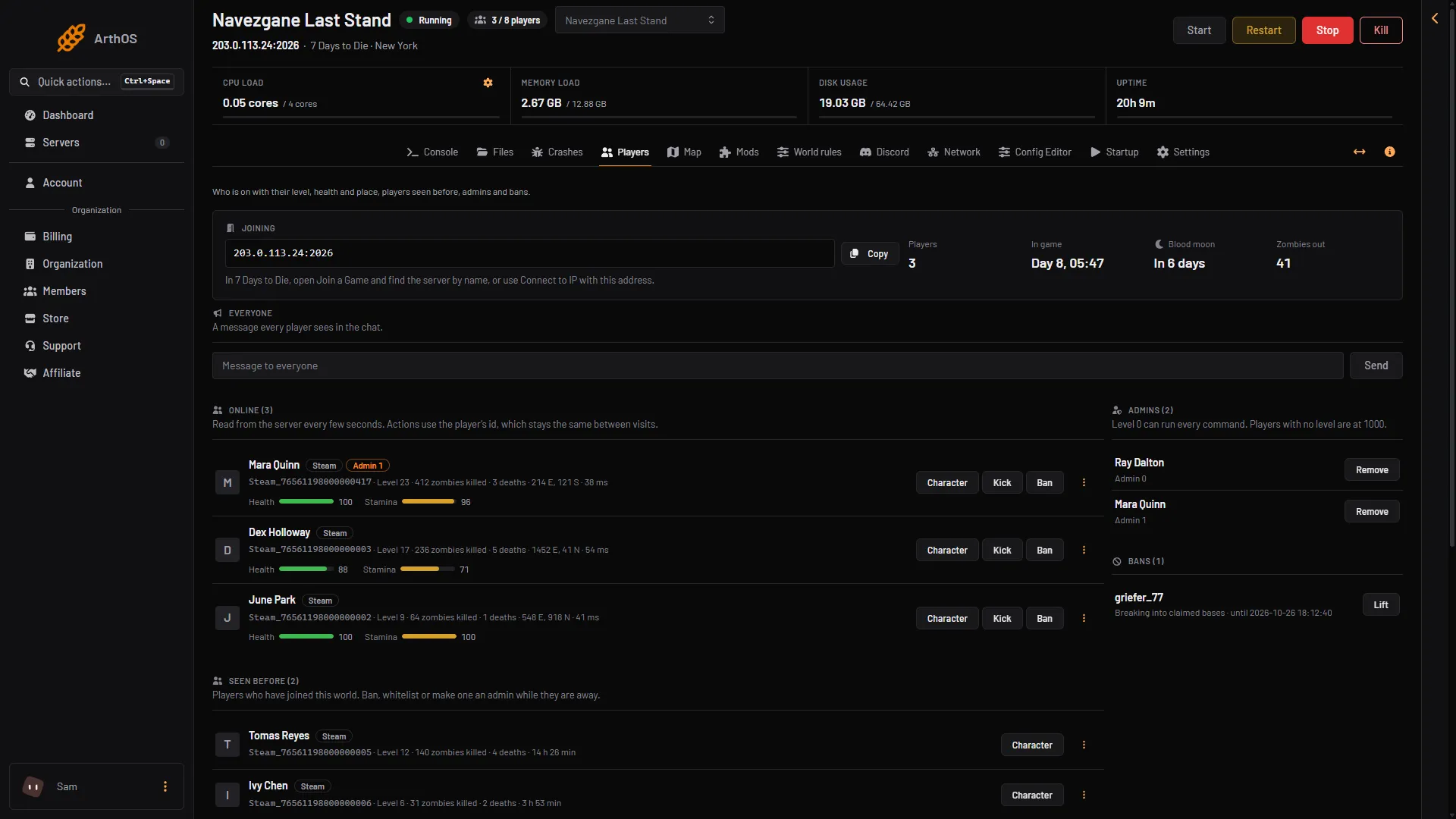
- Joining
- Copy
The Web API port
The panel reads your players, the map and the console through the game’s Web API. This is the fifth port. Only the panel’s own key can use it. It is not a page for players or for you, and there is no password to find. Do not give it to anyone.
Telnet and the Web dashboard
The game has a telnet console and a Web dashboard of its own. On a Loafhosts server:
- Telnet runs on the server itself only. The panel’s Console page uses it. It cannot be reached from outside.
- The Web dashboard is not a page you open. The panel turns it on for its own use, on the Web API port.
You do not need either from outside. Use the Console page. See 7 Days to Die Web dashboard and telnet.
When you host it yourself
These are the game’s defaults in its settings file:
ServerPortis 26900. Open 26900 on TCP and UDP, and 26902 on UDP (the game port plus 2, as measured above).WebDashboardPortis 8080 andTelnetPortis 8081.- Telnet listens on the local machine only unless you set a telnet password. That is the game’s own comment.
Why the game port is locked in the Config Editor
The game’s settings file has a ServerPort line, and the Config Editor shows the row locked. The panel starts the game with the port on the start line, and the start line wins over the file. A number typed in the file would show a port that is not the one in use. So the row cannot be edited. The game’s own comment on it reads: “Port you want the server to listen on.”
The same is true for the Web dashboard, telnet and map rendering rows. The panel sets them.
Protection
7 Days to Die has no game filter at the network edge. The Protection tab beside Allocations on the Network page has nothing game specific for it.
If it does not work
- Players cannot connect. Check that they use the game port and the address from the Players page, and that the server is running. See 7 Days to Die cannot connect.
- You want to change the game port. It cannot be edited. The panel chooses the ports when the server is made.
- The web dashboard address does not open. It is not meant to. The panel is the only user of that port.
More about the game: 7 Days to Die servers.
Sources: 7daystodie.wiki.gg: Server