









Most join failures on a 7 Days to Die server have one of nine causes. Decide first who is refused:
- Everyone is refused: check 1, 2 and 3.
- One player is refused: check 2, 4, 5, 7, 8 and 9.
If none of them fits, ask support.
1. The server is not running
A server nobody has played on for 3 days stops by itself (Standby in Settings). Players then see no server until it is started. Start it, or use its Wake link.
If the Players page says “The server is stopped”, choose Start at the top of the server page.
A new server on the Navezgane map is ready about 30 seconds into its first start. A new random world is generated at its first start and takes minutes. The server is ready when the Console shows INF StartGame done. Until then players cannot join.
2. The versions do not match
The player and the server must run the same version. This is the most likely cause right after a game update. Read 7 Days to Die version mismatch.
3. The address or port is wrong
Open the Players page. The Joining card (1) shows the address to use. It always ends in a port after a colon. Choose Copy (2). In the game, open Join a Game and find the server by name, or use Connect to IP. Put the part before the colon in the address box and the number after it in the port box. Do not type the address from memory or from an old message.
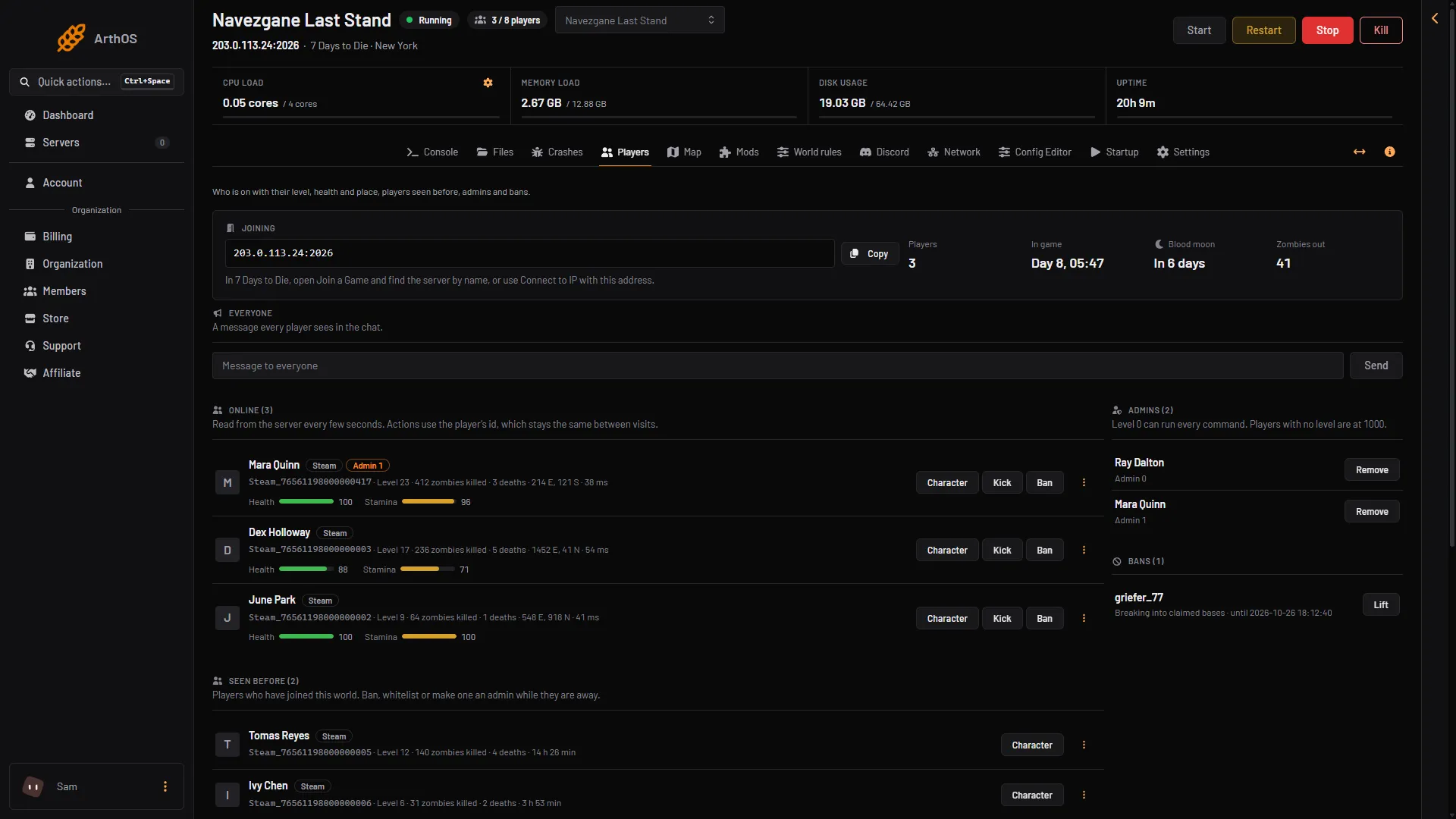
- Joining
- Copy
- Bans
- Lift
The panel picks the ports for you. A new server gets five ports in a row between 26900 and 27299, and the first one is the game port. See 7 Days to Die server ports.
If the server does not appear in the list, it may not be listed. In the Config Editor, the row Listed (ServerVisibility) has three values: Public, Friends only and Not listed. A new server is Public. With Not listed, players join with the address only. See server not showing.
4. The password is wrong
If a Join password (ServerPassword) is set in the Config Editor (group Server), players must type it. Empty means an open server, and a new server has none. The field is hidden: use its reveal button to read the password and its copy button to send it. A saved change applies after a restart. See set a server password.
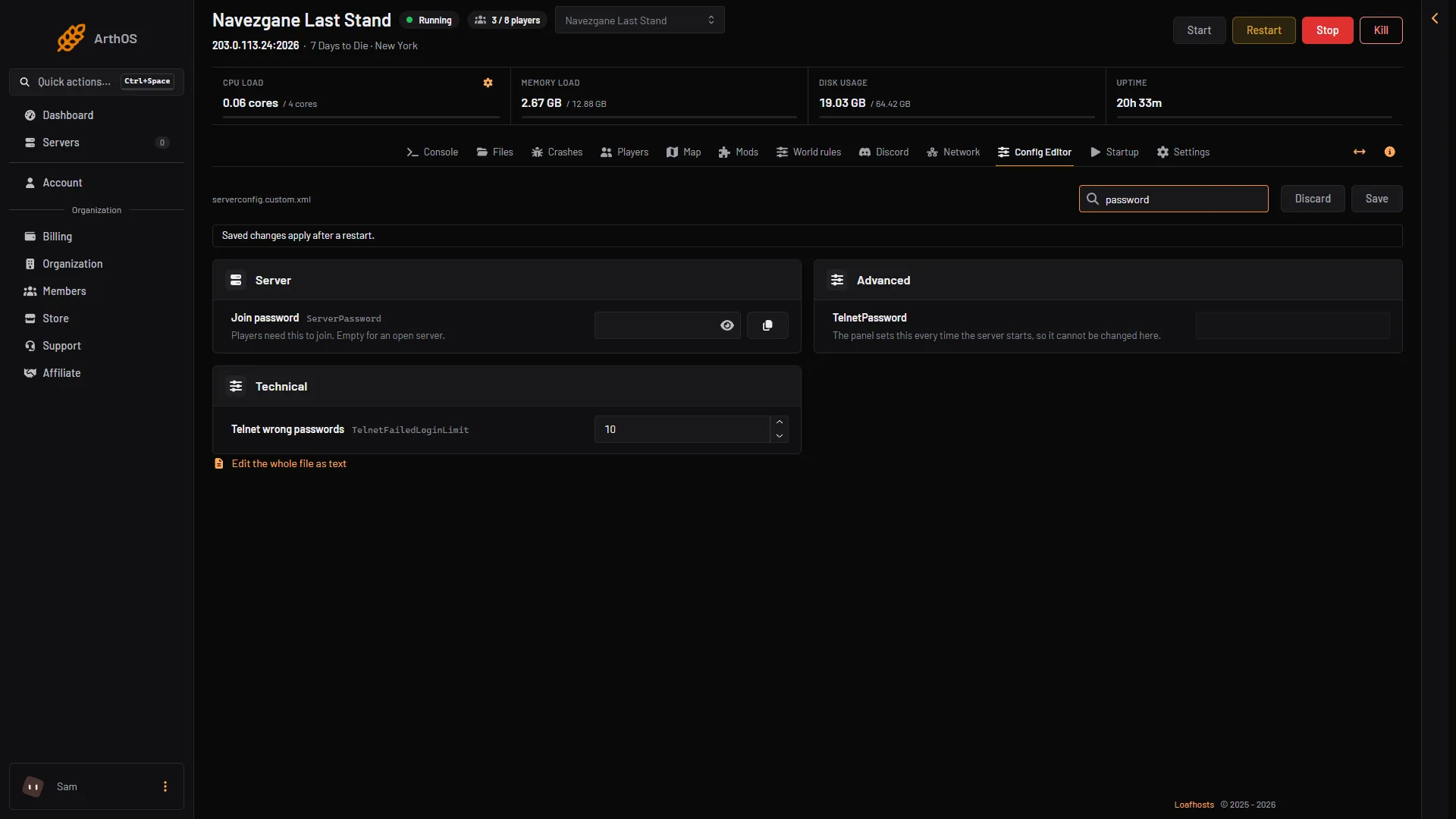
- Join password
5. The server only lets listed players in
The first whitelist add turns whitelist-only mode on at once. From then on only listed players and admins can join. The game’s own file says: nobody can join that is not in the whitelist or admins. To see the list, type whitelist list on the Console. To remove an entry, type whitelist remove <id>, where <id> is the player’s platform id as the Players page shows it, such as Steam_<SteamID64>. See the whitelist guide.
6. The server is full
Maximum players (ServerMaxPlayerCount, group Slots) is 8 on a new server. That is the game’s own default, whatever size you bought. Raise it (1), or use Admin slots (ServerAdminSlots) so admins can still join a full server. With Crossplay (2) on, the game allows 8 at most. See change the max players.
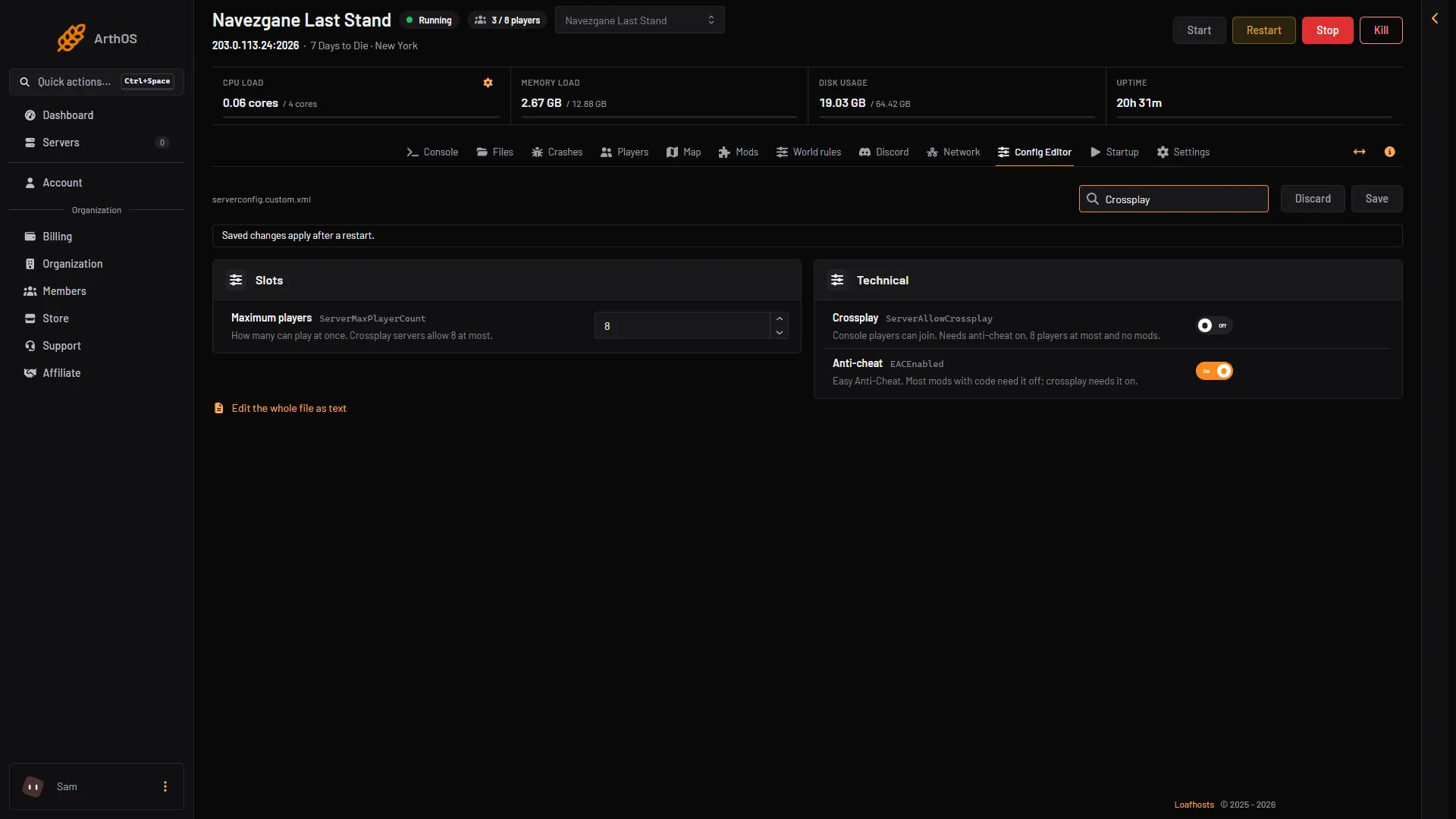
- Maximum players
- Crossplay
7. The player is banned
On the Players page, find Bans (N) on the right (box 3 in the first picture). A banned player is listed there. Choose Lift (box 4) to let them back in. See ban and kick players.
8. Mods
Open the Mods page. A mod marked Players need it too must be installed by every player. A mod marked Runs code needs Anti-cheat (EACEnabled) off. In the Config Editor, Anti-cheat is Easy Anti-Cheat (EAC). Turn it off only if a mod with code needs it. Crossplay needs it on. See the guide on crossplay.
9. Crossplay and console players
Crossplay needs Anti-cheat on, 8 players at most and no mods. With crossplay on, console players cannot join a server that runs mods. A crossplay server also refuses players who have an Epic Online Services ban, unless Ignore Epic bans (IgnoreEOSSanctions) is on.
Where to look
- Players: Online (N) lists who is in. Seen before (N) lists who joined this world earlier.
- Console: the game’s log. It records a player’s ID when they log in.
- Crashes: if the server stopped, the last start is read there. See 7 Days to Die server crash.
If it does not work
- The Players page says the server is stopped. Choose Start at the top of the server page, then wait for
INF StartGame doneon the Console. - Nobody can join and the server is Running. Check cause 2 and 3, then ask support.
More: 7 Days to Die servers.
Sources: 7daystodie.wiki.gg: Server