









If everyone is refused after a game update, choose Restart at the top of the server page. Update on start is 1 on new servers, so the server fetches the new build as it starts. If only one player is refused, their Steam branch differs from the server’s.
A player can only join when their game and the server run exactly the same version of 7 Days to Die. If they differ, the game refuses the join. This guide finds the server’s version, then brings the server or the player to the same one.
What the game says
On an older version of the game, a refused player saw this text:
SERVER DISCONNECTED YOU: Game Version Mismatch: you have "Alpha 21.1" and server has "Alpha 21"
That text comes from a player’s report on Steam. Not checked on V3.3.0 as of 19 October 2026: the exact wording on this version. The cause is the same. The two versions differ.
Find the server’s version
Use any of these:
- Open the Crashes page and choose the latest start. The field Game version (box 3 in the picture below) shows the version that start ran, for example
V 3.3.0 (b18). The number at the bottom of the Mods page, such as “Game build 25661908”, is a Steam build number, not the version name. - Open the Console. At the top of each start the log has a line like
INF Version: V 3.3.0 (b18) Compatibility Version: V 3.3.0, Build: LinuxServer 64 Bit. - On the Console, type
version. The game prints the running version and the loaded mods.
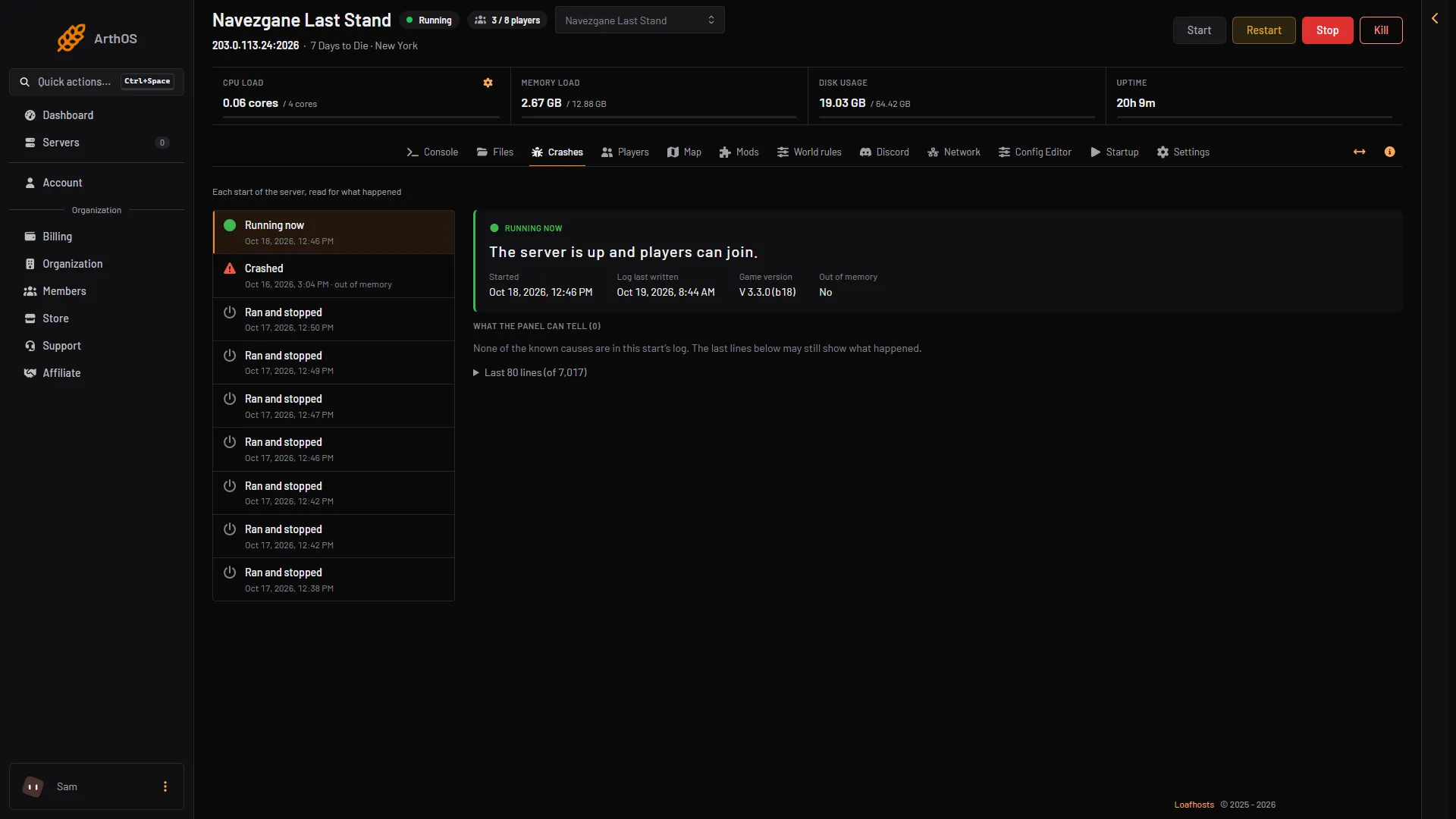
- Running now
- Started
- Game version
Find the player’s version
The player opens Steam, right-clicks 7 Days to Die, chooses Properties, then Betas. The branch chosen there is the player’s version. A player on a test branch such as latest_experimental runs a different version from a server on the stable one.
Make the server match the player
Open the Startup page. Two variables decide the server’s version:
- Update on start (box 1):
1runs the Steam update at every start. It is on for new servers. - Game version (box 2): the Steam branch the server installs. Its hint says: “The Steam branch the server installs: empty for the current stable version, latest_experimental for the newest test build, or a pinned version such as v3.2.0. A world played on a newer version cannot go back to an older one.”
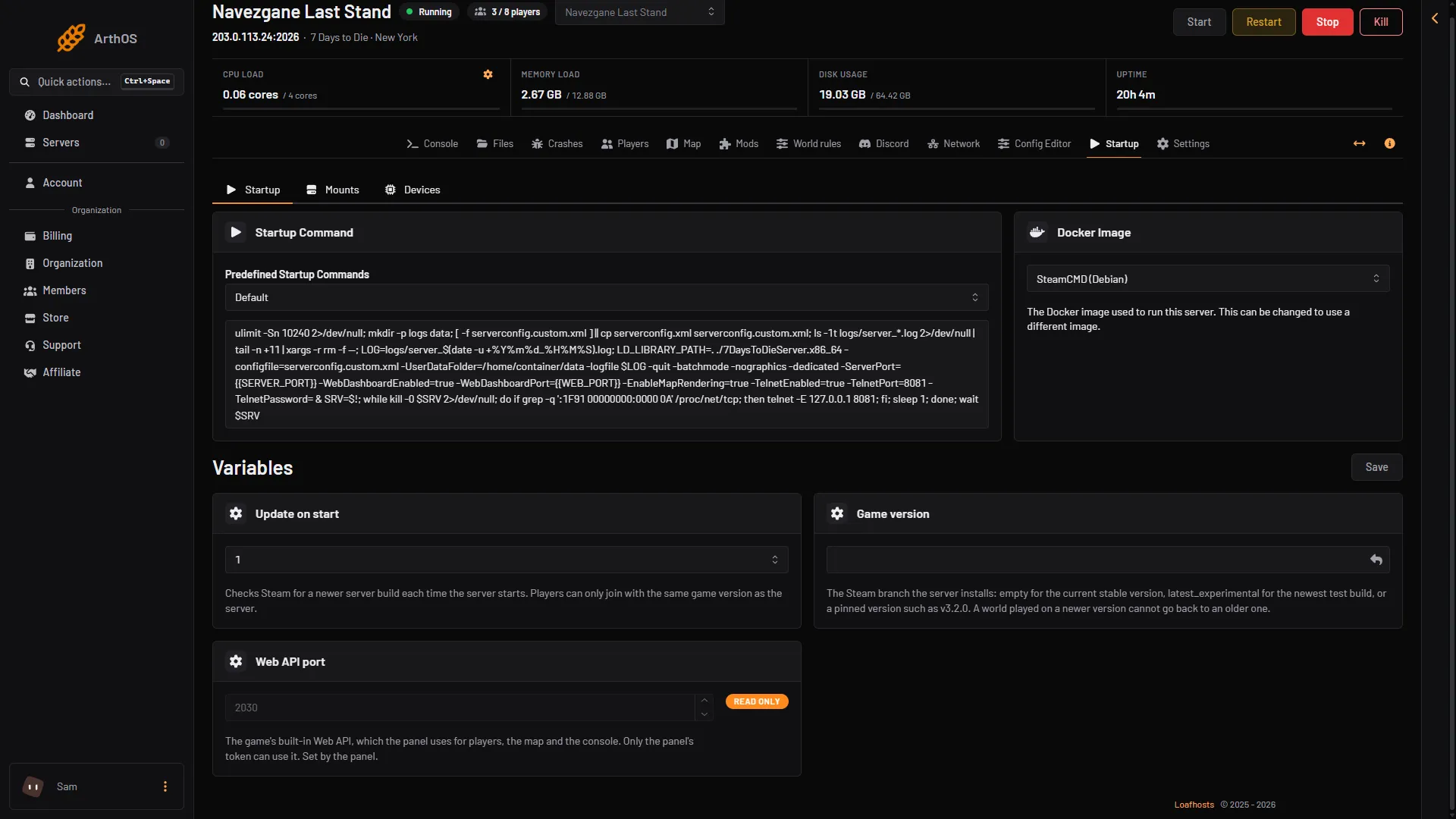
- Update on start
- Game version
To move the server to a version, set Game version (for example v3.2.0, or empty for the current stable version), choose Save at the top right of the variables, keep Update on start at 1, and choose Restart at the top of the server page. No reinstall is needed. Then read Game version on the Crashes page.
With Update on start at 0, a new Game version is not fetched at a start. Set it to 1 for one restart, or use Reinstall Server. See update your 7 Days to Die server.
Going back to the stable version: empty Game version, Save, Restart, then check Game version on Crashes. Not checked on V3.3.0 as of 19 October 2026: whether Steam leaves a pinned version on a restart alone. If the old version still shows, use Reinstall Server.
If the player runs an older version on purpose, set Game version to that pinned version. See play an older 7 Days to Die version.
Make the player match the server
- In Steam, right-click 7 Days to Die and choose Properties, then Betas.
- Pick the branch that matches the server: None for the stable version, or the same pinned version.
- Wait for Steam to finish updating, then join again.
If it does not work
- The server still shows the old version after a restart. Check Update on start is
1and Game version is empty or the version you want. Read the version again from the Crashes page. - Only one player is refused. Their branch in Steam differs from the others. Fix theirs.
- The versions match and the join still fails. Mods can also differ. See cannot connect.
More: 7 Days to Die servers.
Sources: steamcommunity.com: 6812310007733978155, 7daystodie.wiki.gg: Command Console