









Restart the server. On a Loafhosts server, the Update on start variable is 1, so it checks Steam for a newer build at every start and installs it. There is no separate update button. The current stable version is V3.3.0 (build b18), released on 5 October 2026.
Players must run exactly the same version as the server. The panel says it on the variable: “Players can only join with the same game version as the server.”
Update the server
- Make a backup first. If the server runs, type
saveworldon the Console first: the panel does not save a 7 Days to Die world before a backup. Open Settings, then the Backups tab. Choose Create (1), then Create Backup (2). The tab shows how many backups you can keep. A manual backup at the limit is refused, so delete one you no longer need first.
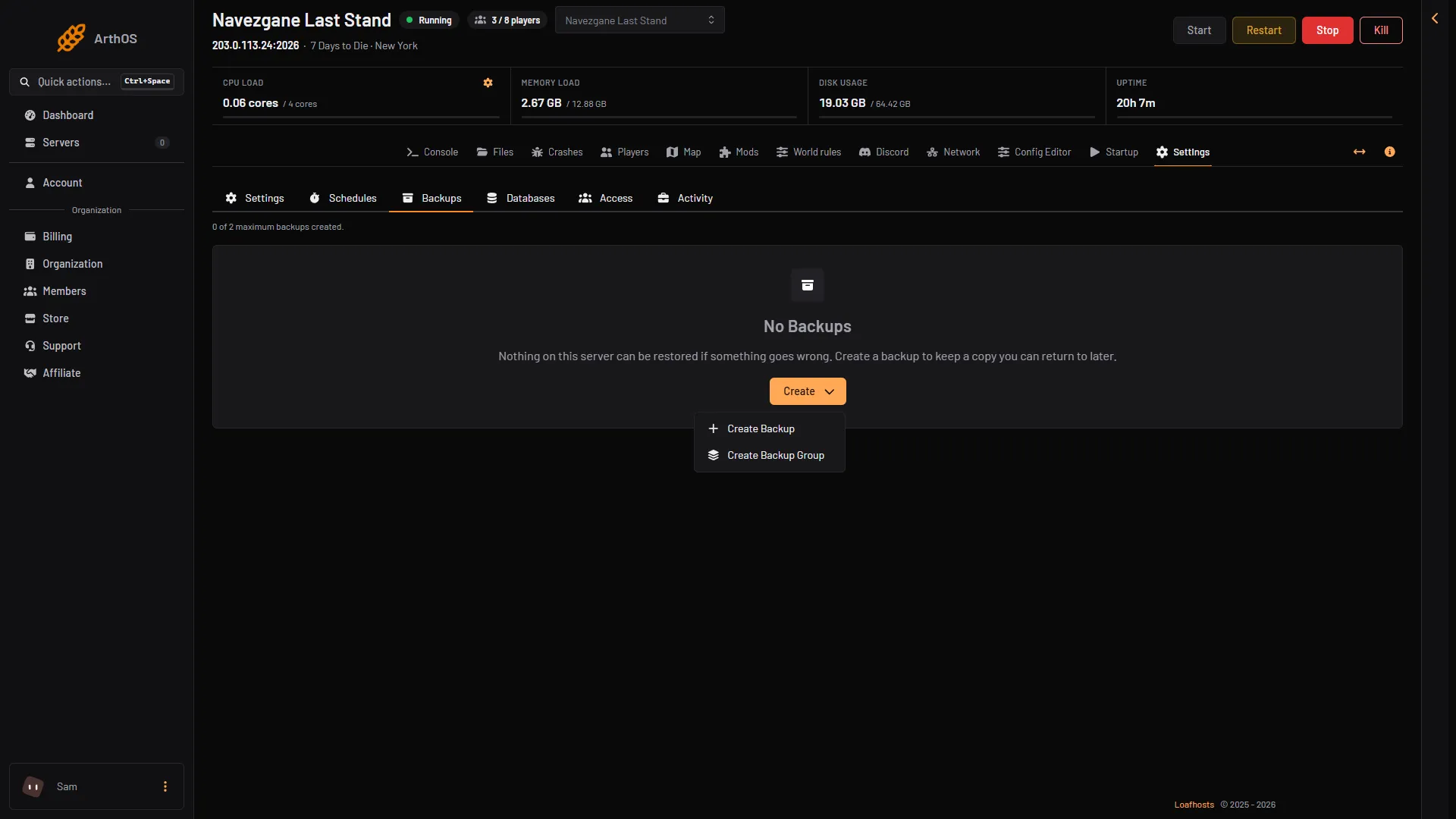
- Create
- Create Backup
- Open the Startup page. Check that Update on start (box 1) is set to
1. Also check that Game version (box 2) is empty. Empty means the current stable version.
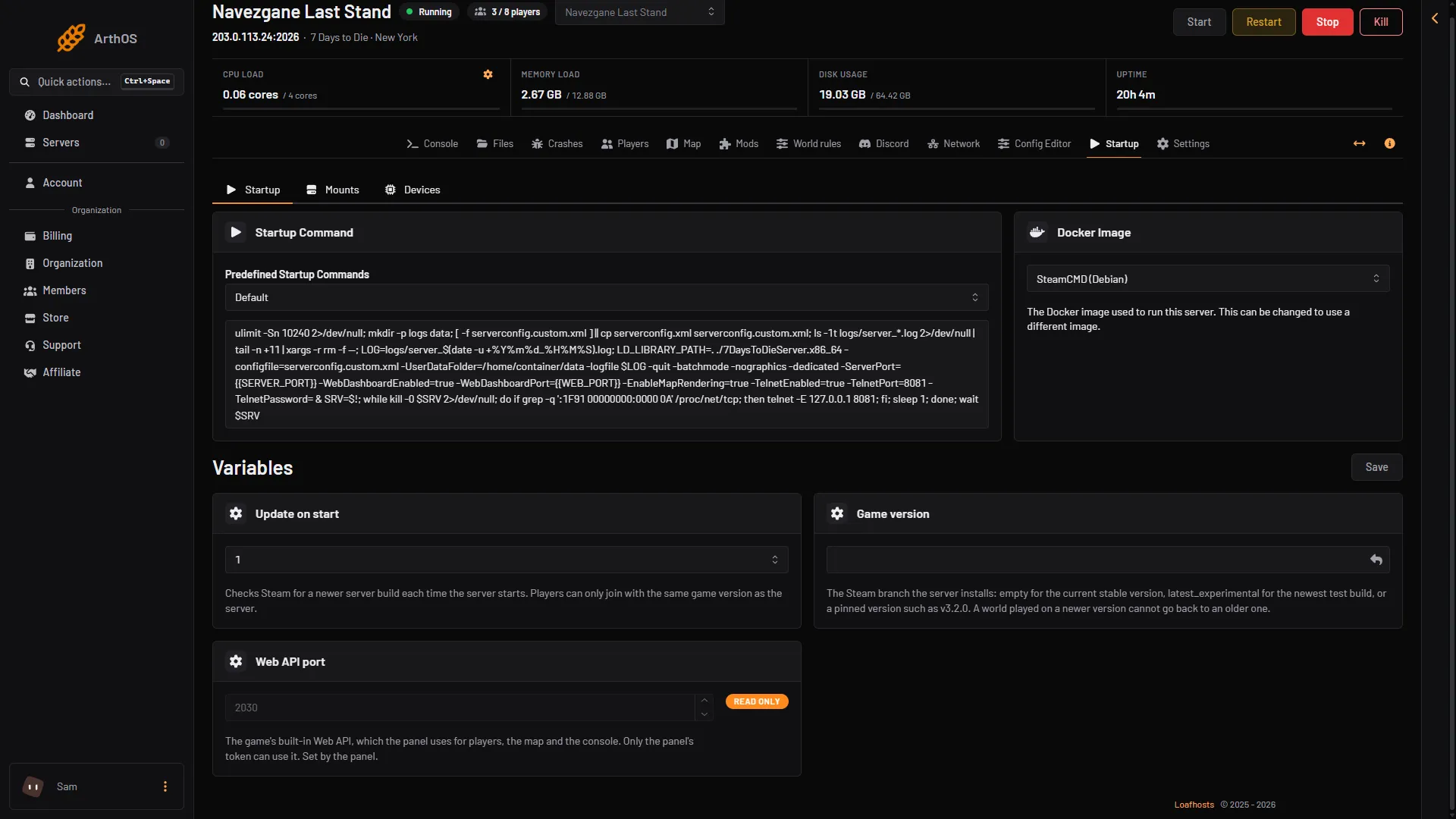
- Update on start
- Game version
- Tell your players with Message to everyone on the Players page. A restart drops every player. Then choose Restart at the top of the server page. See Restart a 7 Days to Die server.
- Wait while the server starts. It downloads the new build first, so this start takes longer than usual.
- Open the Crashes page and read Game version to see the version the server runs.
- Open the Mods page and look at the Installed tab. Check every mod, see below.
- Ask your players to update their game in Steam, then join.
Which version does the server install?
The Game version variable decides. The panel describes it like this: “The Steam branch the server installs: empty for the current stable version, latest_experimental for the newest test build, or a pinned version such as v3.2.0.”
- Empty: the current stable version. This is what most servers want.
latest_experimental: the newest test build. Players need the same experimental build.- A pinned version such as
v3.2.0: the server stays on that version. See 7 Days to Die older game version.
A new Game version is applied at the next start. With Update on start at 1 you only need Save and Restart. No reinstall is needed. With Update on start at 0, a new Game version is not fetched at a start: set it to 1 for one restart.
After a big update
Mods. A major update can break mods. Open the Mods page. A mod with the chip Installed before the last game update was put on the server before this build. Check that its page says it works with your version. See Update 7 Days to Die mods. Remove or turn off a mod that fails. The note at the bottom of the Mods page shows a Steam build number. It is not the version name. Read the version on the Crashes page, Game version.
World rules. The Fun Pimps (TFP), who make the game, warned with version 3.1.0 that an update can change the Sandbox Options. Some options were split in two, so an old preset code could be invalid. TFP wrote: “Invalid codes may default some or all settings.” After a big update, open the World rules page and check your rules against the Rules code. Rules you saved apply at the next start.
Players cannot join. If they see a version mismatch, one side is on another build. See 7 Days to Die version mismatch.
Will an old world load on a new version?
TFP’s notes for earlier updates were careful about it. For version 2.3 they asked players to make a backup of their save before starting. For version 2.5 they said the build is compatible with 2.x saves, but that they recommend a new game for the best experience. Not checked on V3.3.0 as of 19 October 2026: whether a world from before V3.0 loads on V3.3.0. Always keep the backup.
By hand
On a server of your own, use SteamCMD. The server is Steam app 294420 and installs without an account:
steamcmd +force_install_dir <folder> +login anonymous +app_update 294420 validate +quitThat installs the stable version. For a pinned version, add -beta v3.2.0 before validate.
If it does not work
- The server did not update. Check that Update on start is 1 and that Game version is not pinned to an older version.
- The update seems stuck. The start downloads the new build first. Wait, then look at the Console output.
- A mod stopped loading. The Crashes page reads the last starts. It reports “A mod could not be loaded” and “A mod’s changes did not apply”.
- You want the old version back. Set Game version to the older version, Save, and choose Restart, then restore the backup. A world saved on a newer version cannot go back. See 7 Days to Die older game version.
More about the game: 7 Days to Die servers.
Sources: store.steampowered.com: 251570