






Open the Players page, find the player, open the menu on their row, and choose Kick to remove them or Ban to keep them out. A kicked player can join again. A banned player cannot until the ban ends or you lift it. The player sees your reason.
The server must be running to kick or ban. You need permission to moderate players.
In the ArthOS panel
Kick
- Open Players. Players are listed by team and squad under On the server.
- Open the menu on the player’s row. Kick is the first choice (box 1 in the first picture).
- Type a Reason (optional). The player is shown it. If you leave it empty, the player is told “Kicked by an admin”.
- Confirm.
Ban
- Open the menu on the player’s row and choose Ban (box 2 in the first picture).
- In the dialog, type a Reason (optional) (box 1 in the second picture). It says “Shown to them. They cannot join again until the ban ends or is lifted.” If you leave it empty, the player is told “Banned by an admin”.
- Under How long (box 2), pick For good, 1 day, 3 days, 7 days or 1 month.
- Choose Ban (box 3). The player is removed and cannot join again.
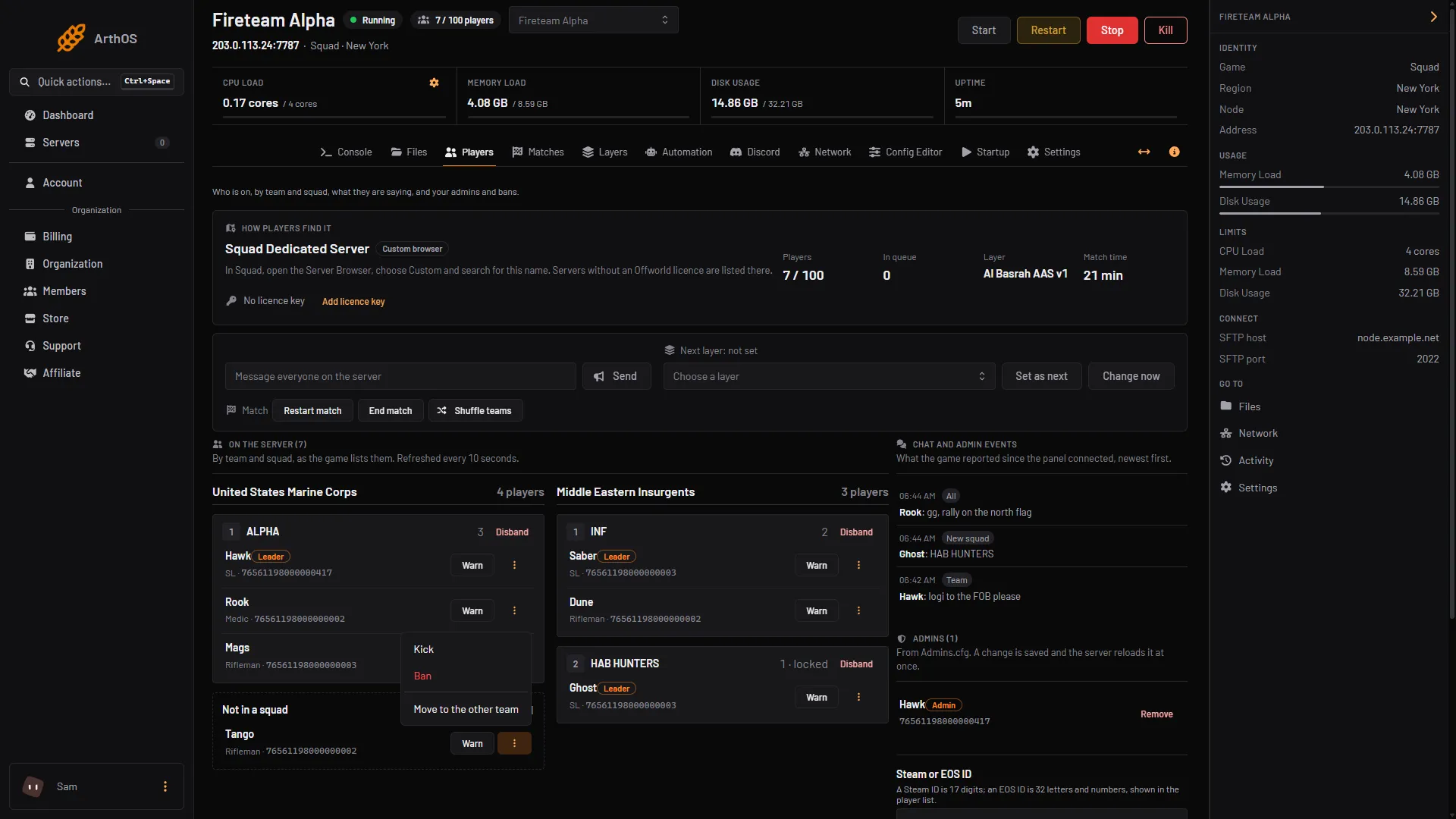
- Kick
- Ban
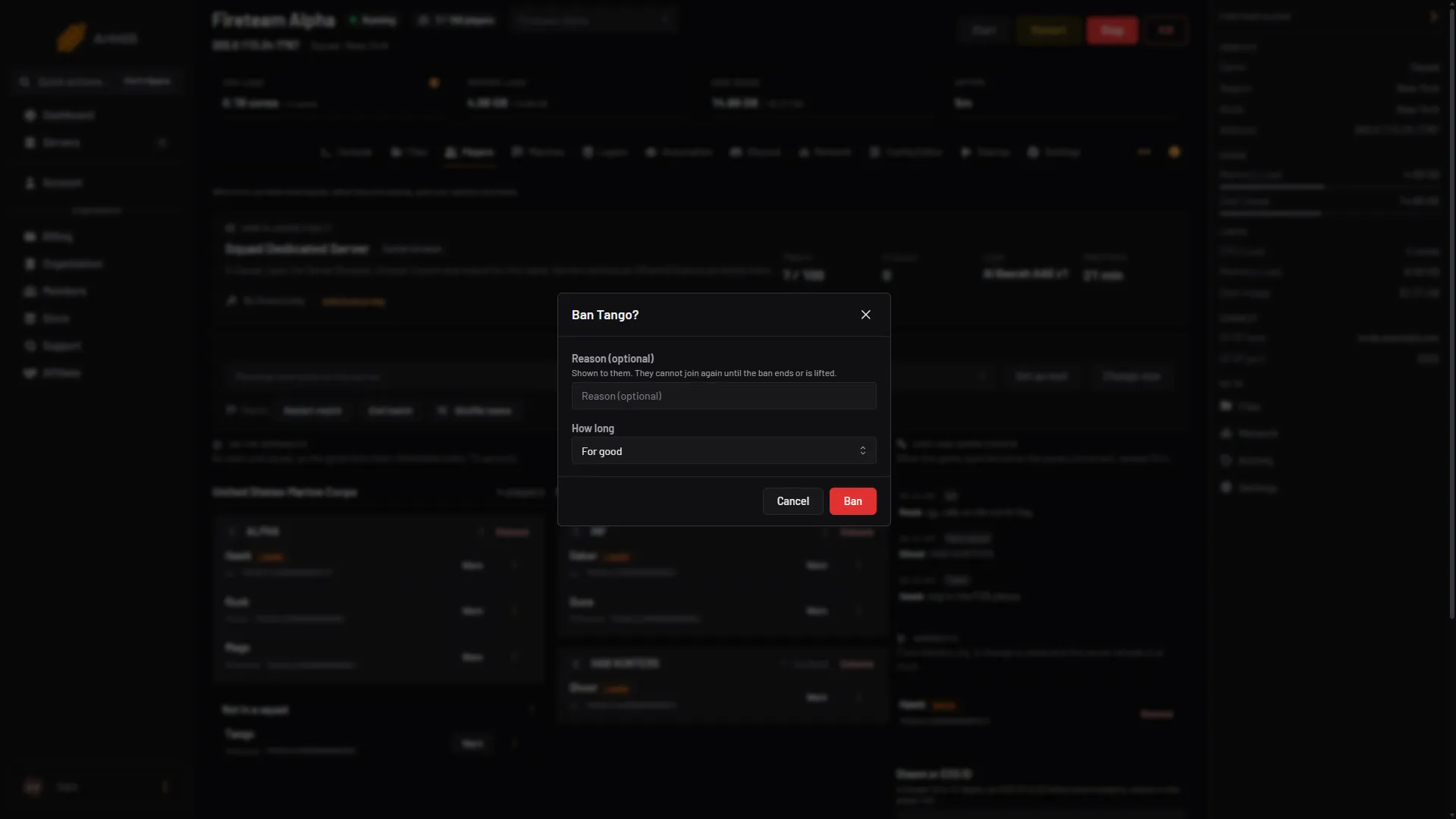
- Reason
- How long
- Ban
The same menu has Move to the other team, and a player in a squad also gets Remove from squad. Warn sits on the row itself. See warn players.
You can only ban a player who is on the server now, because you ban from the list of who is on. To ban someone who has left, use the file or command in the section below.
See and lift bans
The Bans card on the Players page lists every ban in Bans.cfg. Each row says “for good” or “until” a date. Choose Unban on a row. The running server reloads its config at once. A stopped server reads it at its next start.
By hand
From an RCON tool, an admin can run these (see Squad RCON). The Console Type a command… box on the server does not answer admin commands, so use an RCON tool or the Players page buttons instead:
AdminKick <NameOrSteamId> <KickReason>
AdminBan <NameOrSteamId> <BanLength> <BanReason>
For example AdminBan Hodor 1M Attacking main base. The length is 0 for good, 1d for one day or 1M for one month. In game, the account needs the kick or ban permission in Admins.cfg. See add admins.
You can also edit SquadGame/ServerConfig/Bans.cfg. One ban per line, in this form:
76561198000000001:0 //Permanent ban for cheating
76561198000000002:1623366856 //Team killing
Each line is the player’s Steam ID, a colon, then when the ban ends as a Unix timestamp. 0 means for good. Anything after // is a comment. Use an epoch converter to make a timestamp. Make sure the file ends with a new line. After a hand edit, run AdminReloadServerConfig over RCON, or restart between matches.
If it does not work
- There is no Kick or Ban in the menu. Your role lacks permission to moderate players. Ask the owner of the server.
- The server is stopped. Players appear only while it runs. Start it first.
- A banned player came back. The ban may have ended. Check its date on the Bans card.
- A hand-made ban does nothing. Each line needs a Steam ID, a colon and a timestamp, and the file must end with a new line. Run
AdminReloadServerConfigover RCON, or restart between matches.
More about the game: Squad servers.
Sources: squad.fandom.com: Server Administration, squad.fandom.com: Server Configuration, store.steampowered.com: 393380