






To add a Squad admin, open the Players page, find the Admins card, enter the player’s ID, pick a group and choose Add admin. A running server picks the change up at once.
Squad does not give powers to players one by one. It gives them to groups. A group is a name with a list of access levels, such as kick or ban. An admin is a player placed in a group. The groups live in Admins.cfg.
Find the player’s ID
- A Steam ID is 17 digits and starts with 7656119. It is also called SteamID64. You can look one up from a profile name at steamid.io/lookup.
- An EOS ID is 32 letters and numbers. The panel’s player list shows it for players who are online.
In the ArthOS panel
- Open Players.
- On the Admins card, enter the ID in Steam or EOS ID.
- Add a name in Name (optional). It is saved as a note beside the entry and helps you read the list later.
- Choose a Group. The list shows every group found in
Admins.cfg. A new server starts with two:Admin(kick, ban, changemap) andModerator(kick, ban). - Choose Add admin.
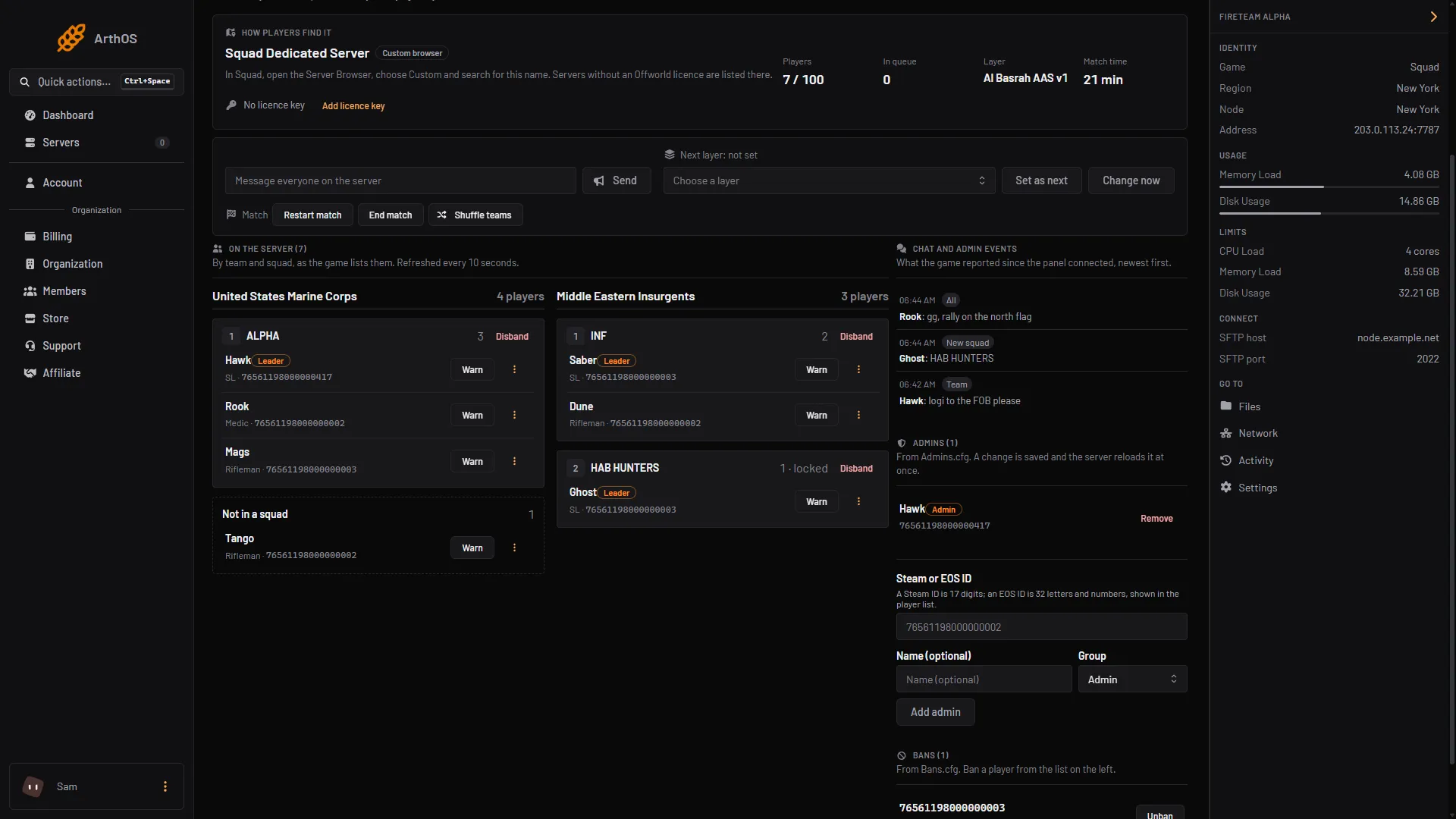
- Player's ID
- Pick the group
- Add admin
In the picture, box 1 is the ID field, box 2 the group list and box 3 Add admin.
The card’s own note says: “From Admins.cfg. A change is saved and the server reloads it at once.” If the server is stopped, the change applies when it starts.
To remove an admin, choose Remove beside their entry. If you add an ID that is already listed, the old entry is replaced, so changing someone’s group is the same steps again.
The Group list is empty
The panel picks from groups that already exist and does not create them. If Admins.cfg has no Group= line, the form does not appear. Add a group by hand first, as below.
By hand
- Open Files and edit
SquadGame/ServerConfig/Admins.cfg. - Define a group with
Group=Name:level,level:
Group=Admin:changemap,balance,chat,kick,ban,cameraman,pause
Group=Moderator:changemap,chat,kick,ban- Put each admin in a group with
Admin=ID:Group. Text after//is a note:
Admin=76561198000000001:Admin // Alex
Admin=76561198000000002:Moderator // Sam
Those IDs are made up. Use real 17-digit Steam IDs.
- Save the file. A running server needs to reread it. Adding the admin from the Players card does this for you. If you edited the file by hand, run the RCON command
AdminReloadServerConfig(see Squad RCON), or restart the server between matches.
The access levels you can put after the colon are listed in Squad admin permissions.
If it does not work
- The admin cannot use commands in game. Check the ID is the player’s own 17-digit Steam ID, the group name matches exactly (case counts), and the group lists the level the command needs.
- Add admin is greyed out. The ID is not 17 digits or 32 characters, or your role is not allowed to manage operators.
- A group is missing from the list. The line must start with
Group=and have a colon between the name and the levels. - A hand edit did nothing. A running server does not reread
Admins.cfgby itself. RunAdminReloadServerConfigover RCON, restart between matches, or add the admin from the Players card.
More about the game: Squad servers.
Sources: squad.fandom.com: Server Configuration, squad.fandom.com: Server Administration