






RCON lets a tool control your Squad server from outside the game. There is one shared password, and anyone who has it has full console access to the server. To cut one person off, change the password and restart the server. To connect, a tool needs three things: your server’s address, the RCON port and the RCON password. On the ArthOS panel the port and password are both on the Startup page.
In the ArthOS panel
- Open Startup.
- Find RCON port. It is read only. The panel sets it from a port your server owns. It is a TCP port. Use this number in your tool.
- Find RCON password. This is the password your tool uses. A new server starts with a random one. You can replace it with your own.
- After you change the password, restart the server.
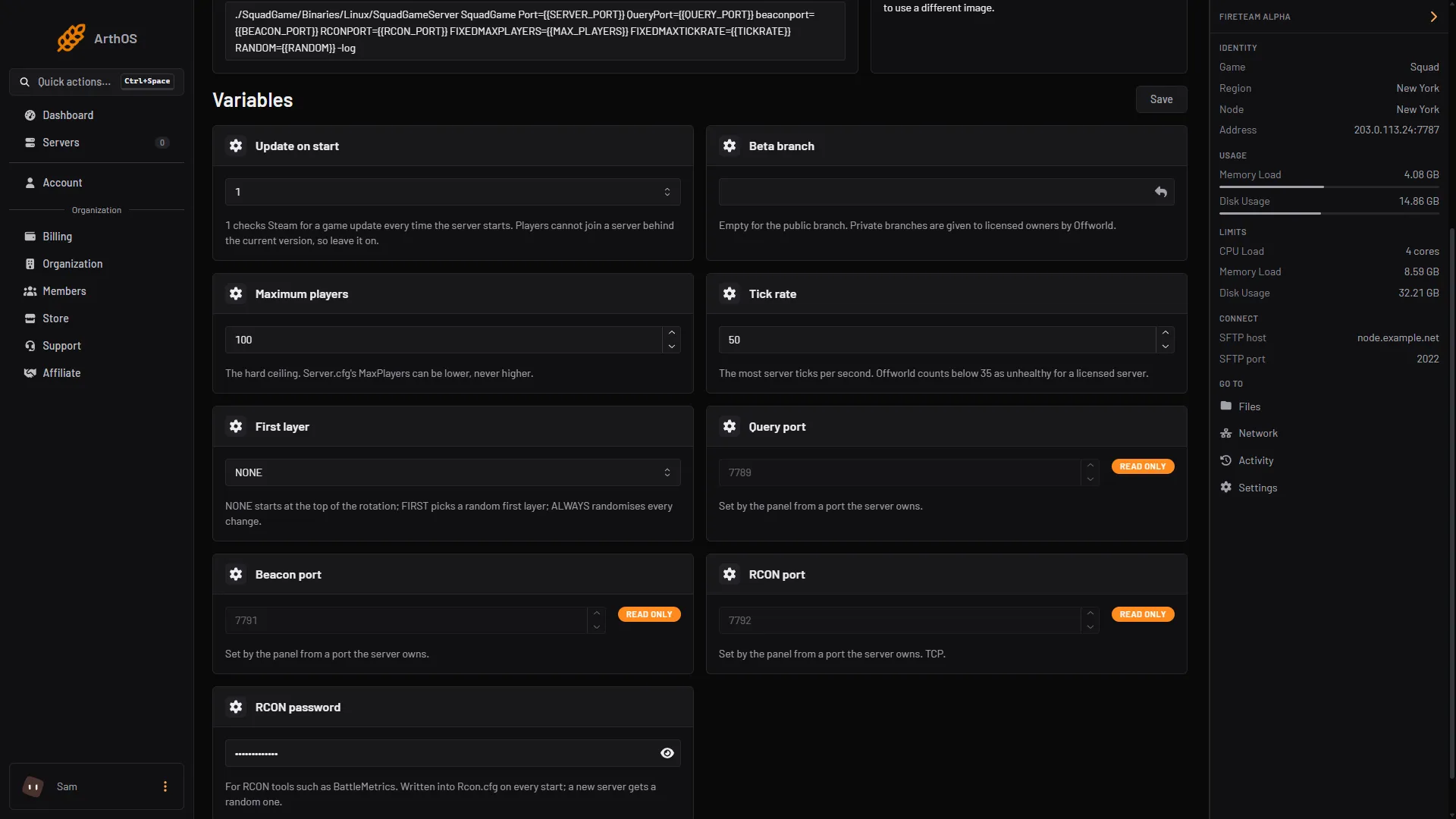
- RCON port, read only
- RCON password, masked
The RCON port (1) carries a READ ONLY badge. The RCON password (2) is hidden. Use the eye button to show it, then copy it into your tool.
The Network page lists your server’s address and ports, if you need the address.
The panel writes Rcon.cfg for you
Squad reads its RCON settings from SquadGame/ServerConfig/Rcon.cfg. On the panel, you do not edit that file. At every start, the panel writes three of its lines from Startup:
IP=0.0.0.0Port=followed by the RCON portPassword=followed by the RCON password
A change you make to those lines in Files is overwritten at the next start. Change the values on Startup instead. The Config Editor does not offer Rcon.cfg.
The panel uses RCON too
The Players page, Automation and the match controls all reach the game over RCON. The panel uses at least one connection for this. The game allows 5 connections at a time by default (MaxConnections=5 in Rcon.cfg), so your own tools have 4 or fewer left. If a tool is refused for too many connections, close one of the others.
If you change the password, the panel’s connection is refused until the server restarts. It says that Rcon.cfg is written when the server starts.
Connect a tool
Each RCON tool has its own page that says where to type the address, port and password. Follow that page, and use the values from Startup. This guide does not cover any one tool.
By hand
If you host Squad yourself, edit SquadGame/ServerConfig/Rcon.cfg:
IP=0.0.0.0
Port=21114
Password=choose-a-long-password
MaxConnections=5
SecondsBeforeTimeoutCheck=120- If
Passwordis empty, RCON stays off. IP=0.0.0.0binds RCON to the server’s default address. If the machine has several addresses, put the one you want here.Portis the RCON port. 21114 is the stock value for a self-hosted server. On the panel, the port is picked for you; the Startup page shows it.MaxConnectionsis how many connections the game allows at once.SecondsBeforeTimeoutCheckis how long the game waits without hearing from a connection before it checks the connection is alive. The wiki says it accepts 30 to 3600.
The wiki also shows launch arguments for the same settings: RCONIP, RCONPORT, RCONPASSWORD, RCONMAXCONNECTIONS and RCONSECONDSBEFORETIMEOUTCHECK. Restart the server after any change.
If it does not work
- The tool says the password is wrong. Check the password on Startup. If you changed it after the last start, restart the server first.
- The tool cannot connect at all. Check the port is the RCON port from Startup and the tool uses TCP. The server must be running.
- The tool is refused with too many connections. The game is at its limit. Close an idle connection.
- A change you made in
Rcon.cfgkeeps reverting. The panel rewritesIP,PortandPasswordat every start. Use Startup.
More about the game: Squad servers.
Sources: squad.fandom.com: Server Configuration, github.com: Rcon.js