
















There are no sub-accounts on a server. Access comes from your organization: make a role that allows only what your friend needs, give that role the server, then give your friend the role. Your password stays yours.
See who has access now
- Open Settings on your server, then the Access tab.
- The page is titled Access. It says who can reach the server through your organization.
- It lists you as the Owner, who owns the server and can do everything on it. Under that it lists each role that reaches this server.
If nobody else has access, the page says “Nobody else has access yet. Give a role this server on the organization page.”
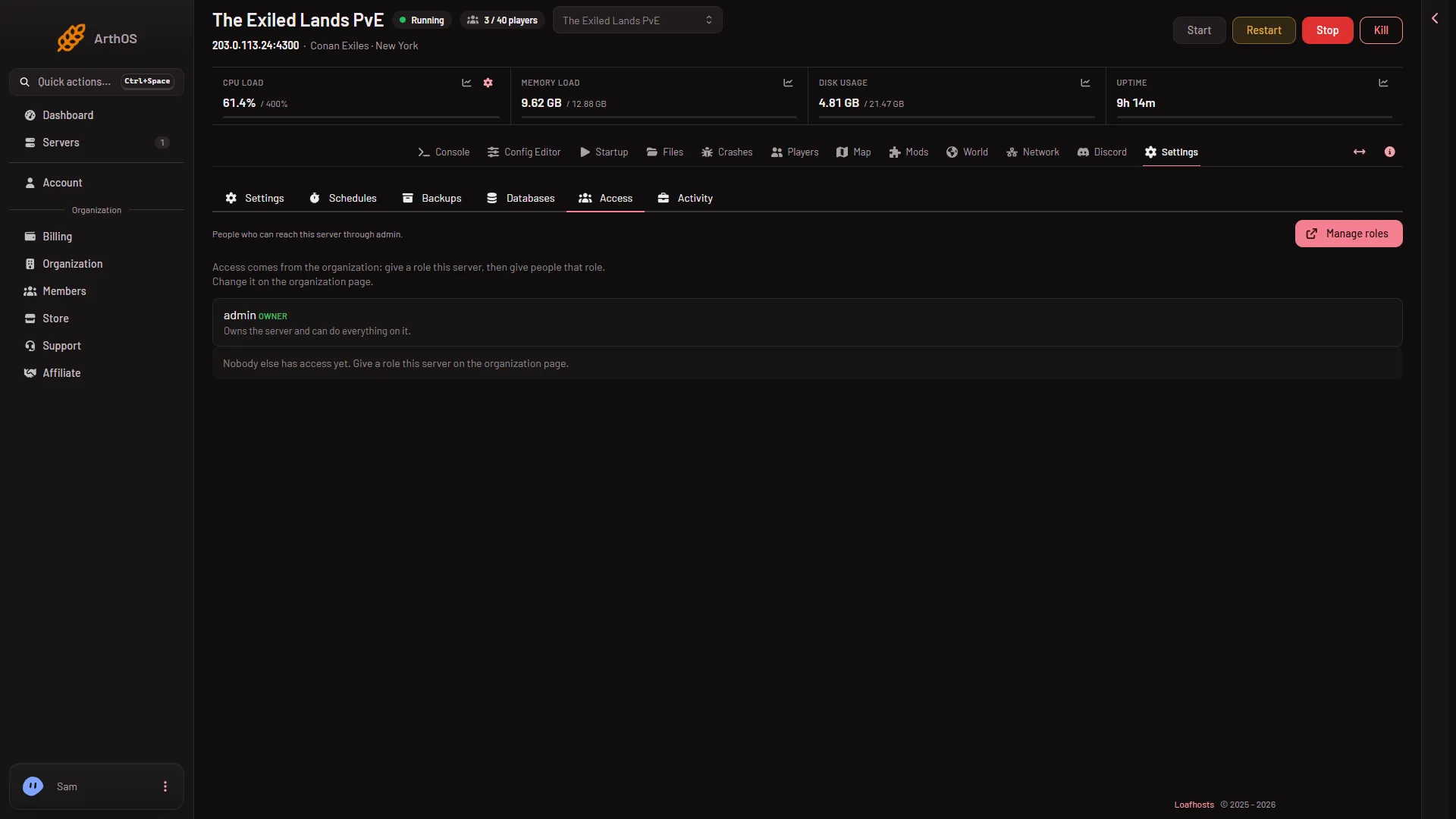
- The owner
- Manage roles
The page explains the rule: “Access comes from the organization: give a role this server, then give people that role. Change it on the organization page.” Choose Manage roles (2) to go there. The owner (1) is always listed first.
Make a role for your friend
On the organization page, open Roles.
- Choose New role.
- Give it a Name, for example “Moderator”. Add a Description if you like.
- Under Game server access, tick only the permissions your friend needs. For a friend who looks after players, tick the two player permissions:
players.read(“Allows seeing who is online, the operators, the whitelist and the ban lists.”) andplayers.moderate(“Allows kicking, banning (for a time or for good), pardoning and changing the whitelist.”). The Players page needs both to show the list and to act on it. - Under Which servers, choose Only the servers chosen below and tick this server. Or choose Every server in this organization if the role should reach all of them, including servers you add later.
- Save the role.
A role with no server permission ticked gives nothing, and a role that lists other servers but not this one does not reach this server. The Access page names such roles under “Roles that give nothing on this server” and says why.
Give your friend the role
On the organization page, open People, then Manage members.
- If your friend already has an account in your organization, give them the role you made.
- If not, choose Invite. Enter their Email address, choose the role under Roles, then choose Create invitation. They get an email with a link, or you can send them the link yourself.
When they join, your friend sees the server in their own server list. They see only the tabs their role allows.
What your friend can then do
It depends on the role. A few examples of what the permissions mean on Conan:
- Kicking and banning on the Players page, and the whitelist, need a role that allows moderating players.
- Message everyone needs a role that allows using the console.
- Restart with a warning needs a role that allows restarting.
- Changing server settings or startup values needs the matching permission.
A panel role does not make your friend an admin inside the game, and it does not give them the join password. For the in-game admin password see make me admin; it is for you only, so do not hand it out. The Players page shows every action. An action a role does not allow is refused when your friend tries it.
Change or remove access
- To give more or less, edit the role on the organization page. The change applies to everyone who holds it.
- To stop one person, take the role off them under Manage members.
- To stop everyone with a role, remove the server from the role or delete the role.
If it does not work
- Your friend cannot see the server. The role does not include this server, or it has no server permission ticked. Open the Access tab and read the box that names roles that give nothing.
- A tab is missing for your friend. Their role does not allow it. Add the permission to the role.
- You cannot tick a permission. You can only give permissions you hold yourself.
- A server you add later is not reachable. A role that lists chosen servers does not gain new ones. Add the server to the role, or set the role to every server.
More about the game: Conan Exiles servers.