






In the panel, open Settings, then Backups, and choose Create. A backup copies the whole server folder, including the saved world. To go back, open the backup’s menu and choose Restore. A restore stops the server and puts the files back as they were.
What a backup holds
A backup is a copy of the server’s files. It is kept on the server’s node. It includes:
- the game files and your mods (the
@folders andkeys) serverDZ.cfgand the other files you edited- the saved world. DayZ keeps it in a
storage_folder inside the map’s folder undermpmissions. The number afterstorage_is the server’s instance ID, a setting inserverDZ.cfgthat names the folder. Bohemia describes it as the id used to tell apart “their storage folders with persistence files”.
So restoring a backup brings back the world as it was at that moment. Players lose everything they did after it: loot, bases, characters.
In the ArthOS panel
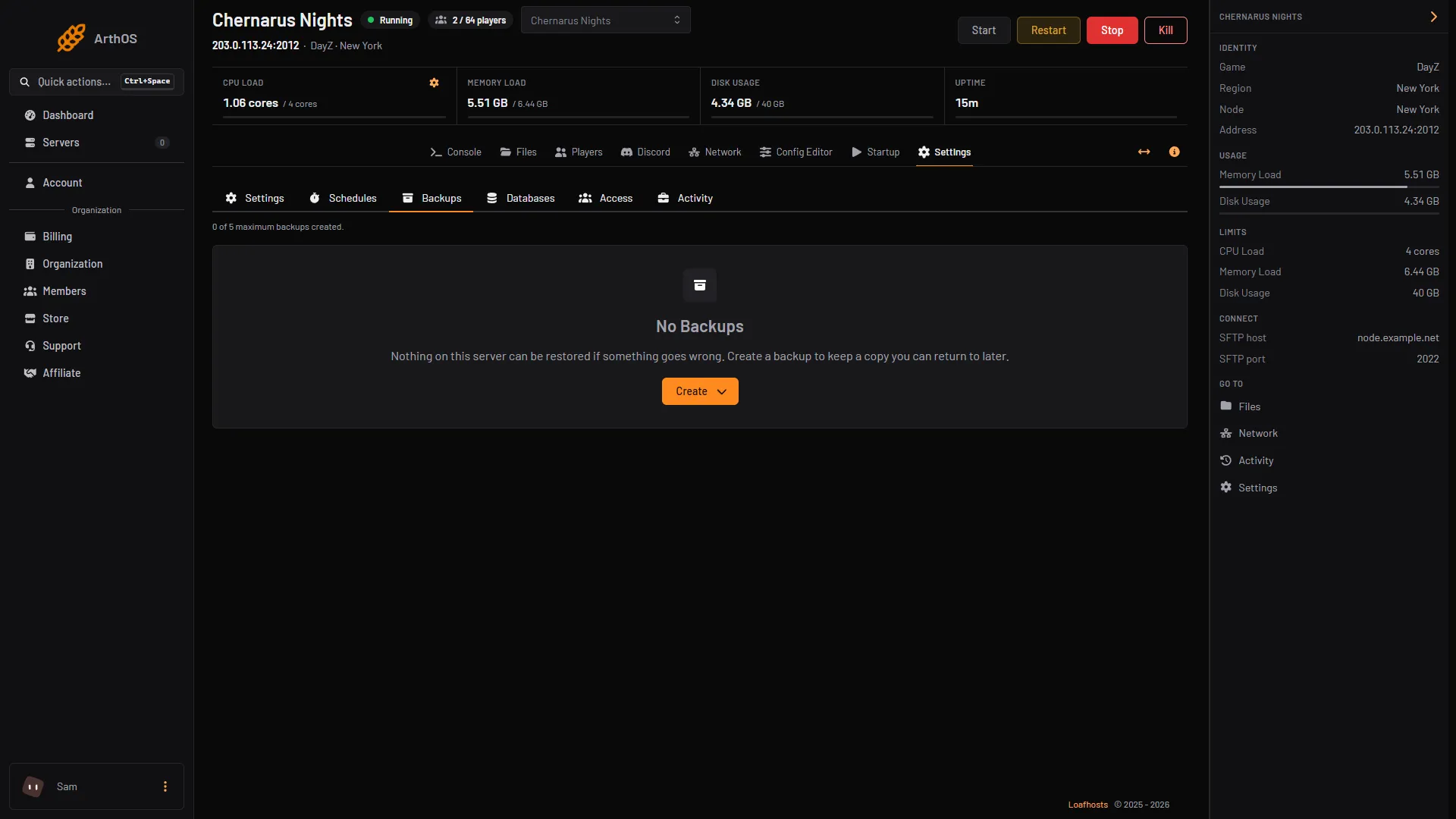
The Backups tab shows how many backups you have and the Create button (1).
- Create
- Open Settings and choose the Backups tab.
- Choose Create (1), then Create Backup.
- Give it a name you will recognise, such as
before-update. - To make it smaller, add folders to Ignored Files, one pattern per line. Choose Preview ignored files to see what the pattern matches before you save. Do not ignore the map folder under
mpmissions, because that is where the world is saved. - Choose Create. The backup appears in the list. Browse lets you look inside it.
The tab shows a line such as “0 of 5 maximum backups created.” That is how many backups this server may keep.
The limit
- At the limit, a backup you start by hand is refused. Delete one first.
- A scheduled backup at the limit deletes the oldest backup that is not locked, to make room.
- A locked backup is never deleted that way. To lock one, open its menu, choose Edit, turn on Locked and choose Save.
Back up on a timer
- Open your server, choose Settings, then the Schedules tab. Choose Create Schedule.
- Type a Schedule Name, such as “Backup”. Leave Enabled on. Choose Add Trigger.
- For Trigger 1, choose Time Interval (Cron). Under Runs, pick Daily and set At to the time. The times use the server timezone, which the panel shows under the field. Choose Create.
- Open the schedule and go to the Actions tab. Choose Add Step.
- For Action Type, choose Create Backup, then Create.
Pick a time when few players are on. The backup step does not stop the server, so a scheduled backup is a copy taken while it runs (see the note above).
Restore a backup
- Open the Backups tab and open the menu of the backup you want.
- Choose Restore.
- Decide the two switches:
- Do you want to delete all files of this server before performing this action? This cannot be undone. removes every file first. You get exactly what is in the backup, and nothing else.
- Restore the startup command, image, and variables from this backup brings back your Startup settings as they were. It is greyed out when the backup has none saved.
- Choose Restore.
The server page shows Restoring Backup and the server is not available until the restore is done. Restoring stops the server and overwrites its files. Start it again when it has finished.
By hand
On your own host, stop the server, then copy the whole server folder to a place with the date in its name. The saved world is the storage_ folder inside the map folder under mpmissions. To restore, stop the server, copy the folder back and start it.
If it does not work
- “Create” is refused. You are at the backup limit. Delete a backup you do not need, or unlock and delete an old one.
- A scheduled backup never appears. Check that the schedule is on and that the step is Create Backup.
- The world is the old one after a restore. That is what a restore does. It brings back the world from the day of the backup.
- The restore failed. The server page says “This server failed to restore a backup” and asks you to acknowledge it before you can use the server again. Its files may be incomplete, so restore a backup again before you start it.
- The backup is huge. It holds the game files and the mods. Use Ignored Files for folders you can download again.
More about the game: DayZ servers. For clearing the world on purpose, see persistence and wipes.
Sources: Bohemia wiki: Server Configuration