






Every mod has a .bikey file. The server must have it in its keys folder, or players who use that mod are kicked when they join. Mods you add from the Workshop put their keys there for you. A mod you upload yourself needs its key copied by hand.
What the key does
A mod’s files are signed. The signature goes with the mod. The matching public key is a file ending in .bikey, in the mod’s keys folder. When a player joins, the server checks the player’s mod files against the keys it has. A file with no key the server knows is refused, and the player is kicked with a signature error.
This check is on when Verify Signatures is on. Bohemia’s server settings say that for this setting “only 2 is supported”. The panel offers 2 and 0; Bohemia documents only 2. In the panel, 2 is ON.
In the ArthOS panel
Workshop mods
Nothing to do. When the server downloads a Workshop mod at start, it finds every .bikey file in the mod and copies it into the keys folder. For example, Community Framework adds jacob_mango_v3.bikey. See install Workshop mods.
To see the keys:
- Open Files. The
keysfolder (box 1 in the picture below) is in the top folder of your server. - Open the
keysfolder.
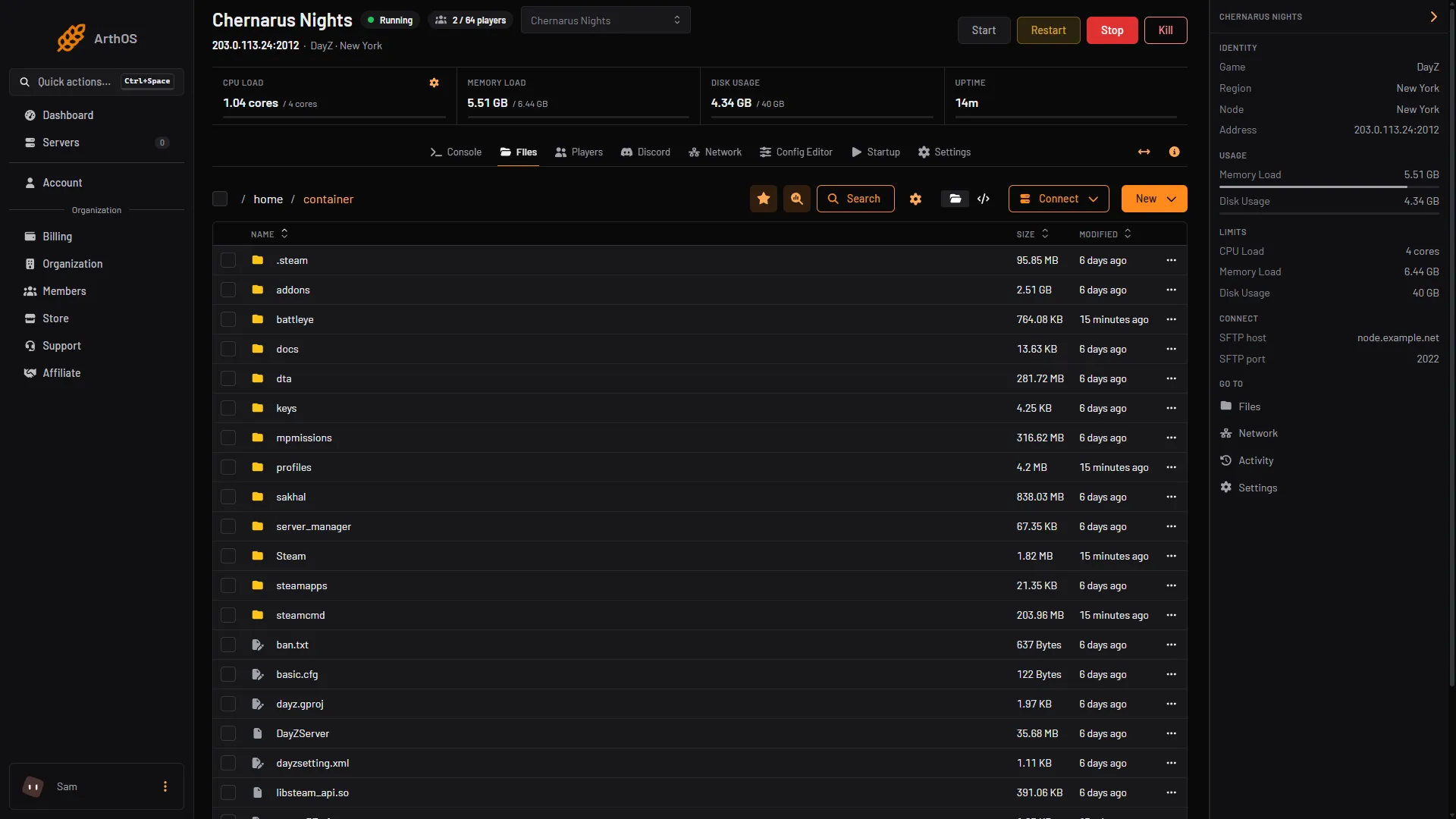
- keys folder
The server does not remove a key when you remove a mod. An old key is harmless.
Mods you uploaded
- Open Files and open the mod’s folder, for example
mymod. - Open its
keysfolder. Some mods keep the key at another place in the folder, so search for a file ending in.bikey. - Copy the
.bikeyfile into the server’s ownkeysfolder, at the top of your server. - Restart the server from Console.
Verify Signatures
On Startup, Verify Signatures (box 1 in the picture below) has two values: 2 (ON) and 0 (OFF). The panel offers 2 and 0; Bohemia documents only 2. A new server has it on. Leave it on. With it off, the server stops checking files, and a player can join with changed game files. Use 0 only when you test a mod of your own that is not signed yet. Bohemia’s modding page shows verifySignatures = 0; for that case.
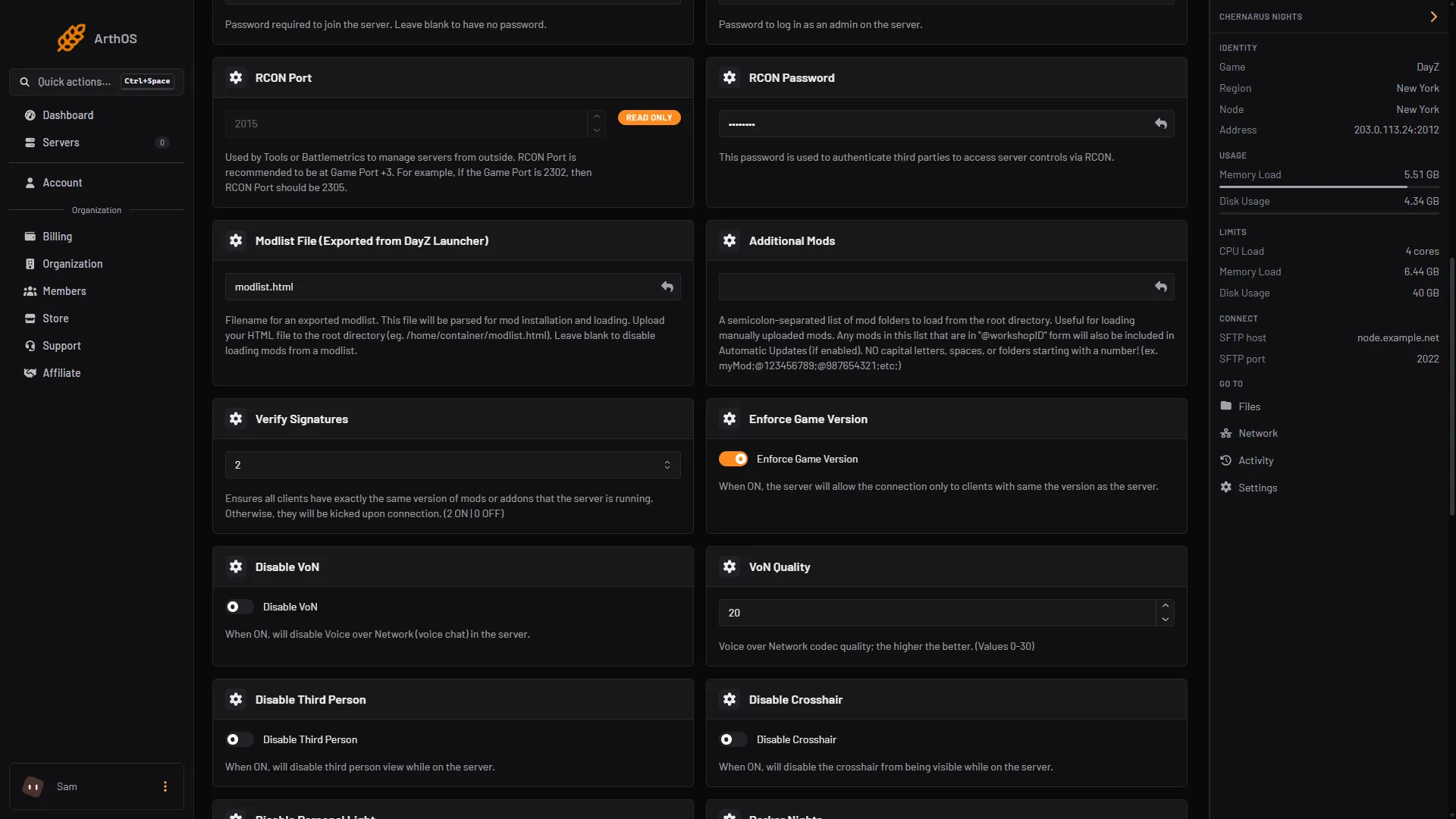
- Verify Signatures
The setting is written to the server’s configuration at every start. Change it on Startup, not in the file.
By hand
- Copy every
.bikeyfile from each mod into thekeysfolder in the server’s top folder. - In
serverDZ.cfg, keep:
verifySignatures = 2;- Restart the server.
If it does not work
- Players are kicked with a signature message. Open the
keysfolder and look for the mod’s.bikey. If it is not there, copy it in and restart. - The key is there and players are still kicked. The player and the server have different versions of the mod. One side updated. See update DayZ mods and mismatched mods kick.
- A mod only runs on the server. Mods in [Advanced] Server-Side Only Mods are not needed by players when Verify Signatures is on. See server-side mods.
Sources: github.com: Entrypoint.sh, Bohemia wiki: Server Configuration, Bohemia wiki: Modding Basics