









Your world is a folder on the server. Download that folder from the Files page or with SFTP. Stop the server first, or download one of the game’s own backup folders, so the copy is whole. More about the game: Valheim servers.
Where the world is
Open Files and go to .config/unity3d/IronGate/Valheim/worlds_local. You will see:
- Your world, a folder named after it. The name is on the World page, in the card World. A new store server starts with
Dedicated. - The game’s backups of it, folders named like
Dedicated_backup_auto-20261021-171022. That is the world’s name,_backup_auto-, then the date and time in UTC.
An older world is two files instead: Dedicated.db and Dedicated.fwl. Download both.
Why the server must be stopped
While the server runs, the game writes the world in the background. A copy taken in the middle can be half old and half new. The game saves when it stops, so the files are complete after a stop.
You have two safe ways:
- Stop the server, then download the world folder.
- Download a backup folder instead. The game finished writing a backup when it made it, so it is whole even while the server runs. It is as old as its date says.
Download it
- Choose Stop at the top of the server page, unless you chose a backup folder.
- On the Files page, open
worlds_local. - Select the world folder, or the backup folder.
- Choose Archive to pack it into one file, then download the archive.
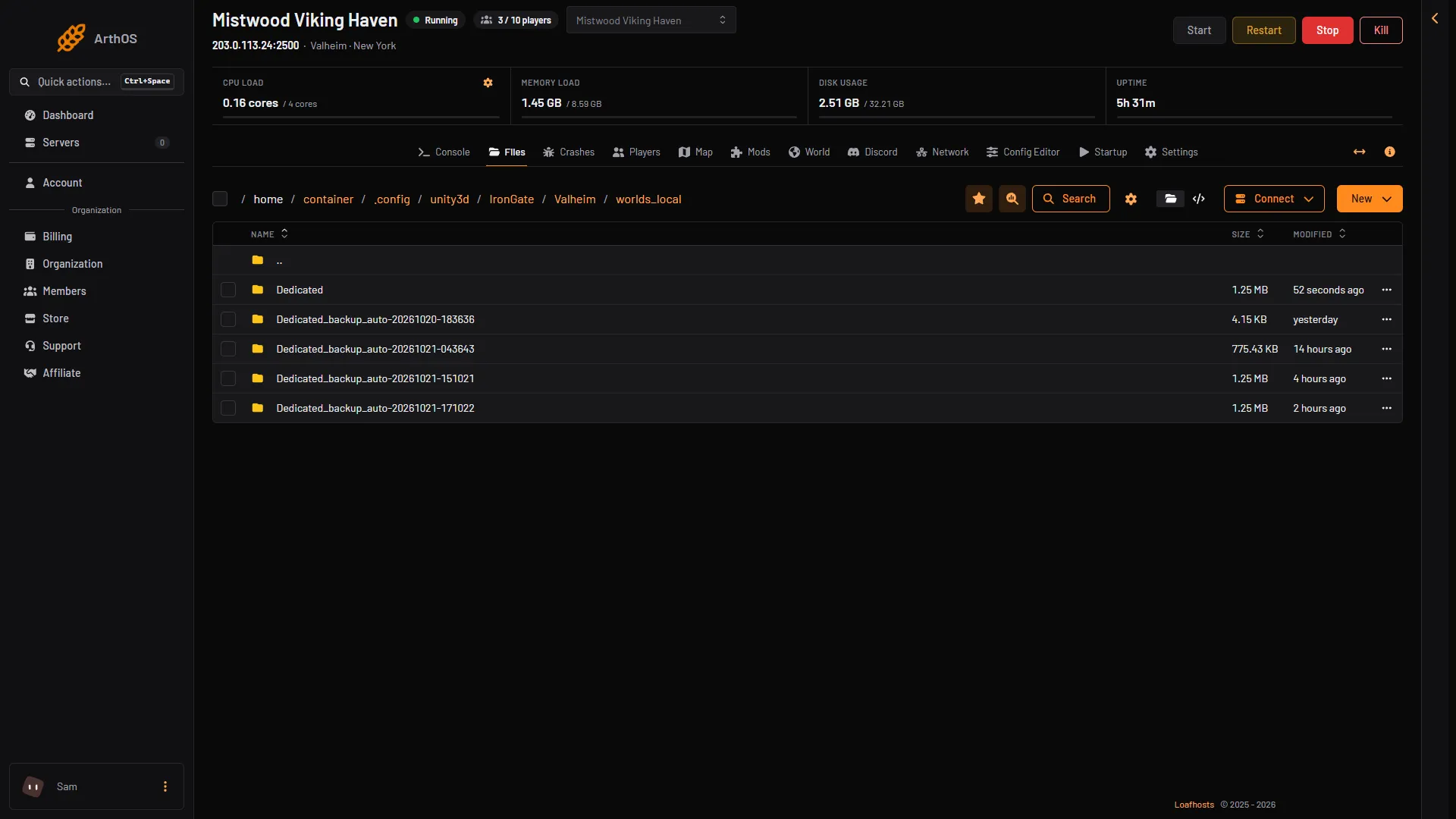
- The world
- A game backup
Select the world folder (1) or a backup folder (2).
You can use SFTP too. Choose Connect then via SFTP, and copy the folder to your computer. Use binary mode. A text-mode copy breaks the world data.
Start the server again when the download is done.
Put it on your computer
To play the world alone, put the folder in your game’s worlds_local folder. On Windows, the game’s manual gives this save folder:
%USERPROFILE%\AppData\LocalLow\IronGate\Valheim
- Close Valheim.
- If you downloaded an archive, unpack it.
- If you chose a backup folder, rename it to the plain world name, like
Dedicated, without_backup_auto-and the date. The panel does the same when it puts a backup back. - Put the folder in
worlds_localand start the game. The world appears in the world list.
If a world with that name is already there, copying over it replaces it. Move the old one away first. Do not run the same world in your game and on the server at the same time.
Not checked on 1.0.20 as of 21 October 2026: playing a downloaded world in the game on a computer.
Your character is not part of the download. It lives in your own game.
Keep it as a backup
A folder or archive on your computer is a copy of the world at that moment. Keep it somewhere safe. To bring it back, see upload a Valheim world.
If it does not work
- The folder is empty or small. The server may have been running and the world not yet saved. Stop it and download again.
- The world on your computer has no builds. The
.dbfile was copied in text mode or without its.fwlfile. Copy again in binary mode. - The world does not show in the game. Check that the folder sits directly in
worlds_local, and that the backup folder was renamed.