









Stop the server, upload your world folder into worlds_local with Files or SFTP, pick the world on the World page, and start the server. In Valheim 1.0 a world is one folder. This guide moves that folder from the worlds_local folder on your computer. More about the game: Valheim servers.
Find the world on your computer
The game keeps its worlds in a worlds_local folder. On Windows, the game’s manual gives this save folder:
%USERPROFILE%\AppData\LocalLow\IronGate\Valheim
Open it and then open worlds_local. Each world is a folder named after the world, like Midgard. Inside are the save files, with names such as _main.1.db2 and _main.1.fwl2.
Older worlds are two files side by side instead of a folder: Midgard.db and Midgard.fwl. You need both. The .db file holds your progress. The .fwl file holds the world’s name and seed. A .db without its .fwl does not work.
Close the game before you copy. Do not run the same world on your computer and on the server at the same time.
Check the name
The panel accepts a world name of 1 to 20 letters, numbers, spaces, - or _. A name with _backup_ in it counts as a backup and does not appear in the world list. If your folder name does not fit, rename the folder before you upload it. For an older world, rename both files the same way.
Upload it
- Choose Stop at the top of the server page. Everyone on the server is disconnected when it stops. The server saves the world when it stops and every 30 minutes. If it is running, it can replace what you upload.
- Open the Files page.
- Go to
.config/unity3d/IronGate/Valheim/worlds_local. - Choose New, then Directory from Upload, and pick the world folder. For an older world, use File from Upload for the
.dbfile and again for the.fwlfile.
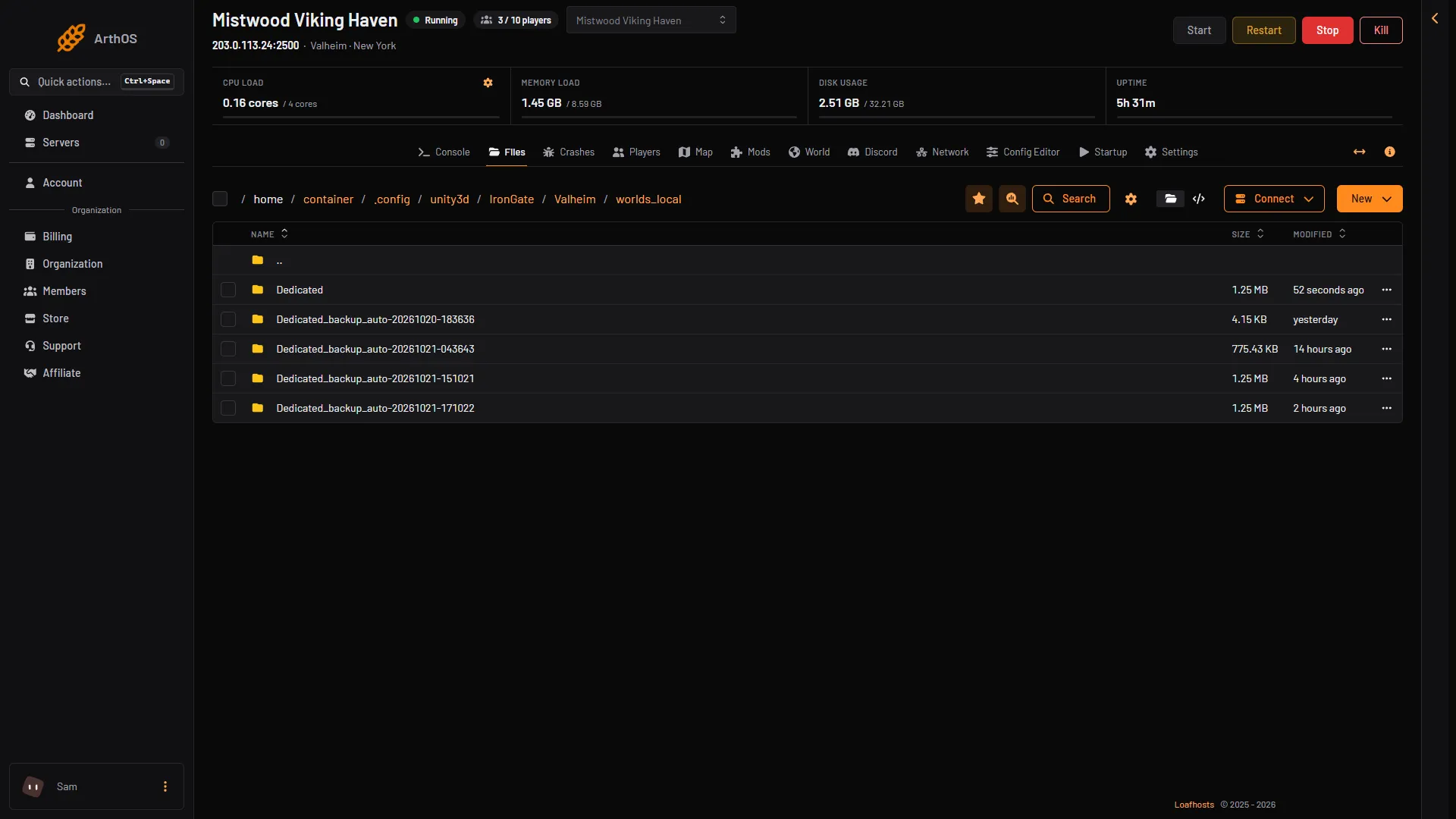
- The world
- A game backup
The world folder (1) sits in worlds_local beside the game’s own backup folders (2). Your upload goes next to them.
To use SFTP instead, choose Connect then via SFTP on the Files page, and open the same folder in your SFTP program. Copy the files in binary mode. A text-mode copy breaks the .db file.
Play it
- Open the World page.
- In Play another world, open Pick a world. Your upload is in the list. An older world is marked “(old format)”.
- Choose it and press Use, then Use this world.
- Start the server.
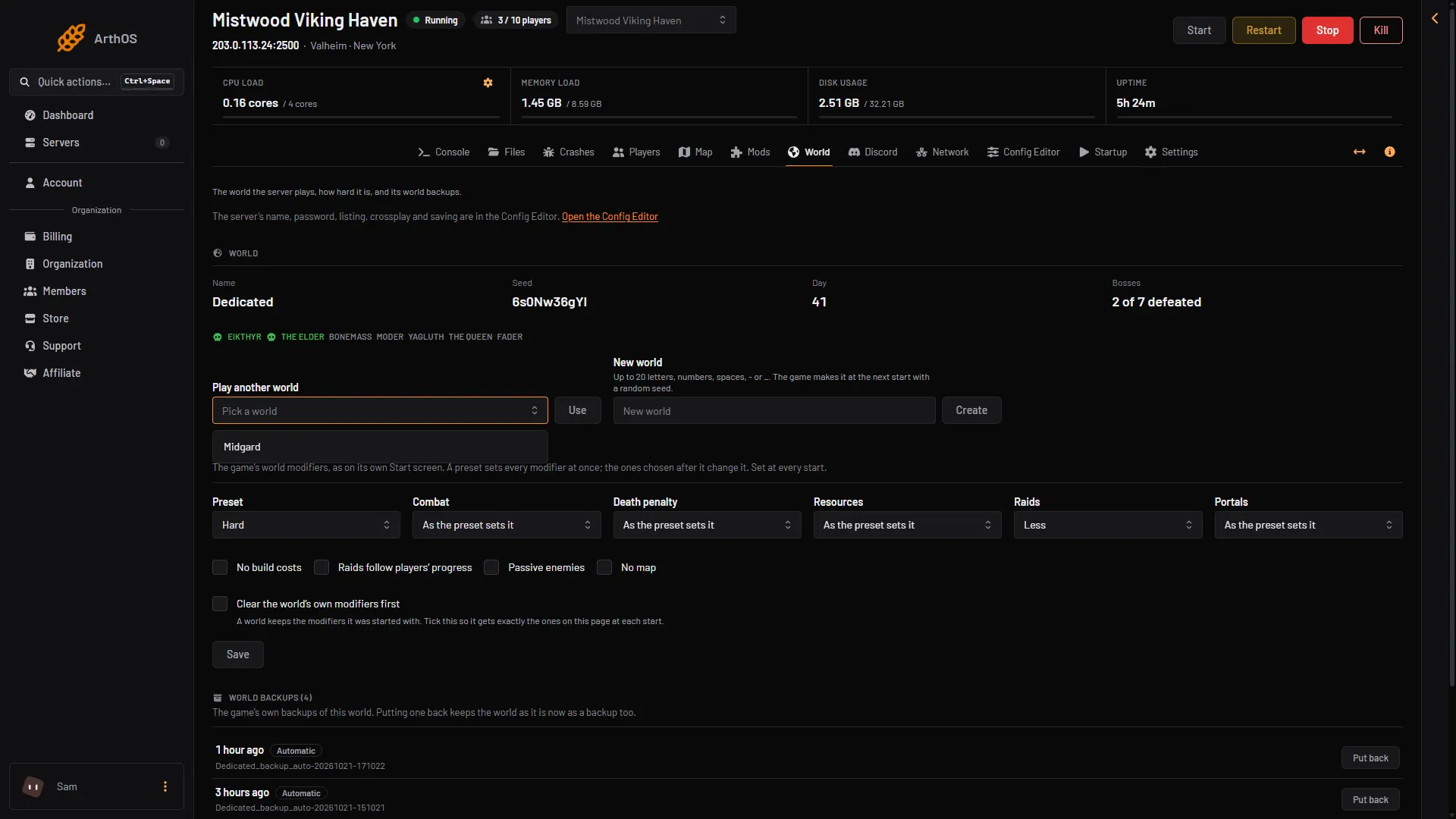
- Play another world
- Another world
- Use
The New world box and Create show on the World page on every server. Play another world (1) shows beside them only when the server holds another world. Your upload makes that two. Pick it in the list (2), then press Use (3).
When the server is up, the World card shows the name, seed, day and “N of 7 defeated” for the bosses. If they match your game, the upload worked. An older world is played as it is. The game saves it in the new folder format the next time it saves.
What does not come with the world
- Characters. A player’s character, items, food and skills stay in the player’s own game. They are not in the world folder.
- Difficulty. A world keeps the modifiers it was started with. The Difficulty card is set at every start. See Valheim world modifiers.
By hand
The world that starts is the World value on the Startup page. Type the folder name there. If the name is in worlds_local, the game loads that world. If it is not, the game makes a new world.
That new world is empty. This is how the game’s manual describes -world.
If it does not work
- The world is not in the list. The folder is in the wrong place, the name does not fit, or an older world is missing its
.fwlfile. The folder must be directly insideworlds_local, not inside another folder. - The server made a new world with your name. The game did not find the files at start. Check the spelling and the folder.
- The panel refuses the world. For a listed server, the password cannot be part of the world’s name or seed. Choose another password.
- The world loads without your builds. The
.dbfile was copied wrongly or from another copy. Copy both files again in binary mode.