






Type pardon and the player’s name in the server console: pardon Alex. For an IP ban, type pardon-ip and the address. A player is banned by name, by IP address, or both, and each needs its own pardon.
In the ArthOS panel
Open your server and the Players tab.
- Choose the Banned chip. The chip lists every banned player with a Banned tag. The list does not show the reason.
- Click the player to open their window. The window shows “Banned:” and the reason (1).
- Choose Pardon (2). The panel says Done. once the server’s ban file no longer lists them.
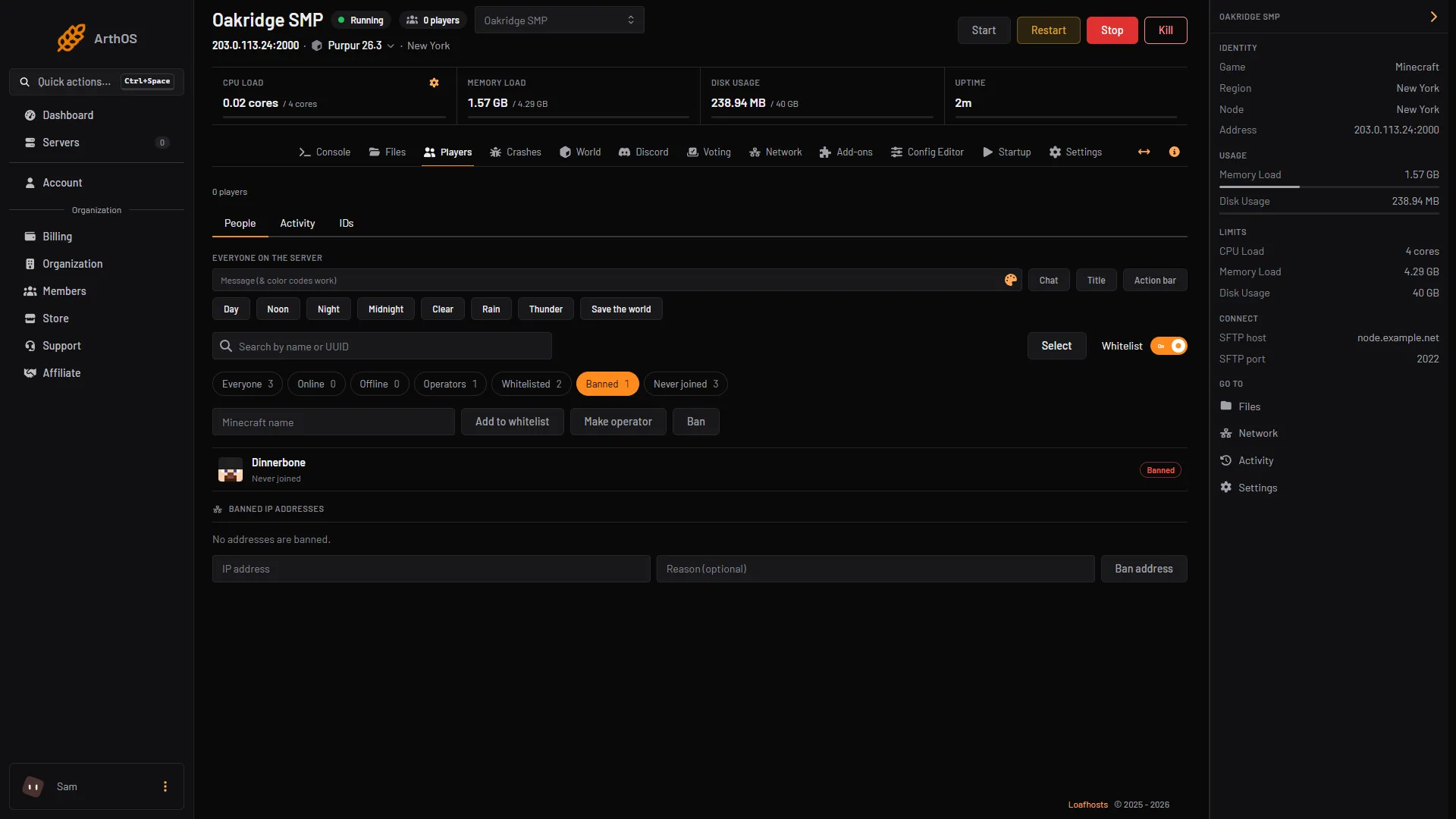
- Banned chip
- Banned player
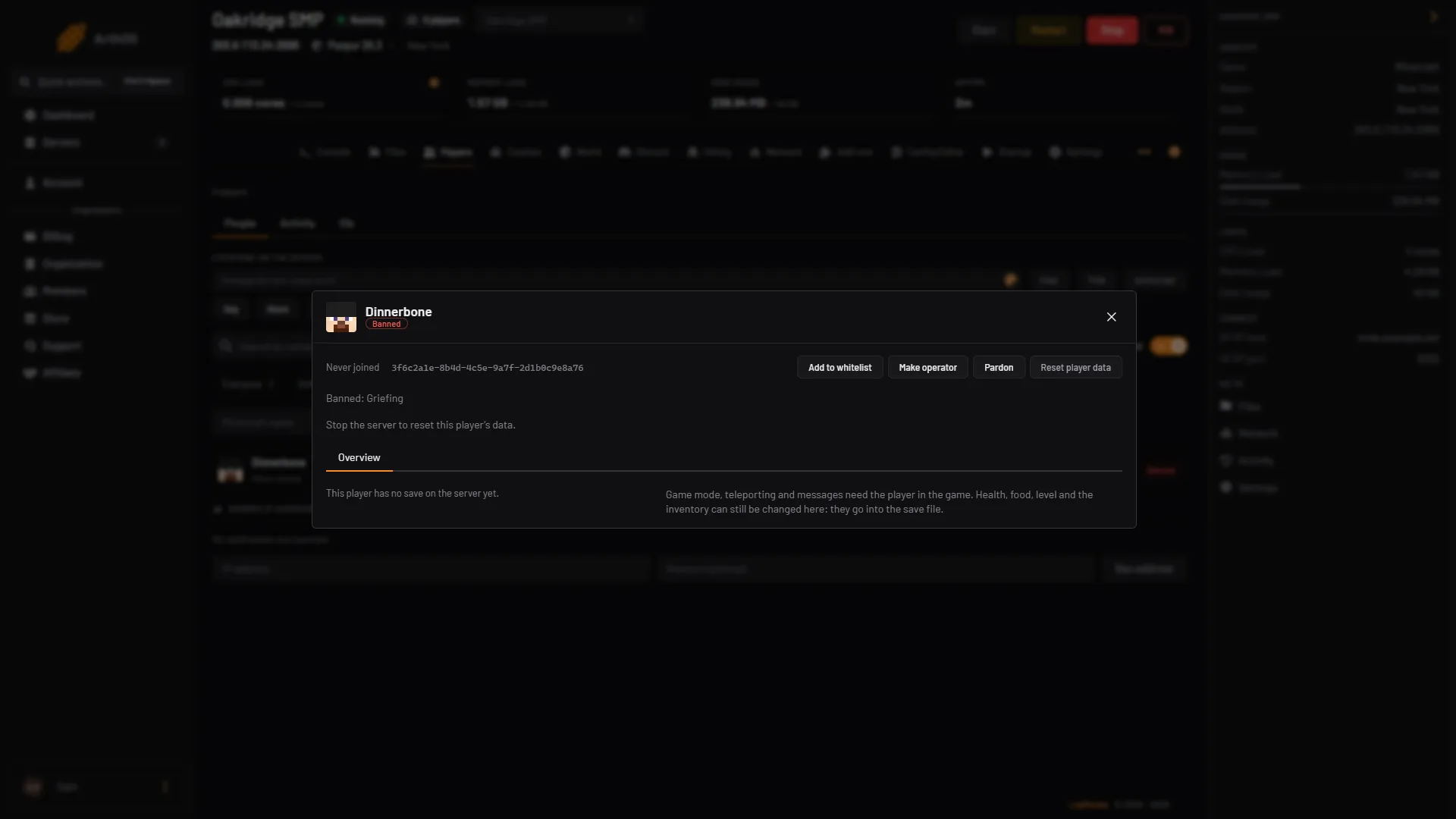
- Ban reason
- Pardon
To pardon several players at once, choose Select, tick the players, and choose Pardon.
For an IP ban, scroll to Banned IP addresses, find the address, and choose Pardon beside it. This section only shows if your account may manage IP bans.
If you banned someone for a set time from the panel, the panel lifts the ban when it ends, even if the server is stopped. Pardon ends it early.
If the server is running, the panel runs pardon for you. If it is stopped, the panel edits banned-players.json and banned-ips.json directly, and the change is there when the server starts.
By hand
In the server console, with no slash:
- To see who is banned, type
banlist players. For addresses, typebanlist ips. - Type
pardon Alexto unban a player. The game answersUnbanned Alex. - Type
pardon-ip 203.0.113.5to unban an address. The game answersUnbanned IP 203.0.113.5.
In game, an operator of level 3 or higher can type the same commands with a slash. See op levels.
You can also remove the entry from the file. Stop the server first. In banned-players.json, delete the whole { ... } block for the player, and the comma next to it:
[
  {
    "uuid": "11111111-1111-1111-1111-111111111111",
    "name": "Alex",
    "created": "2026-10-11 12:00:00 +0000",
    "source": "Server",
    "expires": "forever",
    "reason": "Banned by an operator."
  }
]
banned-ips.json has the same shape with an ip field instead of uuid and name. Start the server again afterwards. To bring a banned-players.json from another server, stop this server and upload the file in Files.
Plugins
If EssentialsX is installed, it keeps its bans in the server’s own ban list, so /unban Alex and /pardon Alex both work, and /unbanip removes an IP ban. A ban made with /tempban goes into the same list with an end date. A plugin that keeps a separate ban list needs that plugin’s own unban command.
If it does not work
- The game says
Nothing changed. The player isn't banned. Check the spelling. The player may be banned by IP rather than name: runbanlist ips, thenpardon-ip. - They are unbanned but still cannot join. Check the whitelist. If it is on, they must be on it too. See the whitelist guide. Also check they are not banned by IP.
- A plugin ban remains. Use the plugin’s own unban command.
- The panel says the server did not confirm it. Open the Console tab and read what the server said. The name may not belong to a Minecraft account.
- I edited the file and nothing changed. Check the JSON is still valid: a missing or extra comma breaks the whole list.
More on the game: Minecraft servers.
Sources: minecraft.wiki: Pardon, minecraft.wiki: Ban, minecraft.wiki: Server, raw.githubusercontent.com: En us.json, github.com: Essentials