









Open the Players page, find your row, open its menu and choose Make admin. The list changes within seconds, with no restart. An admin can use the game’s admin commands in the F5 console, such as Kick, Ban and Unban. The console needs the launch option -console; see Valheim console commands.
In the panel
You must have joined the server at least once, so your row exists. The easiest way is to join once, then use the steps below. If you cannot join, use the second method.
- Join your server in Valheim, then leave or stay.
- Open the Players page.
- Find your name. You are under Online if you are in the game, or under Seen before if you are not.
- Open the menu on your row. It is the three dots at the end of the row, after Kick and Ban.
- Choose Make admin and confirm.
Not checked on 1.0.20 as of 21 October 2026: whether you must leave and join again before the F5 admin commands work, if you were already in the game. If a command is refused, try that.
Your row now shows the tag Admin, and you are in the Admins list on the right.
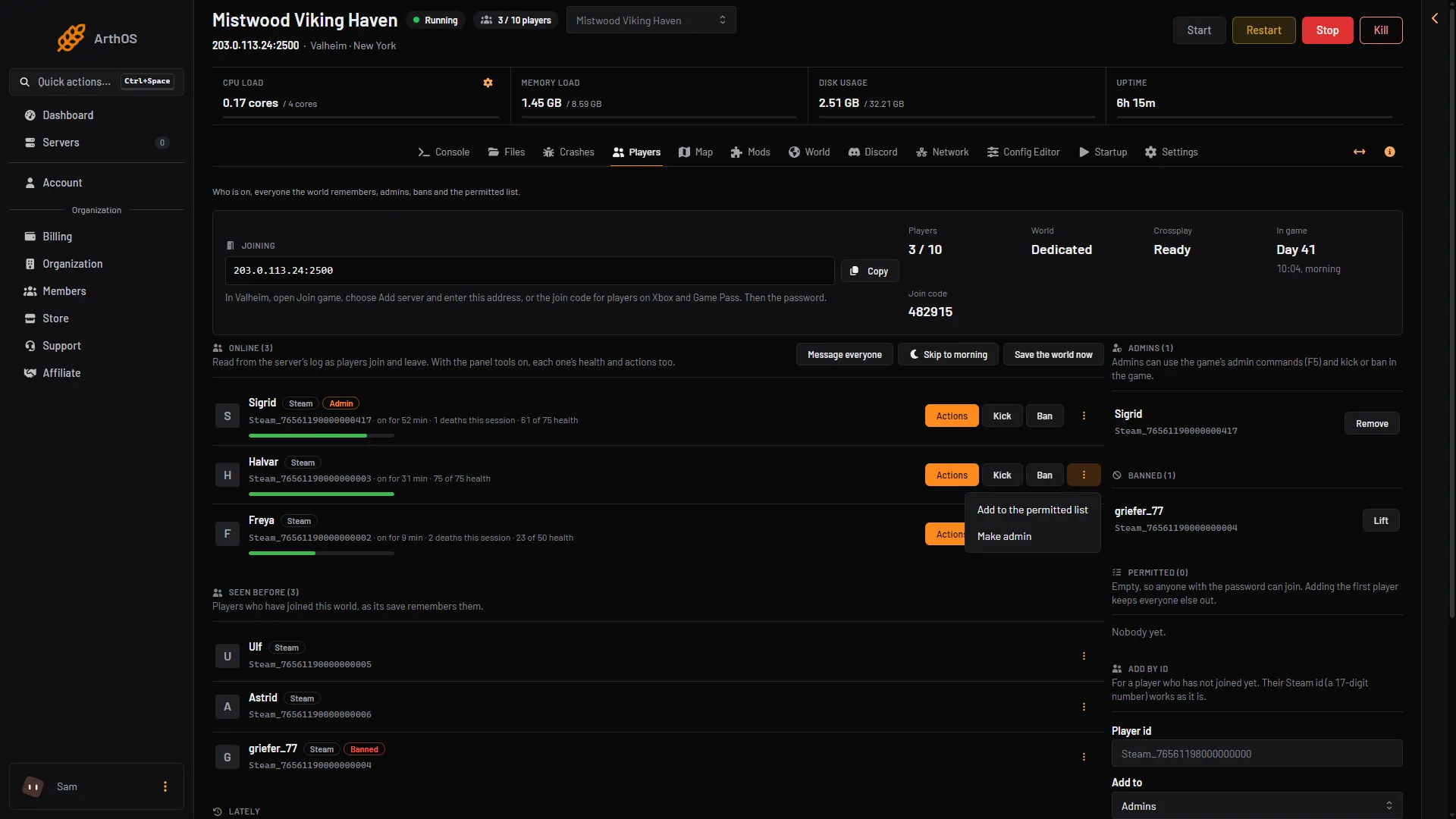
- Make admin
Your id is shown under your name on the row. Click it to copy it.
If you have never joined
Use Add by id. This also works for a friend who has not joined.
- Find your id. In the game, press F2 while you are on any server. It shows connected players and their ids. Not checked on 1.0.20 as of 21 October 2026: what the F2 panel looks like. A Steam id is a 17-digit number. See find a player id.
- On the Players page, find the card Add by id.
- Type the id in Player id. A Steam id works as it is, or write it as
Steam_followed by the number. - In Add to, choose Admins.
- Choose Add.
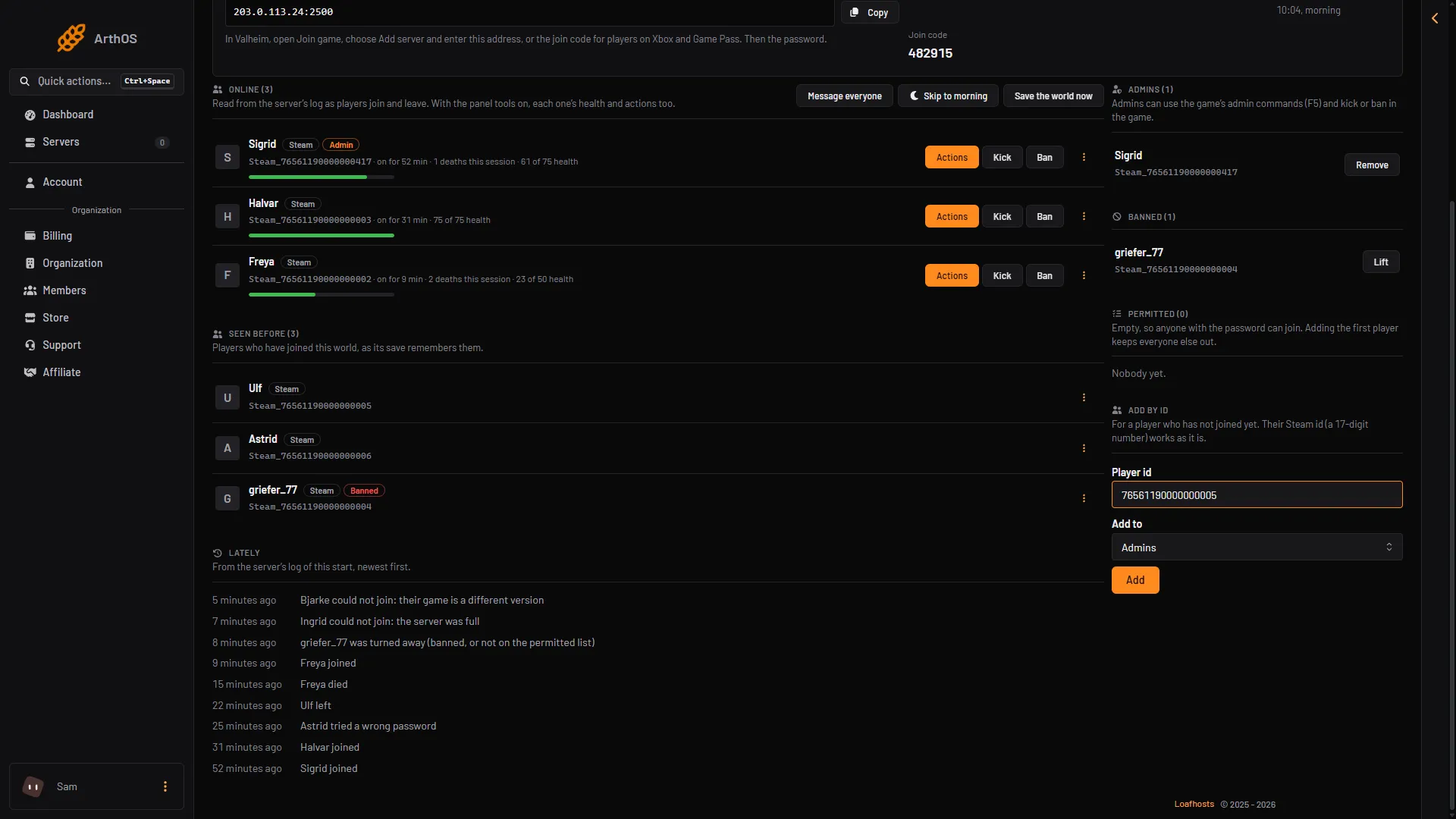
- Type the id
- Choose Admins
- Add
What an admin can do
An admin can open the console with F5 and use Kick, Ban, Unban and Banned, the admin commands in the server’s manual. The wiki lists four more, named in the guide linked below. Being an admin does not give cheats or debug mode. Cheat commands do not work on a dedicated server at all. See Valheim console commands.
By hand
The admin list is a text file, adminlist.txt, with one id per line. The game keeps it in its save folder. By default that is ~/.config/unity3d/IronGate/Valheim on Linux and %USERPROFILE%\AppData\LocalLow\IronGate\Valheim on Windows. The start option -savedir (path) changes it.
- Open Files.
- Go to
.config/unity3d/IronGate/Valheim. - Open
adminlist.txt. - Add your id on a new line, written as
Steam_76561190000000000with your own number. The format is the platform, an underscore and the number, and it is case sensitive. - Save the file.
The game ships the file with one line that starts with //, for example // List admin players ID ONE per line. Leaving it is fine. Not checked on 1.0.20 as of 21 October 2026: an id written as a bare number. The running game reads the file again within 10 seconds, as measured on 1.0.20, so no restart is needed.
Remove an admin
On the Players page, choose Remove admin in the player’s menu, or choose Remove next to the name in the Admins list.
If it does not work
- There is no Make admin. Your role on the panel may not allow it. Ask the server owner.
- F5 does nothing in the game. The game must be started with the launch option
-console. See Valheim console commands. - Commands are refused. Check that your id is in the Admins list and that it is written exactly as the game shows it, with
Steam_first. - The Players page shows nobody. A server started long ago may need one restart before it can show who is on.
More about the game: Valheim servers.
Sources: valheim.fandom.com: Dedicated servers, valheim.fandom.com: Developer console