









Open the Players page, find the player and choose Kick or Ban. A ban stops the player joining until you lift it. A kick removes them and lets them back in soon after. Both apply at once, with no restart. More about the game: Valheim servers.
Kick a player
The player must be online.
- Open the Players page.
- Find the player under Online.
- Choose Kick and confirm.
What a kick does depends on whether the panel tools are on. They are the panel’s own small add-on that runs inside the server.
- Without the panel tools: the game has no kick command on a server. So the panel bans the player and lifts the ban 30 seconds later. The player is removed within 15 seconds and can join again after the 30 seconds.
- With the panel tools: the panel uses the game’s own kick. The player is sent to the menu and can join again at once.
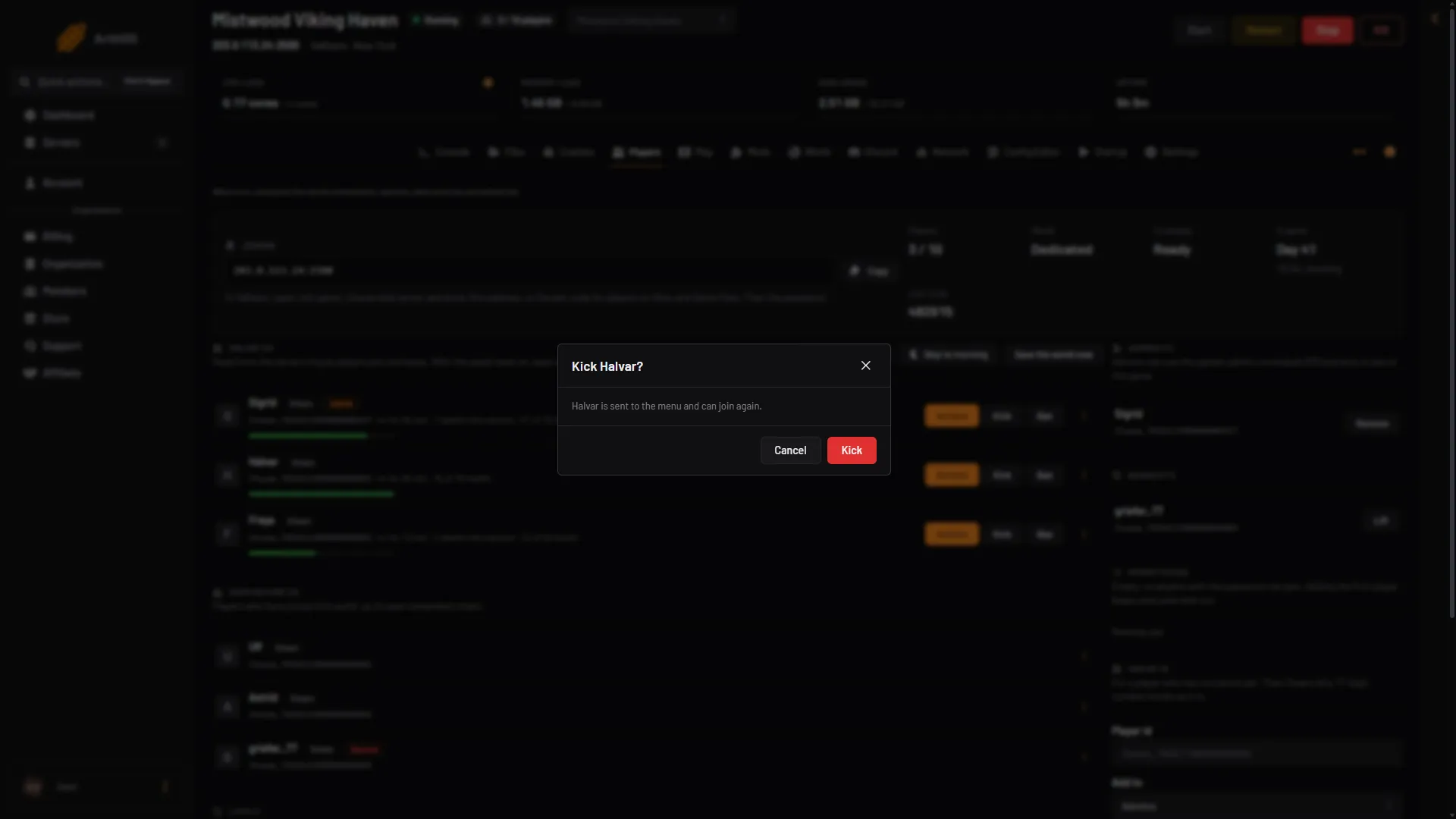
- What a kick does
- Kick
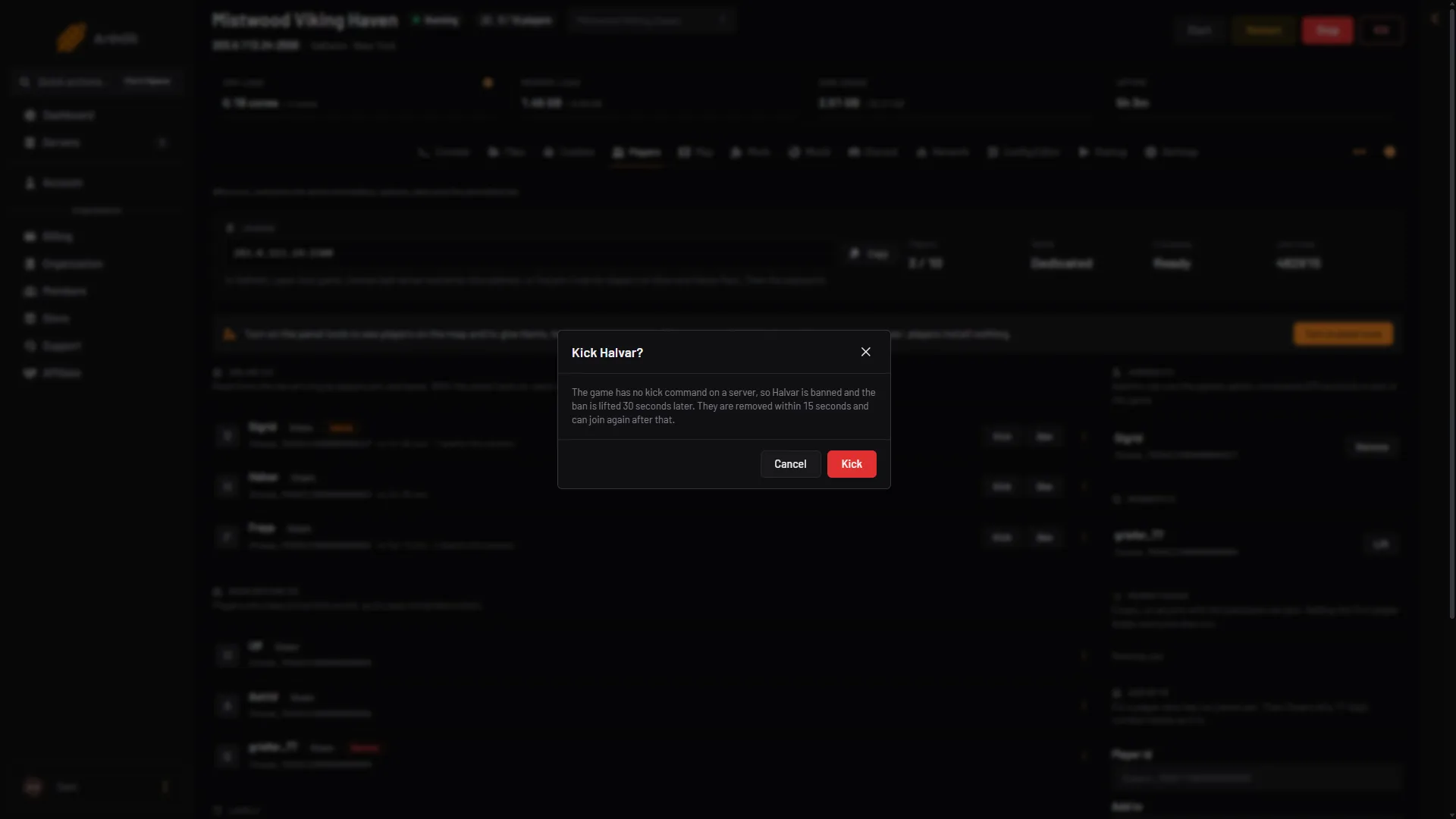
- What a kick does
- Kick
Ban a player
- On the Players page, find the player.
- Choose Ban. A box asks “Ban (name)?”.
- Confirm with Ban.
The player cannot join until the ban is lifted. If they are in the game, the game removes them within 15 seconds. The row shows the tag Banned, and the name appears in the Banned list.
Someone who left already is under Seen before. Open the menu on their row (the three dots) and choose Ban.
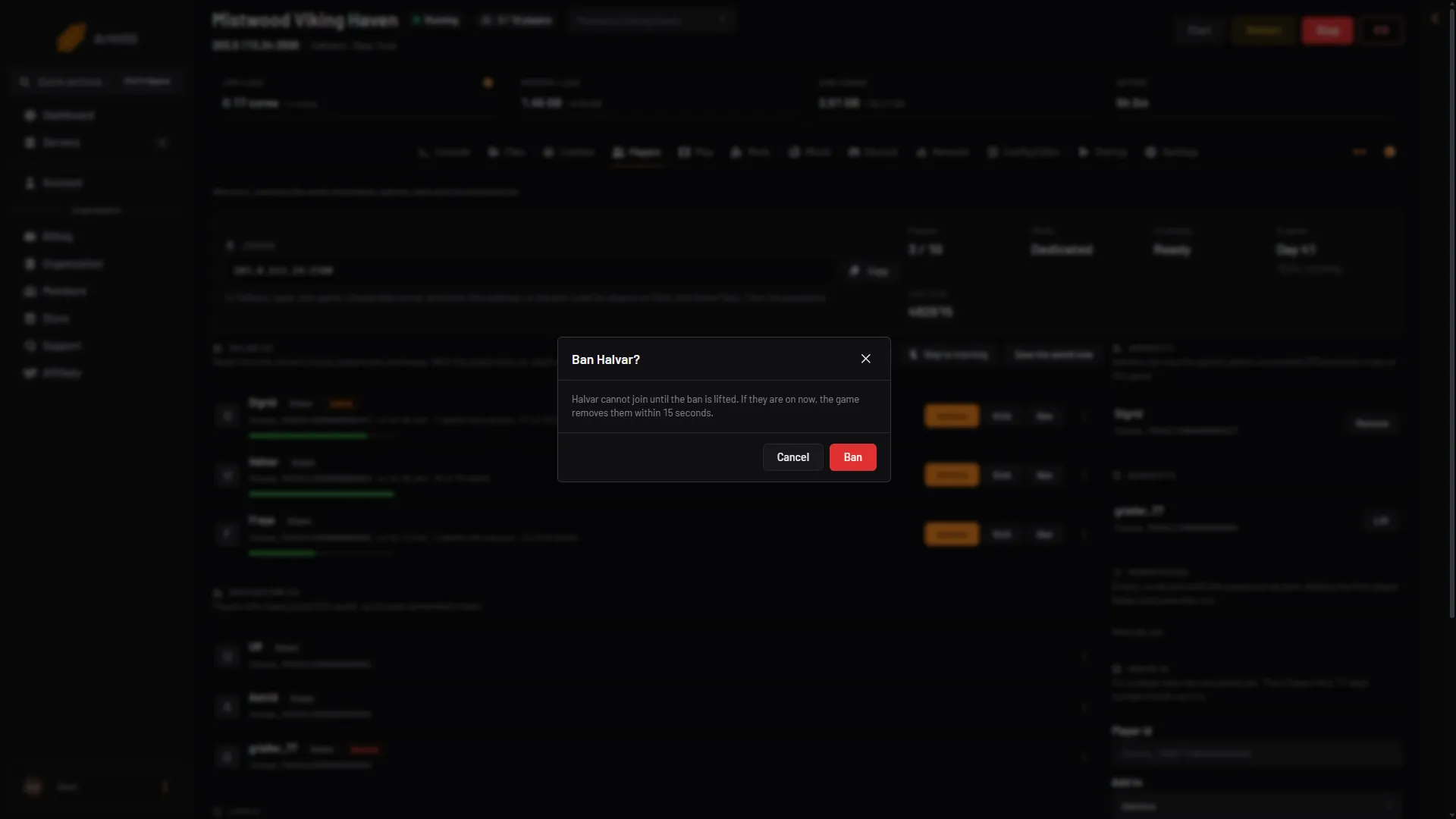
- What a ban does
- Ban
Lift a ban
In the Banned list on the right, choose Lift (2) next to the name.
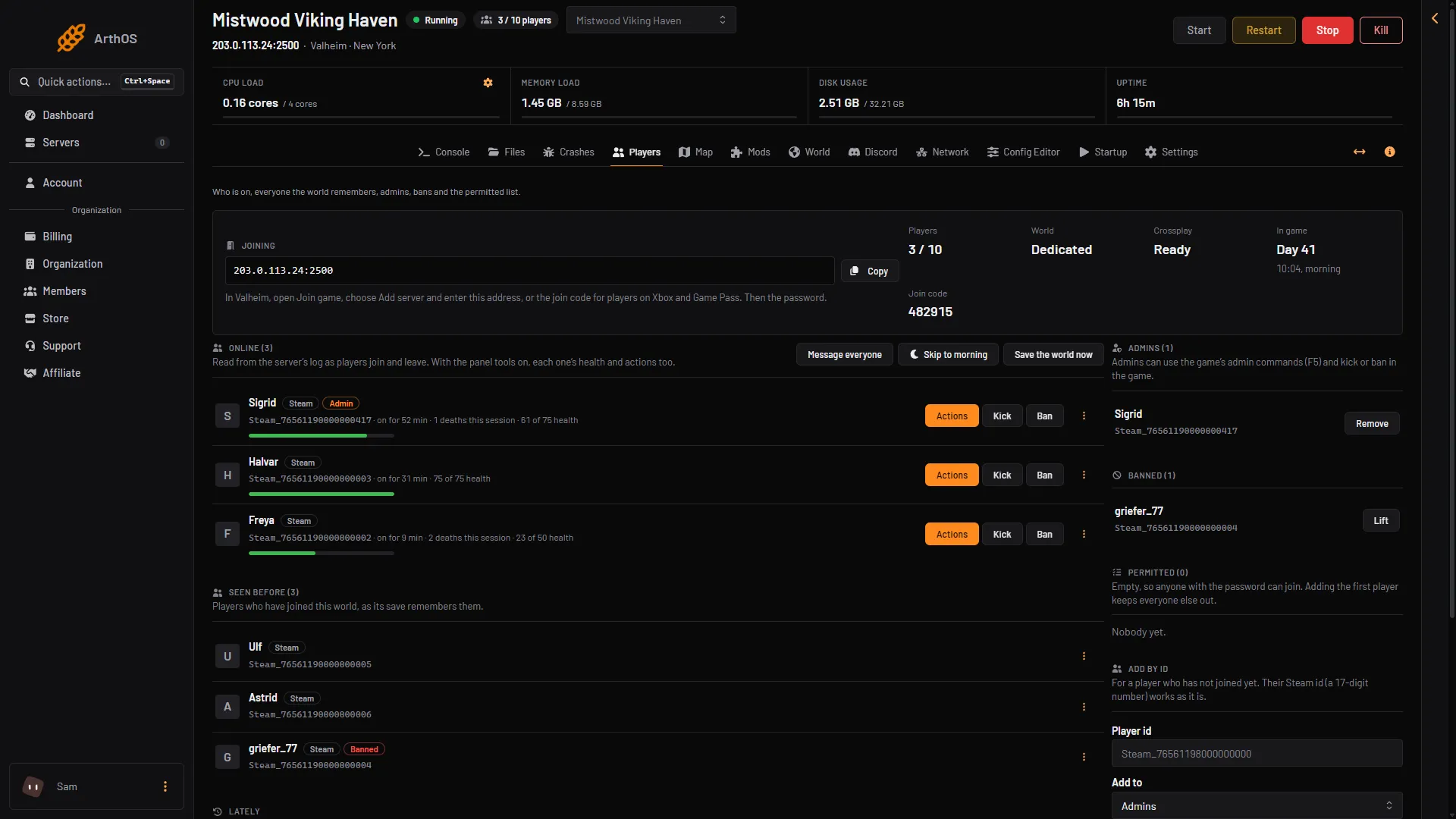
- Banned list
- Lift
Ban someone who is not on the server
Use Add by id. This works for someone who has not joined.
- Get their id. It looks like
Steam_76561190000000000. A Steam id as a 17-digit number works as it is. See find a player id. - In the card Add by id, type it in Player id.
- In Add to, choose Banned.
- Choose Add.
By hand
The bans are kept in a text file, one id per line.
- Open Files and go to
.config/unity3d/IronGate/Valheim. - Open
bannedlist.txt. - Add the id on a new line, such as
Steam_76561190000000000. It is case sensitive. The file ships with one line that starts with//; leaving it is fine. - Save. The running game reads the file again within 10 seconds.
To lift a ban, delete the line.
In the game
An admin can press F5 in the game and type:
Kick (name)Ban (name)Unban (name)Bannedto list everyone banned
The game’s manual lists these four. The wiki says kick, ban and unban also take an ip or a user id instead of a name. The F5 console needs the launch option -console. See Valheim console commands and make yourself admin.
If it does not work
- Kick and Ban are missing. The player is not online, or your role on the panel does not allow moderating players.
- A kicked player came straight back. That is how a kick works without the panel tools. Use Ban if you want them out.
- The Lately list says “turned away”. The player is banned, or the server has a permitted list and they are not on it. See the permitted list.
- The Players page shows nobody. A server started long ago may need one restart before the page can read who is on.
Sources: valheim.fandom.com: Developer console, valheim.fandom.com: Dedicated servers