






To remove a player for now, kick them: they can rejoin straight away. To keep them out, ban them: they cannot join again until you pardon them. In the ArthOS panel, open Players, click the player and choose Kick or Ban. In the console, type kick Alex or ban Alex griefing.
A ban by name stops that account. A ban by IP address stops anyone connecting from that address.
In the ArthOS panel
Open your server and the Players tab.
Kick
- Find the player in the list and click them. Their window opens. Kick shows only while the server runs and the player is online.
- Choose Kick. They are disconnected and can join again straight away. The panel’s kick does not take a reason.
The panel’s Kick has no box for a reason. To kick with a reason, use the console command under By hand.
Ban
- Click the player, or type their name in the Minecraft name box (1) and choose Ban (2). A player who is offline can be banned too, by name.
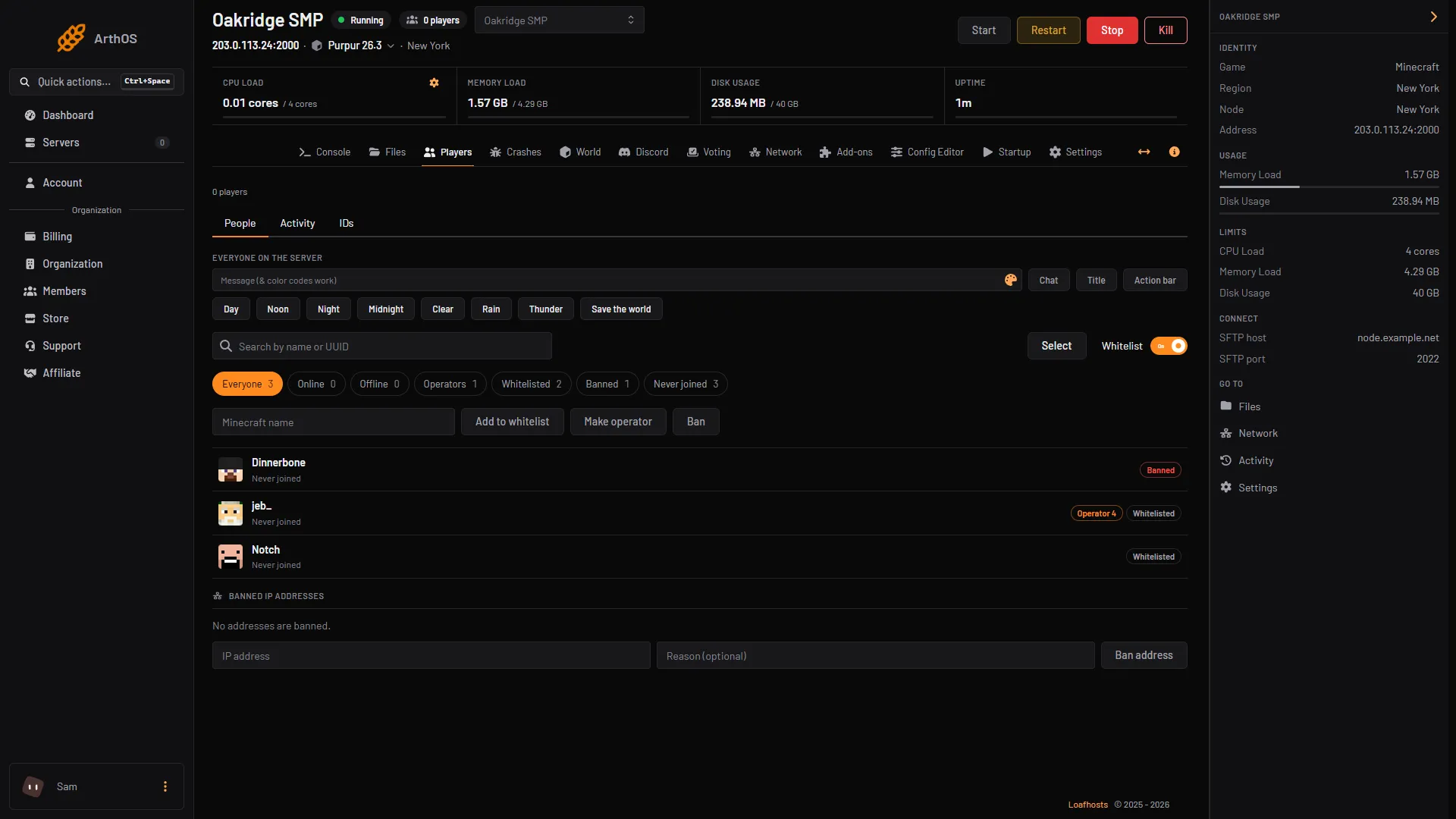
- Type the name
- Ban
- The Ban dialog opens on top of the player’s window. It says “They are disconnected and cannot join again until pardoned.”
- Choose For (1). The choices are Until pardoned (the default), 1 h, 24 h, 7 days and 30 days.
- Type a Reason (2). It is optional, and it appears on the player’s window as “Banned: …”.
- Choose Ban (3). They are disconnected and cannot join again.
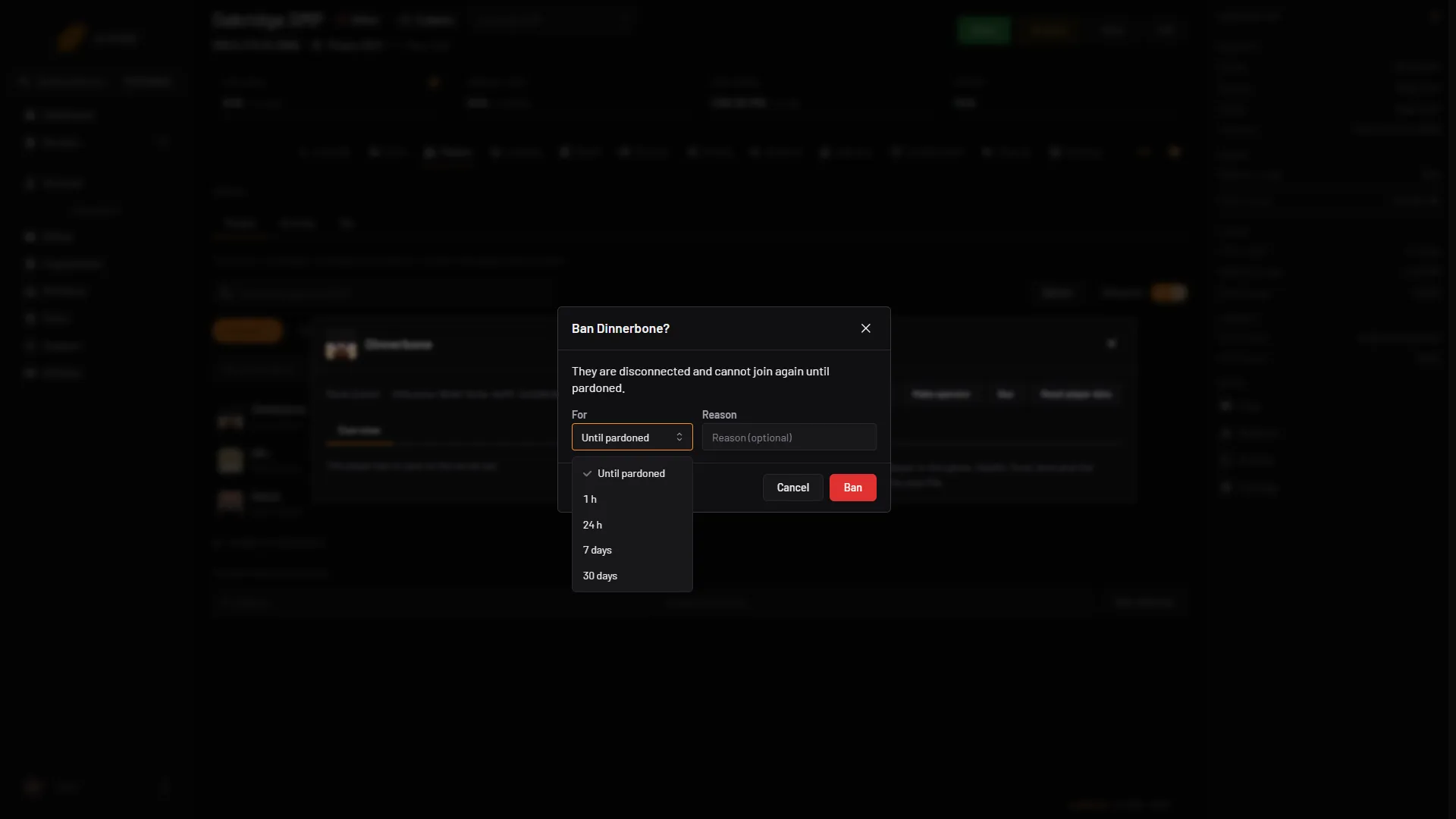
- For list
- Reason
- Ban
If the player is on your whitelist, you can also remove them from it. See the whitelist guide.
A timed ban lifts itself, even if the server is stopped when it ends. The player list shows a Banned tag but not the reason. Open the player’s window to see it.
Ban an IP address
- Click a player who has joined and choose Ban this address. This button shows only if your account may manage IP bans and the player has a last address on record.
- Or scroll to Banned IP addresses at the bottom of the page, type the IP address and an optional Reason (optional), and choose Ban address.
See who is banned
Choose the Banned chip above the list. It lists every banned player. Banned IP addresses lists the addresses.
If the server is stopped, the panel edits the ban files for you and the change applies when the server starts.
By hand
In the server console, with no slash. In game, an operator types the same with a slash.
kick Alexkicks. Add a reason:kick Alex please read the rules. The player sees it. Without one the game says “Kicked by an operator”.ban Alex griefing the basebans by name with a reason.ban-ip 203.0.113.9 spambans an address. You can also give the name of someone who is online:ban-ip Alex. The address must be IPv4 (four numbers separated by dots).banlist playersshows banned players.banlist ipsshows banned addresses.pardon Alexandpardon-ip 203.0.113.9remove a ban.
The bans are stored in banned-players.json and banned-ips.json in the main folder. You can edit them in Files, then restart the server.
If it does not work
- The player is still in after a ban. Check the name is spelled the way their account is, and that the server answered. The panel shows “The server did not confirm this” if it did not.
- A banned player got in with a new account. A name ban stops one account. Ban the address too, or turn on the whitelist.
- An innocent player cannot join after an IP ban. They share the address. Pardon the address in Banned IP addresses.
- You cannot see Kick. The server must be running and the player online. Otherwise only Ban and Pardon show.
- Commands do nothing in game. You need to be an operator. See operators.
More on the game: Minecraft servers.
Sources: minecraft.wiki: Kick, minecraft.wiki: Ban, minecraft.wiki: Pardon, minecraft.wiki: Server