






To run a Bedrock server, order Minecraft with the Bedrock edition, start it, then give players the address and the port. Players on phones, tablets and Windows add it from the Play screen. Consoles have limits, covered below.
In the ArthOS panel
- Open the Store, choose Game servers, then Minecraft, and pick a Region and Size.
- Under Edition choose Bedrock (1). The panel installs Mojang’s official Bedrock Dedicated Server, downloaded from minecraft.net. If you also want Java players on the same world, choose Java + Bedrock instead: see Let Bedrock players join your Java server.
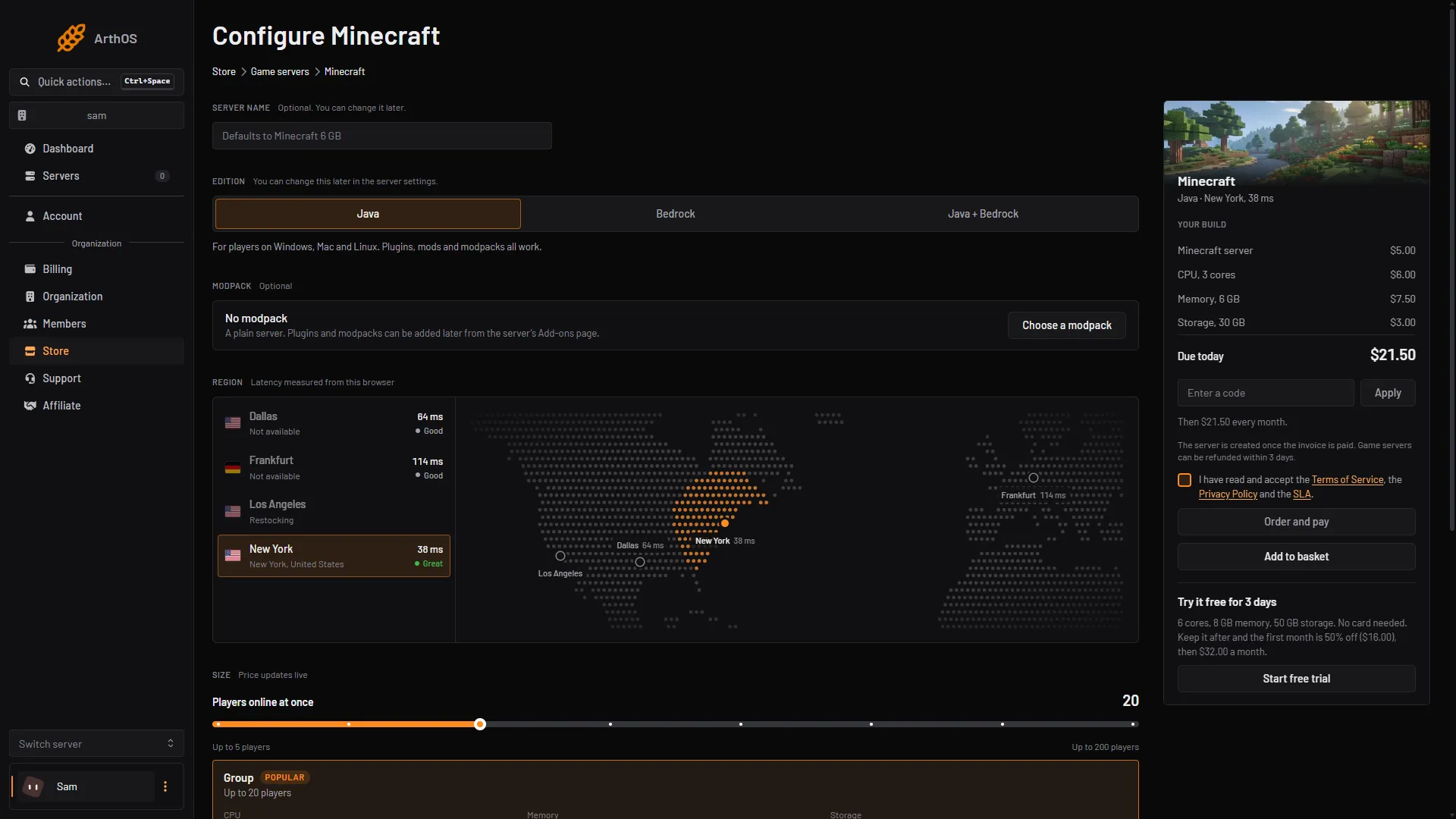
- Choose Bedrock
- Tick the terms box and press Order and pay. When the install finishes, open the server and start it from the Console.
- Set the basics in the Startup tab: Server Name (what players see in their list), Gamemode, Difficulty, Allow cheats and World (the folder under
worlds/that the server loads). The panel writes these intoserver.propertiesat every start, so change them here, not in the file. - Restart the server for the change to apply.
The allow list
The panel turns the allow list off the first time it installs a Bedrock server, so a new server lets anyone with the address and port join until you turn it on. To let in only your friends:
- Add them in the Console, one at a time:
Put quotes around a gamertag with a space in it. The server fills in the player’s XUID the first time they connect.allowlist add Gamertag - Open Files, open
server.propertiesand setallow-listtotrue. - Restart the server.
You can also edit allowlist.json in Files:
[
  { "name": "Gamertag", "ignoresPlayerLimit": false }
]
The allow list only works with online-mode=true, which is the default. Your list survives updates and reinstalls of the server software.
The port and the address
Bedrock’s usual port is 19132, but the panel gives your server its own port. Use the address in the server header, which includes the port: click it to copy. Bedrock does not connect without the port.
How players join
- Phone, tablet or Windows: open Minecraft, go to the Play screen, add a server to the list, then enter the address and the port.
- Version: a player’s game must be on the same version as the server. Bedrock does not support older versions, so a player who has not updated cannot join after the server updates.
- Xbox, PlayStation and Nintendo Switch: the game has no screen for adding a server by address. These consoles reach featured servers and Realms. Workarounds exist from other projects; Loafhosts does not run or support them.
Updating and backups
The Bedrock server installs the latest release when you reinstall it. Your worlds, server.properties, allowlist.json and permissions.json are kept. Back up first from Settings, then Backups: see Minecraft server backups. The Players, Add-ons, Versions and server icon pages are for Java servers only.
If it does not work
- Everyone is refused. This happens after you turned the allow list on with nobody on it. Add players, or set
allow-list=false. - “Unable to connect” on a phone. Check the address, that the port is typed in, and that the game and server are on the same version.
- A setting you edited in the file reverts. Server Name, Gamemode, Difficulty, Allow cheats and World are overwritten from Startup at each start. Change them there.
- Your gamertag is refused though it is on the list. Make sure the spelling matches and
online-modeistrue, then restart.
More on the game: Minecraft servers.
Sources: minecraft.wiki: Setting up a Bedrock Edition server, minecraft.wiki: Server.properties, minecraft.net: Bedrock