






To set up a Minecraft server: order it, choose your edition, start it, accept the Minecraft End User License Agreement (EULA) when the Console asks, then give players the server address. It takes a few minutes, and everything after the order happens on the server’s own page.
In the ArthOS panel
- Open the Store, choose Game servers, then Minecraft. The page is called “Configure Minecraft”.
- Choose the Edition (1). You can change this later in the server settings.
- Java is for players on Windows, Mac and Linux. Plugins, mods and modpacks all work.
- Bedrock is for phones, tablets and Windows. Xbox, PlayStation and Nintendo Switch cannot add a server by address in the game (see the Bedrock guide).
- Java + Bedrock puts both kinds of player on one world and one address. Plugins work, modpacks do not.
- Pick a Region (2) close to your players. The page measures latency from your browser. Then pick a Size (3), the number of players online at once. Mods, view distance and world size also use memory, so choose a larger size if you plan to use them.
- Optional: give the server a name, and for Java choose a modpack with Choose a modpack. See Install a modpack.
- Choose a Billing cycle, tick the terms box and press Order and pay. The server is installed within a few minutes of payment.
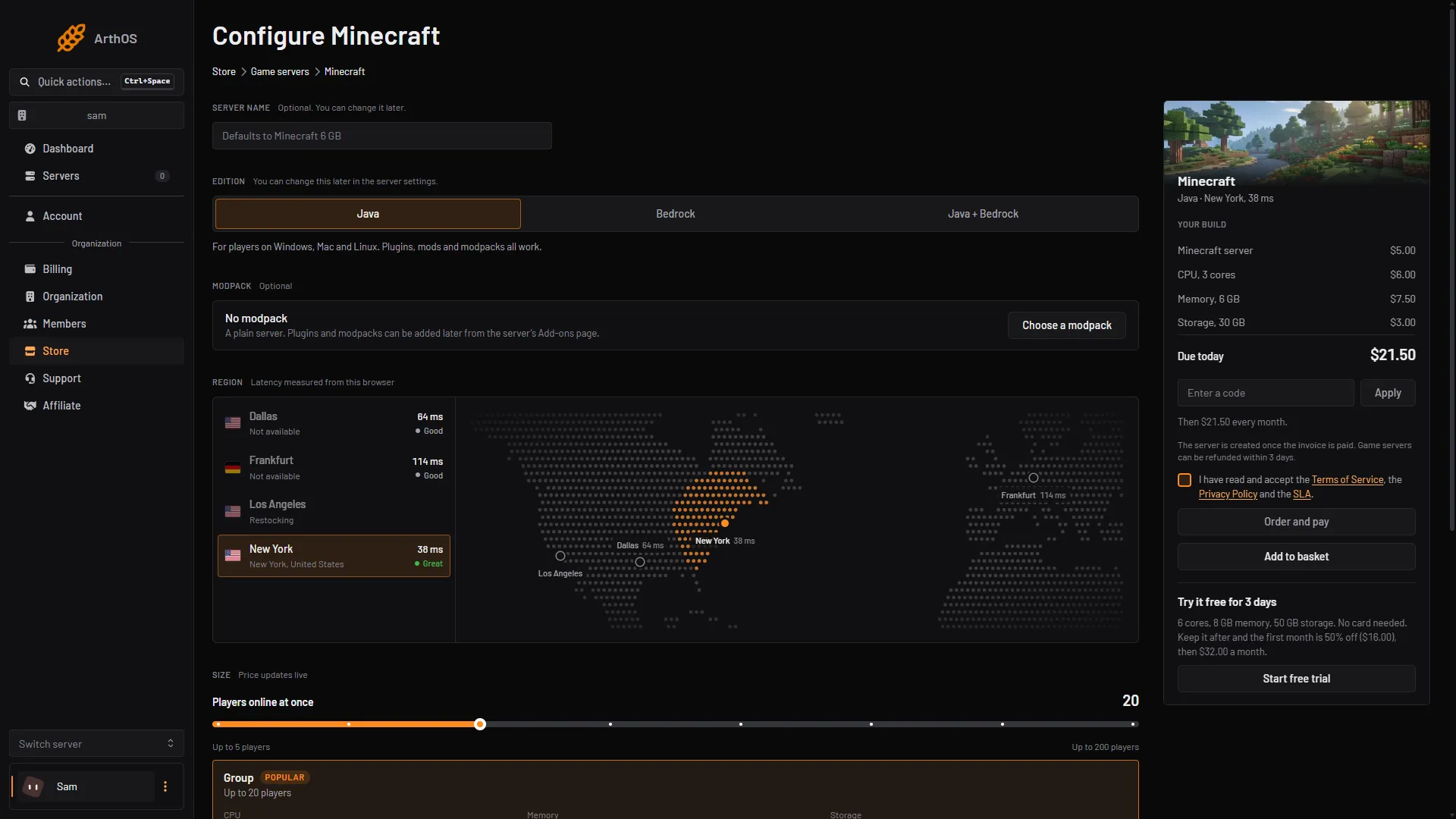
- Choose the edition
- Pick a region
- Pick a size
- Open the new server and press Start at the top of the page.
- A new Java server cannot start until the EULA is accepted, so the Console opens a Minecraft EULA Agreement dialog. Read the Minecraft EULA, then press Accept EULA (1). The panel shows “EULA accepted successfully.” and the server starts by itself. Details in Accept the Minecraft EULA.
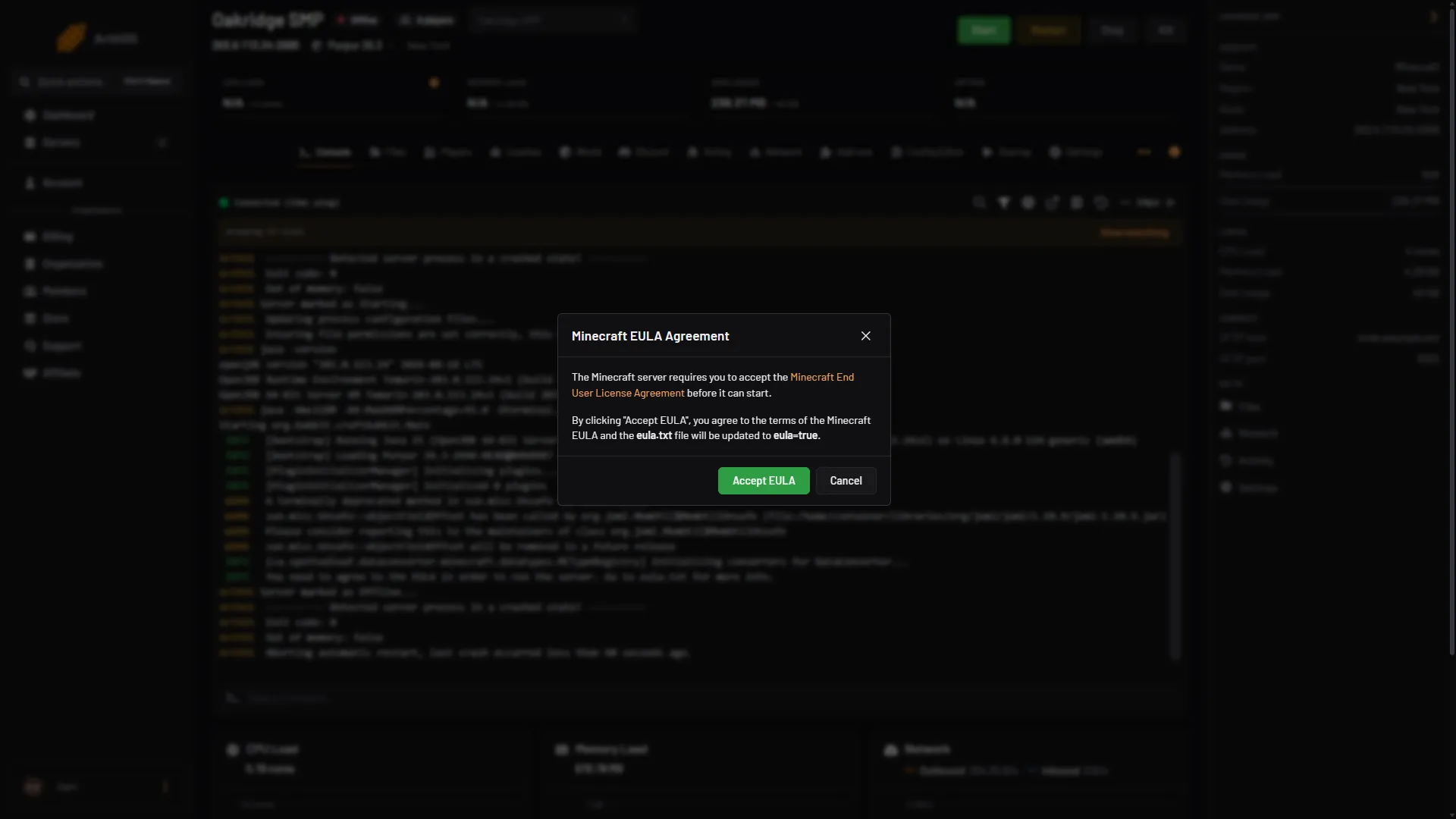
- Press Accept EULA
- A new Java server has the whitelist on (Minecraft 26.3 and newer). Nobody can join, the owner included, until names are added or the whitelist is turned off; operators can join anyway. Add your own name and your players’ names, or turn the whitelist off. See Set up a Minecraft whitelist.
- Wait until the status beside the server name reads Running. The address sits under the server name (1); click it to copy it.
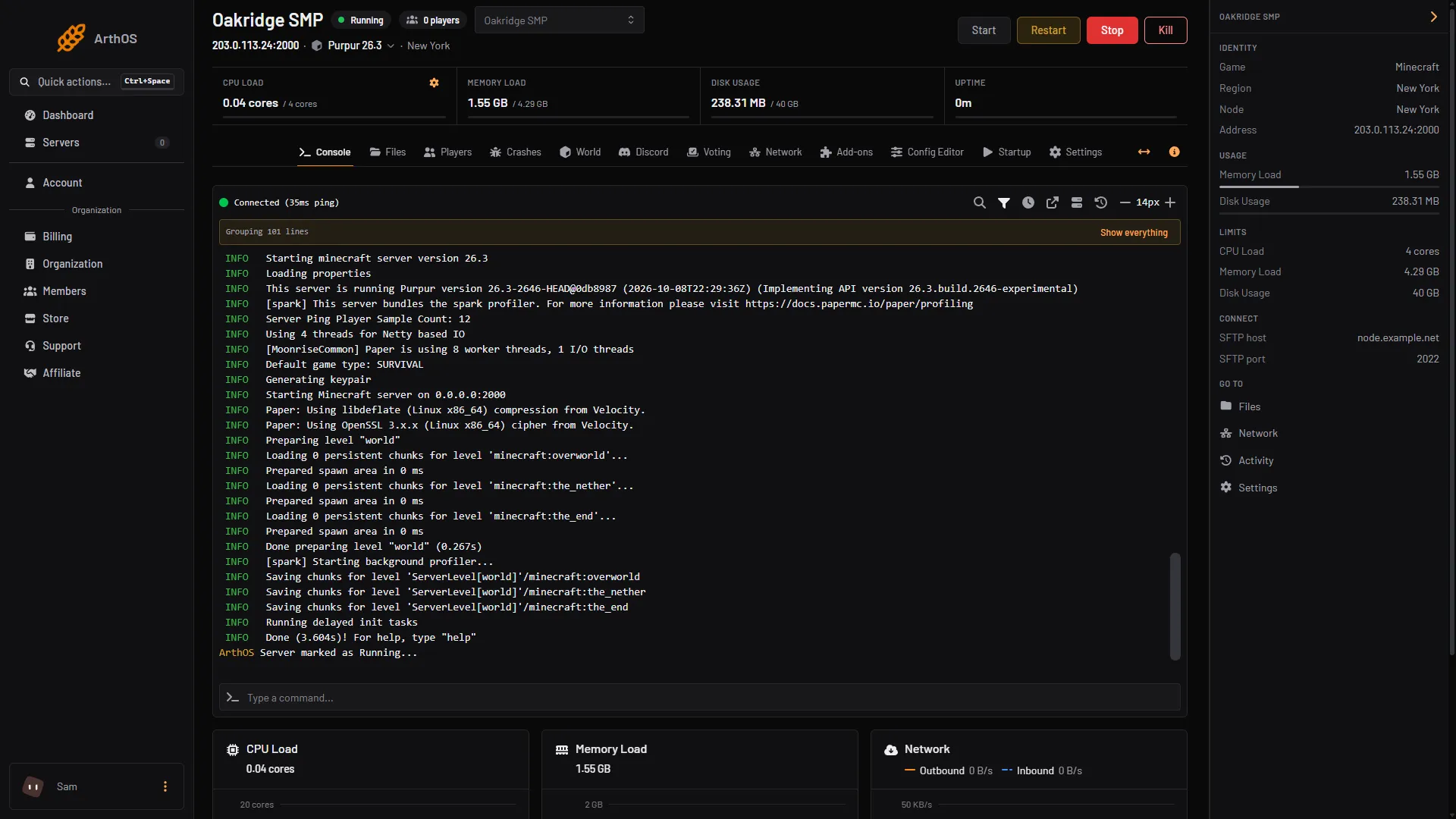
- Click to copy the address
A default Java order installs Purpur, which runs Paper plugins. To run Fabric, Forge, NeoForge or plain Vanilla instead, see Change the Minecraft version or server software.
How players join
- Java: in the game choose Multiplayer, add a server, and paste the whole address from the header, with the number after the colon.
- Bedrock: open the Play screen, add a server to the list, then enter the address and the port. Bedrock always needs the port typed in. Console players have limits: see Set up a Bedrock server.
- Java and Bedrock together: one address serves both. Java uses TCP and Bedrock uses UDP on the same port number. Bedrock players’ names start with a dot, such as
.Steve.
By hand
If you host the server yourself, the same steps are:
- Install Java. Minecraft 26.1 and newer needs Java 25.
- Download
server.jarfrom the official server download page into an empty folder. - Run
java -jar server.jar --nogui. It createseula.txtandserver.properties, then stops. - Open
eula.txtand changeeula=falsetoeula=true. - Run the same command again. Stop the server by typing
stopin its console, with no slash. - Java’s default port is 25565, so players who use it need not type it. Forward TCP port 25565 on your router and firewall so players outside your network can reach it.
Bedrock Dedicated Server is a different download. It listens on UDP port 19132 by default.
If it does not work
- The server starts and stops straight away. The EULA is not accepted yet. Accept it in the Console dialog, or set
eula=trueineula.txt. - No Accept EULA dialog appears. It opens when the Console prints that the EULA must be accepted, and only while the server is not running. Press start again and watch the Console. Your role also needs permission to create files, or the button is hidden: ask the server owner.
- Bedrock players cannot connect. Check that they typed the port, that the server was ordered as Bedrock or as Java and Bedrock, and that their game is on the same version as the server. Bedrock does not support older versions.
More on the game: Minecraft servers.
Sources: minecraft.wiki: Setting up a Java Edition server, minecraft.wiki: Setting up a Bedrock Edition server, minecraft.wiki: Server.jar, minecraft.wiki: Server.properties, minecraft.net: Eula