






Geyser lets Bedrock players join a Java server. Floodgate lets them join without owning Java Edition. Bedrock names get a dot in front: that is Floodgate’s username-prefix in plugins/floodgate/config.yml, default ".".
If you turned on Let Bedrock players join in the panel, both are already installed and set up. To turn the feature on, see Bedrock players on a Java server.
If you are the player
- You need the server owner’s address and port.
- You need a Microsoft account signed in on your Bedrock app.
- In the Bedrock app, add a server to your list of servers with that address and port.
- Xbox, PlayStation and Switch cannot add a server by address.
- Your skin shows to Java players. It can take a while to appear.
- Other players see a dot before your name. That is normal, and only the owner can change it.
- You do not need to link accounts to play.
If you run the server
If you use the panel’s switch, the panel installs and sets up both plugins for you.
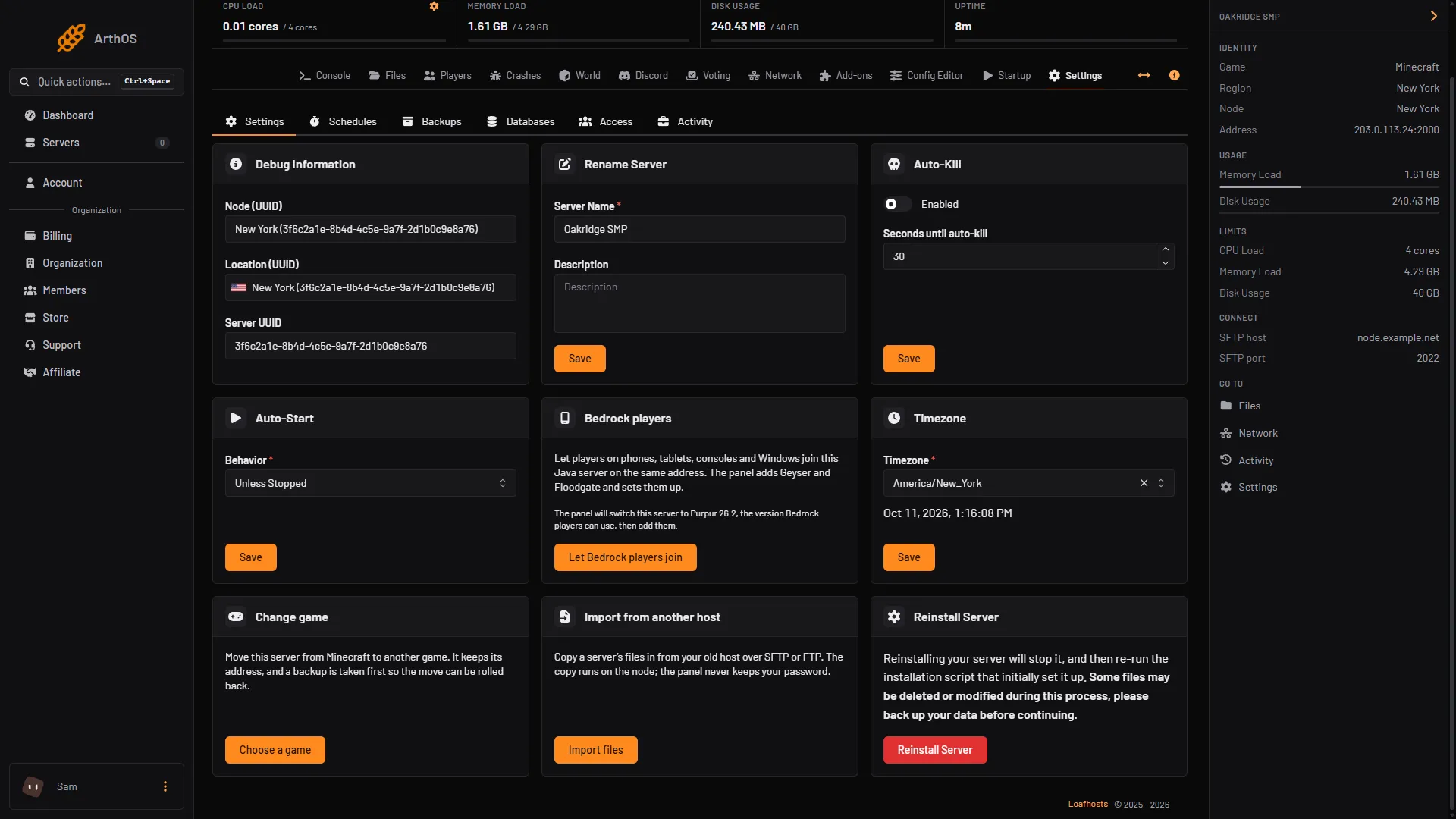
- Bedrock players card
- Let Bedrock players join
The card (1) is on Settings. Press the button (2) once and the panel adds and sets up both plugins. The switch moves a 26.3 server to 26.2 first, so plugin advice in other guides that was checked on 26.3 needs checking again.
By hand
On a server without the panel:
- Put Geyser and Floodgate in the
pluginsfolder of the same server. - The Bedrock port is UDP. It must be open.
- In Geyser’s
config.yml, setauth-type: floodgate. - Restart the server.
The settings that matter
Both plugins keep their settings in a file. Open it in Files, change it, then restart the server. The Config Editor does not show these files.
Geyser, in plugins/Geyser-Spigot/config.yml:
| Key | What it does |
|---|---|
bedrock section, port | The UDP port Bedrock players connect to. Geyser’s default is 19132. |
bedrock section, address | Which address Geyser listens on. 0.0.0.0 means every address. Change it only to limit who can connect. |
bedrock section, clone-remote-port | When true, the Bedrock port is the same number as the Java port. |
java section, auth-type | How Bedrock players are checked. With Floodgate it is floodgate. |
When you use the panel’s switch, the panel writes these values for you: address 0.0.0.0, the Bedrock port equal to your game port, clone-remote-port: true and auth-type: floodgate. Bedrock players then use your server’s address and the same port number as Java players. Do not change them unless you know why.
Floodgate, in plugins/floodgate/config.yml:
| Key | What it does |
|---|---|
username-prefix | Added to the front of Bedrock names. The default is ".". |
replace-spaces | true by default. Turns spaces in Bedrock names into _. |
player-link section, enabled | Turns account linking on or off. |
player-link section, enable-global-linking | true by default. Uses Geyser’s central link server. |
player-link section, require-link | false by default. When true, a player must have a linked account to join. |
key.pem, in the same folder, is Floodgate’s secret key. Geyser’s wiki says never to give it to anyone: whoever has it can make the server accept any player without the normal sign-in check.
Link a Java account and a Bedrock account
Linking joins the two accounts of one person, so they share one player on the server. Floodgate’s wiki says a linked player uses the Java account’s position, inventory and achievements on both platforms. After linking, the player uses only the Java account’s progress. The Bedrock account’s progress is hidden until the player unlinks. So move everything you want to keep to the Java account first.
Global linking works on any server that has it on. The player links once:
- On a Java account and on a Bedrock account, join
link.geysermc.org. Java uses port 25565 and Bedrock uses port 19132. - On one of the two, type
/linkaccount. You get a number. - On the other account, type
/linkaccount <number>. - Both accounts are kicked with a message that says the link worked.
To undo it, join the same server and type /unlinkaccount.
Global linking needs online-mode on your server (see online-mode). Floodgate’s issues page says that with global linking and online-mode off, a linked Bedrock player does not get the same player data as on Java, so progress is lost.
Bedrock skins
Floodgate shows Bedrock skins to Java players. Floodgate’s wiki says that when the upload queue is long, a skin can take a while to appear. This is not a setting on your server.
If it does not work
If you are the player
- Check that you typed the server’s address and the same port number the owner gave you, not 19132 unless they said so.
- “Outdated client” means the server is too new or Geyser is old. Tell the owner. Geyser’s wiki says to use the latest Geyser.
- Floodgate needs an Xbox account to check you. Sign in to a Microsoft account in the Bedrock app.
If you run the server
- Bedrock players cannot connect. Check these in order:
- The server shows Running and the player typed your address and the same port number the panel shows, not 19132.
- In the Console, type
geyser connectiontest <ip> <port>. Geyser’s wiki says it suggests what to try. - If you hold a Geyser or Floodgate copy of your own in
plugins, remove it and use only one copy. - The Bedrock app is too new or too old. Geyser’s wiki says to use the latest Geyser. See Bedrock players on a Java server.
- “Please connect through the official Geyser.” Floodgate and Geyser are not both up to date. Update both.
- “Cannot reply to EncryptionRequestPacket without profile and access token.” Floodgate is missing or did not start. The wiki says to make sure Floodgate installed and started correctly.
- “Tag mismatch” in the Console. Stop the server, delete the
plugins/floodgatefolder and any key file in the Geyser folder, then start it. Floodgate then makes a new key. Only do this when Geyser and Floodgate are on the same server. - Names with a dot break a plugin or a command. The dot is Floodgate’s
username-prefix.- In a command, put the name in quotes:
/tp ".Steve". - A name with a space uses
_instead. - For LuckPerms, Floodgate’s wiki says to set
allow-invalid-usernamestotruein LuckPerms’ config. - Removing the prefix is possible. Floodgate’s wiki says not to, unless no Java and Bedrock player share a name: two players with one name break commands such as teleport.
- If you change
username-prefix, the wiki says that on some older Paper servers you must also stop the server and deleteusercache.jsonin the main folder. Only do this if your server is one of those.
- In a command, put the name in quotes:
- The whitelist refuses a Bedrock player. The whitelist holds the name with the dot. Geyser’s wiki gives two ways. In the Console,
fwhitelist add Steveadds a Bedrock player without the dot, but only after that player has joined once. Or turn the whitelist off withwhitelist off, let the player join, typewhitelist add ".Steve", thenwhitelist on. See the whitelist guide.
More on the game: Minecraft servers.
Sources: geysermc.org: Setup, geysermc.org: Common issues, geysermc.org: Fixing unable to connect to world, geysermc.org: Faq, geysermc.org: Setup, geysermc.org: Faq, geysermc.org: Issues, geysermc.org: Features, geysermc.org: Commands, geysermc.org: Linking, raw.githubusercontent.com: Config.yml