






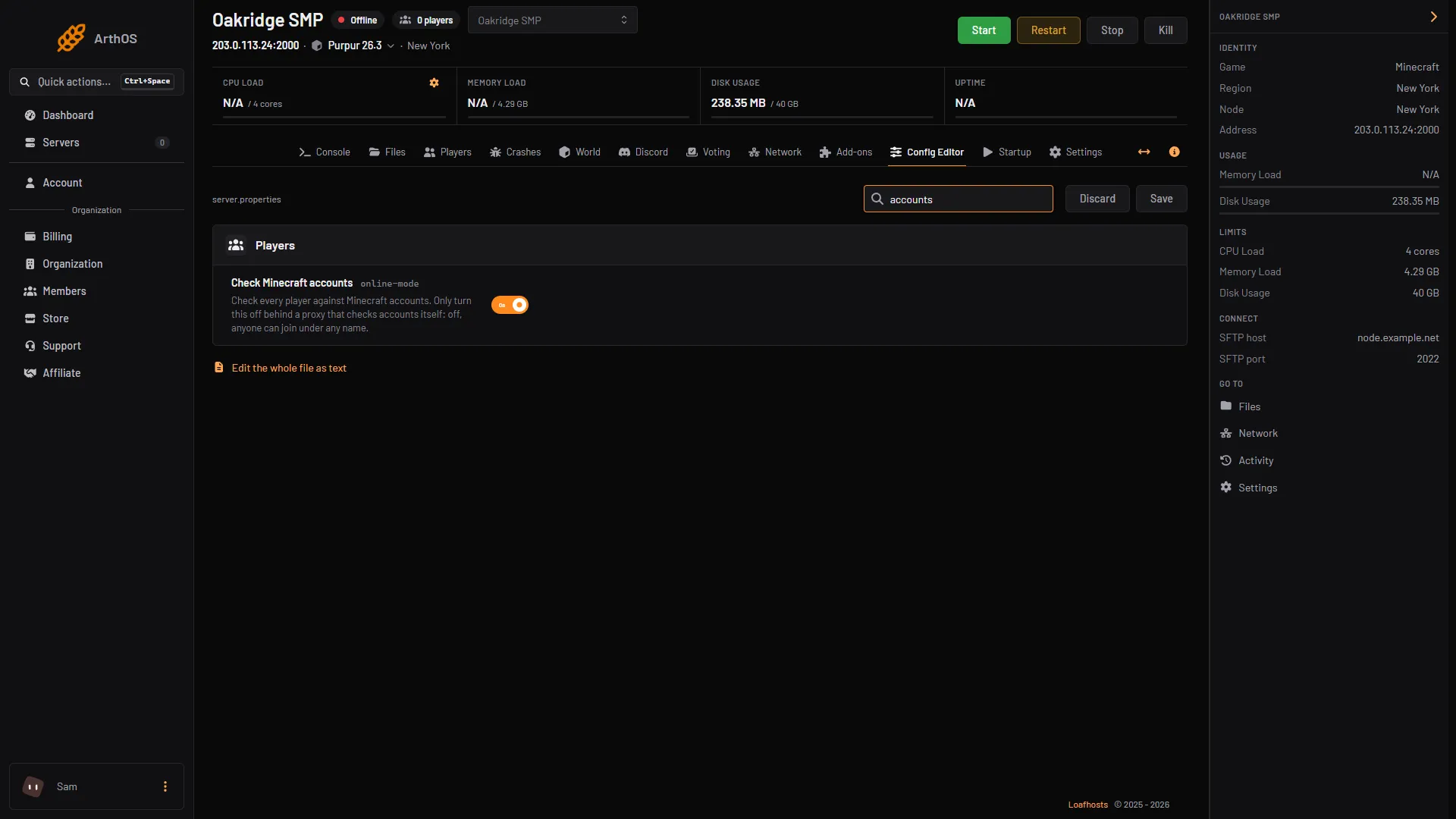
Keep online-mode on. With it on, the server checks every player against Minecraft accounts before they join. In the Config Editor the row Check Minecraft accounts is online-mode.
A player without a Minecraft account cannot join while the check is on. Turning the check off is not a fix for that: anyone can then join under any name, including yours. Turn it off only when a proxy does the account check for the server. A proxy is a program in front of your server that lets players in. Velocity is one.
Why it must stay on
With it off, the server does not check who a player is. The Minecraft Wiki says hackers with fake accounts can connect when it is false. The Velocity documentation says that with a server in offline mode, “in theory, someone could impersonate any player on your server”. That includes an operator: anyone who knows the name can take that player’s place.
The panel’s help for the row says: “Check every player against Minecraft accounts. Only turn this off behind a proxy that checks accounts itself: off, anyone can join under any name.”
The setting is on by default. The wiki’s default file has online-mode=true.
Switching the setting also changes every player’s UUID, the number the server files their data under. With the check on, a player’s UUID is the one their Minecraft account was given. With it off, the wiki says the server makes one from the player’s name instead. Player data, operators and the whitelist are kept by UUID, so after a switch they no longer match the same players. Switching back makes them match again.
When offline mode is used
One case is normal: a proxy sits in front of your servers. Velocity is the example in the PaperMC documentation. The proxy checks the accounts. The server behind it is put in offline mode, so that it trusts what the proxy tells it.
That is safe only when nobody can reach the server except through the proxy. Velocity’s documentation says: “make sure only the proxy can connect to your servers.” It strongly recommends a firewall, and it says its forwarding secret is not a replacement for one.
If you do not run a proxy, leave the setting on.
In the ArthOS panel
To check or change the setting:
- Open your Minecraft server and choose Config Editor.
- Type “accounts” in Search….
- Check Minecraft accounts (1) is in the Players group. A switch that is on means the check is on.
- If you change it, choose Save (2), then restart. The banner says “Saved changes apply after a restart.”
- Check Minecraft accounts switch
- Save
This guide does not cover limiting a Loafhosts server to a proxy, so keep the check on.
By hand
- Stop the server.
- Open
server.properties. The line isonline-mode=true. - Change it to
falseonly for a server behind a proxy. Otherwise leave ittrue. - Start the server.
For Paper behind Velocity, the PaperMC documentation says:
- Set
online-modeto false inserver.properties. - In
config/paper-global.yml, setproxies.velocity.enabledto true. - Set
proxies.velocity.secretto the secret in the proxy’sforwarding.secretfile. - Set
proxies.velocity.online-modeto match theonline-modesetting invelocity.toml. - In
velocity.tomlsetplayer-info-forwarding-modetomodern.
If it does not work
- Nobody can join and the server is in online mode. The wiki says that if the Minecraft account service is down or cannot be reached, no players can connect. Players see “Authentication servers are down. Please try again later. Sorry!” Wait and try again.
- A player sees “Failed to verify username!” That is the game’s message when the check fails. The check could not confirm the player’s account. The cause the sources name is the account service being unreachable (the line above).
- You turned it off and want the whitelist to protect you. Names on a whitelist are only names. With the check off, anyone can join under a listed name. See the whitelist guide. Phones and tablets joining through Geyser have their own guide: Bedrock players on a Java server.
More on the game: Minecraft servers.
Sources: minecraft.wiki: Server.properties, minecraft.wiki: UUID, docs.papermc.io: Security, docs.papermc.io: Player information forwarding, docs.papermc.io: Global configuration, raw.githubusercontent.com: En us.json