






Modpacks need more memory than a plain server, and every file in them has to come from the right place. The ArthOS panel sets the server up for the pack and checks each file as it goes in.
1. Choose the pack when you order, or later
Ordering a new server? The order page has a Modpack field for Java servers. Search CurseForge or Modrinth, pick the pack and its version, and the server is built with it. Modpacks need more memory than a plain server, so pick a larger size on the order page.
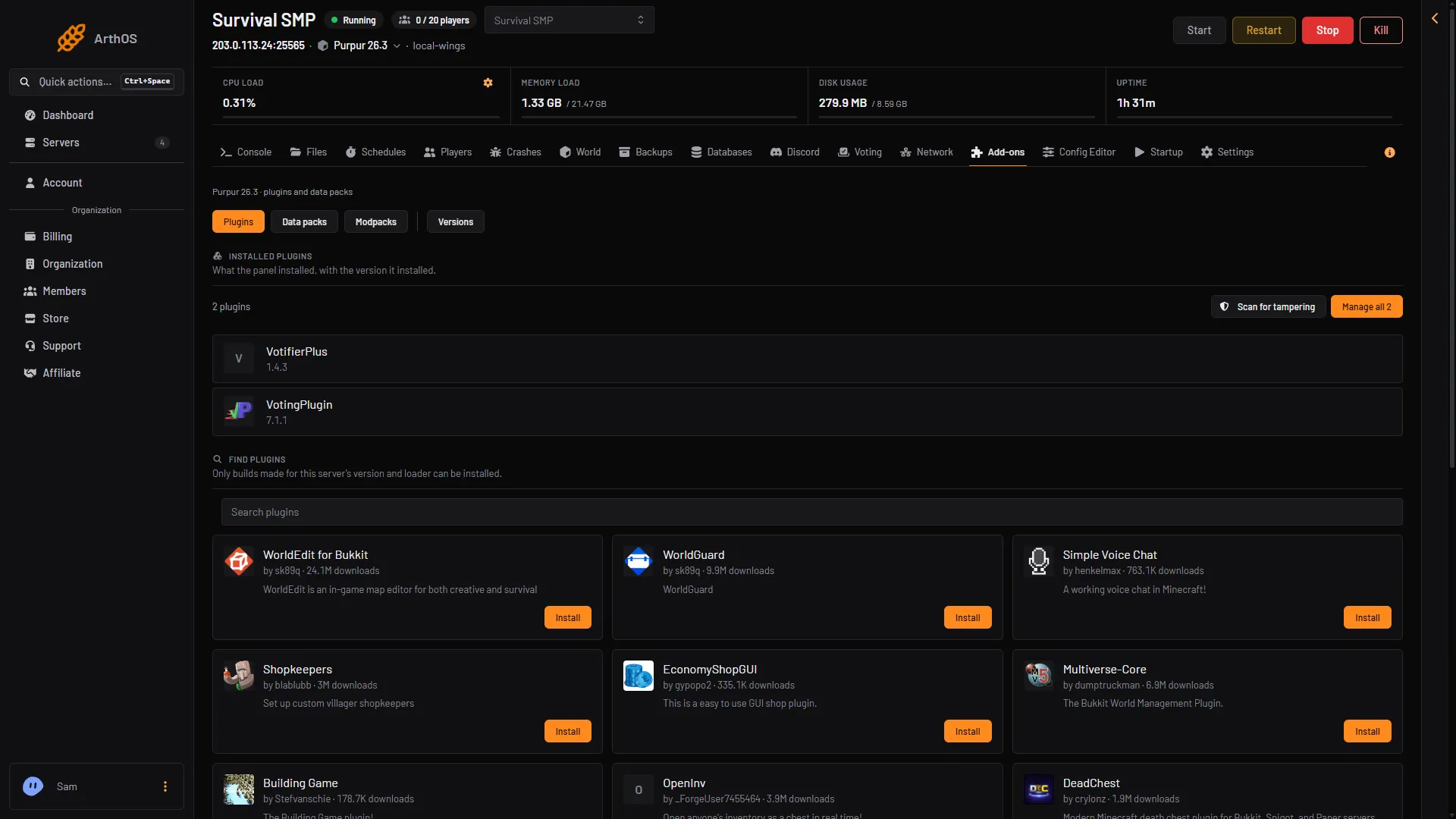
Already have a server? Keep it. Open Add-ons, then Modpacks.
Modpacks need Java Edition. A server that lets Java and Bedrock players share one world runs plugins, not modpacks.
2. Find the pack
Search CurseForge or Modrinth by name and pick the version you want. You do not need to set up a loader first: the panel reads the pack and installs the loader, Minecraft version and Java it was made for.
3. Read the plan, then install
Before anything changes, the panel shows what it will do:
- which loader and Minecraft version it installs, and on which Java
- how many files it downloads, each checked against the checksum the pack names
- which client-only files it leaves out, because they stop a server starting
- whether the server has the memory packs this size usually need
Start a new world is recommended, because a world made with other mods almost never loads under a different pack. The panel takes a backup first when it can. If it cannot, the dialog says why, and you must tick Continue without a backup to go on. Keep configuration you changed stops the pack’s settings files from overwriting ones already on the server.
4. Fetch any file the pack cannot hand over
Some authors do not let CurseForge hand their files to other apps. Where it can, the panel fetches the same file from Modrinth, matched by checksum. Anything left is listed with a Get it link: download the file, upload it to the folder shown, and choose Check again. A file is only accepted if its checksum is the one the pack names.
5. Start the server
Start the server from the console page. The live console shows the server output as the pack loads, keeps your command history and lets you search the log.
If you later add mods from anywhere else, Scan for tampering on the Add-ons page checks the jars on your server for hidden code.
Players need the pack too
Each player installs the same pack version, on the same loader and Minecraft version, in their own launcher. The steps for single mods are in install a mod.
If it does not work
- A file is listed with a Get it link. The pack’s author does not allow other apps to fetch it. Download it, upload it to the folder shown and choose Check again. The file must match the checksum the pack names.
- The plan shows less memory than the pack needs. Pick a larger size.
- The server does not start. Watch the console as the pack loads and read the first error. A world made with other mods almost never loads under a different pack, so Start a new world is recommended.
- Still stuck. Ask Loafhosts support from the Support page in the panel.