






To add a mod, your server must run a mod loader: Fabric, Forge or NeoForge. The mod has to be built for that loader and for the exact Minecraft version your server runs. Install it from the Add-ons page, restart, and give your players the same mod if it needs one on their side.
Want a whole pack at once? Use install a modpack. Want plugins such as EssentialsX? Those need Paper or Purpur: install plugins. Plugins and mods do not mix. A mod file will not run on Paper, and a plugin will not run on Fabric.
Before you start
- Check the loader. Open Add-ons on your server. If you see a Mods button, the server already runs a mod loader, so go on to step 2. If you only see Plugins and Data packs, follow “No Mods button? Switch to Fabric” below first.
- Match the version. A mod made for one Minecraft version may not work on the next. A mod for Fabric will not run on Forge, and the other way round. Pick the Minecraft version your mods are built for.
- Know the sides. A mod page says whether it runs on the client, the server or both. On Modrinth, Lithium works on either side, and Sodium is client only, so it does nothing on a server. A client-only file can stop a server from starting, so leave those out of the server.
No Mods button? Switch to Fabric
Choose Versions (1), then use Find software (2) or pick the Fabric card (3). Choose the Minecraft version your mods are built for. The panel shows what will happen first and takes a backup first when it can. If it cannot, the dialog says why, and you must tick Continue without a backup to go on.
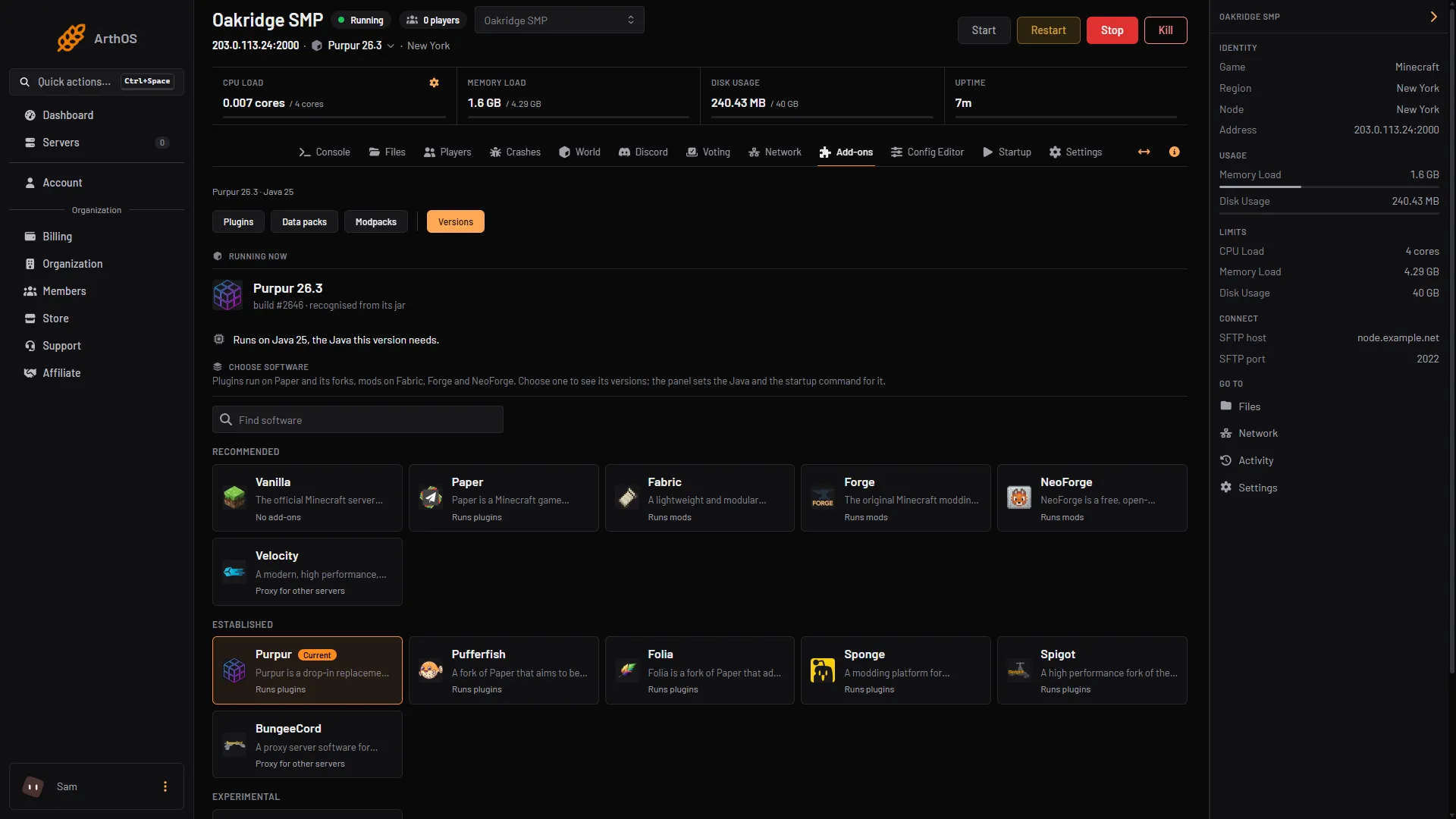
- Versions button
- Find software
- Fabric card
In the ArthOS panel
- Open Add-ons and choose Mods.
- Choose a source (CurseForge or Modrinth). Type the mod name in the search box. The list only shows mods that can run on a server, built for your server’s version and loader.
- Use View on Modrinth to read the mod’s page, including which other mods it needs.
- Press Install, pick a version (the newest is marked Newest), and wait for the message that starts “Installed”, names the mod and its version, and ends “Restart the server to load it.”
- Install what the mod needs too. Most Fabric mods need Fabric API, which you can find the same way. The panel does not add required mods for you.
- Press Restart now. Open the console and watch the mod load.
Every download is checked against the source’s checksum and read for hidden code before it is used. Scan for tampering on the same page checks every jar again.
Turn off, update or remove a mod
- Update to, followed by the new version, shows when a newer build exists for your version.
- Manage all lists each mod file. Turn off renames the file to end in
.disabled, and Turn on reverses it. - Remove deletes the file. It stops loading at the next restart.
If a new mod breaks the server
Open Manage all, tick the mod, choose Turn off, then restart. If the world is damaged, restore a backup: see back up your Minecraft server.
Players and the same mods
If a mod’s page says client side required, every player must install the same mod, on the same loader and Minecraft version, or they cannot join. If it says client optional, players can join without it. Always tell your players which mods to get.
Players also need the Fabric loader on their own game. The Fabric installer page has it.
By hand
This is how it works on any host.
- Download the mod
.jarfrom the mod’s own page on Modrinth or CurseForge. Choose the file for your loader and your exact Minecraft version. - Upload it to the
modsfolder at the server root. In the ArthOS Files tab use Upload, then Upload from computer. - Do the same for each required mod. For Fabric, that nearly always includes Fabric API.
- Restart the server.
If it does not work
- The server stops during start-up and names a missing mod. The mod needs another mod. Install the one it names, then restart. Fabric API is the usual one.
- The error mentions a wrong version or “incompatible”. The mod was built for another Minecraft version or another loader. Get the build for your exact version.
- The server crashes on start after you added a client-only mod. Remove the file from
mods. Mods such as Sodium belong on players’ computers only. - Players cannot join. They are missing a mod marked required on the client, or run a different version. Compare their mod list with yours.
- No Mods button. The panel has not seen a mod loader. Start the server once and look again, or switch software on Versions.
- You moved from Paper to Fabric and your plugins stopped. They do not load on a mod loader. The panel warns about this before it changes anything.
Browse more server sizes on the Minecraft page.
Sources: docs.fabricmc.net: Installing mods, fabricmc.net: Server, docs.papermc.io: Adding plugins, modrinth.com: Fabric api, modrinth.com: Lithium, modrinth.com: Sodium