






A Minecraft server icon is a 64 by 64 pixel PNG named server-icon.png, kept in the server’s main folder. The game shows it beside your server in the Multiplayer list. In the ArthOS panel you upload any picture and it is cropped and resized to that for you.
In the ArthOS panel
- Open the server and go to Config Editor. The Config Editor opens
server.properties. - Find the How players see it card (1). It shows the icon, name and message of the day as players see them before they join. Changes show after the server restarts.
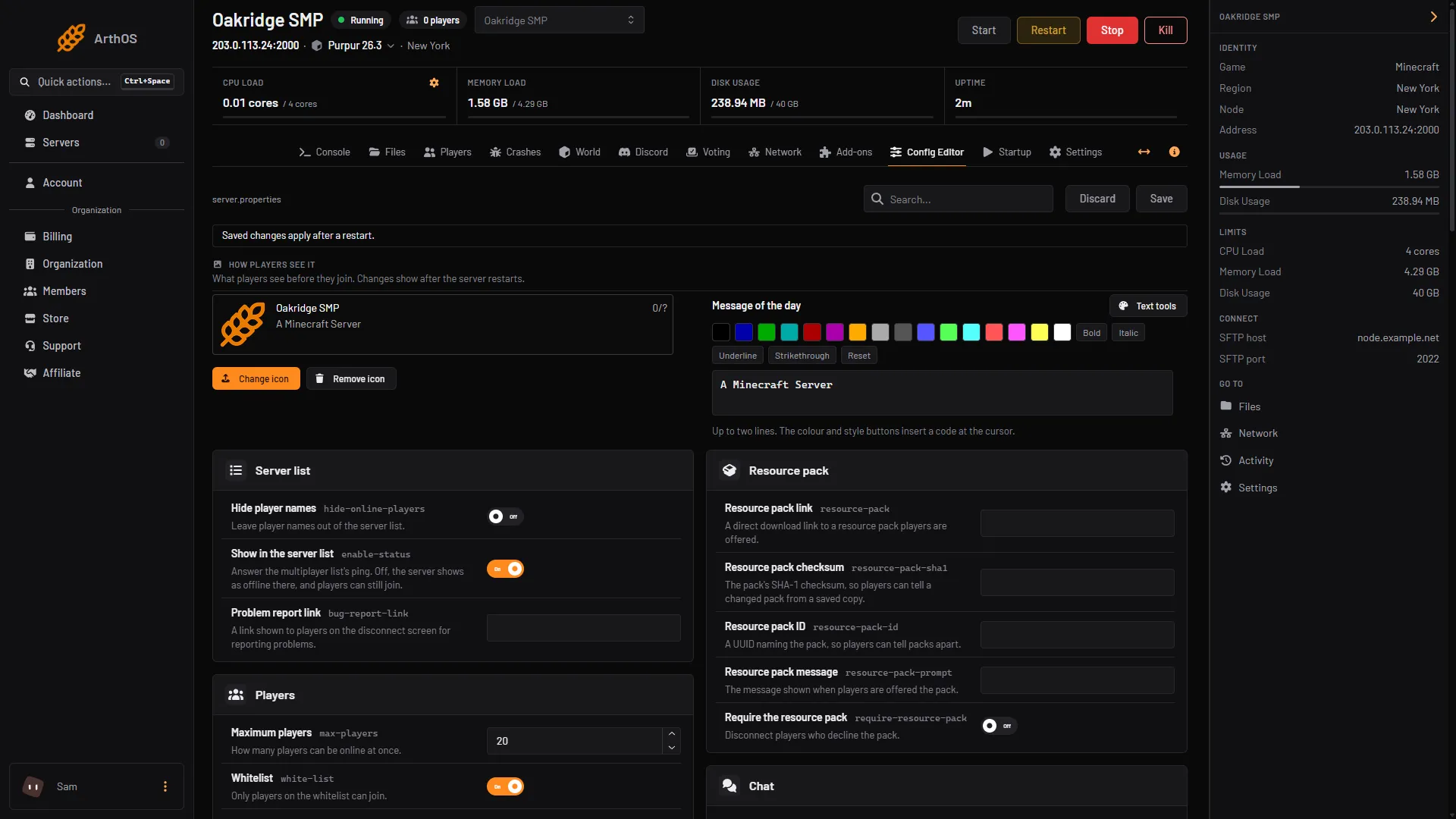
- See the preview
- Change the icon
- Remove the icon
- Press Upload icon (it reads Change icon (2) when you already have one) and pick a picture. PNG, JPEG, WebP and GIF work, up to 2 MB.
- In Crop the icon, drag the picture or use the arrow keys to place it, and use Zoom to fit. Players see it at 64 by 64 pixels, so a simple, bold picture reads best. A picture that is not square is cropped to a square, never stretched.
- Press Use this icon. The panel saves it as
server-icon.pngand checks that the file was written. - Restart the server. Players see the new icon after the restart.
The other buttons on the card:
- Previous icon puts the last icon back. The panel keeps it as
server-icon.previous.png. - Remove icon (3) deletes the icon, after you confirm. Players then see the game’s default after the next restart.
- Use the Loafhosts icon shows when there is no icon. New servers get the logo when they are installed.
A server-icon.png you already have can go straight into the main folder in Files (By hand below says how). You need permission to change the icon. Without it you can see the icon but not change it.
By hand
- Make a PNG that is exactly 64 by 64 pixels.
- Name it
server-icon.png, in lower case. - Open Files, go to the top folder, the one with
server.properties, and upload it. - Restart the server.
If you host the server yourself, put the file in the folder where server.jar runs.
If it does not work
- The icon does not show. The server reads the icon when it starts. Restart it, then reopen the Multiplayer list.
- “That image is too large to use” or “That file could not be read as an image”. Use a PNG, JPEG, WebP or GIF under 2 MB, and no larger than 4096 pixels on either side.
- By hand, the icon is ignored. The file must be named
server-icon.png, be a real PNG at 64 by 64 pixels, and sit in the same folder asserver.properties. - The Upload icon button is missing. Your role cannot change the icon. Ask the server owner.
- There is no How players see it card. It is only on Java servers.
More on the game: Minecraft servers.
Sources: minecraft.wiki: Server.jar, minecraft.wiki: Server.properties