






An out of memory crash means the server needed more memory than its plan gives it. To fix it, lower the view and simulation distance, remove heavy plugins or mods, and if that is not enough, move to a plan with more memory. The Crashes tab tells you whether memory was the cause.
What the error looks like
In the console or latest.log you may see:
Heap errors:
java.lang.OutOfMemoryError: Java heap spaceGC overhead limit exceeded
The heap is the area where Java keeps everything the game holds: loaded chunks, entities, players and plugin data. When it is full and Java cannot free any more, the server freezes, then stops. The fix is to lower the load or move to a bigger plan, as below.
A different error comes from the system, not from Java:
Cannot allocate memory
This means the machine or container has no room left. Paper’s documentation names not leaving enough RAM for the operating system, or wrong memory limits in a container, as common causes. Raising the heap makes it worse, not better.
On a Loafhosts server the heap can use up to 95% of the memory in your plan. The rest is for Java itself. So 4 GB of plan memory means a bit under 4 GB for the world and plugins.
Paper’s documentation says high memory use alone is normal: Java keeps the memory it is given. It only matters when there are out of memory crashes or long freezes from garbage collection.
In the ArthOS panel
1. Confirm it is memory
- Open the Crashes tab and choose Logs, then the newest file (
latest.log). - Look at Out of memory. Yes means the log shows one of the known memory errors.
- Look at Detected issues. A memory problem reads “The server ran out of memory.” The panel’s advice is: give it more memory, remove memory-heavy mods or plugins, or lower the view and simulation distance.
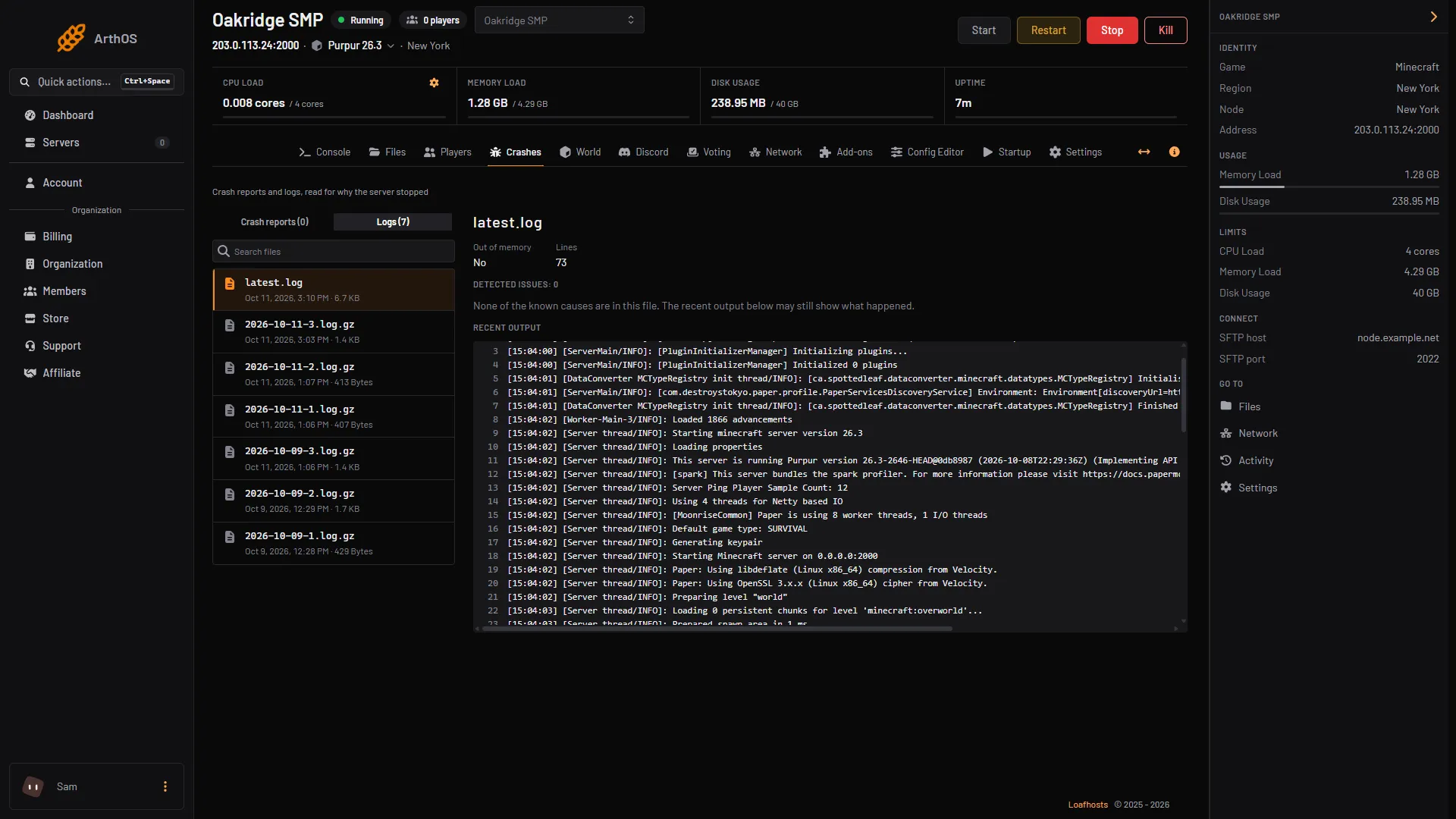
- Out of memory and Lines
- Detected issues
- Recent output
If the server stops with no error at all, memory is still possible. Read the Recent output for the last lines before it stopped.
2. Lower the load
- Open the Config Editor and search for
distance. - Lower View distance and Simulation distance. The game’s default for both is 10. Lower them a little at a time. Lower numbers load fewer chunks, which uses less memory. If the server also lags, see fix lag and TPS.
- Choose Save. The page says “Saved changes apply after a restart.”
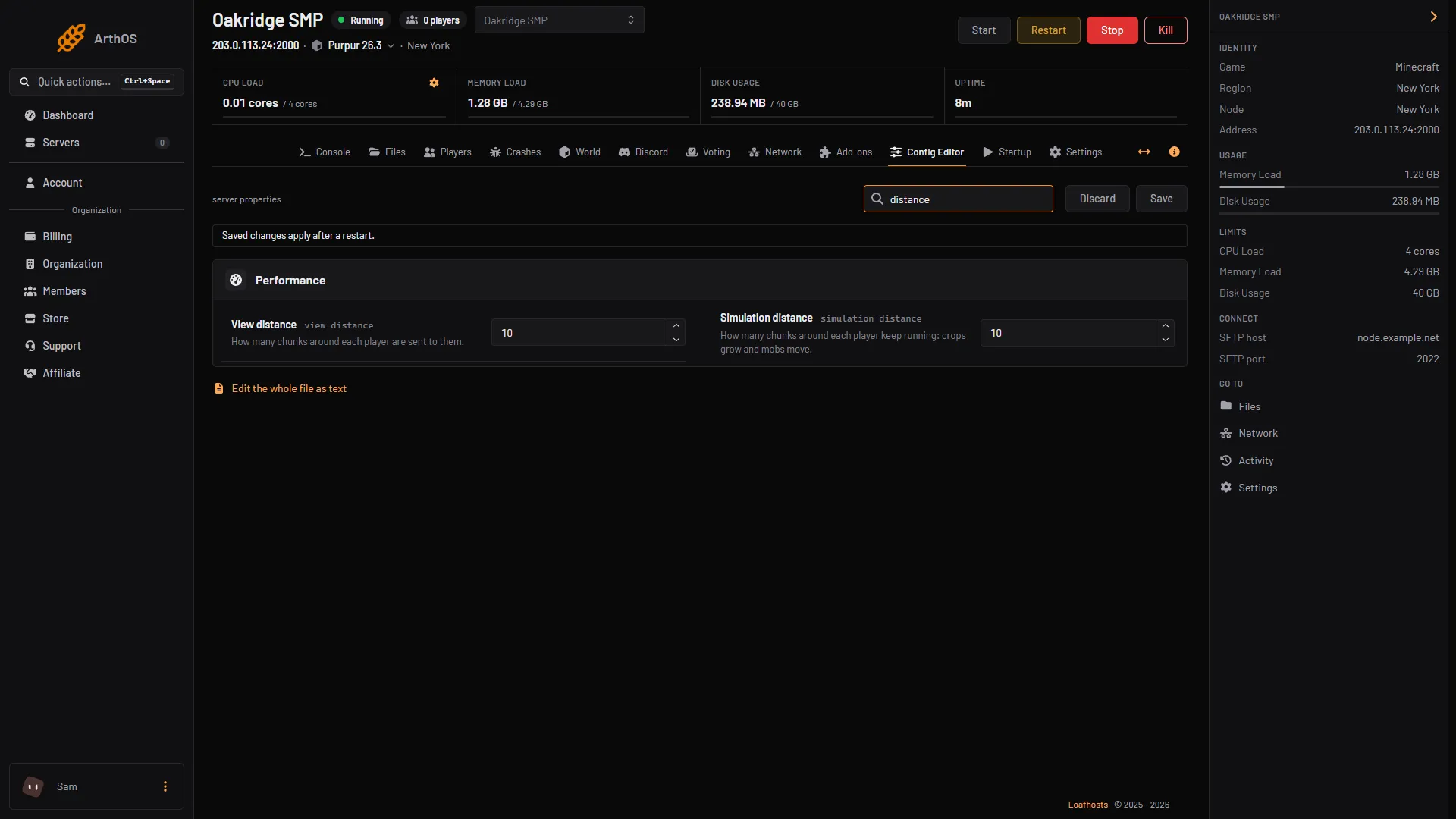
- View distance
- Simulation distance
- Save
- Open Add-ons, Plugins, Manage all. Turn off the plugins you do not need and restart. Turning one off renames its file so the server skips it.
- More players and more mobs need more memory. Thin out big farms and mob grinders.
Restart the server and watch it for a day.
3. Move to a plan with more memory
If the server still runs out, it needs more memory.
- Open your server list and use the server’s menu, or open Billing, then Services. Choose Customize.
- Choose a new size. The page shows the cores, memory and storage of each size.
- From the panel’s code: a bigger size is charged for the rest of the current period and applies once it is paid. A smaller size waits until the next renewal.
Restart the server after the change so Java starts with the larger heap.
By hand
Where you host it yourself, the maximum heap is the -Xmx setting in your start command, for example java -Xms1G -Xmx4G -jar server.jar. Leave 1 GB or more for the operating system and do not give Java all of the machine’s memory. Paper’s documentation says out of memory crashes are commonly caused by not leaving enough RAM for the OS, or by wrong memory limits in a container.
If it does not work
- It crashes again after a few hours. Memory fills over time. Lower the load further, or go to a larger size.
- Crashes says Out of memory: No, but the server keeps stopping. Read Detected issues and the Recent output. Another cause may be named: see why a Minecraft server crashes.
- It stops right at start. A world or modpack too big for the plan can run out while loading. Remove mods you do not need, or use a bigger size.
- You cannot see Customize. Customizing needs permission to order and pay for the organization. Ask the owner.
More on servers: Minecraft servers.
Sources: docs.papermc.io: Basic troubleshooting, minecraft.wiki: Server.properties