






The Console tab shows everything the server prints, as it prints it, and lets you type commands. The same text is saved in the file logs/latest.log. Read the console from the top of a start to find the first line marked ERROR or WARN: that line is usually the cause.
In the ArthOS panel
Read a line
A typical line looks like this:
[15:01:04] [Server thread/WARN]: Something went wrong
[15:01:04]is the time. The panel can hide it.[Server thread/WARN]is two things.Server threadis the part of the server that wrote the line.WARNis how serious it is.- The rest is the message.
The word after the slash is the level:
| Level | Meaning |
|---|---|
INFO | Normal news: a player joined, the world saved, a command ran. |
WARN | Something is off, but the server keeps going. Read these. |
ERROR | Something failed. A plugin did not load, a file could not be read. |
FATAL | The server cannot go on. It is about to stop. |
A long block of lines starting with at after an error is a stack trace. The first line above it names what failed. The lines below it only show where in the code.
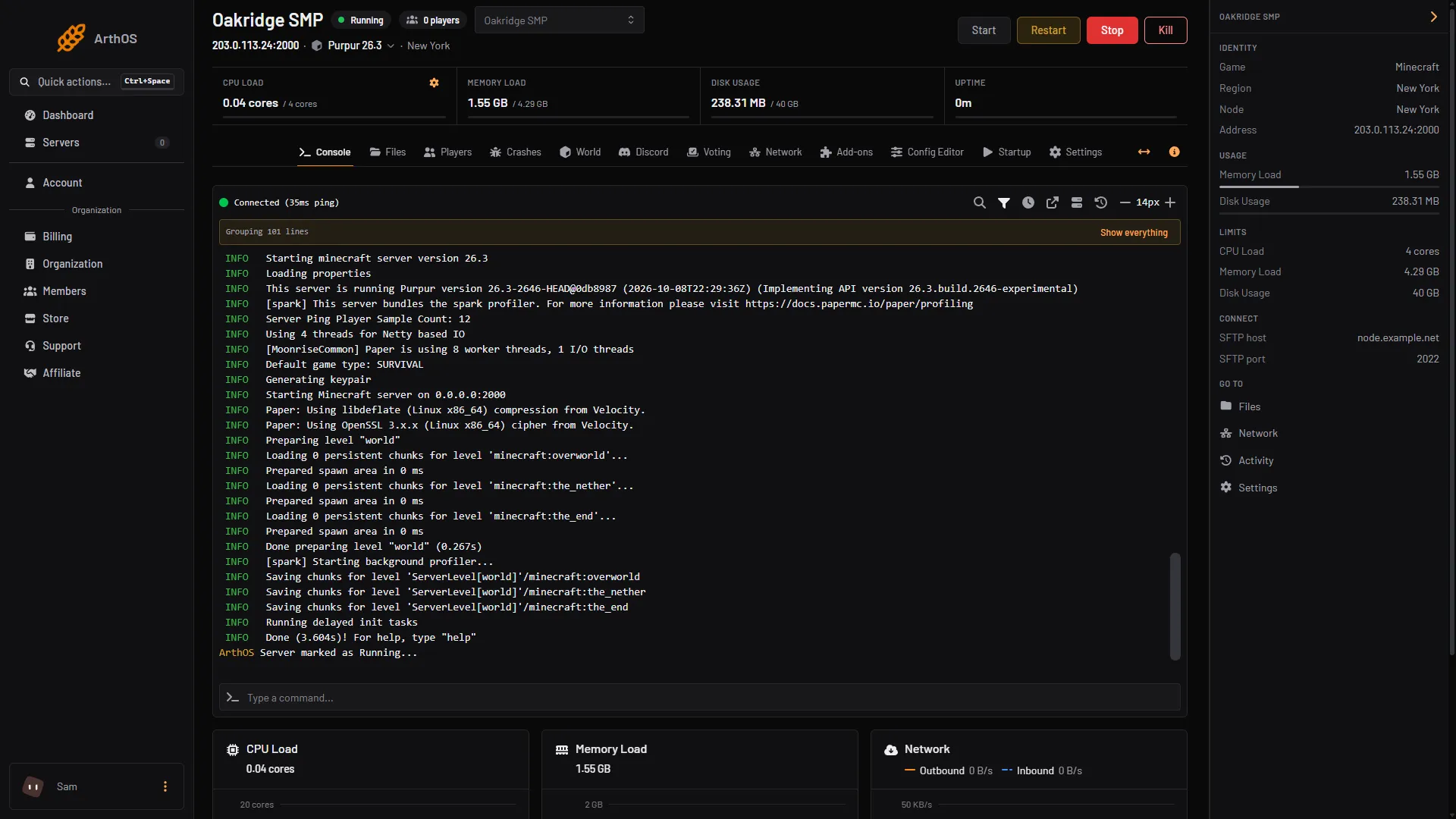
- The server address
- The tab row
- Command box
Search and filter
The console has a toolbar above the text. Point at an icon to see its name.
- Search. The magnifier icon opens a text search. Type a word to find it.
- Filter. The console can show only lines that contain some text, or only lines of some levels, such as errors and warnings. This changes only what you see. The server keeps sending everything, and you can turn the filter off to see it all.
- Repeated lines. The console can show a repeated line once, with a count. It can also fold a long error to its first line so you can open it when you need it.
- Timestamps and text size. You can turn the times on and off and make the text bigger or smaller.
- Separate window. The console can open in its own window, so you can keep it beside the game.
Where an icon is, and what it is called, can change between panel updates. Point at each icon to find the one you need.
Type a command
Click the command box at the bottom and type a command with no slash, then press Enter. For example list shows who is online. A reply appears as a “System chat:” line. More commands: Minecraft server commands.
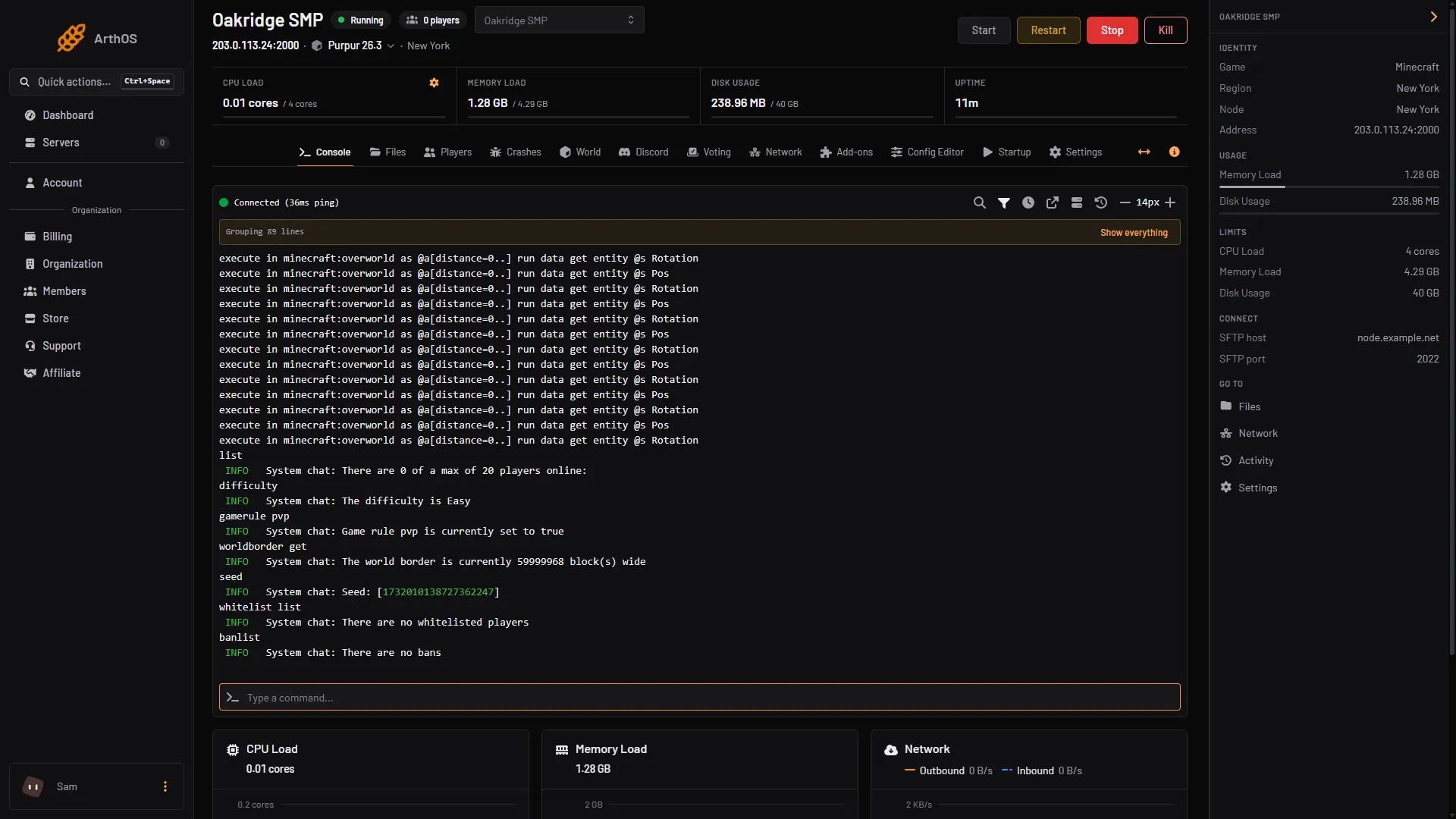
- list
- difficulty
- whitelist list
Find where an error starts
- Turn on timestamps if you want to match lines to the time of the problem.
- Start at the lines from when the server started. Use the console’s text search for
ERRORorWARN, or the plugin’s name. - Find the first
WARNorERRORafter the start. That is usually the cause. Later errors often follow from it. - For a plugin, the line before the stack trace tells you what to do. Paper’s own examples are
Unknown/missing dependency plugins: [Vault]andInvalid plugin.yml. See a plugin that will not load.
The server is ready when the Console shows a line ending with For help, type "help".
The saved log: latest.log
The console only holds the last part of what the server printed. The whole record is in the file.
- Open the Files tab and go into the
logsfolder. - Open
latest.log. It is the log of the current or the last start. Older logs are packed into files ending in.log.gz, named by date. - Scroll to the top. Plugins are loaded near the beginning.
The Crashes tab reads these same files for you. Choose Logs, then a file. It shows Out of memory, Lines, Detected issues and the Recent output. It works while the server is running. See why a Minecraft server crashes.
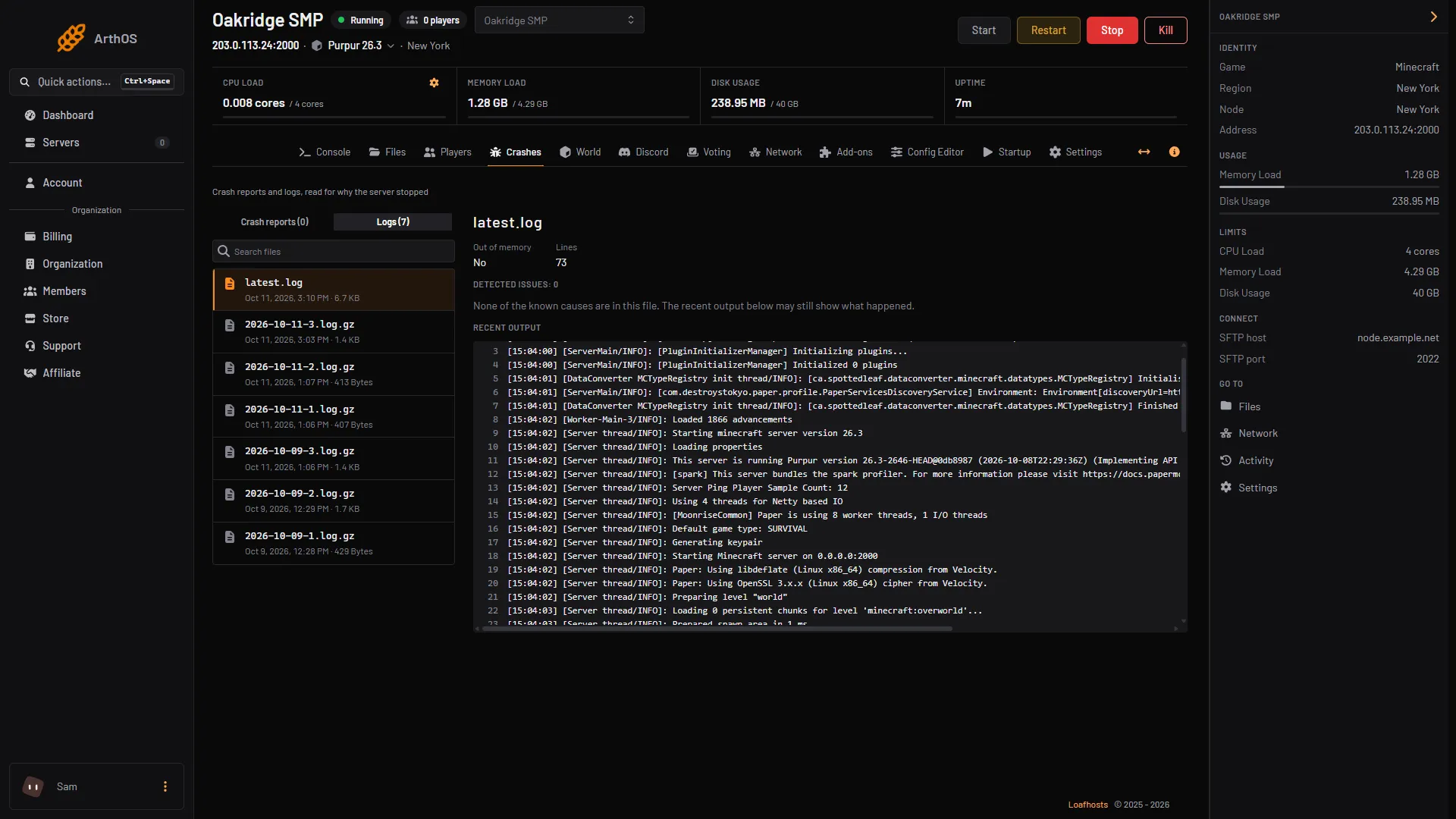
- Crash reports and Logs
- Out of memory and Lines
- Detected issues
- Recent output
By hand
Where you host it yourself:
- Watch the console window where the server runs. Type commands without a slash.
- The log is
logs/latest.login the server folder. Open it with any text editor. Older logs in the same folder are compressed. - Crash reports are in the
crash-reportsfolder.
If it does not work
- The console is empty. The server is offline, or the page has lost its connection. Start the server or reload the page.
- Lines are missing. The console only keeps recent lines. Open
latest.login Files for the full text. - You hid too much. Turn the filter off. Filtering only changes what you see.
More on running a server: Minecraft servers.
Sources: docs.papermc.io: Basic troubleshooting, docs.papermc.io: Adding plugins