






To start a fresh world, stop the server, take a backup, then either give World folder a new name or delete the world folder. The next start generates a new world there. Choose the seed and world type before that start, because they only apply to a world that does not exist yet.
In the ArthOS panel
- Open the Console tab and choose Stop. Wait until the server is stopped.
- Take a backup first. Open Settings, then the Backups sub tab, choose Create (1), give it a Name, and choose Create again. The new backup appears as a row (2). See the backups guide.
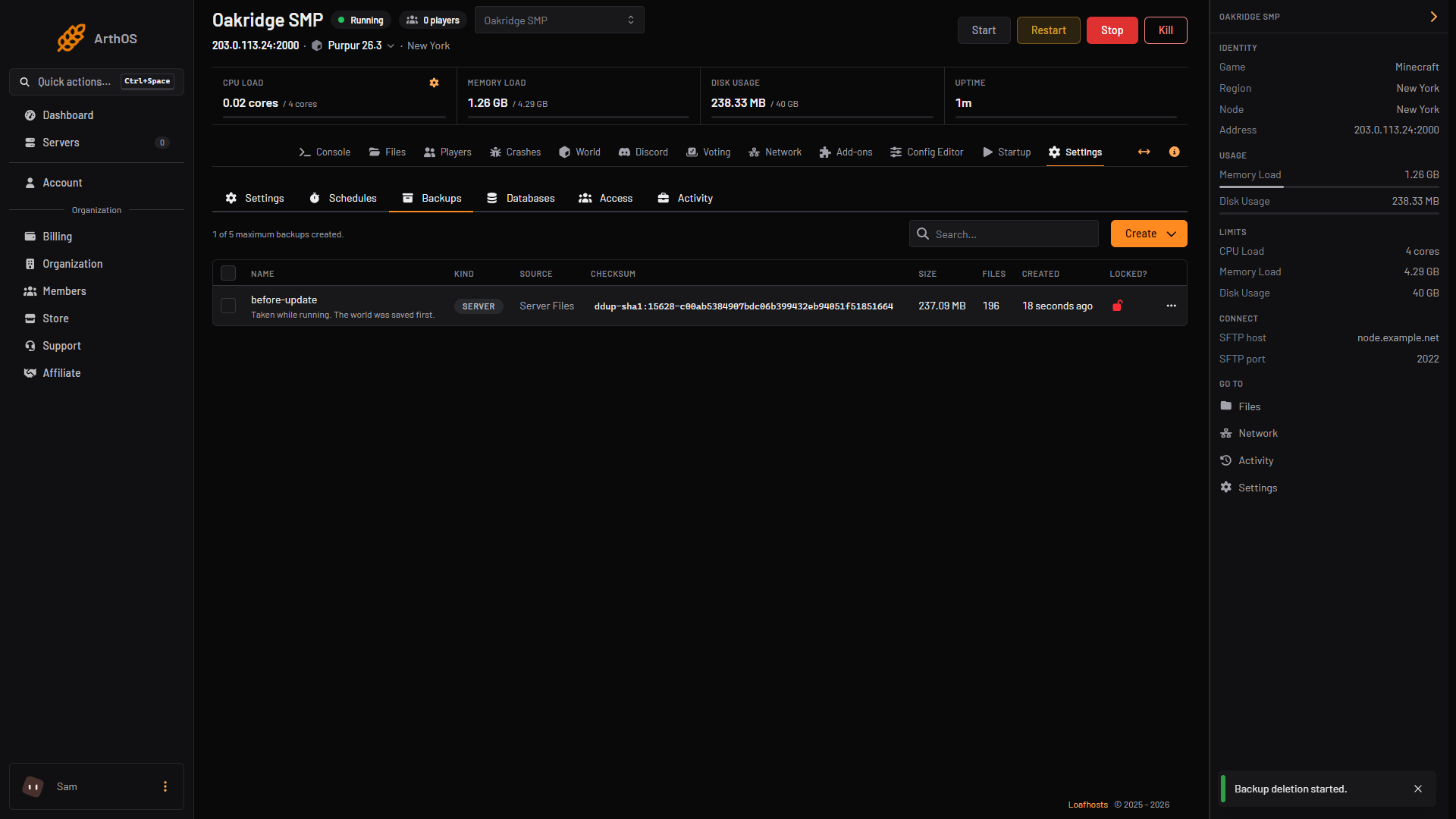 3. Pick one way to reset.
Way A: a new world folder name (keeps the old world)
- Open Config Editor and type “world” in Search….
- Change World folder (1) to a name with no folder yet, such as
world2. The panel’s own help says: “A name with no folder yet creates a new world on the next start.” - Set World seed and World type now, if you want a particular map. Leave the seed empty for a random one.
- Choose Save.
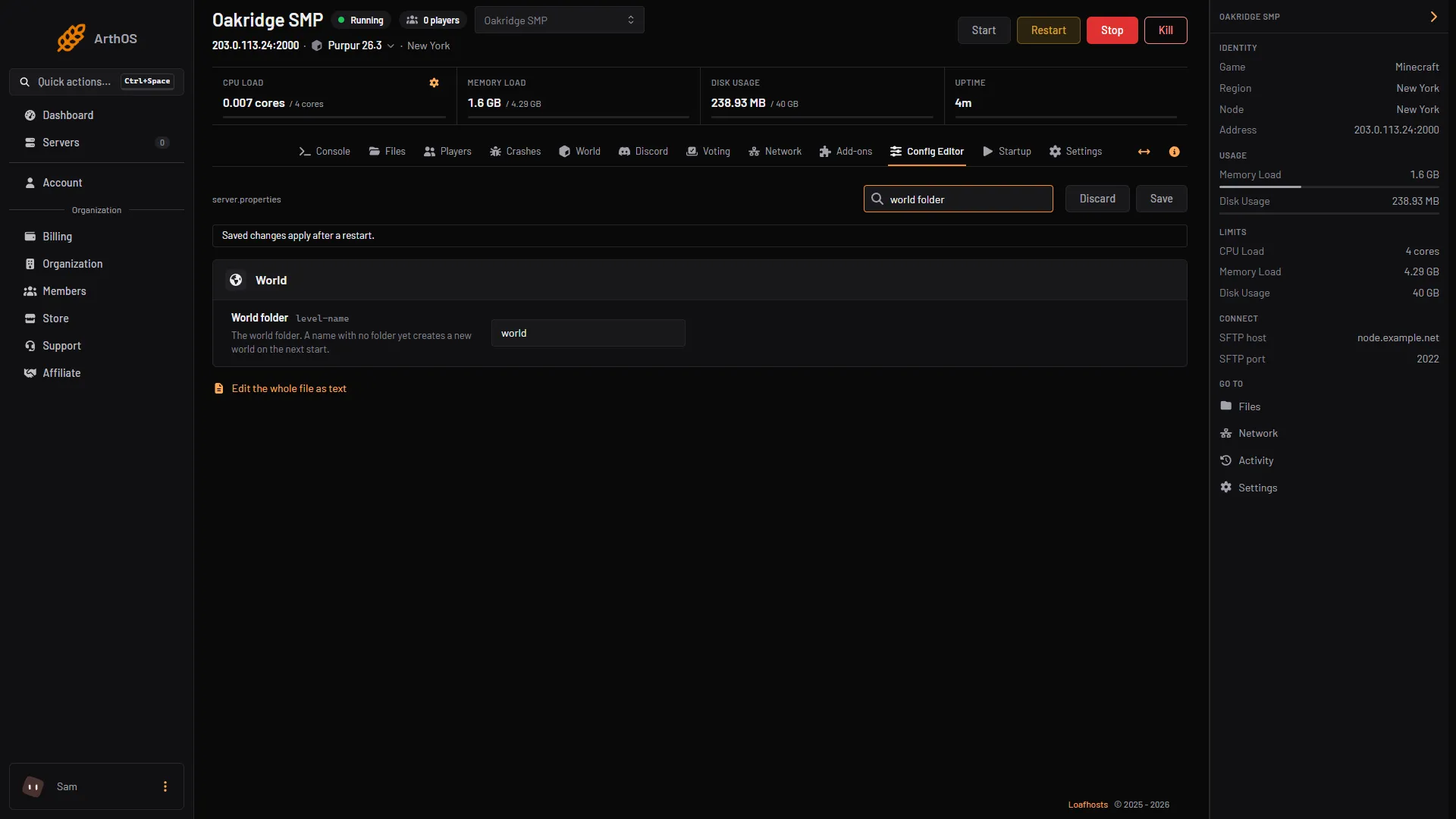
- World folder
- Start the server. The old world stays on disk. To go back to it, stop the server, set World folder to the old name, and start again.
Way B: delete the world folder
- Open Files. Right click the
worldfolder (1) and choose Delete (2).
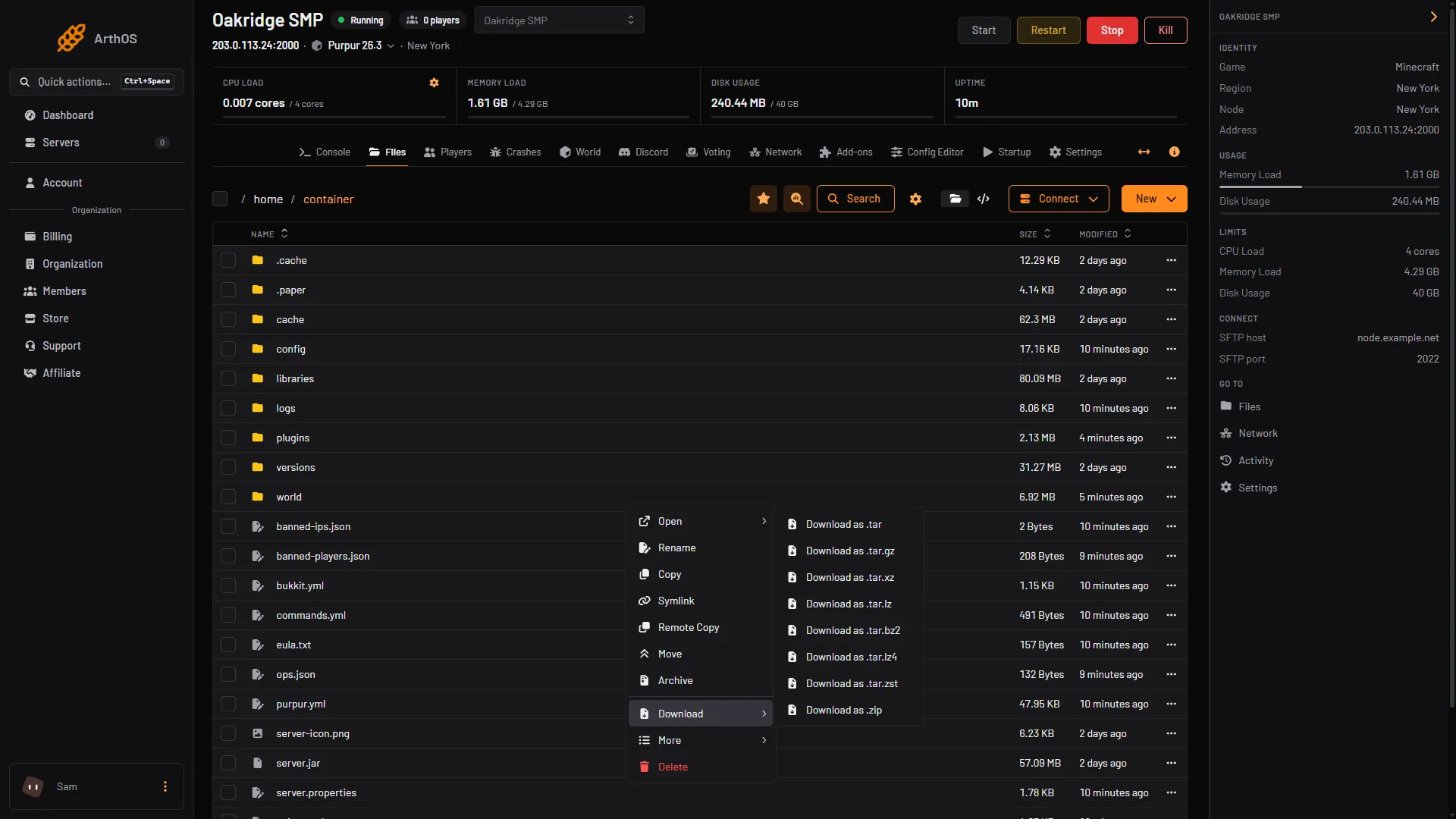
- The world folder
- Delete
- Set World seed and World type in the Config Editor if you want them, and choose Save.
- Start the server. It finds no world and generates one.
The backup from step 2 is your only way back with this method. To use it, open its row menu in Backups and choose Restore.
What stays and what goes
- Goes: the map, the Nether and the End (on 26.x they are inside the world folder, under
dimensions), and the player data inplayers. - Stays:
server.properties, the operator list, the whitelist and the ban list, which sit in the main folder. - Stays: plugin data. Homes, claims and region protections live in each plugin’s own folder under
plugins, not in the world. They still point at the old map, so clear or reset them in the plugin.
If you only want to renew part of the map, use the World tab to delete chosen chunks. The game generates them again when a player comes near. The World tab asks you to stop the server before it deletes chunks.
By hand
Anywhere you host a Java server:
- Type
stopin the server console, and copy the world folder somewhere safe. - Either delete the folder, or edit
server.propertiesand setlevel-nameto a new name. The wiki says: if a valid world is at that path the server loads it, otherwise it generates a new world there. - Optionally set
level-seed(blank means a random seed) andlevel-type(for exampleminecraft:normal,minecraft:flat,minecraft:large_biomes,minecraft:amplified). - Start the server. Changes to
server.propertiesneed a restart.
On a Bedrock Dedicated Server the world is the folder named by level-name inside worlds. Stop the server, change level-name in server.properties using Files, and start it again. After a world exists, its seed cannot be changed.
If it does not work
- The old world loaded again. The folder name still matches
level-name. Check World folder and that you saved before the restart. - The new world has the old seed. A seed only applies when the world is generated. Set it before the first start of the new folder, or delete the new folder and start again.
- The server still shows the old spawn or builds. You deleted the wrong folder or the server was still running. Stop it, then check the folder name in Files.
- Players say their items are gone. The player data was in the old world folder. Restore the backup to get it back. The Restore dialog has a switch to delete all of the server’s files first; leave it off unless you want that.
More on the game: Minecraft servers.
Sources: minecraft.wiki: Server.properties, minecraft.wiki: Setting up a Java Edition server