






To restart a Minecraft server every day, open Settings, then Schedules, and choose Restart with countdown. Pick the time and the warning text. The ArthOS panel warns players 5 minutes, 1 minute and 10 seconds ahead, then restarts the server.
A regular restart clears memory the game has built up and applies changes that only load at start. Warning players first means nobody loses a build in the middle of a fight.
In the ArthOS panel
The quick way: a daily restart with a countdown
Restart with countdown is there for Minecraft Java servers only.
- Open your server and choose the Settings tab, then the Schedules sub tab.
- Choose Restart with countdown (1).
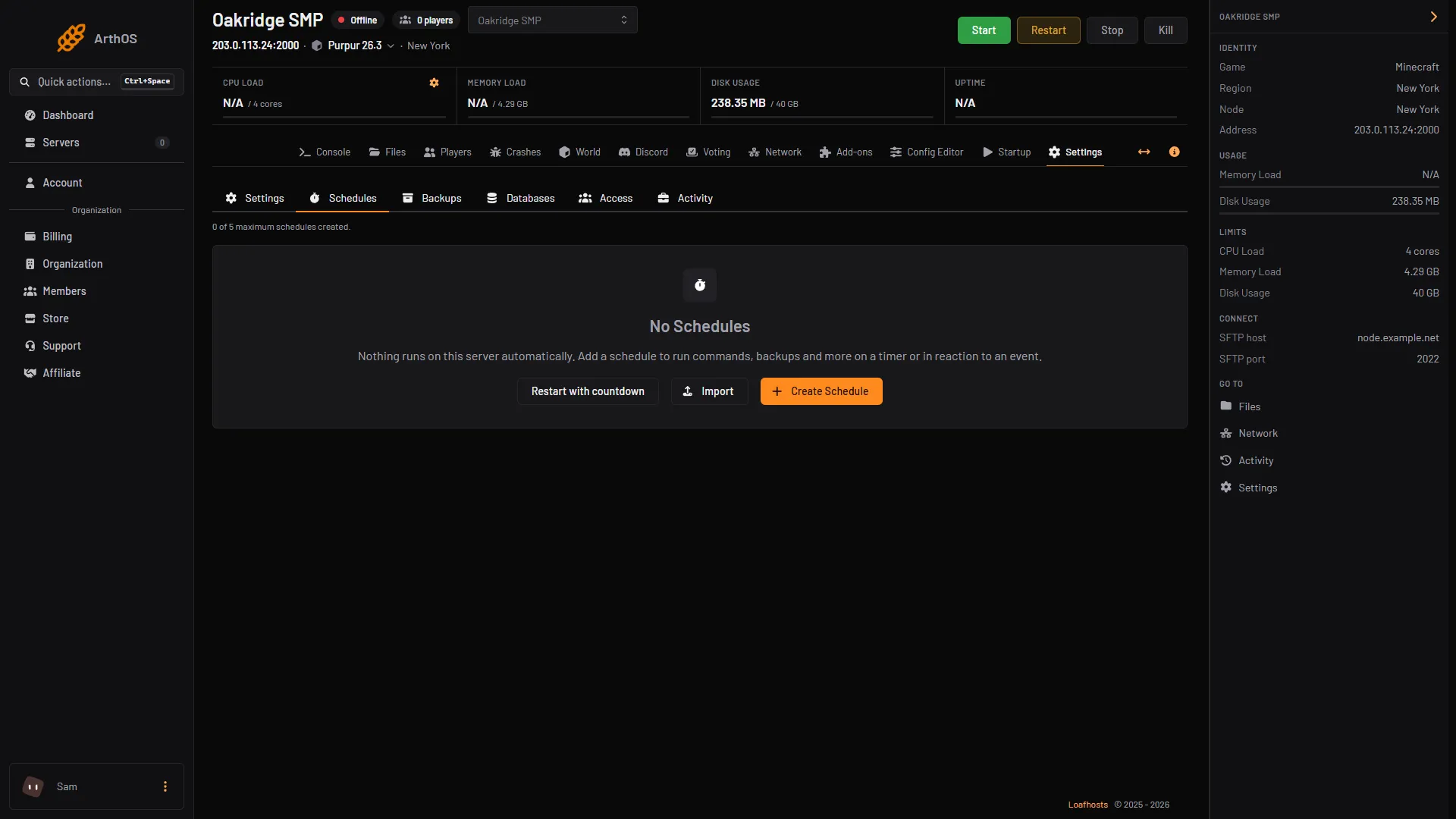
- Restart with countdown
- In Name, keep the default (“Daily restart with countdown”) or type your own.
- In Restart at (1), pick the time. This is the server’s clock, not yours; change it on Settings, Timezone. The warnings start 5 minutes earlier, so a restart at 04:00 begins to warn at 03:55.
- In Warning (2), type the start of the message. The dialog shows “Players see:” with your text and the time added, for example “Server restarting in 5 minutes.”
- Choose Create (3). The panel says “Schedule created.”
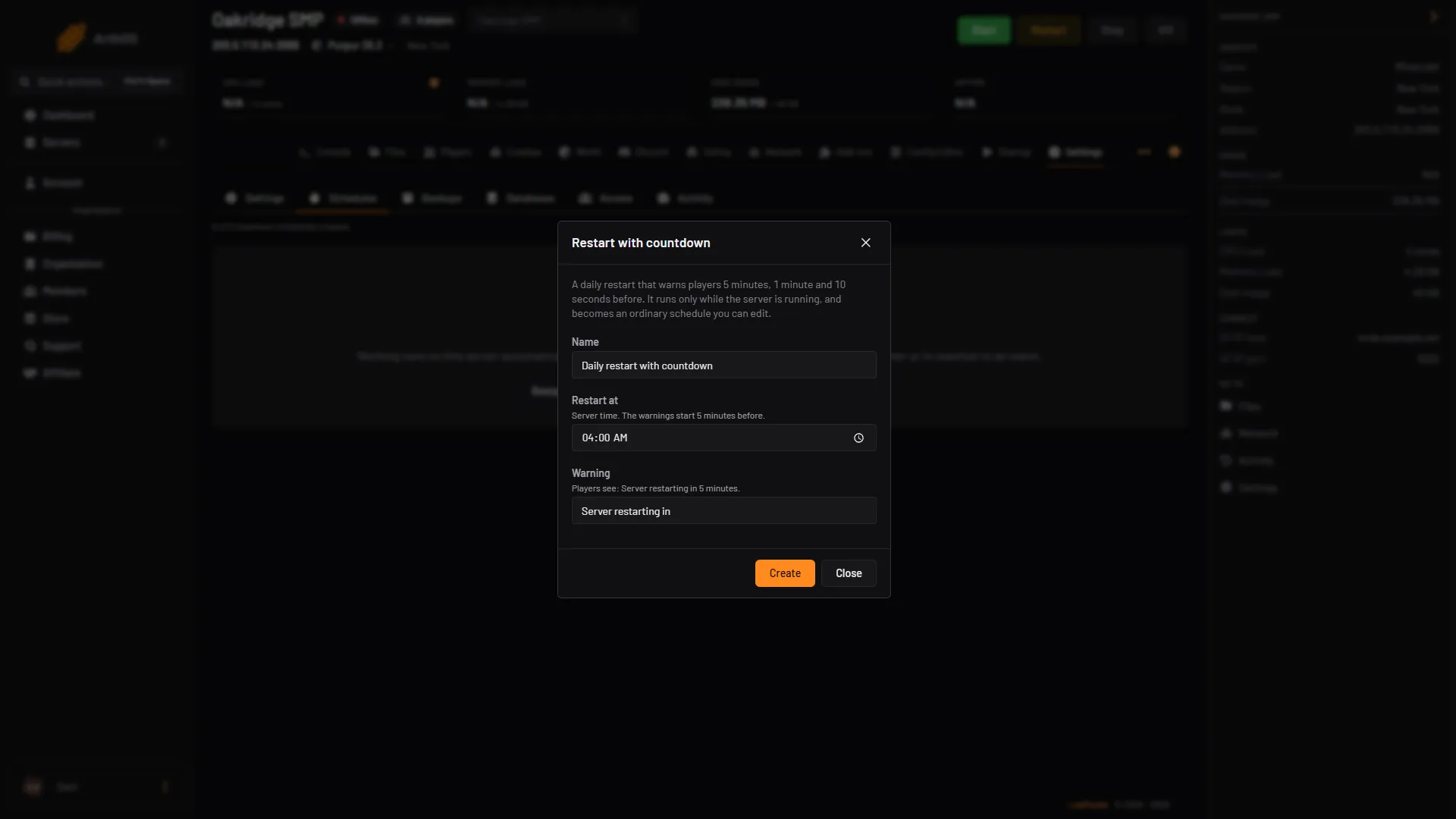
- Restart at
- Warning text
- Create
This works while the server is stopped. The page also shows how many schedules you have, for example “0 of 5 maximum schedules created.” The limit depends on the server.
Players see these three messages in chat, sent with the say command:
| Time before the restart | Message |
|---|---|
| 5 minutes | Server restarting in 5 minutes. |
| 1 minute | Server restarting in 1 minute. |
| 10 seconds | Server restarting in 10 seconds. |
Then the panel sends a restart. A restart is a normal stop, which saves the world, followed by a start.
This is an ordinary schedule once it is made. Click it in the list to change the time, the steps or the message.
Build your own schedule
Use this for other times, weekly restarts, or a restart without warnings.
- In Settings, Schedules, choose Create.
- Type a Schedule Name and leave Enabled on.
- Under Triggers, choose Add Trigger and pick Time Interval (Cron).
- In Runs, pick Every few minutes, Every few hours, Daily, Weekly or Monthly. Then set At and, for weekly or monthly, the day. The form says “Times use the server timezone.”
- Choose Create. The panel opens the new schedule.
- On the Actions tab, choose Create First Step.
- Add a Send Command step with
say Server restarting in 1 minute. - Add a Sleep step. Its duration is in milliseconds, so 60 seconds is
60000. - Add a Send Power Signal step (“Start, restart, stop or kill the server”) and set it to restart. This step is what restarts the server. (Power Action is a trigger, not a step.)
Steps run from top to bottom. To make the restart skip a stopped server, add a condition on the Conditions tab: Server State is running.
To try it without waiting, open the row’s menu and choose Run Now.
The cron expression
If you choose Edit as cron expression, you type a cron line. This one has six fields, with seconds first: second minute hour day month weekday.
| Expression | Runs |
|---|---|
0 0 4 * * * | Every day at 04:00:00 |
0 30 3 * * 0 | Every Sunday at 03:30:00 |
0 0 */6 * * * | Every 6 hours |
Most guides for other tools use five fields. If you paste a five field line, check that the schedule’s card shows the time you expect.
By hand
A plain Minecraft server has no scheduler of its own. You need something outside the game:
- At the time you want, send
say Server restarting in 1 minute.to the console, wait, then sendstop.stopsaves the world and shuts the server down. - Start the server again. Most people use a startup script or a service that restarts the program when it exits, so the stop becomes a restart.
- Run both steps from your system’s scheduler: cron on Linux, Task Scheduler on Windows.
If it does not work
- The restart did not happen. Check the row’s Last Run and Last Failure columns. A schedule that is switched off shows Inactive. Open it and turn Enabled on.
- It ran at the wrong hour. Times use the server’s timezone, not yours. The Settings page has a Timezone card.
- The server stayed off after the restart time. The countdown restart runs only while the server is running, so it does not start a stopped server.
- No warnings reached players. The messages go to the game chat. If nobody was online, nobody saw them.
- You cannot create another schedule. The server has a limit on how many it can hold. The page shows “N of N maximum schedules created.”
Need a backup before the restart? Back up your server. More on running a server: Minecraft servers.
Sources: minecraft.wiki: Stop, minecraft.wiki: Say