






To stop a Minecraft server without losing progress, choose Stop at the top of the server page, or type stop in the Console. The server saves everything to disk, then shuts down. Use Kill only when the server no longer answers.
What each button does
| Button | What happens | Saves the world? |
|---|---|---|
| Start | Starts the server. | Not applicable |
| Stop | Sends the stop command. The server saves, kicks everyone and shuts down. | Yes |
| Restart | Stops the server the same way, then starts it again. | Yes |
| Kill | Ends the program at once. | No |
The Minecraft Wiki describes stop this way: it saves all changes to disk, then shuts down the server and kicks the players. Stop in the ArthOS panel sends that same command.
In the ArthOS panel
- Warn players in the Console first if you can: type
say Stopping in one minute. - Choose Stop (1) at the top of the server page. Kill (2) sits beside it. Leave Kill alone for now.
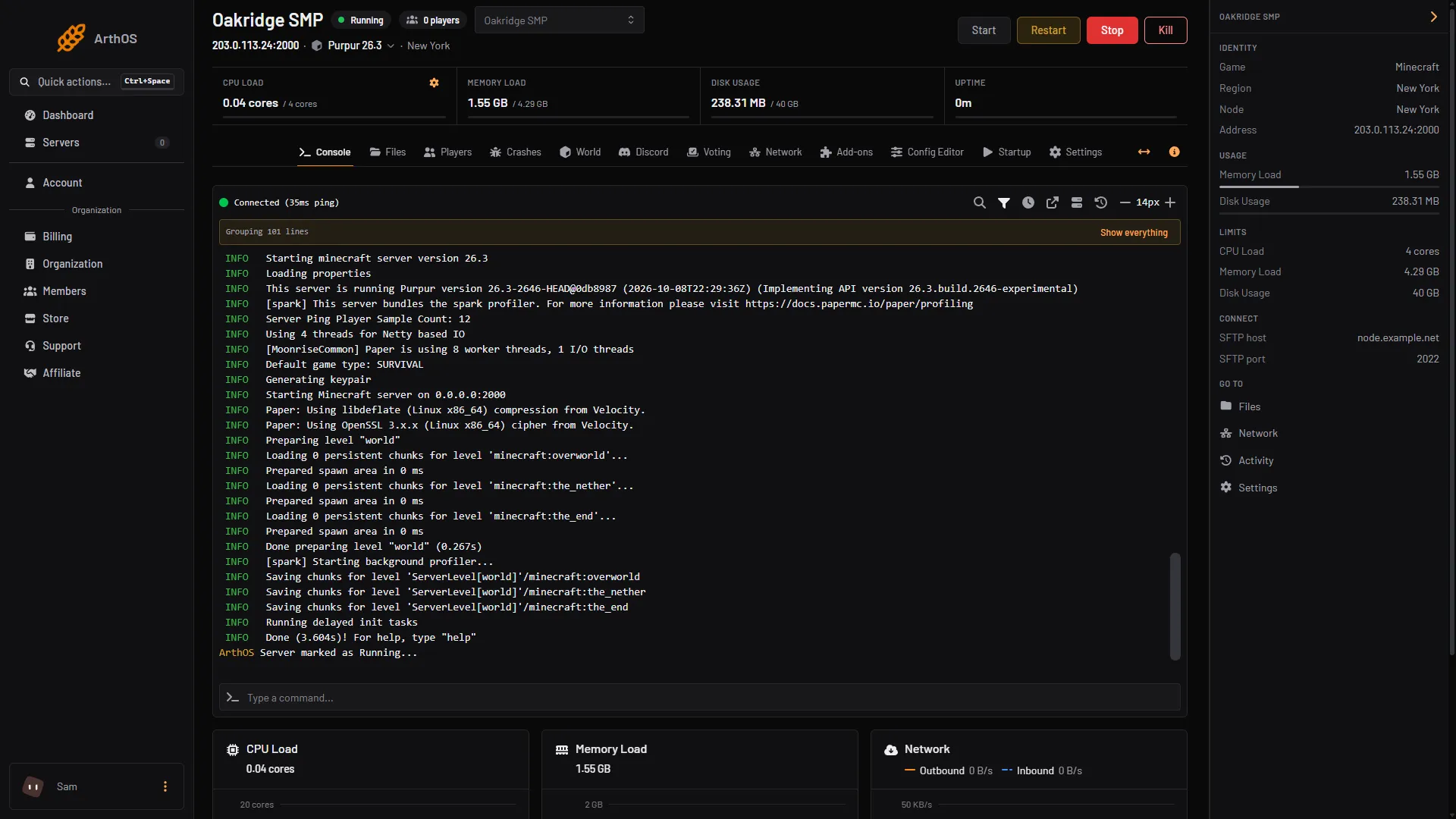
- Stop
- Kill
- Read the question: “The server shuts down and anyone connected is dropped. It stays off until someone starts it again.” Confirm in the question.
- Wait for the state to change to offline. A big world can take several seconds to save. Do not press Kill because it feels slow.
Hold Shift while you click and the panel skips the question. Use that only when you are sure.
The question for Restart reads “The server shuts down and starts again. Anyone connected is dropped and can rejoin once it is back.”
Why Kill can lose progress
Kill asks you to confirm first. When you confirm, it ends the program at once, without letting the server save.
The game also writes the world to disk while it runs, so older progress is usually safe. Keep a backup so you have a way back.
Use Kill when:
- The server is stuck on “starting” and never finishes.
- You pressed Stop, waited a few minutes, and the server still has not gone offline.
- The Console does not answer commands.
Otherwise use Stop.
Save without stopping: save-all
You can write the world to disk while the server keeps running. Type this in the Console, with no slash:
save-all
This saves player data at once and marks every chunk to be saved. The chunks reach the disk over the next moments. To write everything at once, type save-all flush. The server freezes for a short time while it does that, so do it when few people are on.
save-all does not stop the server. It is a good step before you make a backup or before you press Kill on a server that still answers.
By hand
On any host, type stop in the server console. Do not close the console window or end the Java process, because that is the same as Kill.
Commands typed in game chat need a slash and operator rights: /stop, /save-all. In the server console you type them without a slash.
If it does not work
- Stop is greyed out. The server is already offline, still installing, or the page has lost its connection. Reload the page.
- The server did not stop after a few minutes. Type
save-allin the Console. If there is no reply, use Kill. Then start the server and read the Console for errors. - The world looks older after a Kill. Anything since the last save is gone. Restore a backup if the world is damaged.
- You do not see Stop or Kill. Your account needs the permission to control the server. Ask the server owner.
If a server keeps needing Kill, find out why: why a Minecraft server crashes. More on running a server: Minecraft servers.
Sources: minecraft.wiki: Stop, minecraft.wiki: Save all, minecraft.wiki: Server.properties