






To install a plugin, your server must run Paper or Purpur (or another Paper-family software). Find the plugin on the Add-ons page, press Install, then restart the server. Plugins do not load until a restart.
Vanilla, Fabric, Forge and NeoForge servers cannot run plugins. Fabric, Forge and NeoForge run mods instead, which is a different job. See how to install a mod.
In the ArthOS panel
- Open your server and choose the Add-ons tab. If you do not see a Plugins button, your server is not on Paper or Purpur. Choose Versions on the same page and switch the software first. The page says “Plugins run on Paper and its forks, mods on Fabric, Forge and NeoForge.”
- Choose Plugins. The Installed plugins list shows what the panel put on the server. Below it, Find plugins searches a source of your choice. Paper and Purpur servers can search CurseForge, Modrinth, Hangar and SpigotMC.
- Type the plugin name in the search box and press Install on the right result. View on Modrinth (or the source you chose) opens its page if you want to read about it first.
- Pick a version. The newest one is marked Newest. Only builds made for your server’s Minecraft version and software are listed. The panel checks the file against the source’s checksum and reads it for hidden code before it uses it.
- Read the message: “Installed” followed by the plugin’s name and version, then “Restart the server to load it.” Press Restart now, or restart from the console page when players are done.
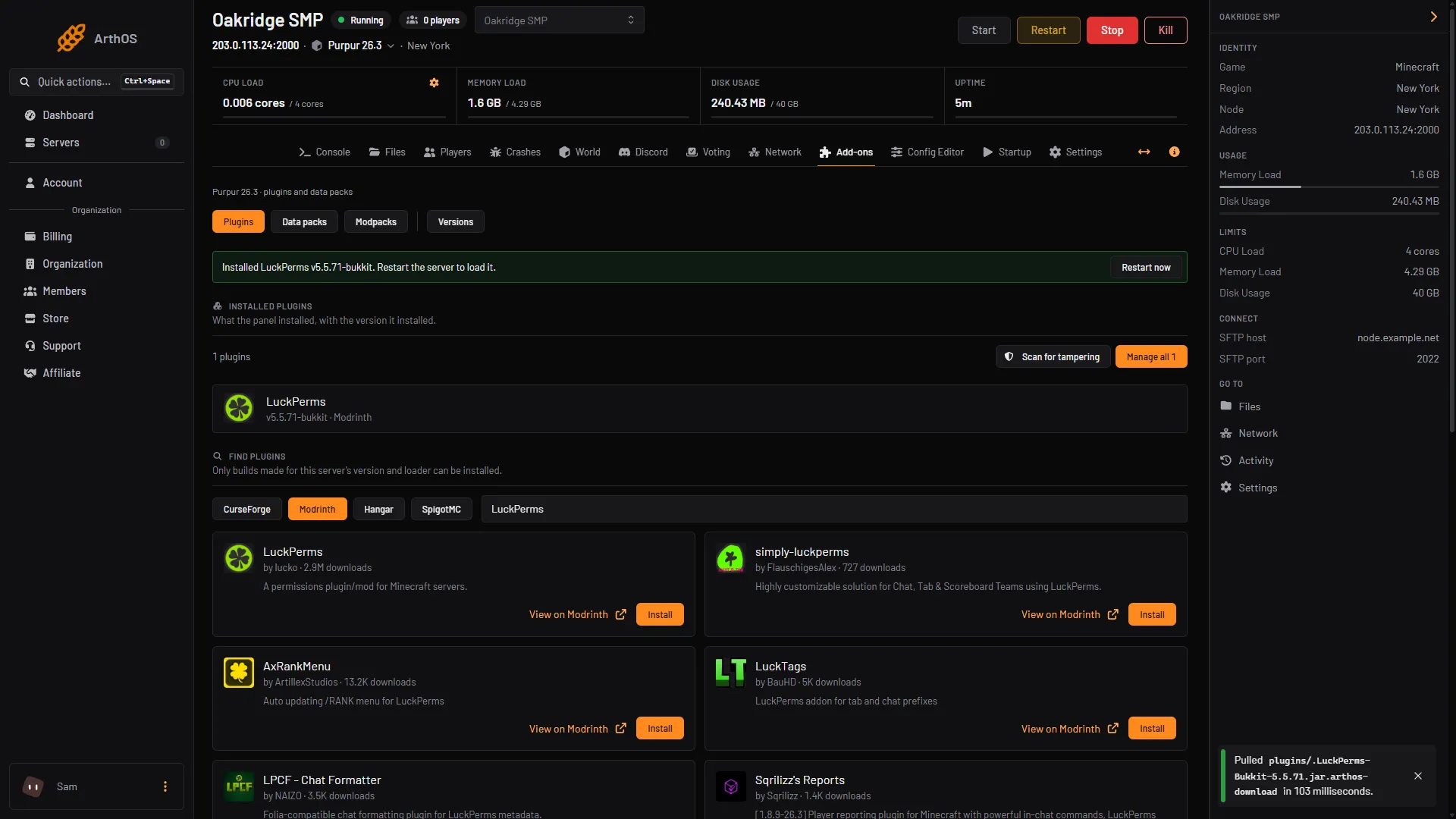
- Plugins button
- Pick a source
- Search box
- Install
When a plugin has no build for your version
After a new Minecraft release, plugin authors need time to catch up. Until then you have three choices:
- Wait for a release made for your version.
- Run the version the plugin supports, under Versions. See change the server version.
- Use a build made for an older version. Plugins often keep working on a newer Minecraft version, but an older build can cause bugs or lag, or fail to load. From Modrinth, Hangar and CurseForge the panel does not offer it (SpigotMC is different, see below), so upload it yourself as in By hand, after a backup. Then choose Scan for tampering (it looks for one kind of hidden code; it is not a guarantee), restart, and watch the Console and
spark tpsfor a while.
If an older build causes trouble, turn it off in Manage all and restart.
SpigotMC builds with a caution. On SpigotMC an author only says which versions they tested, so the panel offers that build with a note instead of hiding it. On 11 October 2026 the Install dialog for Jobs Reborn 5.2.6.7 showed an amber note (1): “its author lists it as tested up to Minecraft 26.2, not 26.3; many plugins keep working on newer versions, so check the console after it loads”. ChestShop 3.13-pre-1 and CMILib 1.6.0.1 showed the same kind of note. The dialog also counts “Builds that cannot be installed here”. If you choose Install (2), take a backup first. After the restart, read the Console for errors, and turn the plugin off in Manage all if it misbehaves.
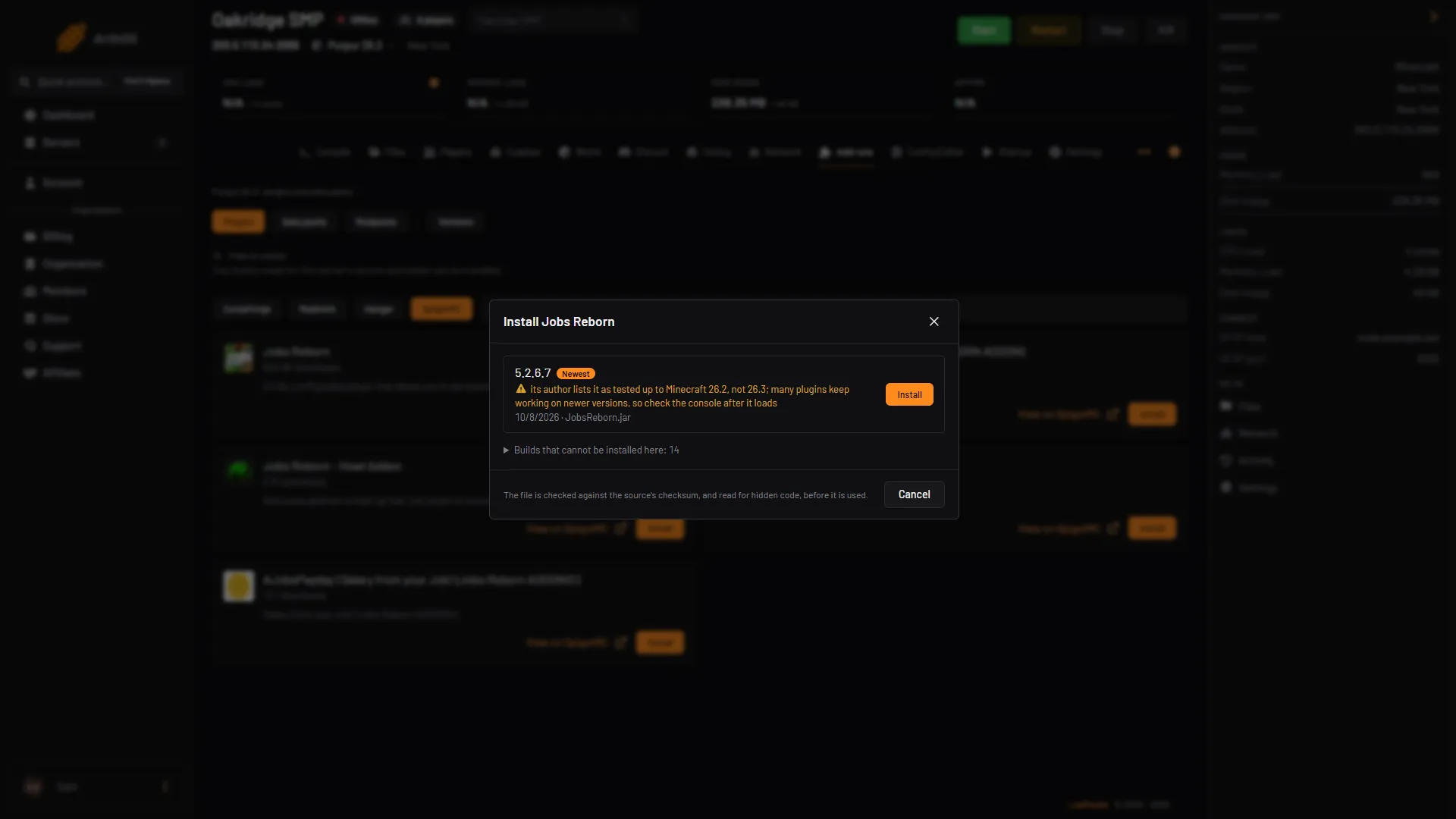
- Read the caution
- Install
The picture shows Jobs Reborn.
A plugin that is also on CurseForge and on its own home site gets a warning. Copies of popular plugins re-uploaded to CurseForge have carried malware, so the panel offers the original first. Take it.
Update, turn off or remove a plugin
- Update to and a version number appears on an installed plugin when a newer build exists for your server.
- Manage all lists every plugin file with a switch for each. Tick plugins, then choose Turn on, Turn off or Remove. Turning one off renames its file to end in
.disabled, which the server skips. Both take effect at the next restart. - Remove asks “Remove 1?” and says the files are deleted from the server and their settings folders are kept, so you keep your config if you add it again. The installed plugin’s card has no Remove button of its own.
- Scan for tampering checks every jar in the
pluginsfolder for hidden code, including jars you uploaded yourself.
By hand
Use this on any host. Do the same in the ArthOS Files tab with Upload, then Upload from computer.
- Download the plugin from a source you trust: Hangar, Modrinth or BukkitDev. Paper warns that plugins have full access to the server and the machine it runs on, so never install one from a site you do not know.
- Make sure the file ends in
.jar. If you got a.zip, extract it and use the.jarfor your platform, often namedbukkitorpaper. - Put the jar directly in the
pluginsfolder at the root of the server. A jar inside a subfolder ofpluginsis never loaded. - Restart the server.
- Type
pluginsin the server console (no slash), or/pluginsin game. A plugin shown in green is running. Red means it did not start.
Do not use /reload. Paper has deprecated it for removal because it is known to cause problems with plugins. Restart instead. Changes to a plugin’s own config file usually have their own reload command, which the plugin’s page lists.
If it does not work
- Unknown/missing dependency plugins: [Vault] in the console. The plugin needs another plugin first. Install the one it names, then restart. The panel does not fetch dependencies for you.
- Invalid plugin.yml. The file is not a Paper plugin. Either it is a Fabric or Forge mod, or the download is broken. Download it again. If you upload by FTP, use binary mode, or use the Files tab or SFTP instead.
- Ambiguous plugin name. Two versions of the same plugin are in
plugins. Delete the older one and restart. - Nothing in the log about it. The jar is in a subfolder, or it does not end in
.jar. - The server is stuck on a plugin. Open
logs/latest.login Files and read the lines near the start. The first one or two lines of an error usually name the cause. - No version or loader shown on the Add-ons page. Start the server once. The panel reads what it runs from the running server.
Ready to set one up? Next steps: EssentialsX and LuckPerms. You can also host a server on the Minecraft page.
Sources: docs.papermc.io: Adding plugins, docs.papermc.io: Commands, purpurmc.org