









Open Settings, then the Backups tab, and choose Create. The panel copies your server’s files. To go back later, choose Restore on that backup. This page also explains where the world lives and what the game’s own backups do.
Where the world is saved
All of it sits in the .cache folder, which you see in Files. Replace <Server Name> with the Server Name on the Startup page.
.cache/Saves/Multiplayer/<Server Name>/is the world: the map, the vehicles and where every player’s character is..cache/db/<Server Name>.dbholds the accounts..cache/Server/holds the settings files for the server.
A backup in the panel copies the server’s files, so it keeps all of these.
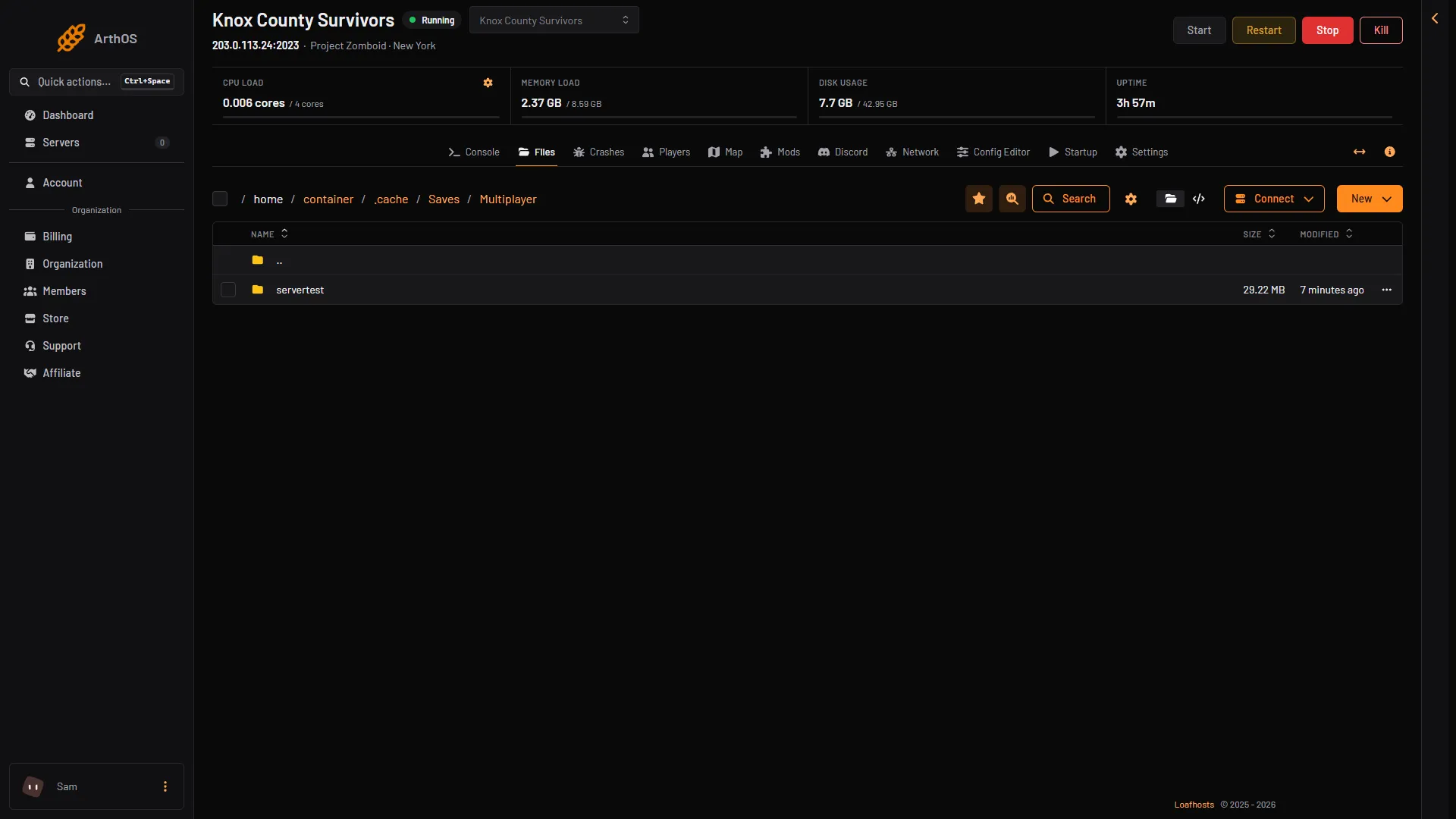
- World folder
Make a backup in the panel
- Open Settings, then the Backups tab.
- Choose Create, then Create Backup in its menu. The other entry is Create Backup Group.
- The box has Name, Source and Ignored Files (“One pattern per line.”). Keep the name, or type your own.
- Choose Create in the box.
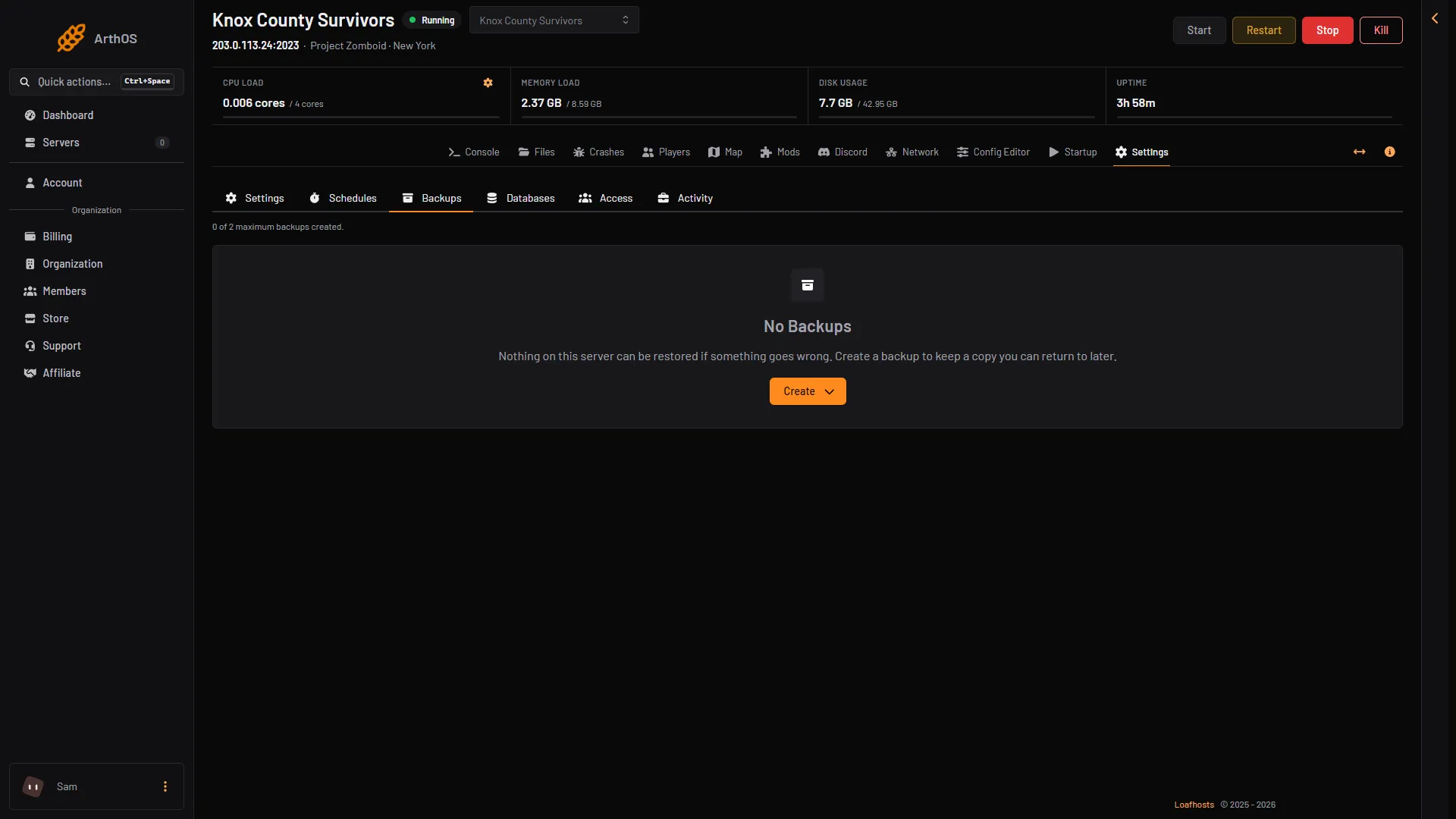
- Create
For the cleanest copy, stop the server first, or run the save command in the Console before you create the backup. save writes the current world to disk.
The top of the page shows how many backups you have and how many you may keep, for example “3 of 5 maximum backups created.”
The backup limit
- When you reach the limit, a manual backup is refused. The hint says “This server is limited to 5 backups.” Delete one you no longer need, then try again.
- A backup made by a schedule works differently. At the limit it deletes the oldest backup that is not locked.
- To keep a backup safe from that, choose Lock on it. Unlock undoes it. A locked backup cannot be deleted until you unlock it.
Back up on a schedule
- In Settings, open the Schedules tab and choose Create Schedule.
- In the box, type a Schedule Name, keep Enabled on, use Add Trigger to pick when it runs, and choose Create.
- Open the new schedule. On Actions, choose Create First Step.
- Pick the step type Create Backup, then save the step.
Run Now runs the schedule at once, which is a quick way to test it.
Lock a backup you want to keep for good, so the schedule never removes it.
Restore a backup
- Stop the server.
- Open Settings, then Backups.
- On the backup you want, choose Restore.
- Decide on the two switches. “Do you want to delete all files of this server before performing this action? This cannot be undone.” clears the server first, so nothing newer than the backup is left behind. “Restore the startup command, image, and variables from this backup.” also puts back the Startup page values.
- Choose Restore.
The server shows “Restoring Backup” until it is done. Then start it again. Everything saved after the backup was made is gone.
The game’s own backups
Project Zomboid can also keep backups by itself. They are separate from the panel’s. Find them in the Config Editor, group Saving and backups:
- Back up at every start (
BackupsOnStart). New Loafhosts servers start with this off. - Back up when the game updates (
BackupsOnVersionChange). The game’s default is on in its sample settings. - Game backup every (minutes) (
BackupsPeriod).0means never. The largest value is 1500. - Game backups kept (
BackupsCount). From 1 to 300. The game’s default is 5.
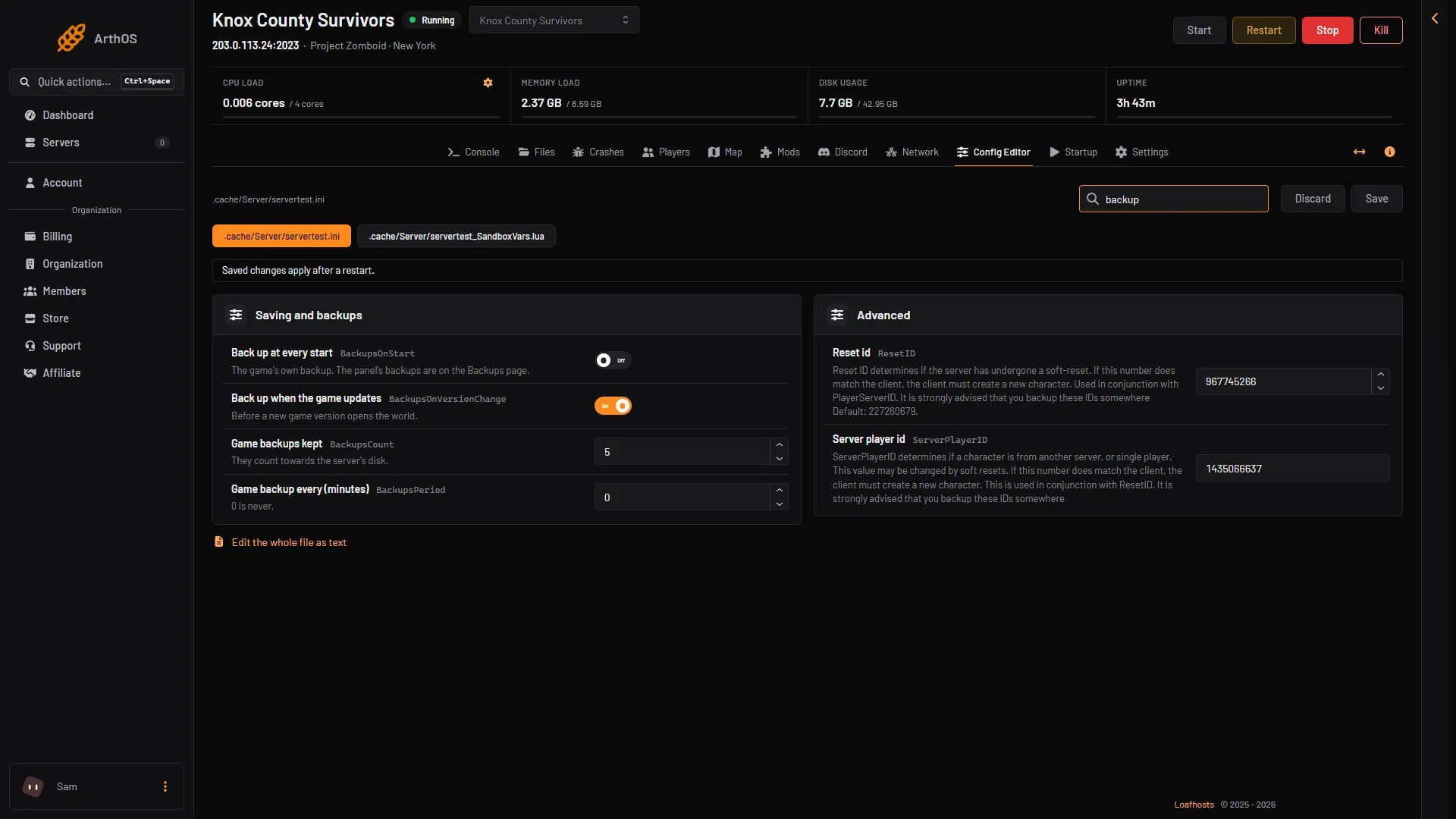
- Back up at every start
- Back up when the game updates
- Game backups kept
- Game backup every (minutes)
The game’s own backups count towards the server’s disk. Do not set Game backups kept high without a reason. Changes apply after a restart.
Not checked on Build 42.21 as of 18 October 2026: the folder the game writes these backups into.
If it does not work
- The backup is refused. You are at the backup limit. Delete an old backup. If it is locked, choose Unlock first.
- Restore says the server is not in a valid state. Wait for any other job on the server to end, stop it, and try again.
- The world is not back after a restore. Check that you chose the right backup, and look in Files for
.cache/Saves/Multiplayer/<Server Name>/.
To lose less when a crash happens, see Project Zomboid autosave. More about the game: Project Zomboid servers. To start from nothing, see reset a Project Zomboid server.
Sources: pzwiki.net: Dedicated server, pzwiki.net: Server settings, pzwiki.net: Admin commands