









To wipe a Project Zomboid world, stop the server and delete the folder .cache/Saves/Multiplayer/<Server Name> in Files. The next start makes a new world. Player accounts and server settings stay. Or keep the old world and start a second one by changing the Server Name on the Startup page.
What each way clears
| Delete the world folder | Change the Server Name | |
|---|---|---|
| The world, vehicles and characters | Cleared | Old ones stay, new ones start |
| Accounts and passwords | Kept | New and empty |
| Bans | Kept | New and empty |
| Server settings and sandbox settings | Kept | New files with the game’s defaults |
| The old world | Gone unless you backed it up | Kept in its folder |
The world folder holds the map, the vehicles and where each character is. Accounts are in .cache/db/<Server Name>.db. Settings are in .cache/Server.
Way 1: wipe the world, keep everything else
- Make a backup. Open Settings, then Backups, and choose Create. See back up and restore a Project Zomboid server.
- Stop the server and wait until it is offline.
- Open Files and go to
.cache/Saves/Multiplayer. - Delete the folder named after your Server Name. The default name is
servertest.
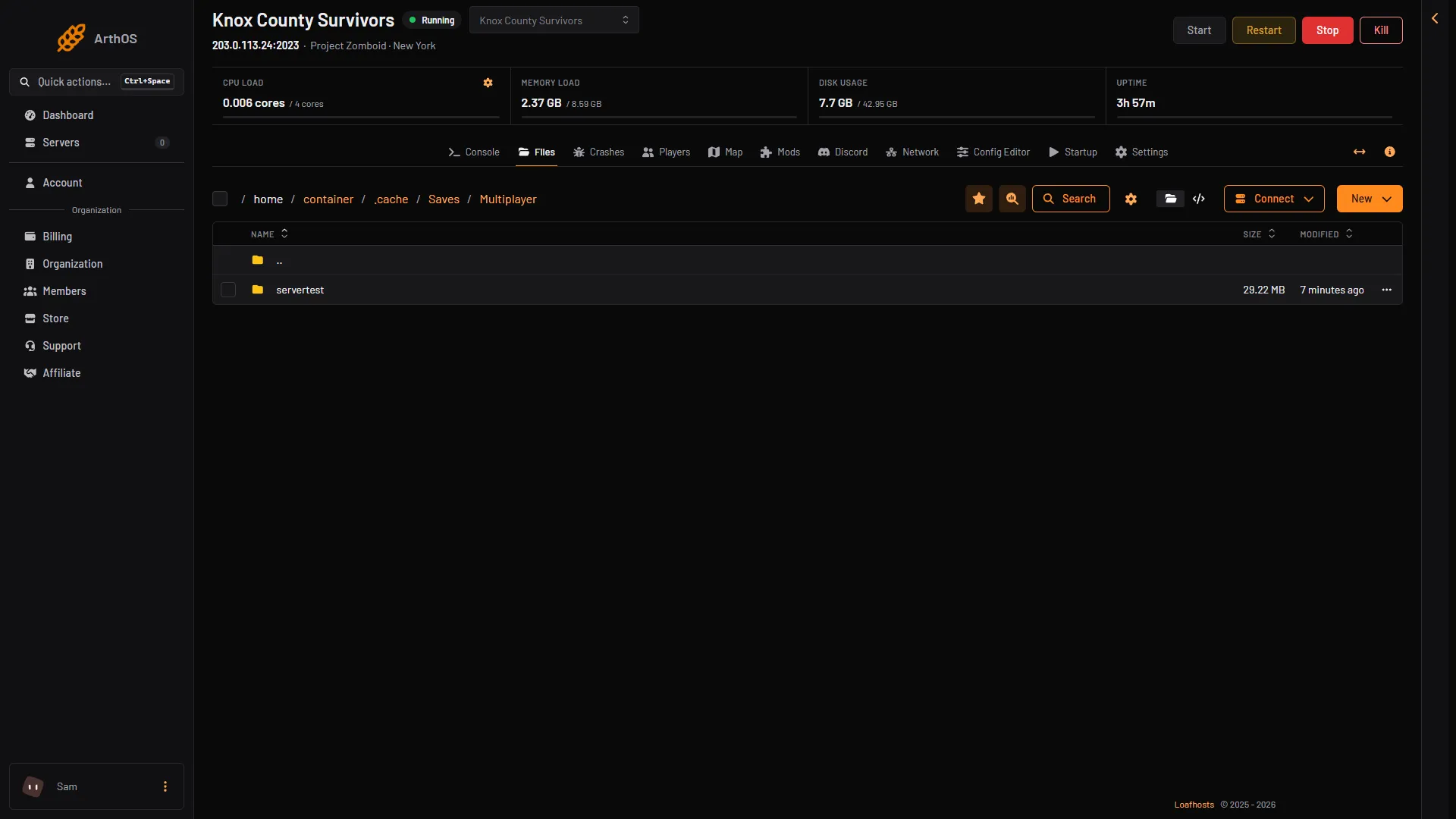
- World folder
- Start the server. The game makes a new world.
Players keep their accounts and passwords, so they log in as before. Each player makes a new character. Players may still see old marks on their own in-game map, because the game stores a player’s map notes on their own computer, per server address and port.
Only the world folder is deleted. Do not delete .cache/db or .cache/Server unless you also want to lose accounts or settings.
Way 2: keep the old world and start a new one
- Make a backup first, as above.
- Open the Startup page.
- Change Server Name to a new name. Use letters and digits only, up to 64 characters.
- Save, then restart the server.
The game uses the name for its settings file, its sandbox file, its world folder and its accounts. A new name means all four are new. The old ones stay in their folders, so you can switch back by setting the old name again.
The new server starts with the game’s default settings. Open the Config Editor to set them again, and check the Mods page, because the mod list is stored in the settings file. The admin account is made again from Admin Username and Admin Password on the Startup page. Every other account is new.
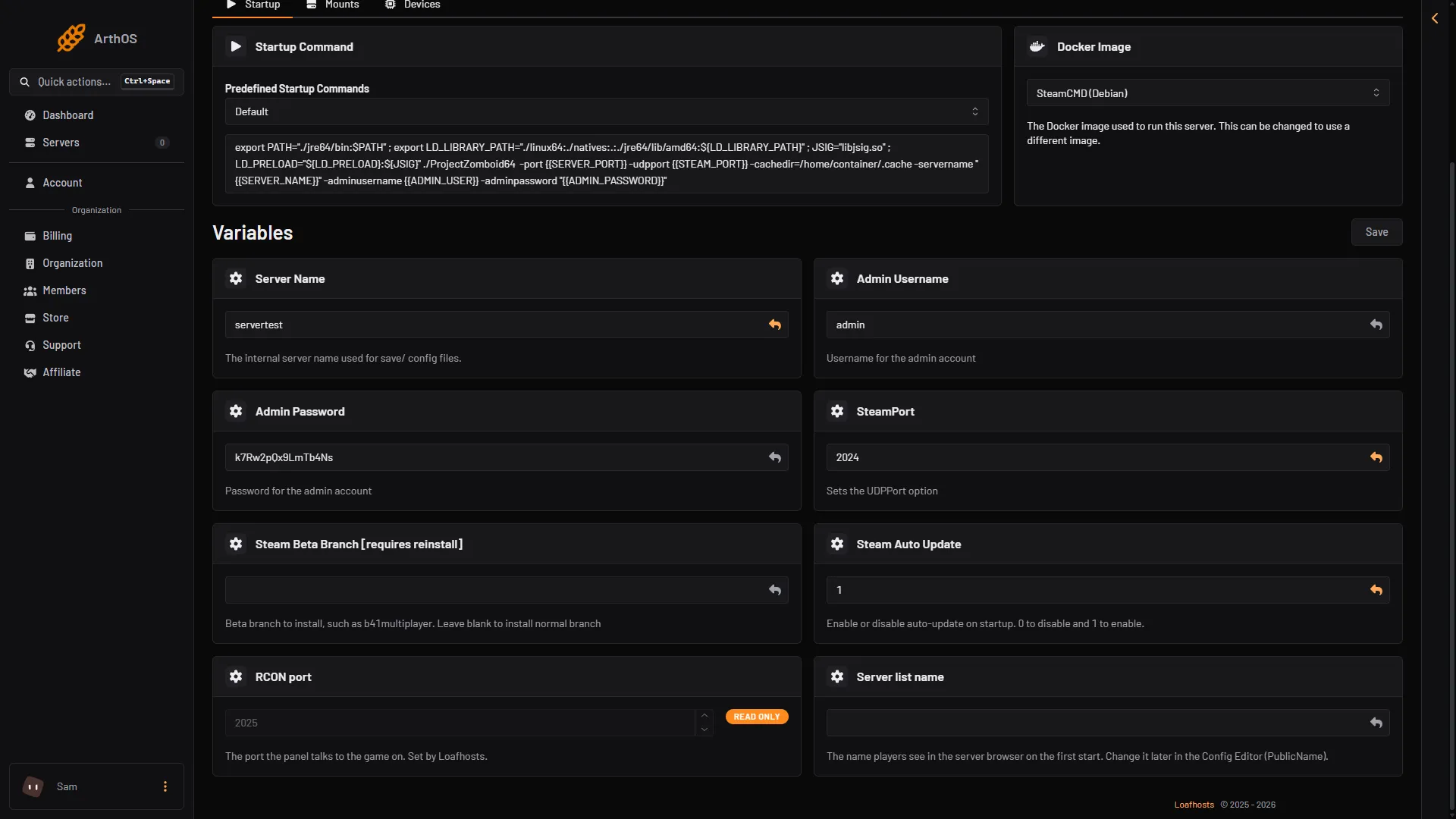
- Server Name
Partial resets
Not checked on Build 42.21 as of 18 October 2026: any reset that clears only part of a world, such as loot or zombies. The wiki lists a start option for a “soft reset” and says it does not work in Build 42.21. Use one of the two ways above.
If it does not work
- The old world came back. You deleted the wrong folder, or the name on the Startup page is not the one you deleted. The folder name must match the Server Name.
- Players cannot join the new world. Start the server fully first. Wait for the console to show
*** SERVER STARTED ****. - Settings and mods are gone after renaming. That is expected: a new name has new files. Set them again.
More about the game: Project Zomboid servers.
Sources: pzwiki.net: Dedicated server, pzwiki.net: Startup parameters