









There are two separate ways to link a Project Zomboid server to Discord. The Discord page shows the server’s status in a channel and posts events such as a start or a crash. The game’s own chat bridge, in the Config Editor, copies in-game chat to a channel. Use either or both. More about the game: Project Zomboid servers.
Show the server’s status in a channel
The panel’s bot keeps one message in a channel up to date: whether the server is up and how many players are on. It can also rename the channel.
- Open the Discord page.
- In Status in Discord, choose Add the bot (1) and add it to your Discord server.
- Follow the step “Link your Discord account”. The panel uses it to check that you run that Discord server.
- In Discord, right-click the channel and choose Copy Link.
- Back in the panel, choose Link a channel (2) and paste the link into Channel link or ID.
- Choose what the message shows. Show mods button adds a button with the full mod list. Show the join address shows the address.
- Choose Link channel.
The message is posted at once and updates every minute.
Not checked live on 18 October 2026: the Link a channel box and a test post.
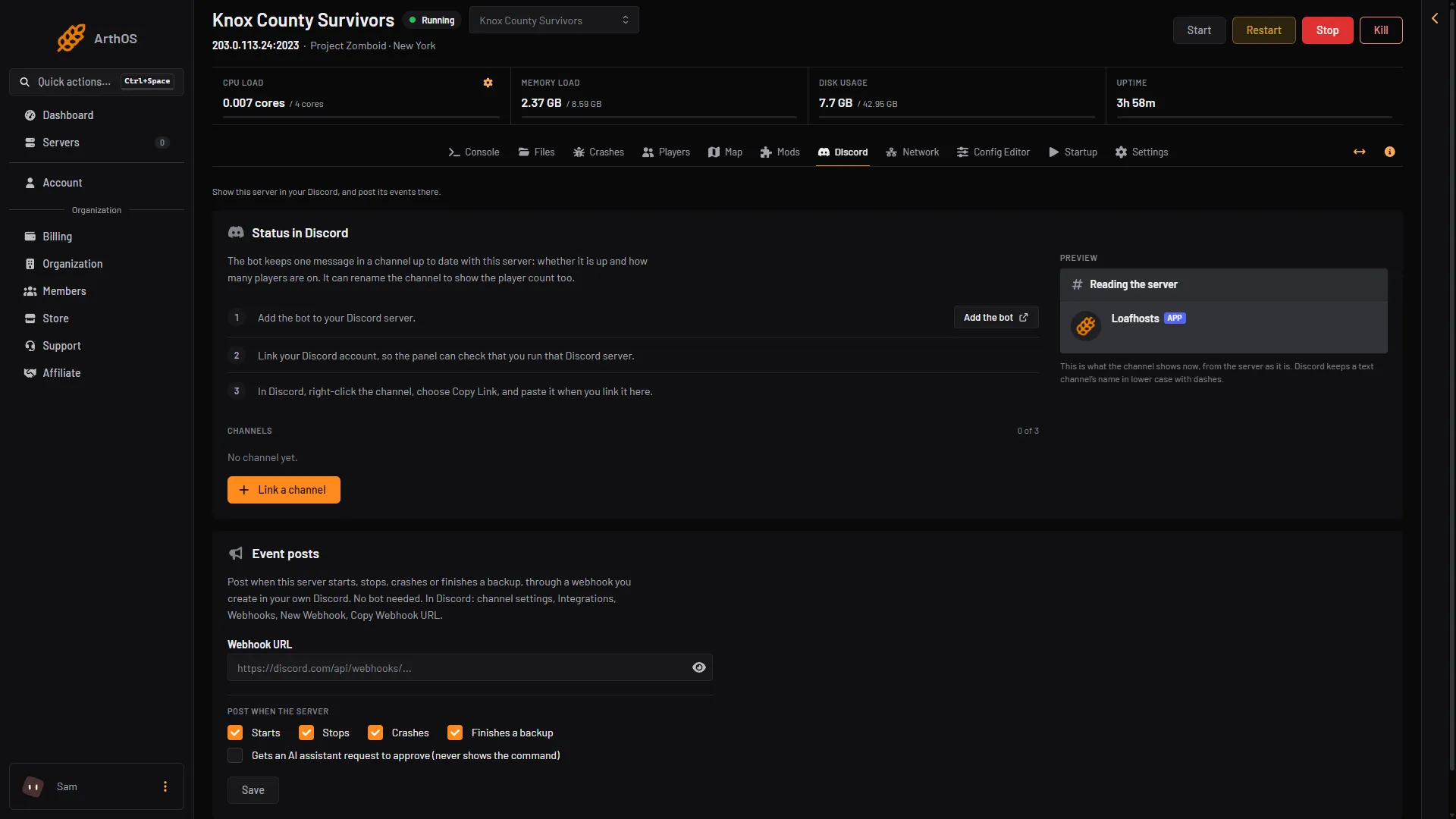
- Add the bot
- Link a channel
- Event posts
- Webhook URL
The message shows the map, the players, the number of mods, the status and the session uptime. For Project Zomboid it uses the server’s name from the Config Editor (Server name). The status also says “password protected” if a join password is set, “whitelist only” if Anyone can make an account is off, and “PVP off” if players cannot hurt each other.
Rename the channel to show the server puts an icon, the server’s name and the player count in the channel name. Discord allows two renames in ten minutes, so it changes every 11 minutes at most. The bot needs the Manage Channels permission.
Use Update now to refresh a message, Edit to change it and Unlink to remove it. Unlinking deletes the status message.
Post events to a channel
The Event posts card posts when the server starts, stops, crashes or finishes a backup. It uses a webhook from your own Discord. No bot is needed.
- In Discord: channel settings, Integrations, Webhooks, New Webhook, Copy Webhook URL.
- On the Discord page, find Event posts and paste the address into Webhook URL. It starts with
https://discord.com/api/webhooks/. - Under “Post when the server”, tick Starts, Stops, Crashes or Finishes a backup. An AI assistant request is also on the list.
- Choose Save, then Send a test and check the channel.
The picture above shows the Event posts card and Webhook URL. Events are posted within 20 seconds. Remove stops the posts. The webhook stays in your Discord until you delete it there.
Bridge in-game chat to Discord
The game has its own Discord bridge. The game’s bot posts everything written in the global chat (/all) to a Discord channel. Messages in Discord that mention the bot with @, or reply to it, are posted into the global chat. This needs a bot of your own.
Make the bot
- Log in to the Discord Developer Portal and choose New Application. Name it and accept the terms.
- Open the Bot section. Choose Reset Token and copy the token. Discord cannot show it again. Keep it private: anyone with it controls the bot.
- Open OAuth2. Under scopes tick
bot, and under bot permissions tick Send Messages. - Copy the generated address and open it in a browser. Pick your Discord server and choose Authorize. You need the Manage Server permission there.
Set it up on the server
- Open the Config Editor and find the group Discord.
- Switch on Discord chat bridge (1).
- Paste the token into Discord bot token (2).
- In Chat channel (3), type the name of the channel for chat both ways.
- In Log channel (4), type the name of the channel for joins and deaths.
- Save and restart the server. Saved changes apply after a restart.
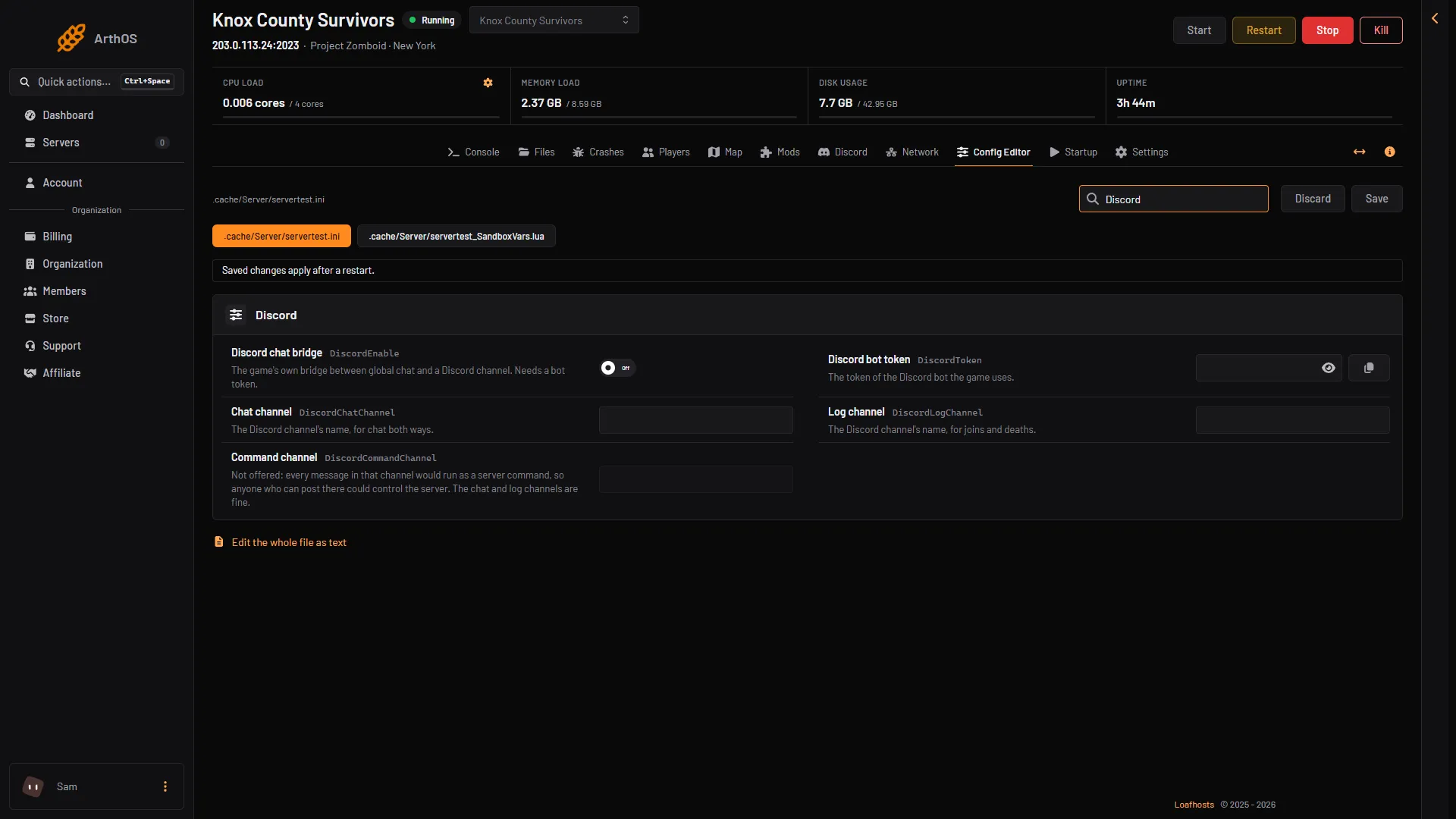
- Switch the bridge on
- Paste the bot token
- Chat channel
- Log channel
- Command channel, locked
Not checked on Build 42.21 as of 18 October 2026: using a channel ID in place of the name, what else the bot needs to read Discord messages, and what the Log channel posts besides joins and deaths.
Why there is no Command channel
The Command channel row is locked and stays empty (5). The game runs every message in that channel as a server console command. Anyone who could post there would then be an admin of your server. So the panel empties it at every start. To run commands, use the Console page.
By hand
Edit the server’s .ini file in Files (in the .cache/Server folder). The keys are:
DiscordEnable=true
DiscordToken=
DiscordChatChannel=
DiscordLogChannel=
Add your token and the channel names, then restart. Leave DiscordCommandChannel= empty.
If it does not work
- No messages reach Discord. Check that the bot is in your Discord server and that it may send messages in that channel. Check the channel name for typos, and that Discord chat bridge is on.
- The bot posts twice, or only one way. The game had these faults on Build 41, and The Indie Stone planned a fix for Build 42. A restart cleared them on Build 41.
- The Discord page says the panel cannot check who runs a Discord server. Ask support to link a channel for you.
- The webhook is refused. It must start with
https://discord.com/api/webhooks/. If posting stopped, save a working address to start again.
Sources: pzwiki.net: Discord, pzwiki.net: Server settings, discord.com: Developers