









Open the Players page, type your text in Message to everyone and choose Send. Every player on the server gets it at once. The server must be running. To greet players when they join, change the Welcome message in the Config Editor. More about the game: Project Zomboid servers.
Message everyone now
- Open the Players page.
- In the card Message everyone, type your text in the box (1).
- Choose Send (2).
The game answers “Message sent to everyone”. The text can be 120 characters at most. A double quote in it is changed to a single quote, and a line break to a space.
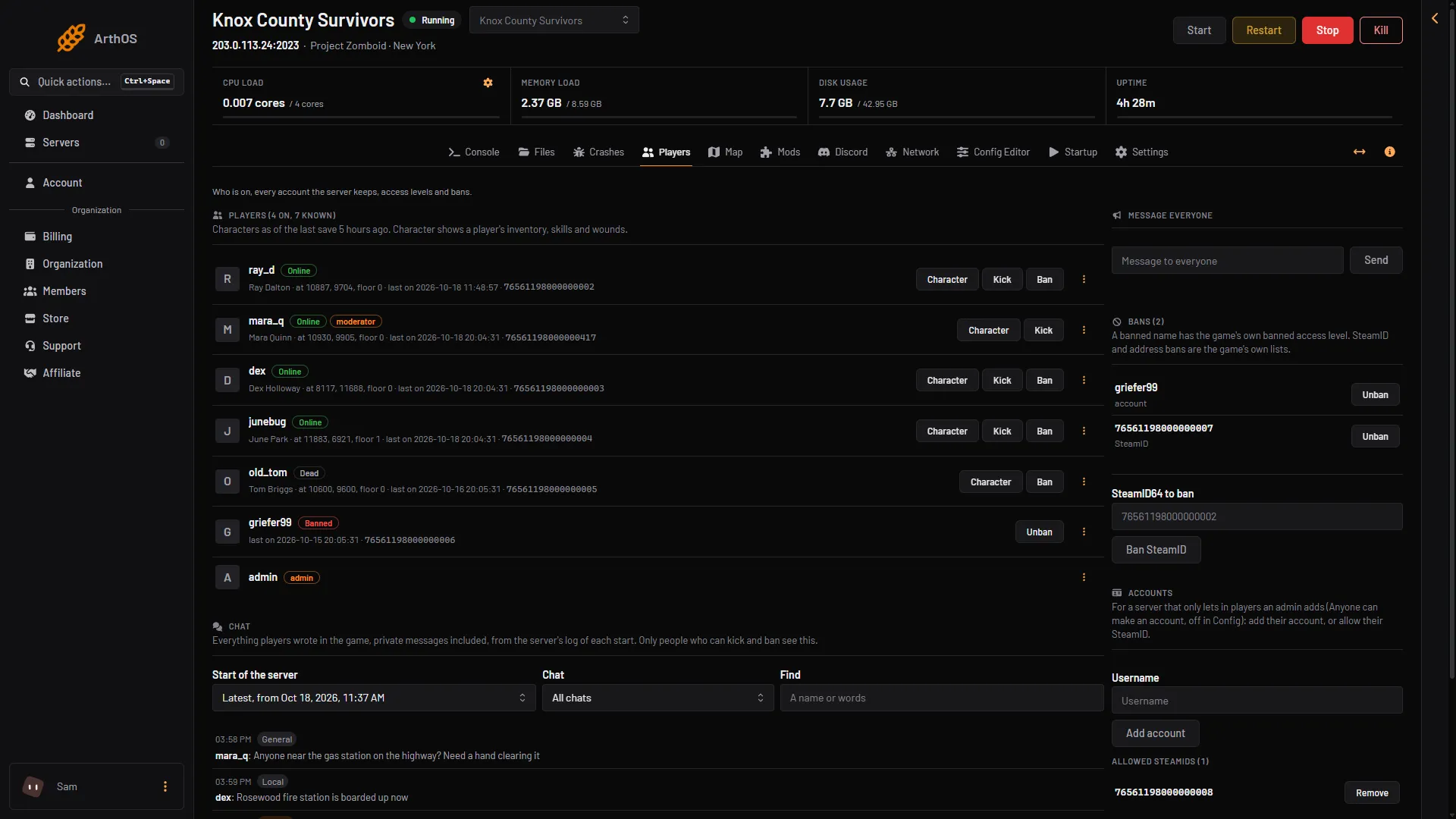
- Type the message
- Send
Change the welcome message
The welcome message shows in the chat panel right after a player logs in.
- Open the Config Editor.
- In the group Server, find Welcome message (
ServerWelcomeMessage). - Type your text and save.
- Restart the server. Saved changes apply after a restart.
Two tags work inside the text:
<LINE>starts a new line.<RGB:1,0,0>colours the text after it. The three numbers are red, green and blue.1,0,0is red.
Example: Welcome to the server! <LINE> Be kind. <LINE> <RGB:1,0,0> No base raiding.
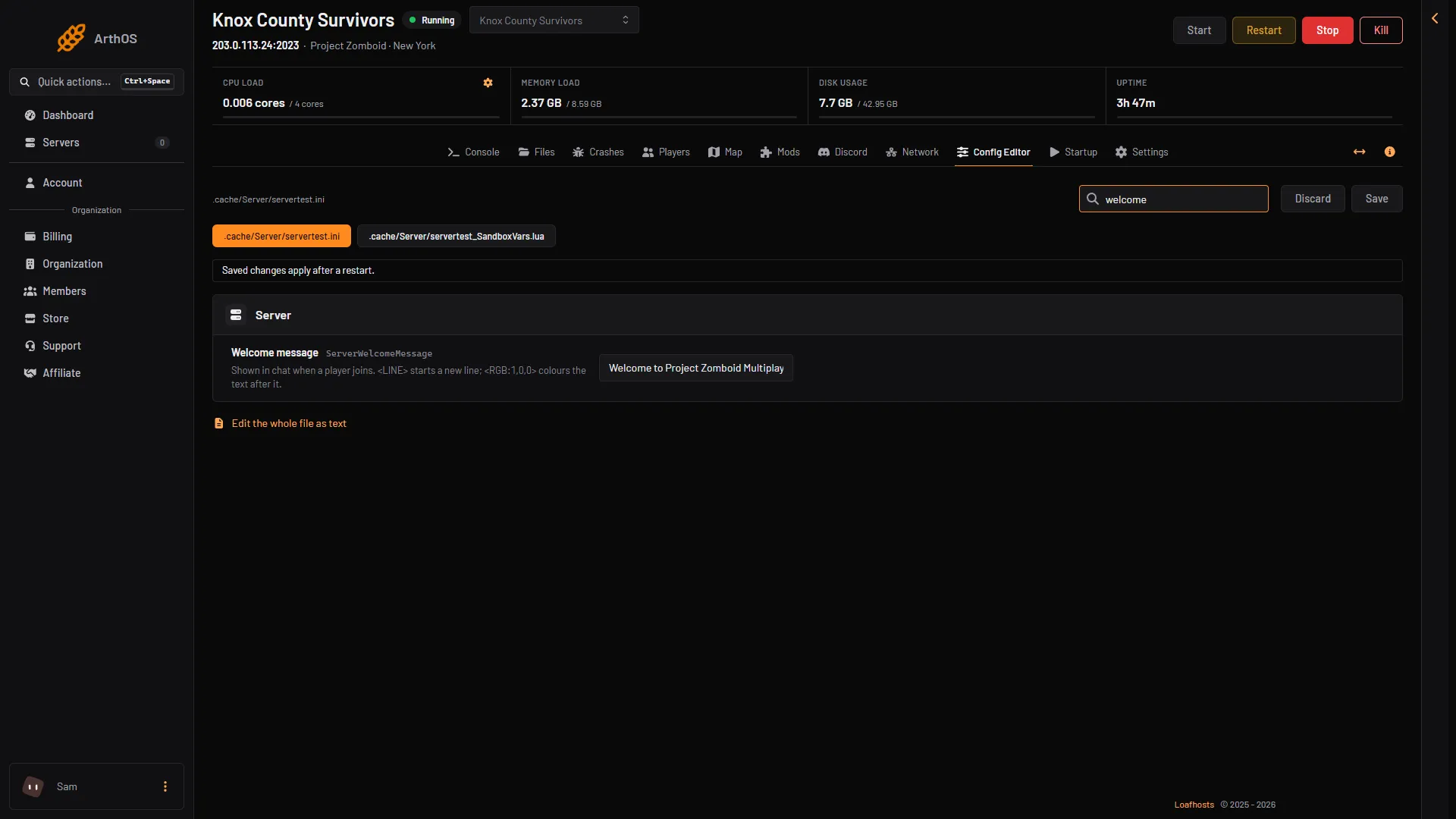
- Welcome message
Send messages on a schedule
A schedule can send the same message at the same time each day, for example a warning before a restart.
- Open Settings, then the Schedules tab.
- Choose Create Schedule. A box opens with Schedule Name, Enabled, Triggers and Add Trigger.
- Type a Schedule Name, choose Add Trigger and pick when it runs. The times use the server timezone.
- Choose Create.
- Open the new schedule. On Actions choose Create First Step, then Add Step for the next ones.
- Pick the step type Send Command and type
servermsg "Restart in 5 minutes"as the command.
Add more steps for later warnings. Put a Sleep step between them (its box is Duration (milliseconds)) to set the gap, then a Send Power Signal step with Restart at the end. Run Now runs a schedule at once, to test it.
By hand
On the Console page, type the command without the slash:
servermsg "Server restarts in 5 minutes"
In the game, an admin types it in chat with a slash: /servermsg "Server restarts in 5 minutes". The text goes in double quotes.
If it does not work
- Send is not available. The server is stopped. Start it first.
- The page refuses your text. It is empty or longer than 120 characters.
- The welcome message did not change. Restart the server after saving.
- The colour does not show. Check that the tag is written exactly
<RGB:1,0,0>, and that it comes before the text it should colour. - You cannot see Message everyone. Your role may not allow in-game actions.
Sources: pzwiki.net: Admin commands, pzwiki.net: Server settings