









The safest reset is a new world: on the World page, type a name under New world, press Create, and restart. The old world stays on the server and you can play it again. The other way is to delete the world folder in Files with the server stopped. That cannot be undone. More about the game: Valheim servers.
Option 1: a new world next to the old one
- Open the World page.
- Find the New world box. It shows on the World page for everyone who may change the world, on every server.
- Type a name. Use up to 20 letters, numbers, spaces,
-or_. The panel tells you if a world with that name is already on the server. - Press Create. A box says the game makes the new world at the next start, and that the current world stays on the server as it is. Choose Use this world.
- Restart the server.
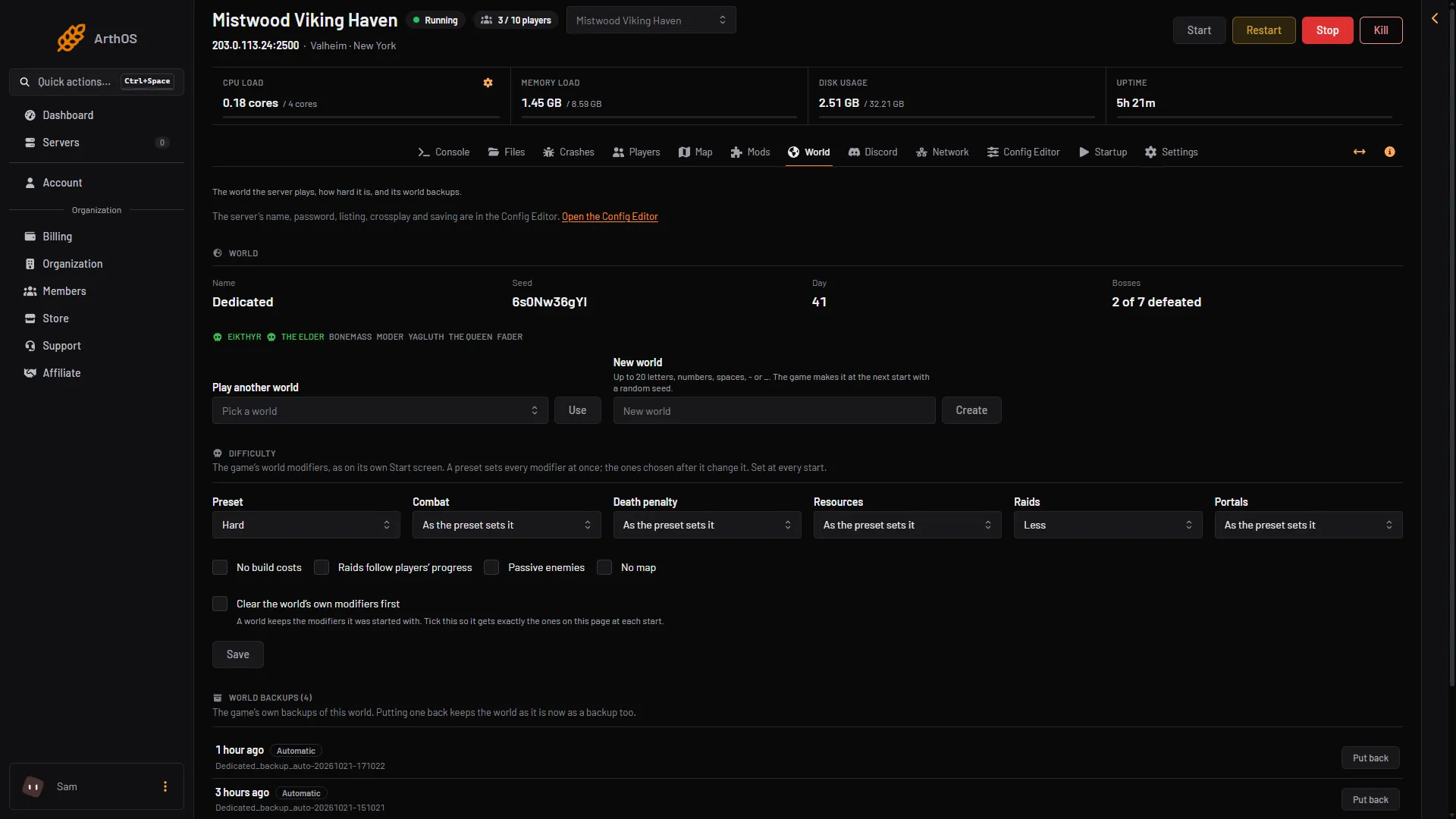
- New world
- Create
Type the name under New world (1), then press Create (2).
The game makes the new world at that start, with a random seed. The old world is not touched. To go back, use Play another world, which shows beside New world once the server holds another world. Choose the old world in Pick a world and press Use.
The old world still takes disk space. For scale: a whole Loafhosts server, with the game files, used 2.5 to 6 GB of disk (measured 21 October 2026).
Option 2: delete the world
Use this when you do not want the old world at all.
- Back it up first. See below.
- Choose Stop at the top of the server page.
- On the Files page, go to
.config/unity3d/IronGate/Valheim/worlds_local. - Delete the world’s folder. The name is on the World page. A new store server starts with
Dedicated. If the world is still in the old format, delete both its.dband its.fwlfile. - Start the server.
The World value on Startup still holds the same name. The game does not find that world, so it makes a new one with that name and a random seed. The game’s manual says the same: a name that does not exist yet makes a new world.
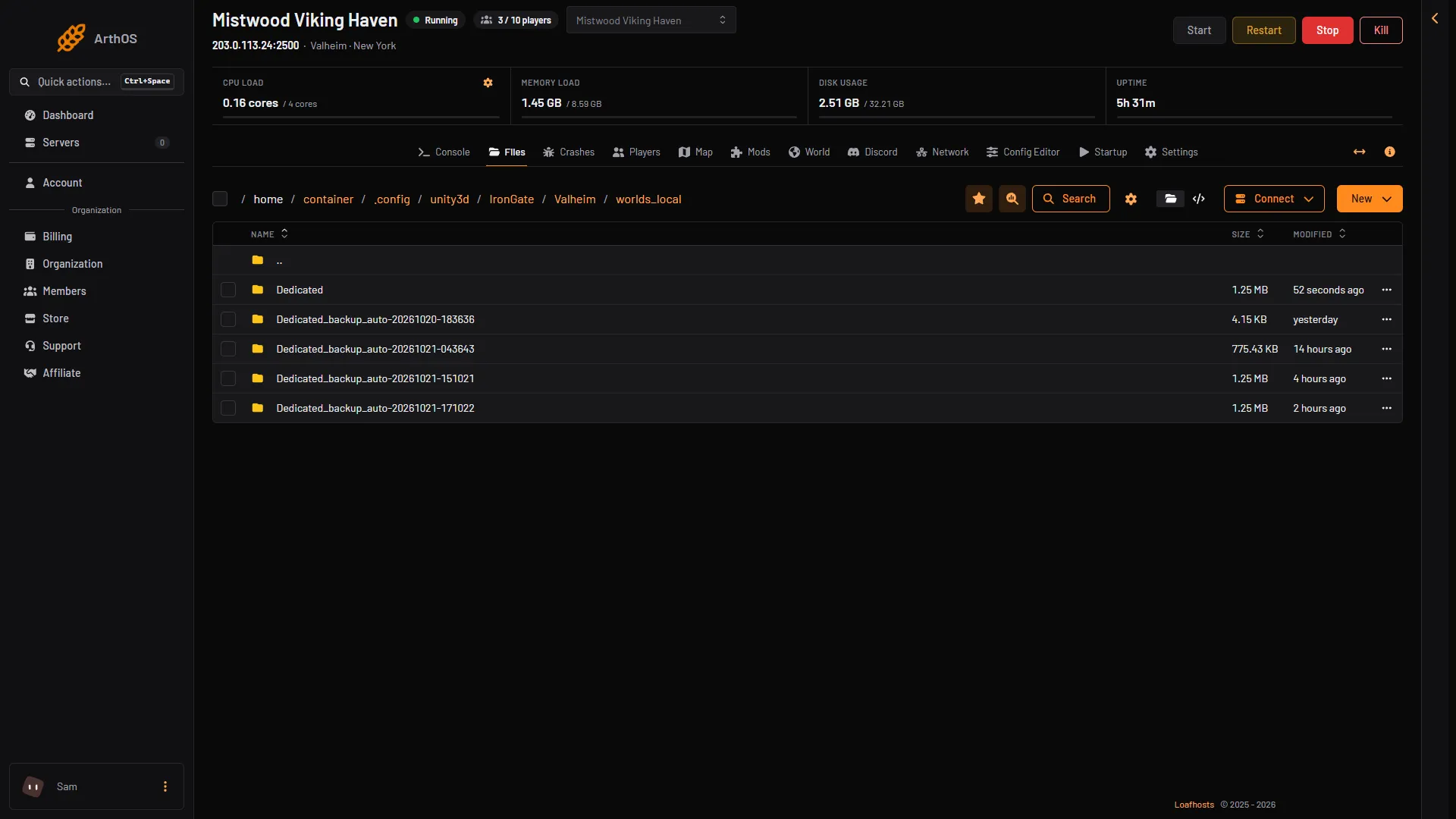
- The world
- A game backup
Delete the world folder (1). Leave the backup folders (2) if you may want the world back.
Until the new world’s first save, the Map shows the world but not its places or builds. The game saves every 30 minutes by default and when the server stops.
What is cleared and what stays
Cleared, with the world folder:
- Everything built, the day count and the bosses beaten.
- The world’s own modifiers.
Stays:
- The three lists. Admins, bans and the permitted list are files in the folder above
worlds_local. Deleting a world does not touch them. - The game’s backups of that world. They are separate folders in
worlds_local. Delete them too if you want nothing left. They also drop away as the game keeps only the number of backups set in World backups kept. - Mods and server settings. Name, password, listing and crossplay are not in the world.
- Characters. A player’s character, with items, food and skills, lives in the player’s own game on their own computer, not on the server.
Difficulty in the new world
A world keeps the modifiers it was started with. The Difficulty card on the World page is set at every start, so a new world is started with the modifiers that card holds. Open the card and check the Preset and each modifier before you restart. See Valheim world modifiers.
Back up first
Pick one:
- Download the world folder from
worlds_local, with the server stopped. See download a Valheim world. - Open Settings, then the Backups tab, and choose Create Backup.
- Keep one of the game’s own backup folders in
worlds_local. They are listed on the World page under World backups.
If it does not work
- The old world came back. The world was not deleted from
worlds_local, or you deleted a backup folder instead. - A world with the same name is refused. In Option 1, pick a different name.
- The server will not start after the reset. Open Crashes. A listed server’s password cannot be part of the world’s name or seed. Choose another password.