









One Valheim server plays one world at a time. You can keep many worlds on the server and switch between them. The world you leave stays on the disk, exactly as it was. More about the game: Valheim servers.
Switch to another world
- Open the World page.
- Find the card Play another world (1).
- Under Pick a world (2), choose a world that is already on the server and press Use (3).
- A box asks “Play (name)?”. It says the server plays that world from its next start, and the current one stays as it is. Choose Use this world.
- Choose Restart at the top of the server page.
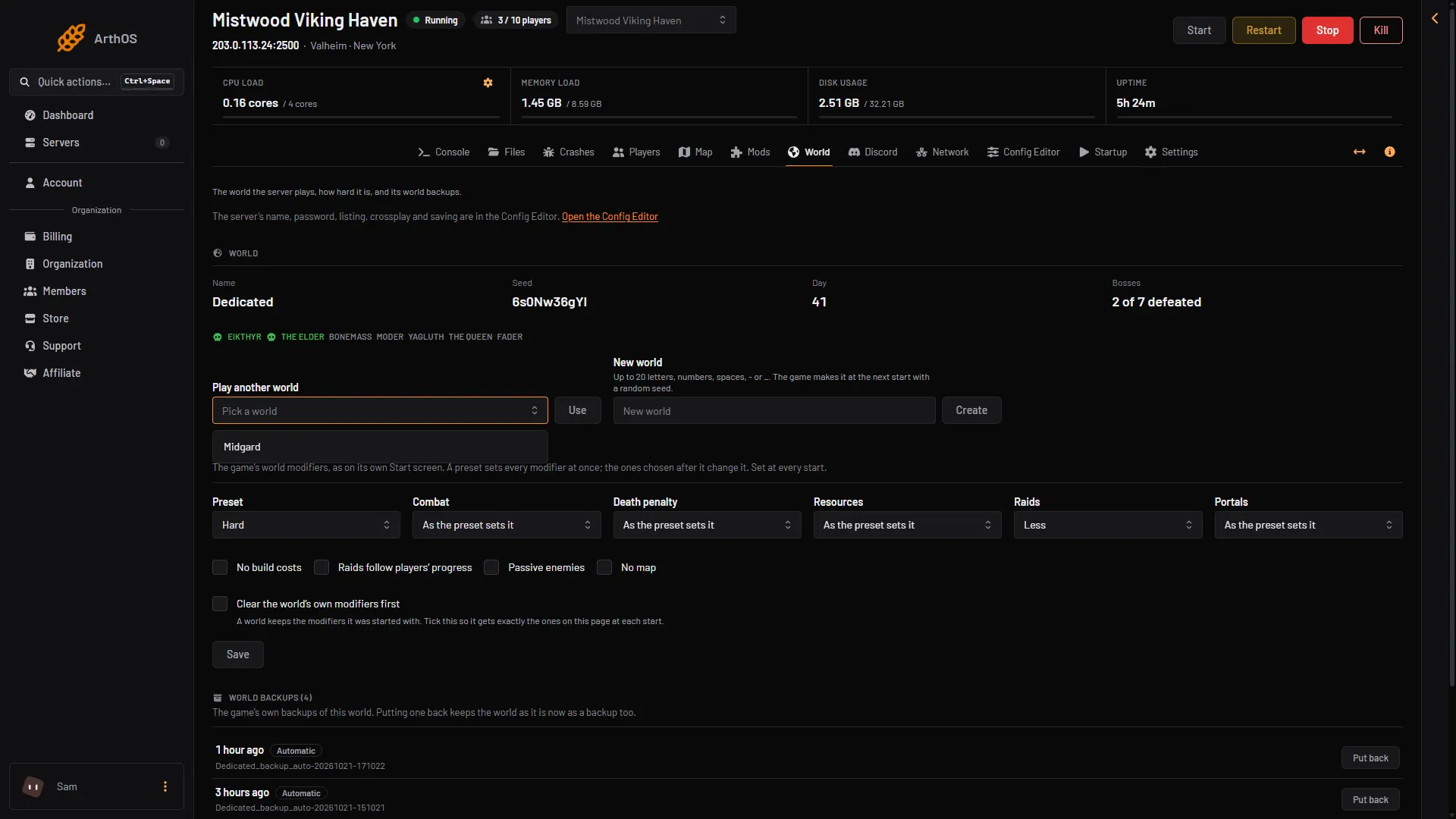
- Play another world
- Pick the other world
- Use
The switch happens at the next start. Until then the server keeps playing the old world.
Start a new world
- Open the World page. The New world box and Create show there for everyone who may change the world, on every server, also when there is only one world. Type a name in the New world box (1). Use up to 20 letters, numbers, spaces,
-or_. - Press Create (2). A box asks you to confirm. It says the game makes the world at the next start and the current world stays on the server.
- Choose Restart at the top of the server page.
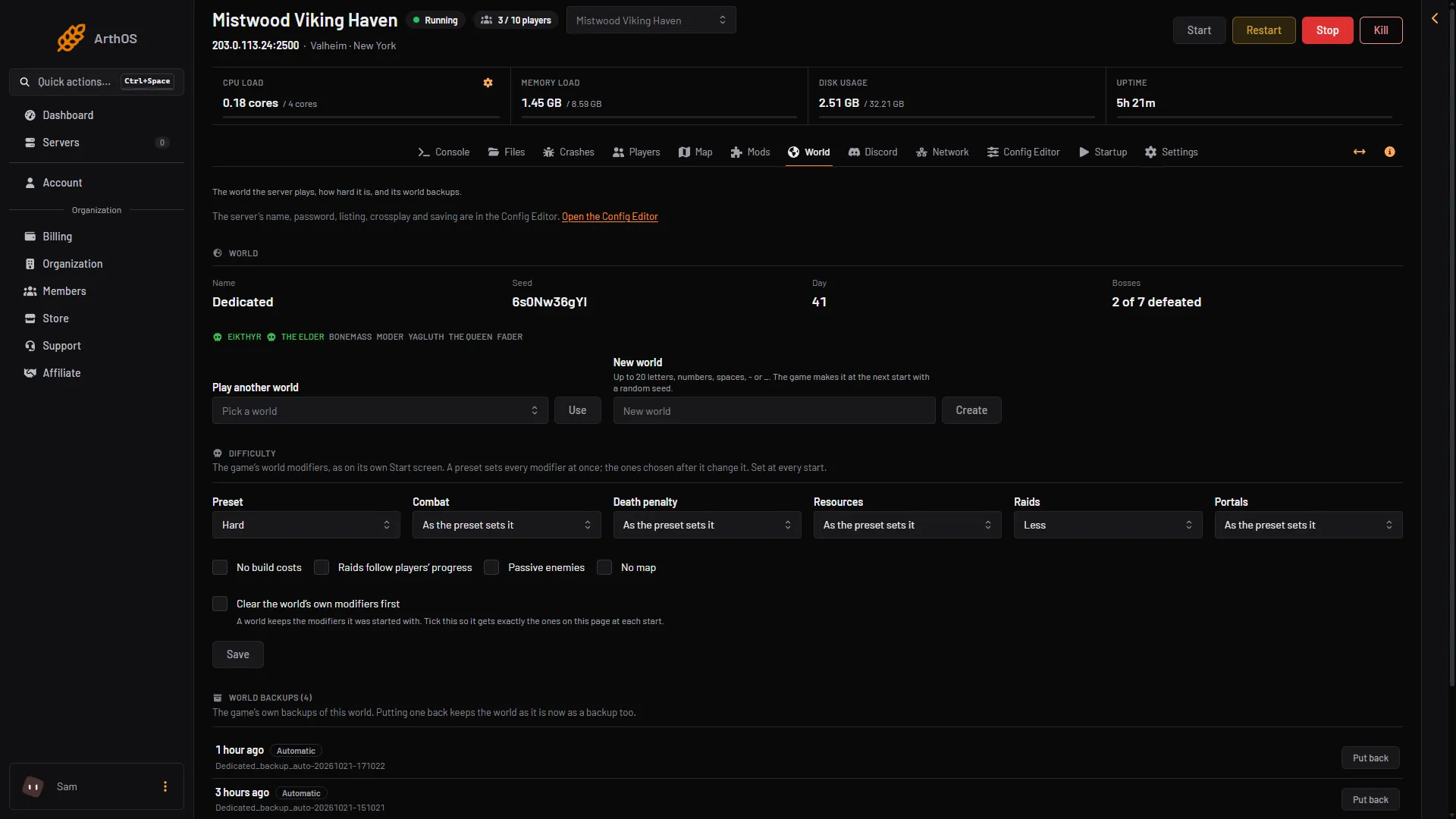
- New world
- Create
The game makes the new world at that start, with a random seed. The panel says if a world with that name is already on the server. Pick another name.
The old world is not changed. You can come back to it from the same card.
What is kept for each world
- Its progress. Each world is its own folder in
worlds_local. Builds, bosses and the day count belong to that world only. - Its backups. The game’s own backups are named after the world, like
Dedicated_backup_auto-20261021-171022. See world backups. - Its modifiers. A world keeps the modifiers it was started with. The Difficulty card on the World page is set at every start, so it is applied to whichever world is running. If one world should have exactly the modifiers on the page, tick Clear the world’s own modifiers first before the switch.
Players keep their own characters. A character, with its inventory, food and skills, lives in the player’s own game on their own computer. It is not on the server.
Disk use
Every world stays on the disk, so the disk fills as you add worlds. The whole server’s disk use, with the game files, measured 2.5 to 6 GB on Loafhosts Valheim servers (21 October 2026). Remove a world you no longer play in the Files page. The worlds are in .config/unity3d/IronGate/Valheim/worlds_local. Stop the server before you delete anything there.
By hand
The world the server plays is the World value on the Startup page. A name that does not exist yet makes a new world at the next start. The game’s manual says the same: -world with a name that exists chooses that world, and a new name makes a new one.
If it does not work
- The old world is still playing. The server was not restarted after the change.
- The new world has the old rules. A world keeps its modifiers. Use Clear the world’s own modifiers first.
- The world you wanted is not in the list. Worlds uploaded by hand must be in
worlds_local. See upload a world.