






There are three ways to link a Rust server to Discord. The Discord tab in the ArthOS panel gives you the first two: event posts and a status channel. Neither needs a plugin. To pass chat between the game and Discord you need a uMod plugin, and Discord Chat is the one to use.
What each one does
| Event posts | Status channel | Chat relay plugin | |
|---|---|---|---|
| Where you set it up | Discord tab | Discord tab | Plugins page |
| Needs a plugin | No | No | Yes, plus the Discord extension |
| Needs a bot | No. A webhook from your own Discord is enough. | Yes. The Loafhosts bot, which the page gives no invite link for. | Yes. Your own bot, with its token. |
| What it posts | A message when the server starts, stops, crashes or finishes a backup. | One message with the player count, edited every minute. Can also put the count in the channel name. | Game chat to Discord, Discord chat to the game, joins and leaves, server start and stop. |
| Chat from Discord to the game | No | No | Yes |
| Needs Oxide or Carbon | No | No | Yes |
Pick Event posts for a quiet “did my server start, stop or crash” channel. Add the status channel for a player count. Pick the plugin if players want to talk across both.
Show players in a Discord channel
This is the status channel. It needs the Loafhosts bot in your Discord. The page has no invite link. Ask Loafhosts support for the bot’s invite, or use Event posts below, which need no bot.
- In your Discord, make a channel for it. Invite the Loafhosts bot to your Discord.
- Give the bot View Channel and Send Messages on that channel. Add Manage Channels if you want it to rename the channel.
- In Discord, turn on Developer Mode, right-click the channel and choose Copy Channel ID.
- In the ArthOS panel, open your server and choose Discord.
- Paste the number into Channel ID (1). It is 17 to 20 digits.
- Turn on Show the player count in the channel name if you want it. The name changes at most every 11 minutes, which is as often as Discord allows.
- Press Link channel (2). The panel says “Linked. The status message is posted and updates every minute.”
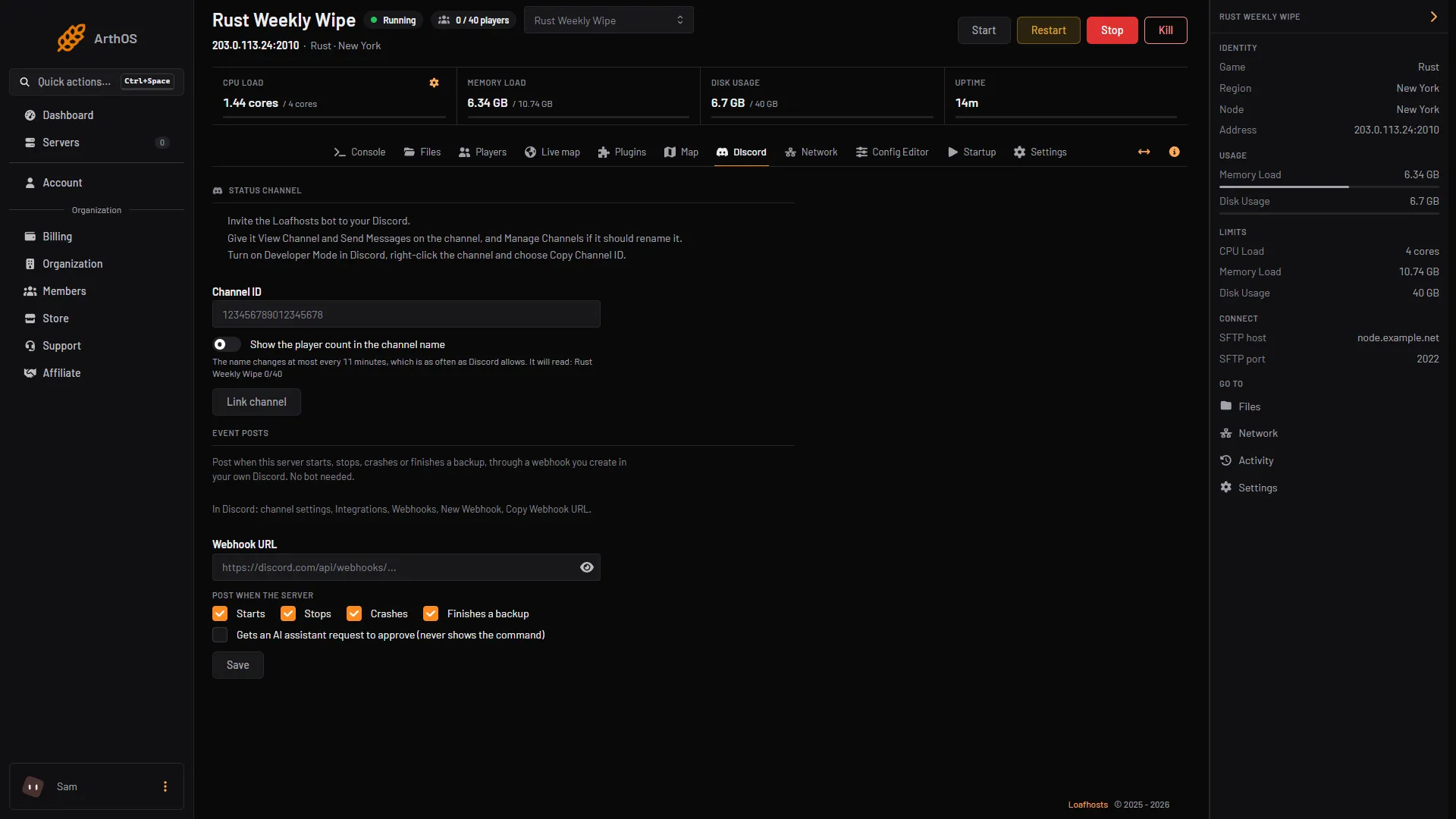
- Channel ID
- Link channel
- Webhook URL
- What to post
- Save
The panel shows Last updated under Status once it has posted. Press Unlink to delete the status message and stop updates. The channel name stays as it is.
The status shows the players the panel can read from the server, and “Not updated yet” until the first post. A Rust server shows no queue. The panel’s note says the queue shows only when the game reports one.
If the page says “The panel has no Discord bot yet, so this is off”, the panel’s bot is not set up. Contact Loafhosts support.
Post server events
This is the event webhook. It posts through a webhook you make in your own Discord, so no bot is needed.
- In Discord, open the channel settings, then Integrations, then Webhooks, then New Webhook. Choose Copy Webhook URL.
- In the ArthOS panel, open your server, choose Discord, and find Event posts.
- Paste the address into Webhook URL (3). It starts with
https://discord.com/api/webhooks/. - Under Post when the server (4), tick what you want: Starts, Stops, Crashes, Finishes a backup. A fifth box, Gets an AI assistant request to approve, posts that an assistant is waiting for approval. It never shows the command.
- Press Save (5). Then cause an event, for example restart the server, and look at the channel. The panel says events are posted within 20 seconds.
The address holds the webhook’s secret, so the panel shows it once and never again. To change the events later, leave Webhook URL empty and press Save. Press Remove to stop posting. The webhook stays in your Discord until you delete it there.
Pass chat between Rust and Discord
Use the plugin Discord Chat by MJSU. Its uMod page says it passes chat both ways between the game server and a Discord channel, and that it supports Better Chat and the default game chat. It also posts when players connect and when the server boots or shuts down.
Two other pieces are needed: the Discord extension and a bot of your own. The plugin is a bridge, and the bridge needs both.
1. Make a bot
From the Discord extension’s page:
- Open the Discord Developer Portal and choose New Application. Name it.
- Choose Bot. Turn on the Presence Intent, the Server Members Intent and the Message Content Intent.
- Copy the bot token. Do not share it. Anyone with it controls your bot.
- Under OAuth2, then URL Generator, choose the scope bot, choose the permissions it needs (it must read and send messages in your chat channel), and open the link it makes to add the bot to your Discord.
2. Install the Discord extension
The extension is the file Oxide.Ext.Discord.dll, from the Discord extension’s uMod page.
- Oxide: copy it into the server’s
RustDedicated_Data/Managedfolder. The page says to restart the server after. - Carbon: Carbon’s own page says extension DLLs go in its
extensionsfolder under thecarbonfolder.
In the ArthOS panel, use the Files tab to upload the file, then restart the server. Not checked on a Loafhosts server as of 11 October 2026. Check that the file lands in the right folder.
3. Install and set up Discord Chat
- On the Plugins page, search
discord chatand press Install on Discord Chat by MJSU. - Press Config on the plugin once it has loaded. It opens its settings file.
- Fill in these settings:
| Setting | Put in it |
|---|---|
Discord Bot Token | The bot token. |
Chat Channel ID (under Chat Settings) | The ID of the channel for chat. Copy it as in the status steps above. |
Send Messages From Server Chat To Discord Channel | true (the default) for game chat to Discord. |
Send Messages From Discord Channel To Server Chat | true (the default) for Discord chat into the game. |
Player State Channel ID, Server State Channel ID | The channel for joins and leaves, and the one for server start and stop. Leave blank for none. |
The page says that to turn off one kind of message, leave its channel ID blank. Keep the JSON valid. Save, then press Reload on the plugin.
- Type in the Discord channel. The message shows in game with a Discord tag. Type in game chat, and it shows in Discord.
The page says the plugin supports Discord Link from the Discord extension, for people who have linked their Discord account to their game account. Unlinked people can still chat by default (Allow Unlinked Players To Chat With Server is true).
Rustcord, an older choice
Rustcord by OuTSMoKE also relays chat both ways. It adds Discord commands such as !players, !kick, !ban and !mute, plus logs for deaths and reports. It depends on the same Discord extension (version 3). This guide sets up Discord Chat. Not checked as of 11 October 2026 whether Rustcord works with the current Rust update.
If it does not work
- The status channel does not update. The page shows the reason under Status. The common one: the bot cannot see the channel. Invite it and give it View Channel and Send Messages.
- The channel name does not change. The bot needs Manage Channels, and the name only changes every 11 minutes.
- Nothing is posted. The address may be wrong. It must start with
https://discord.com/api/webhooks/. Paste a new one and press Save. - Posting stopped. The panel shows why under Event posts. Save a working webhook address to start again.
- Discord Chat does not load. Check the Discord extension is in place and the server was restarted after. Read the Console from the start of the server. See plugins not loading.
- Chat goes to Discord but not back. The Message Content Intent is off, or the bot cannot read the channel.
- The bot works and then stops, or the token was shared. Reset the token in the Developer Portal and paste the new one in the settings.
The plugin steps come from the uMod pages. Not checked in game as of 11 October 2026.
Hosting Rust? See the Rust page.
Sources: umod.org: Discord chat, umod.org: Discord, umod.org: Rustcord, carbonmod.gg: Oxide porting