






The message of the day is a small text box that each player sees when they join your Squad server. It comes from a file called MOTD.cfg. A new server already has this file, with Offworld’s default text. Open it in Files and replace the text with your own.
What the file does
- It shows a small text box to each player on entering the server.
- It is good for server information, simple rules or other short messages.
- The text does not wrap in game. A line that is too long runs out of view, so keep each line short.
- The file name must be in upper case,
MOTD.cfg. The wiki says this matters on Linux.
Two HTML tags work in the file:
<a>Yellow text</a>
<a href="https://example.com">Yellow link</a>
The first gives yellow text. The second gives a yellow link. https://example.com is a made-up address, so use your own.
In the ArthOS panel
The panel has no MOTD editor. Edit the file in Files.
- Open Files and go to
SquadGame/ServerConfig. - Open
MOTD.cfg(1) from the list. - Replace the text with your message. For example:
Welcome! Play the objective and use your squad name to claim vehicles.
Our Discord: <a href="https://example.com">https://example.com</a>- Save the file.
- Restart the server.
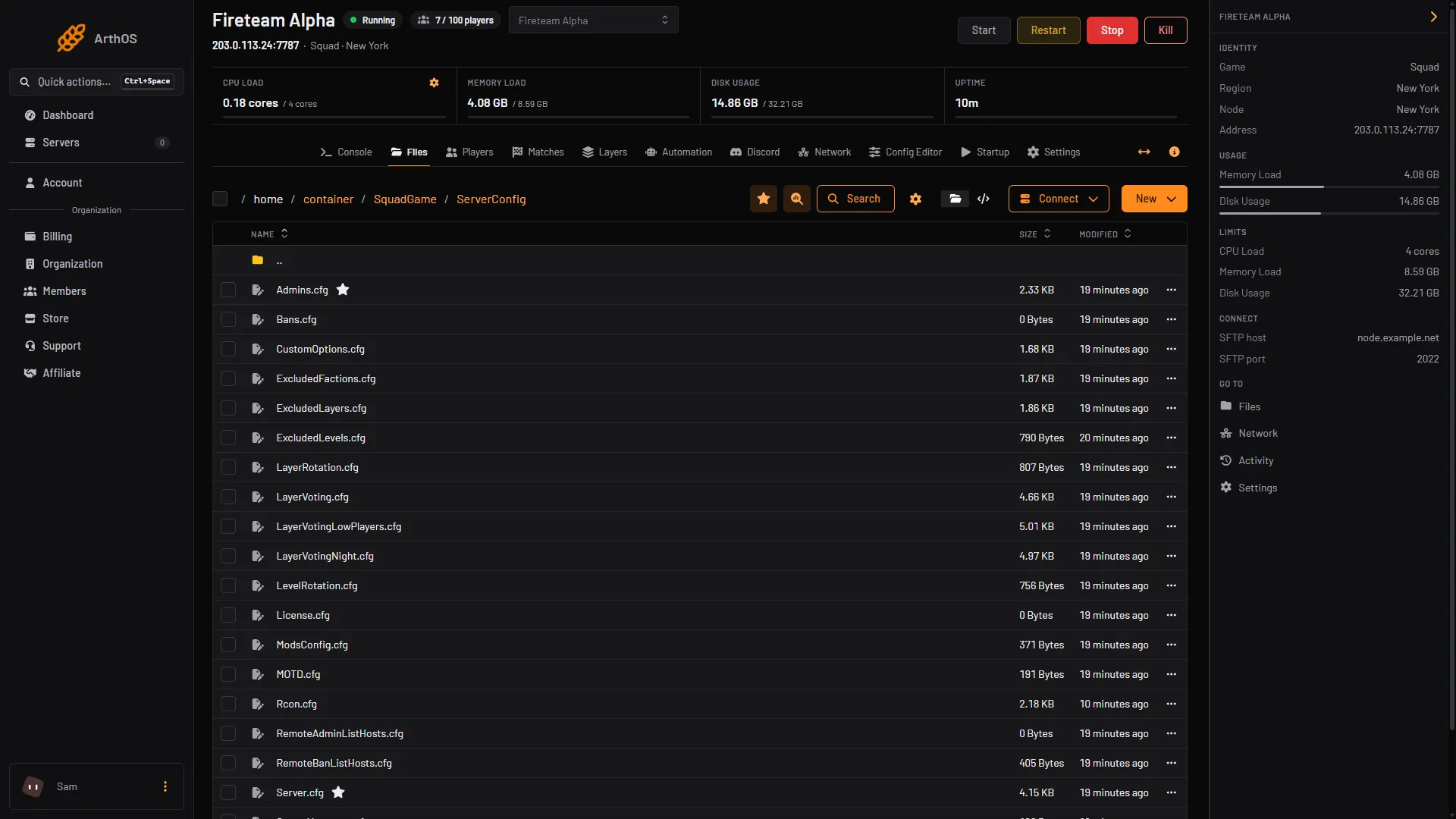
- MOTD.cfg
Show your rules in the server browser
Rules tags are a different tool. They appear on your server’s card in the server browser, before a player joins. The panel offers them as a picker.
- Open Config Editor and choose
Server.cfg. - In the Server list group, find Rules. The help says: “Shown on the server’s card in the browser, so players know the rules before joining.”
- Pick the rules that apply. The panel offers seven:
- Name claim
- First come, first served
- No soloing armor
- Play the objective
- No main camping
- Mech infantry rules
- Squad lock rules
- Save and restart.
A rules tag is only a short label with a general explanation. The wiki says each one tells players to “See the server rules upon joining for more details”. That is the job of the MOTD. Use the MOTD to say what your rules mean on your server.
Rules tags do not take part in server browser filters. The wiki says they show only on the server’s preview card.
By hand
Edit the existing SquadGame/ServerConfig/MOTD.cfg next to Server.cfg. For rules tags, put the tag names after Rules= in Server.cfg, separated by spaces:
Rules=rule_play_objective rule_no_main_camping rule_vehicle_name_claimIf it does not work
- Players see no message. Check the file still has your text. The file name must be exactly
MOTD.cfg, with capitals, inSquadGame/ServerConfig. Restart the server. - The end of a line is cut off. The text does not wrap. Split it into shorter lines.
- A tag was not saved. The game drops tags it does not know, so use only the seven in the picker.
More about the game: Squad servers.