






Seeding is the time when your Squad server has too few players for a full match. Three things help it fill up: a repeating message, seed layers that only appear when the server is quiet, and the seed rules Squad ships with. You set all three in the panel.
What seeding means
A server is “seeding” while it has few players. Squad has a game mode called Seed for this time. A seed match has its own rules, such as every kit being open, so a small group can play without the usual limits. When enough players join, the server goes live and plays normal layers.
Seeding messages
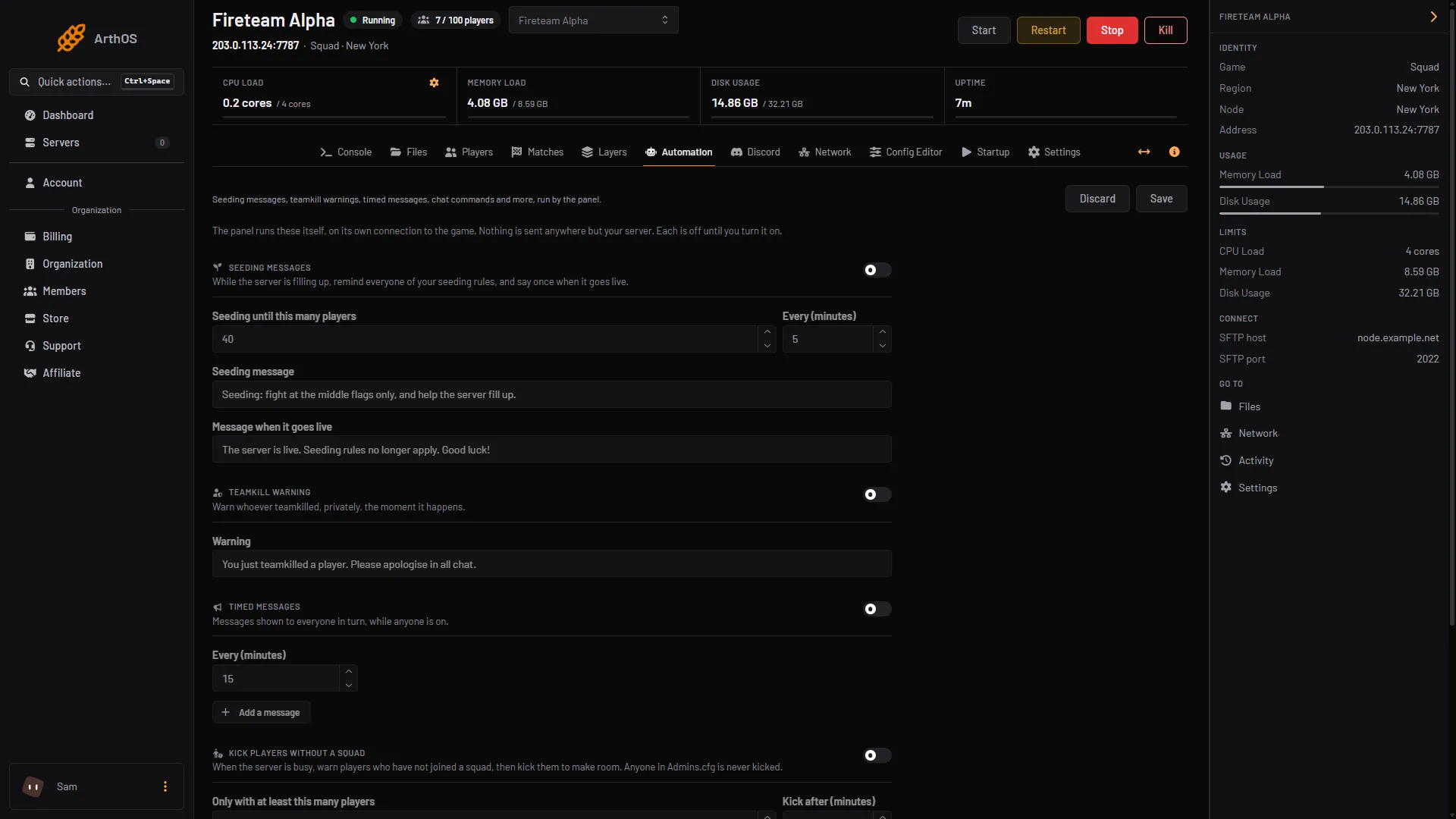
The panel can remind everyone of your seeding rules and tell them when the server goes live.
- Open Automation.
- Turn on Seeding messages. It is off until you do.
- Set Seeding until this many players. The message is sent while at least one player is on and fewer than this many are on. The starting value is 40. This number only decides when the messages stop. It does not change Squad’s own seed rules, which are set separately under “Seed rules in the Config Editor” below.
- Set Every (minutes), how often the message repeats. The starting value is 5.
- Write the Seeding message and the Message when it goes live. The live message is sent once, when the player count reaches the number you set.
- Choose Save. It applies within a minute.
- Seeding messages
- Turn it on
- Save
Switch the section on (box 2) and use the one Save at the top of the page (box 3). Seeding messages need the game control and player moderation permissions to change.
Seed layers in the low-population vote
Players only see seed layers in a vote if the server is set to Players vote.
- Open Layers and make sure How the next layer is chosen is Players vote. A change applies when the server restarts.
- In the lists, open Vote pool, low population. It is used instead of the normal vote pool while fewer players are on than the vote settings say. If it is empty, the normal Vote pool is used.
- Add seed layers. The Layers on this server browser has a search box and mode chips, including Seed, with +Add on each layer. The browser needs the server to be running; you can also use Add by ID under the list.
- Choose Save.
- Open Config Editor, then the
VoteConfig.cfgfile, and set Low population below. When a match ends with fewer players than this, the next vote uses the low-population pool. Offworld’s stock file starts it at 30.
Seed rules in the Config Editor
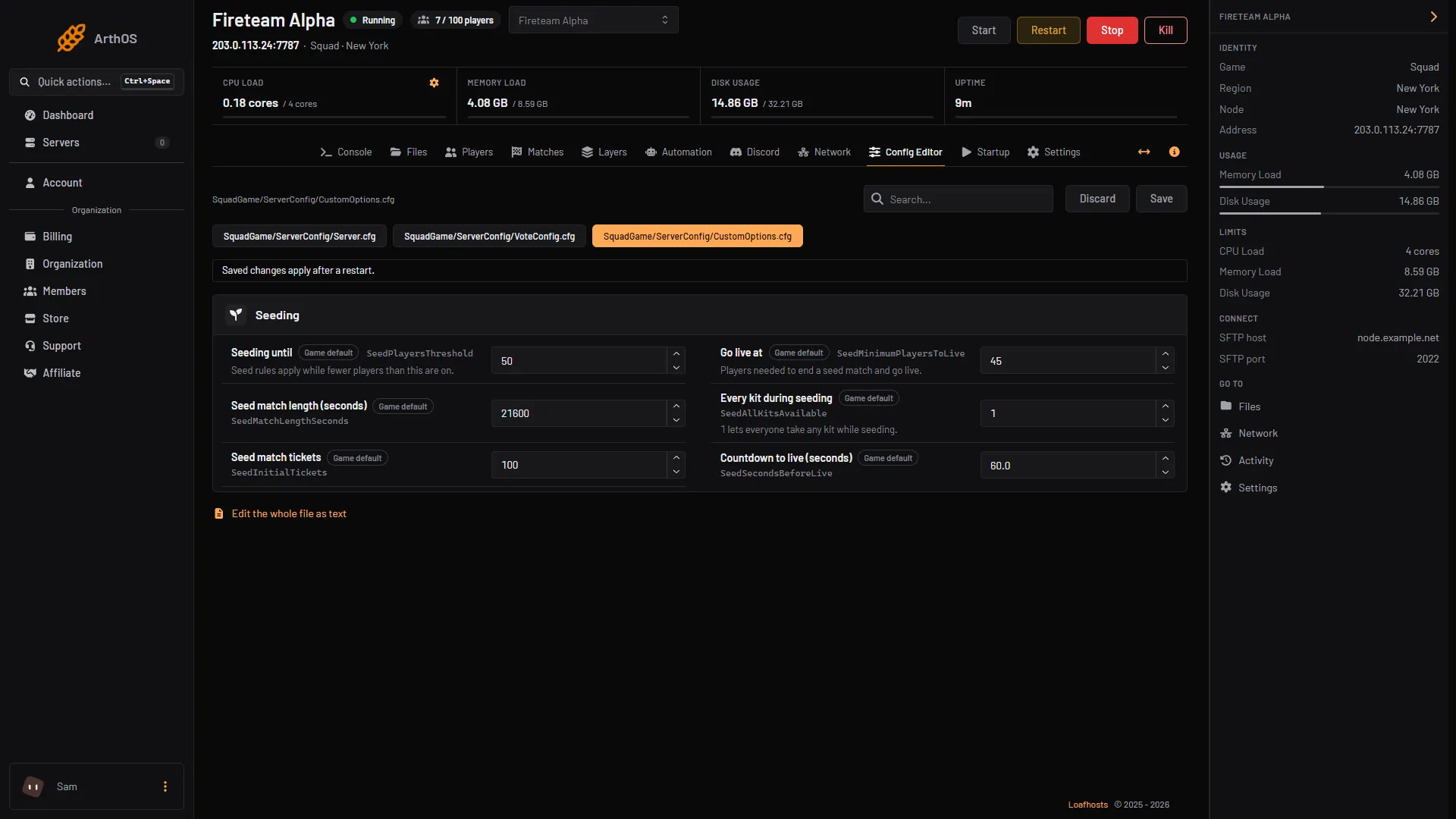
Squad reads its seed rules from CustomOptions.cfg. The file ships with them commented out, so Squad uses its own values until you set them. In Config Editor, open CustomOptions.cfg. Each row shows Game default until you set it. The rows, with Offworld’s default beside each:
- Seeding until: the panel’s help says “Seed rules apply while fewer players than this are on.” This is Squad’s own rule, separate from the number in Automation. Default 50.
- Go live at: the panel’s help says “Players needed to end a seed match and go live.” Default 45.
- Seed match length (seconds): default 21600, which is 6 hours.
- Every kit during seeding: 1 lets everyone take any kit, 0 does not. Default 1.
- Seed match tickets: starting tickets for both teams. Default 100.
- Countdown to live (seconds): the length of the countdown before going live. Default 60.
A row you do not set keeps Offworld’s default. Restart the server after saving so the game reads the file again.
- CustomOptions.cfg tab
By hand
Edit SquadGame/ServerConfig/CustomOptions.cfg in Files. Remove the # in front of a line to switch it on:
SeedPlayersThreshold=50
SeedMinimumPlayersToLive=45
SeedMatchLengthSeconds=21600
SeedAllKitsAvailable=1
SeedInitialTickets=100
SeedSecondsBeforeLive=60.0
If it does not work
- No seeding message is sent. The message is sent only while someone is on the server and the count is below your number. An empty server sends nothing.
- Seed layers never come up in the vote. Check How the next layer is chosen is Players vote, and that the match ended with fewer players than Low population below.
- A rule you set seems ignored. Restart the server. If the row has no effect after a restart, check the line in
CustomOptions.cfghas no#in front of it.
Sources: squad.fandom.com: Server Configuration, store.steampowered.com: 672881728134580384