






Squad can kick and ban players who teamkill too often. Three settings control it: Kick for teamkills, Teamkills before a ban and Teamkill ban (seconds). They live in the Config Editor. On a server with a licence key, Offworld fixes these three rows. The panel can also warn a teamkiller privately, the moment it happens.
What each setting does
- Kick for teamkills: “Kick a player who teamkills too often.” Offworld requires it on a licensed server.
- Teamkills before a ban: how many teamkills ban a player. The panel’s help says “Teamkills in one match”. The Squad wiki’s example default is 7. You can enter 1 to 50.
- Teamkill ban (seconds): how long that ban lasts. The Squad wiki’s example default is 300 seconds. The Config Editor accepts 0 to 86400 seconds, which is one day.
In the ArthOS panel
Change the limits
- Open Config Editor and choose
Server.cfg. - Find the group Required for licensed servers. Set Kick for teamkills, Teamkills before a ban and Teamkill ban (seconds).
- Save, then restart the server so the game reads the new values.
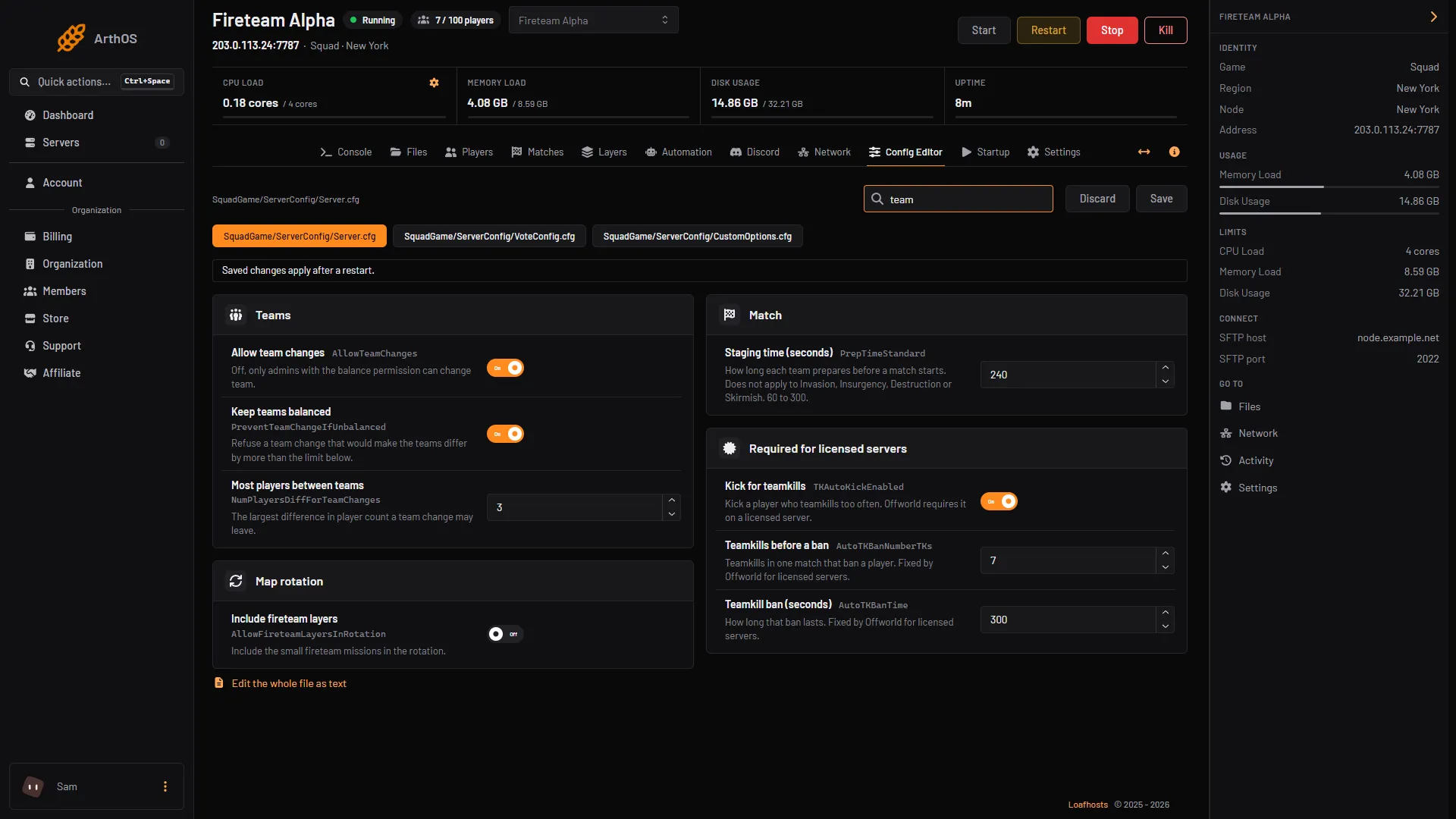
- Kick for teamkills
- Teamkills before a ban
- Teamkill ban (seconds)
Set the rows marked 1, 2 and 3 in the picture. Typing “team” in Search shows only these and the other team rows.
On a licensed server these three rows are locked. Offworld fixes their values. They stay locked while the server holds a licence key. If you remove the key on the Players page, the server runs unlicensed after its next start and is listed under Custom in the server browser.
Warn teamkillers
- Open Automation.
- In the Teamkill warning card, turn it on. The card says: “Warn whoever teamkilled, privately, the moment it happens.”
- Write the text in Warning. It can be up to 200 characters. The starting text is “You just teamkilled a player. Please apologise in all chat.”
- Choose Save. The panel says “Automation saved. It applies within a minute.”
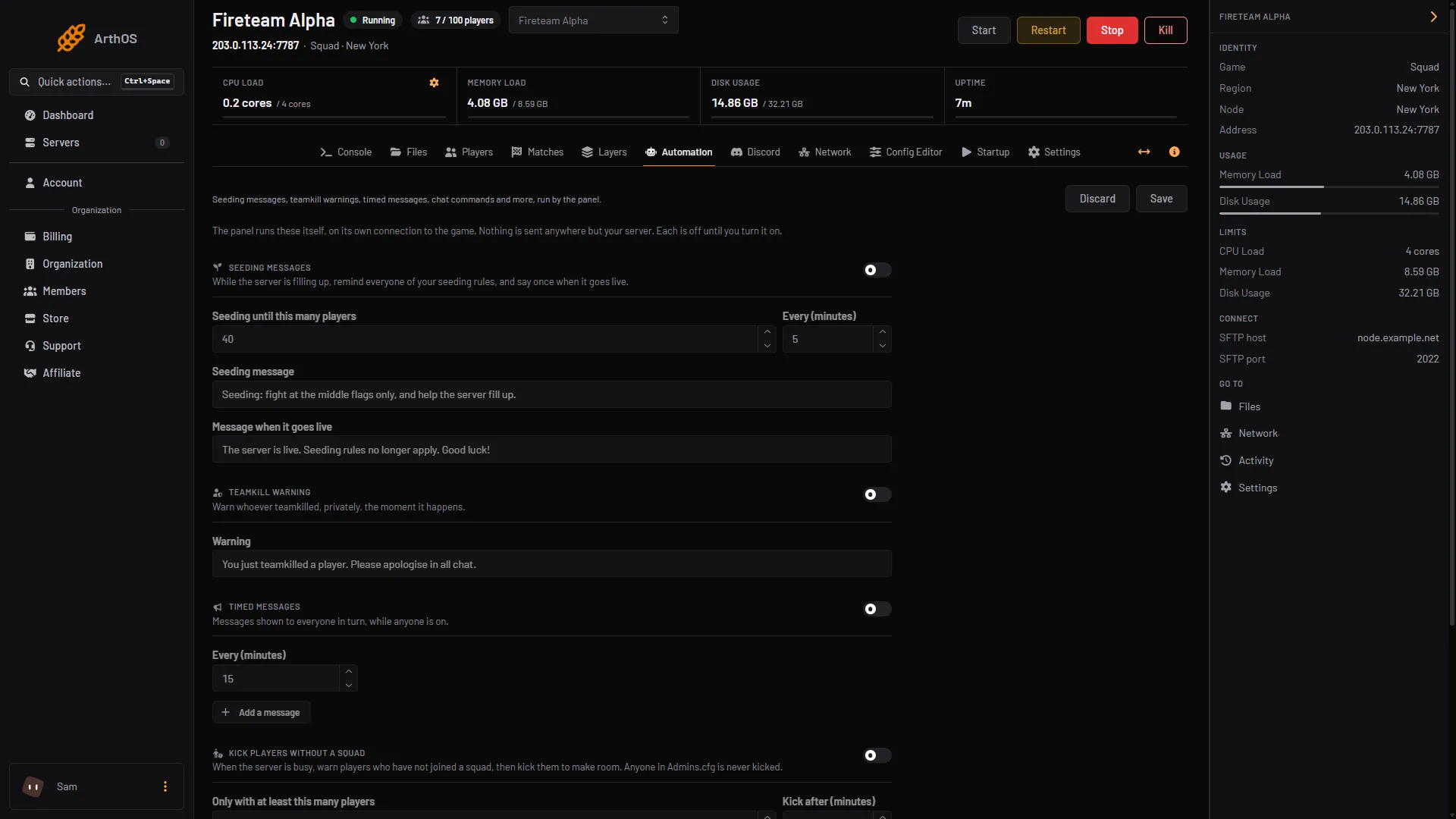
- Teamkill warning card
- Save
Find the card (1), then press Save (2) at the top of the page. One Save covers every card on the page.
The warning goes only to the player who teamkilled. It shows in the middle of their screen. A teamkill that happened before you turned the warning on is not warned about later.
You need the game control and player moderation permissions to change Automation. Without them you can read the settings but not save.
Count teamkills
The Matches page lists each match with its Teamkills. The Killfeed marks each teamkill with Teamkill. The panel counts a teamkill when a player is downed by someone on the same team. It only counts matches it watched, so a match that started while the server was stopped, or before the panel connected, may show fewer.
By hand
Edit SquadGame/ServerConfig/Server.cfg in Files. The stock file has these lines:
TKAutoKickEnabled=true
AutoTKBanNumberTKs=7
AutoTKBanTime=300
AutoTKBanTime is in seconds. The Squad wiki gives AutoTKBanTime=1209600 as an example for a 14 day ban. The Config Editor will not accept a value that large, but the game file can hold it. Restart the server after editing.
If it does not work
- The three rows are greyed out. The server holds a licence key. Offworld fixes these values on a licensed server.
- A player was not banned at the number you set. Check that you restarted after saving. The game reads
Server.cfgwhen it starts. - The warning never arrives. The server must be running and the Teamkill warning must be on and saved. Give it a minute after saving.
- The Matches count is lower than you saw in game. The panel counts only what it watched.
More about the game: Squad servers.
Sources: squad.fandom.com: Server Configuration, squad.fandom.com: Server licensing