









You can upload a mod as a .zip file on the Mods page. The zip must be shaped the way Thunderstore and Hexium give it, with a manifest.json inside, and it can be 200 MB at most. A loose .dll file is not taken here. For that, see the last part of this guide.
Most of the time you do not need this. The Add a mod tab finds mods on Thunderstore and Hexium and installs them with everything they need. Upload is for a file you already have, such as a mod you made or a build a friend sent you.
What the zip must look like
A package from Thunderstore is a zip with these files at its top level:
manifest.json, which holds the mod’sname, itsversion_numberand the other mods it needs.icon.pngandREADME.md.- The mod’s own files, such as its
.dll.
Keep the file name as you downloaded it, for example Owner-ModName-1.2.3.zip. The panel names the mod from the manifest.json and from the part of the file name before the first dash.
If you zipped the files yourself, select the files and zip them. Do not zip the folder around them, or the manifest.json is not at the top.
In the ArthOS panel
- Open the Mods page of your Valheim server.
- Open the Add a mod tab.
- Find Upload a mod. Under Mod package, choose your
.zipfile. - A box titled “Install (name of the file)?” opens. It shows “Uploading” and then “Reading what it needs”, and then lists the packages it will install. If BepInEx is not on the server yet, it is on the list, because mods need it to load.
- If crossplay is on, tick the box that says console players cannot join while a mod they need is installed. Players on Xbox and Game Pass cannot install mods.
- Choose Install.
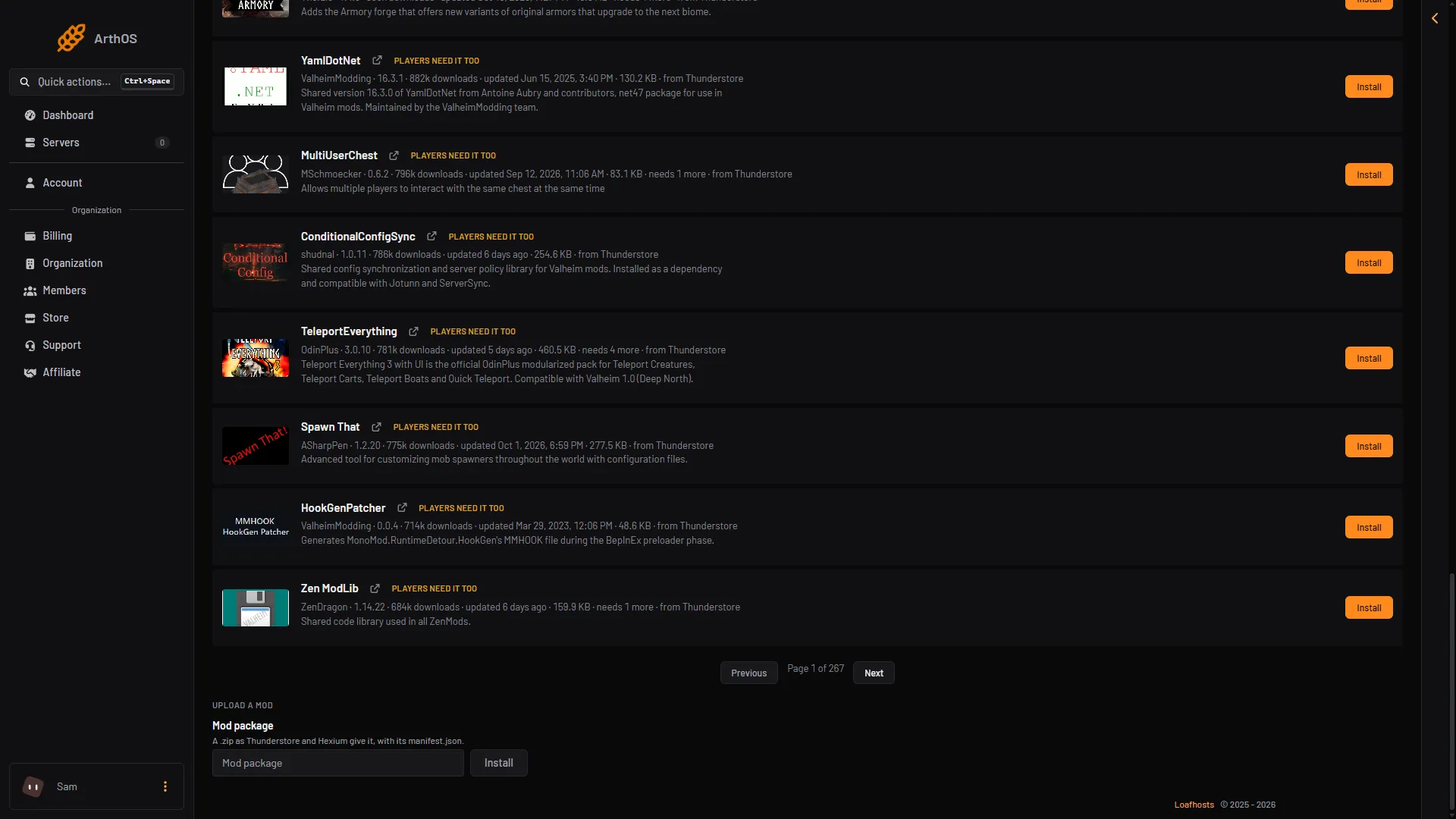
- Upload a mod
- Choose the .zip here
Scroll to the bottom of the tab to see the block (1) and the Mod package field (2). The field says it takes a .zip as Thunderstore and Hexium give it, with its manifest.json.
Look at the Installed tab afterwards. The mod is there with a note that it was uploaded. It shows Loaded once the server has started with it. If it shows Did not load, read why mods do not load.
The mods it needs
An uploaded zip does not bring the mods it depends on. The install box lists only the zip and, if missing, BepInEx. If the mod needs other mods, install those first from the Add a mod tab. The mod’s Thunderstore page lists what it needs.
A mod that is a loose .dll
The upload takes a .zip with a manifest.json only. A single .dll is not a package.
- Open the Files page.
- Open the
BepInEx/pluginsfolder. - Upload the
.dllthere. - Restart the server. The mod loads at the next start.
The Mods page then shows a note that there are files in the plugins folder that are not part of a mod there, and names them. That is expected. The panel does not update or remove these files for you. Use Files for them.
Updating and removing
The panel does not offer “Update to” for an uploaded mod, because it has no page to compare with. To update, upload the newer zip. To remove, use Remove on its row. The mod’s folder is deleted and its settings file stays.
If it does not work
- “Pick a .zip file.” The file does not end in
.zip. - The zip has no
manifest.json. It is not a Thunderstore package. Zip the files without the folder around them, withmanifest.jsonat the top. - The file is larger than 200 MB. It is too big for the upload. Install the mod from Add a mod instead, if it is on Thunderstore or Hexium.
- The mod does not load. It may need another mod. Install what its page lists, then restart.
More about the game: Valheim servers.