









Each Valheim mod keeps its settings in its own file. Open the Config Editor, pick the mod’s file, change a value and press Save. The server reads the change at its next start.
Before you start
A mod writes its settings file the first time it runs. So a new mod has no file until the server has started once with it. After you install a mod, let the server start, then come back.
In the panel
- Open the Config Editor page.
- Pick the mod’s file from the tabs at the top (1). Each file name comes from the mod’s plugin, so it usually looks like the mod’s name. The first tab, Server settings, is the server itself, not a mod.
- Change a value. Each setting shows its description from the mod and its default value. Use Search… (2) to find a setting.
- Press Save (3).
- Choose Restart at the top of the server page.
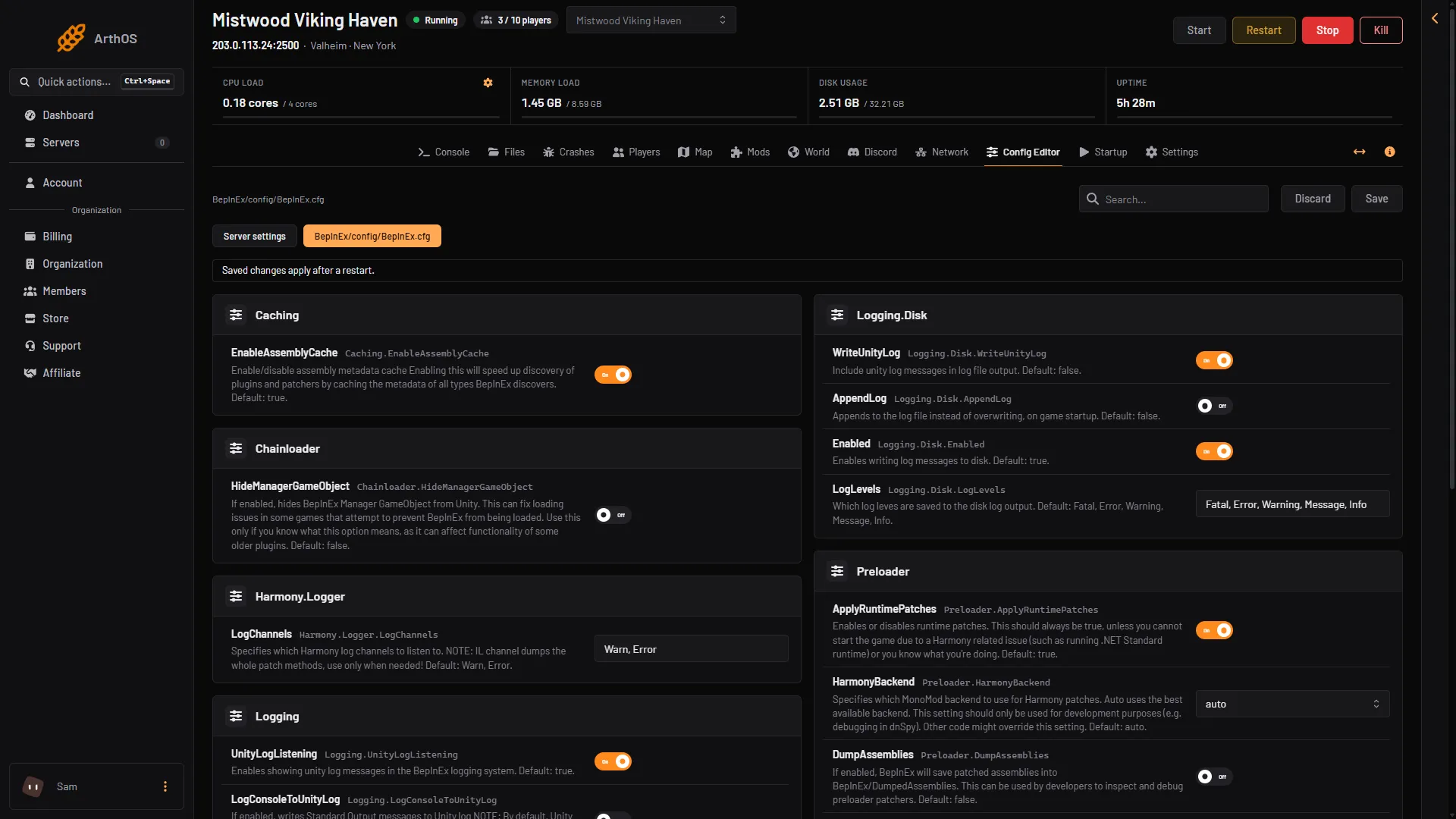
- A settings file
- Search
- Save
The page also shows the line “Saved changes apply after a restart.” The tabs are the same ones you see for the server’s own settings.
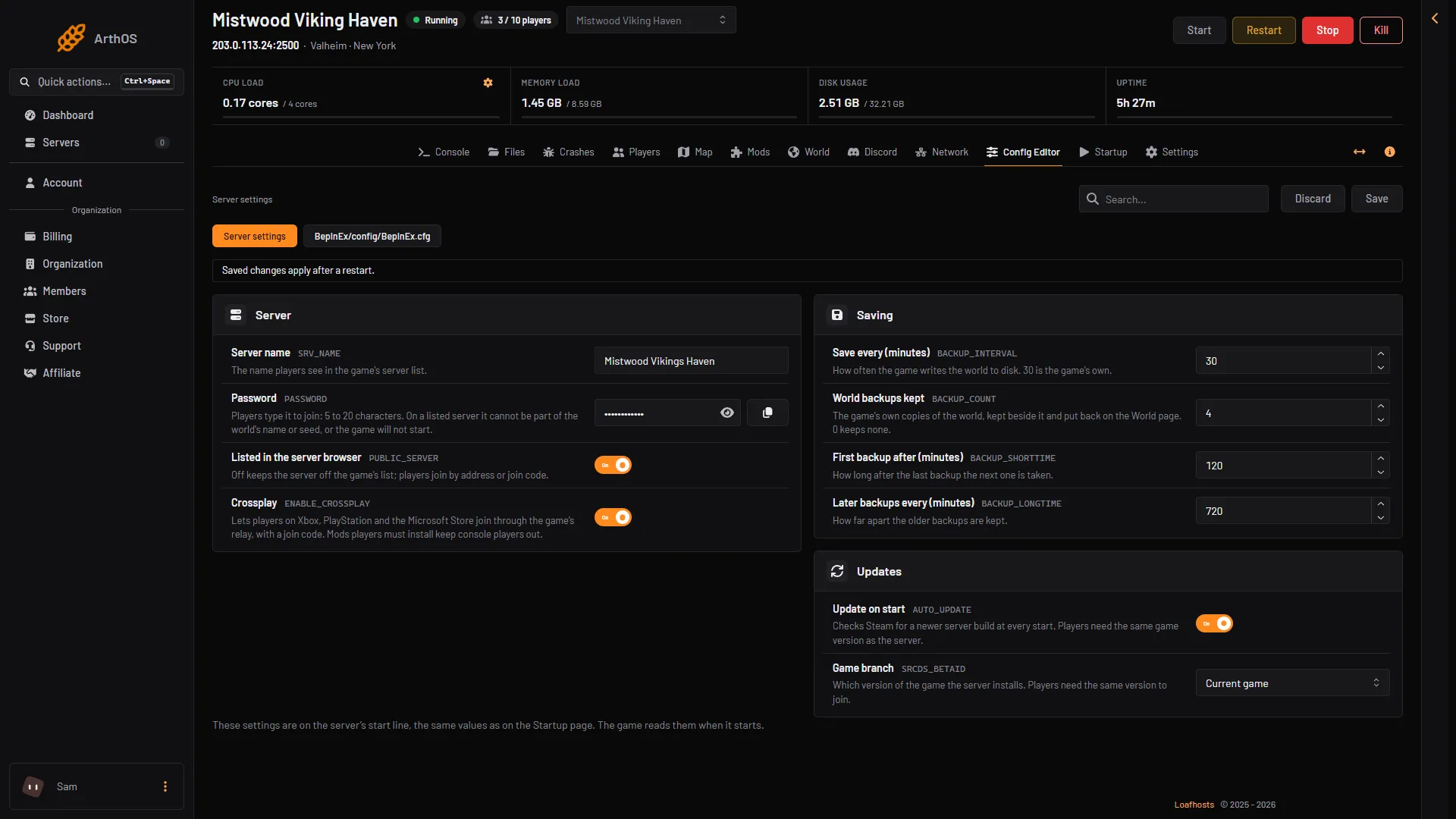
- Server settings
The fields
The editor reads the comments the mod wrote in its file. It uses them to build the right kind of field:
- A true or false setting is a switch.
- A setting with a list of allowed values is a list to pick from.
- A whole number or a decimal with a range gets those limits.
- Anything else is a text box.
When the change applies
The server reads mod settings at its start. After you save, restart the server to apply the change. If it is stopped, the change applies when it starts.
By hand
- Open the Files page and go to
BepInEx/config. - Open the mod’s
.cfgfile. Each setting has a line starting with##that describes it, a line# Default value:, then the setting itself, likeEnabled = true. - Change the value after the equals sign, save the file and restart the server.
Keep the format as it is. Only change what is after the =.
When you update or remove a mod
Settings files stay. Installing a newer version does not replace a file you already have. Removing a mod leaves its file in place in case you install it again.
If it does not work
- There is no file for the mod. The mod has not run yet. Start the server once. If it still has no file, the mod may not have loaded: see mods not loading.
- The page says the file has no settings. Start the server so the mod writes its settings.
- A change did nothing. Restart the server. Check the mod’s page for what the setting does.
More about the game: Valheim servers.