









The Config Editor shows a Valheim server’s settings as a form. It lists Server settings first, then one settings file for each mod you installed. Choose a value, choose Save, and the change applies the next time the server starts. The world and its difficulty are not here: they are on the World page.
Valheim does not read its name, password or saving from a file. It takes them when the server starts. The panel keeps them as the same values you see on the Startup page, and the Config Editor edits the same values. A note on the page says so.
Server settings
Open the Config Editor. Server settings is the first tab. The rows are in three groups.
Server
- Server name: the name players see in the game’s server list.
- Password: players type it to join. It is 5 to 20 characters. On a listed server it cannot be part of the world’s name or seed, or the game will not start.
- Listed in the server browser: off keeps the server off the game’s list. Players join by address or join code.
- Crossplay: lets players on Xbox, PlayStation and the Microsoft Store join through the game’s relay, with a join code. Mods that players must install keep console players out.
Saving
- Save every (minutes): how often the game writes the world to disk. The panel accepts 5 to 120. 30 is the game’s own.
- World backups kept: the game’s own copies of the world. The panel accepts 0 to 10. 0 keeps none. They are put back on the World page.
- First backup after (minutes): the spacing of the first, newest backups (the game’s
-backupshort). The game’s default is 120. - Later backups every (minutes): the spacing of the older backups (the game’s
-backuplong). The game’s default is 720.
Updates
- Update on start: checks Steam for a newer server build at every start. Players need the same game version as the server.
- Game branch: Current game or Public test.
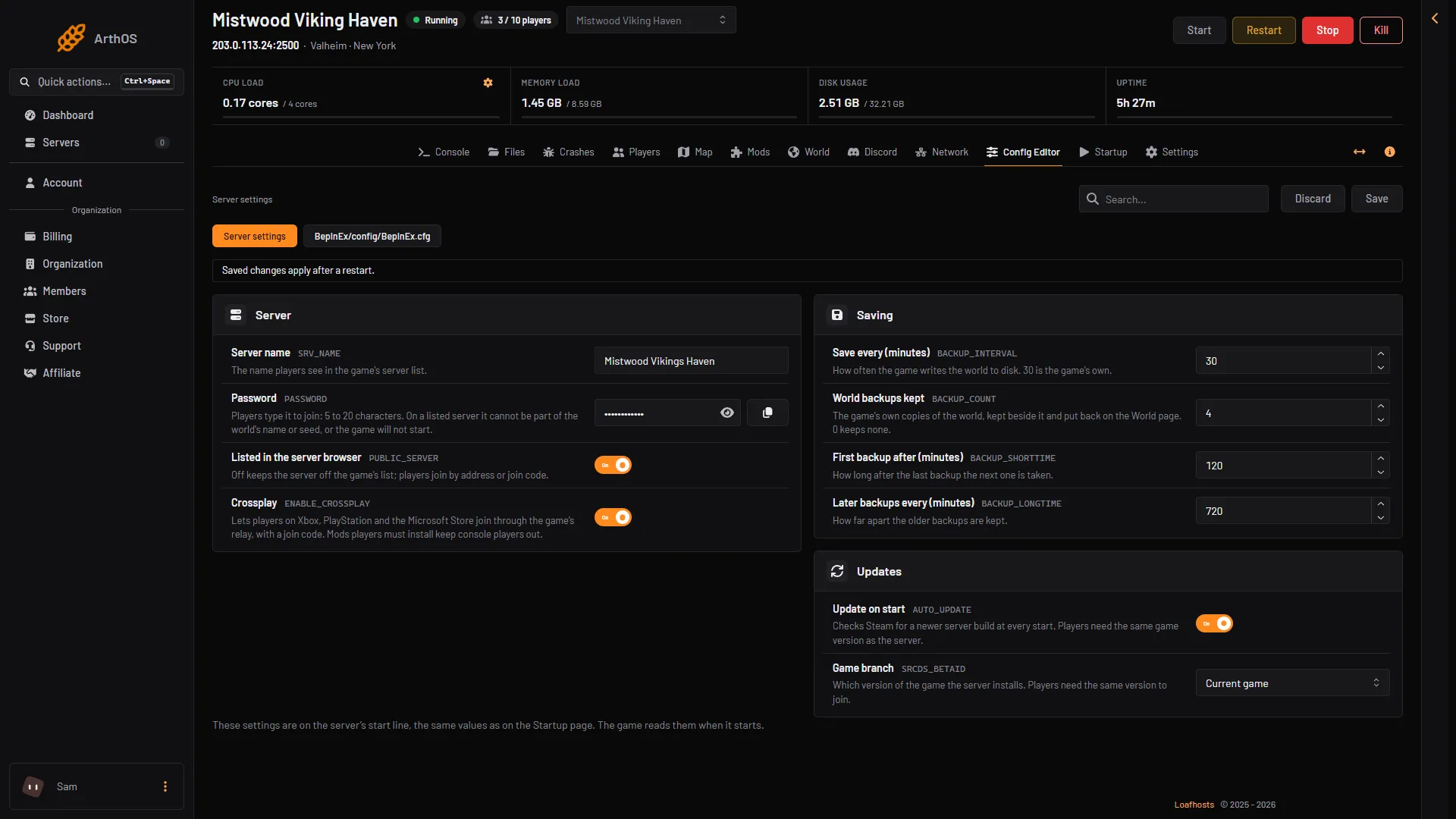
- Server settings tab
- Server name
- Save every (minutes)
- Update on start
- Save
The picture shows the tab (1), a row from Server (2), a row from Saving (3), a row from Updates (4) and Save (5). The page says “Saved changes apply after a restart.”
Change a value
- Change one or more rows. Save and Discard become active.
- Choose Save. To go back, choose Discard.
- Restart the server so it takes the change. Choose Restart at the top of the server page.
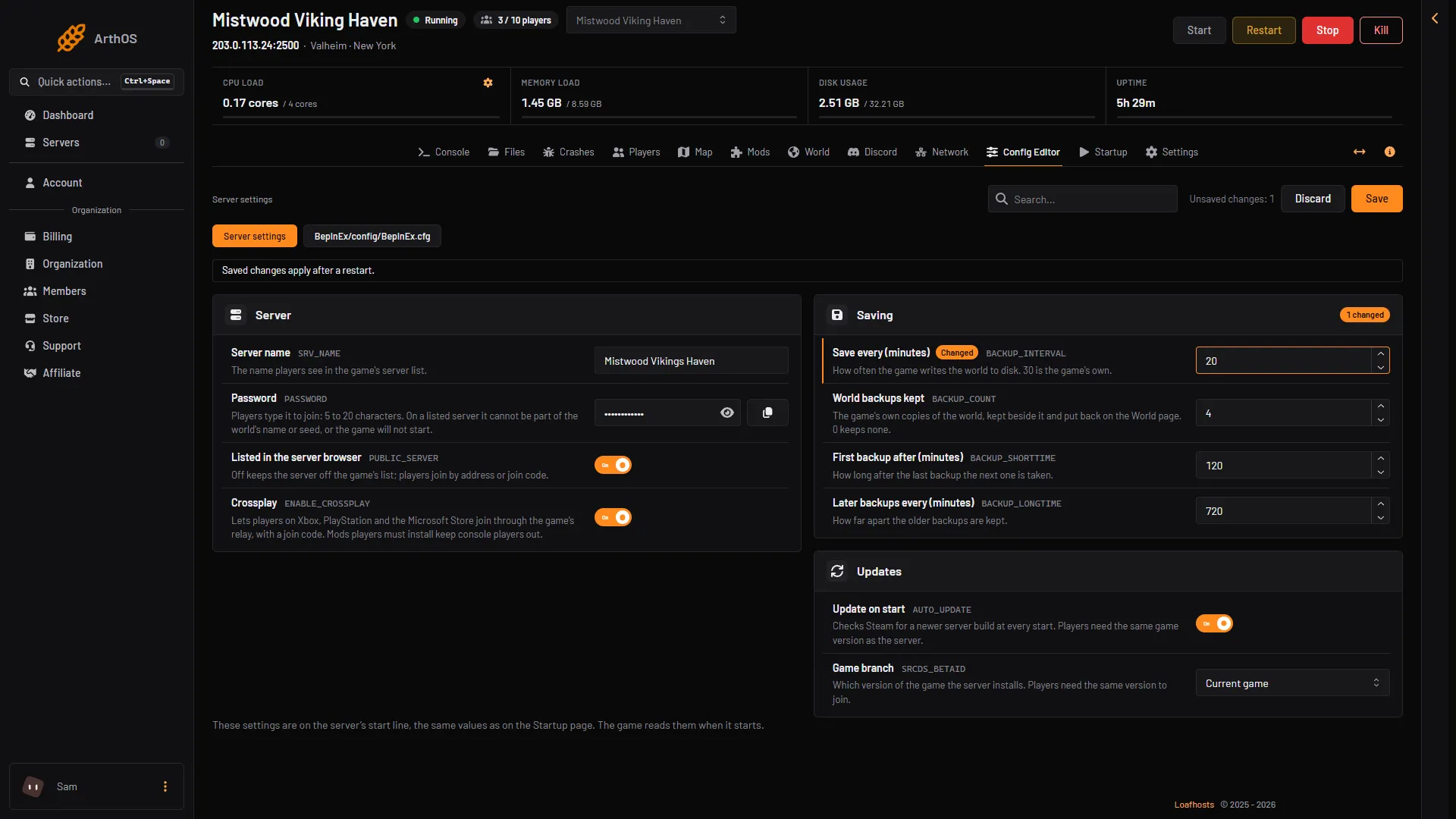
- Changed row
- Save
- Discard
A password the game would refuse is refused here too, with the reason. If someone changes a value on the Startup or World page while your page is open, reload the Config Editor before you save, or your save is refused.
A mod’s settings
Beside Server settings there is one tab for each settings file in BepInEx/config, for example BepInEx/config/BepInEx.cfg. Mods write their file the first time the server starts with them. A mod that has just been installed may have no file until then, and the page says the game creates it the first time the server starts.
- Open the file of the mod. The Mods page also shows its file on the mod’s row, after “Settings”.
- Use the search box to find a setting by name or description. If nothing matches, the page says “No settings match your search.”
- Change the value and choose Save.
- Restart the server. Mods read their settings when the game starts.
Many mods describe each setting in their file. The editor reads those descriptions, so you see a switch for an on or off setting, a number with its range, or a list of choices. Under each row is the mod’s own description and its default.
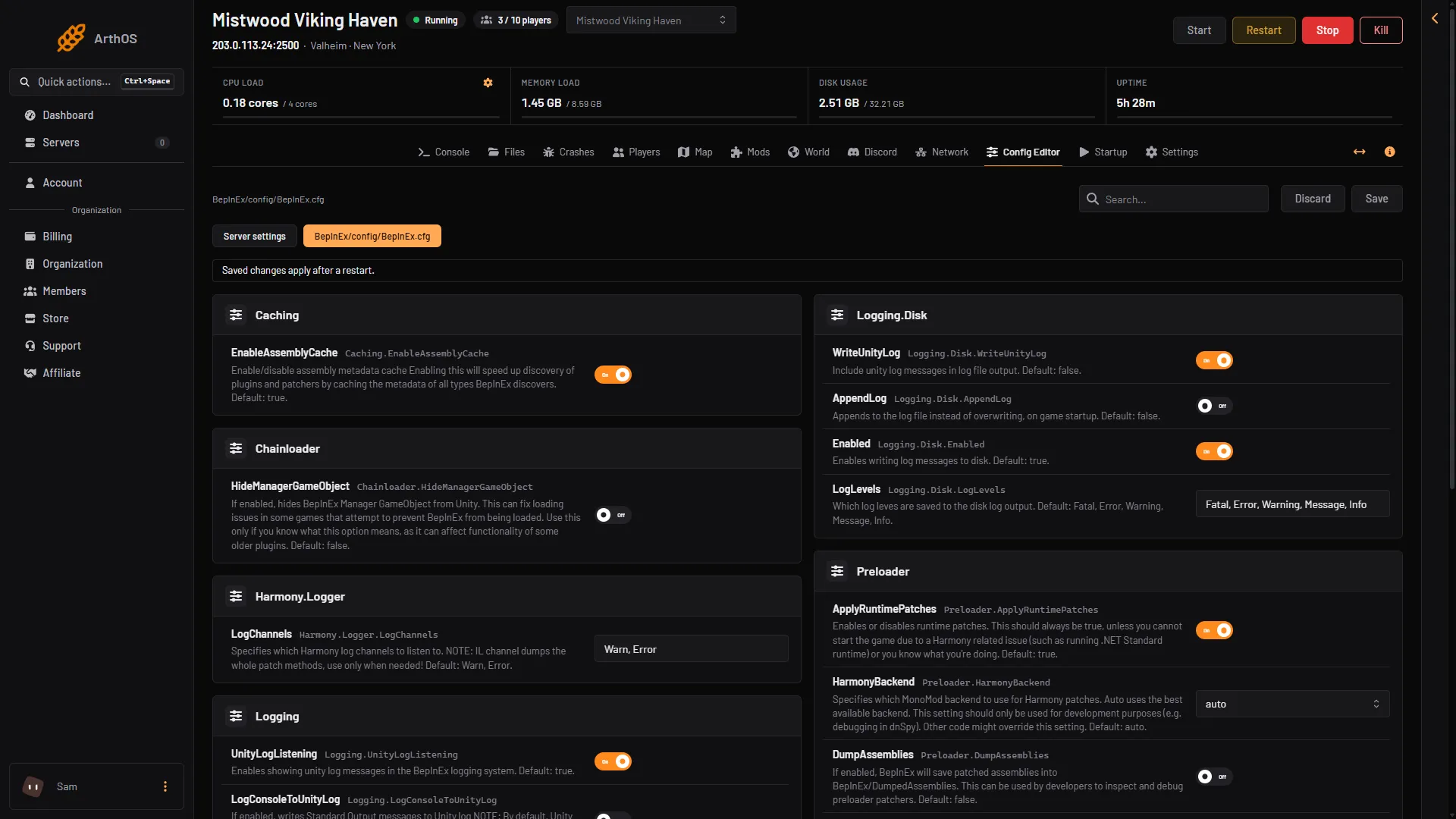
- A settings file
- Search
- Save
Where the rest is
- World name, seed, difficulty and modifiers: the World page.
- Admins, banned players, the permitted list: the Players page. These change at once, with no restart.
- Any file by hand: the Files page, in
BepInEx/config.
If it does not work
- The mod has no file in the list. Start the server once with the mod loaded. If the mod is on the Installed tab but shows Did not load, see mods not loading.
- The page says you can see the settings but not change them. Your account can view the page only. Ask the server owner for the right access.
- A change did nothing. Restart the server. Saved settings apply at the next start.
- The server will not start after a password change. The password may be part of the world name or seed. Pick a different one.
More about the game: Valheim servers.