









When Valheim cannot load the world, the game quits without saving anything. So the save is exactly as it was before the start. Your fix is to put back one of the world backups, then start the server again.
Confirm it is the world
- Open the Crashes page.
- Open the newest start in the list on the left.
- Under What the panel can tell, look for The world could not be loaded (1). The game’s log line behind it is (2).
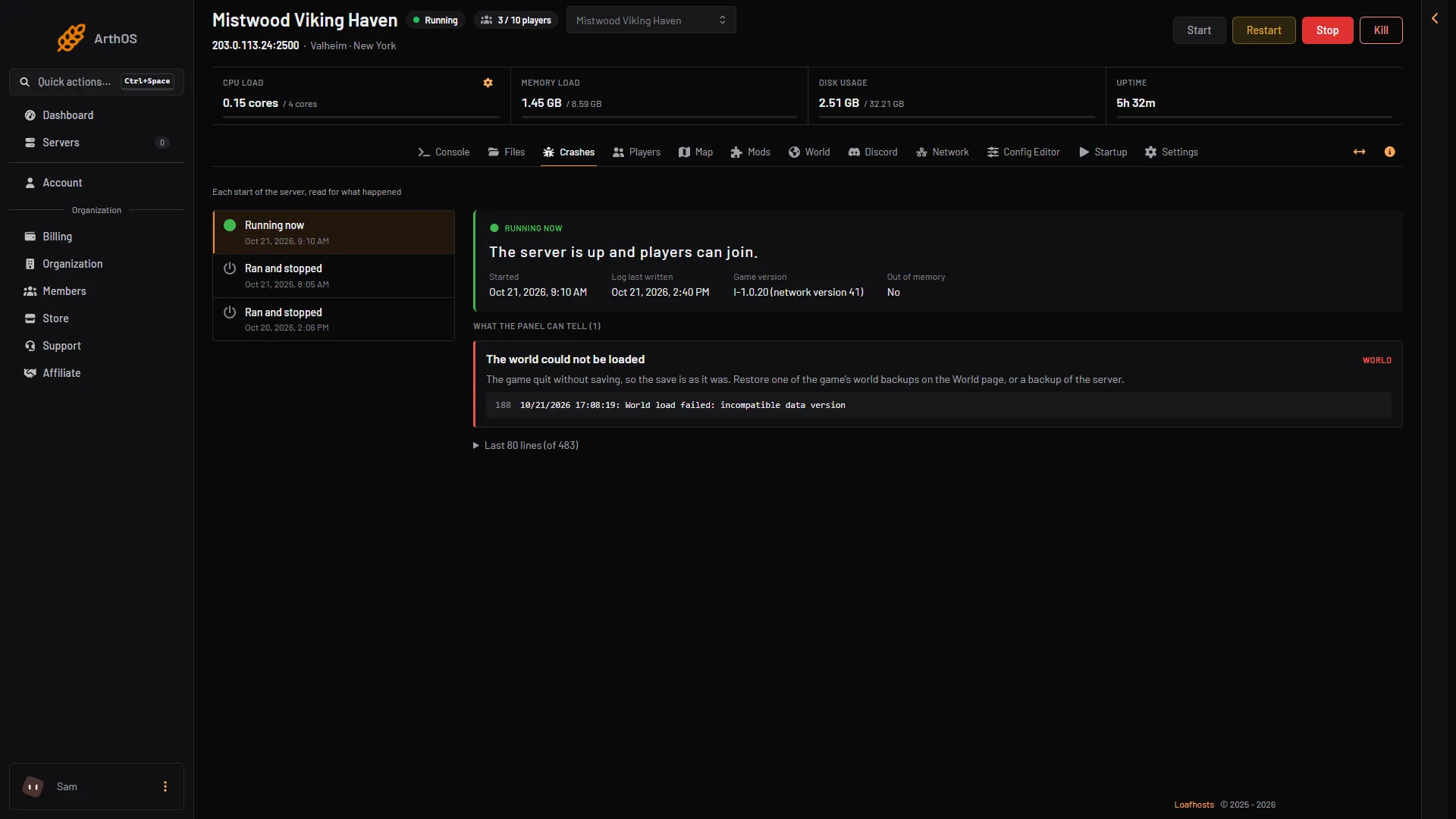
- The finding
- The log line
The panel looks for these words in the game’s log: “World load failed”, “incompatible data version”, “exception while loading world” and “failed to load world”. See read the Crashes page.
Put back a game world backup
The game makes its own backups of the world and keeps them beside it. The names look like Dedicated_backup_auto-20261021-171022: the world name, the word backup, then the date and time in UTC. How many the game keeps is the World backups kept setting in the Config Editor.
- Choose Stop at the top of the server page. If the server is already stopped, skip this step.
- Open the World page and scroll to World backups (1).
- Each row shows when it was made, Automatic (2) or not, and its folder name.
- Choose Put back (3) on the backup you want. Pick the newest one first.
- Read the box and confirm. The world as it is now is kept as a backup too, so nothing is lost.
- Choose Start at the top of the server page.
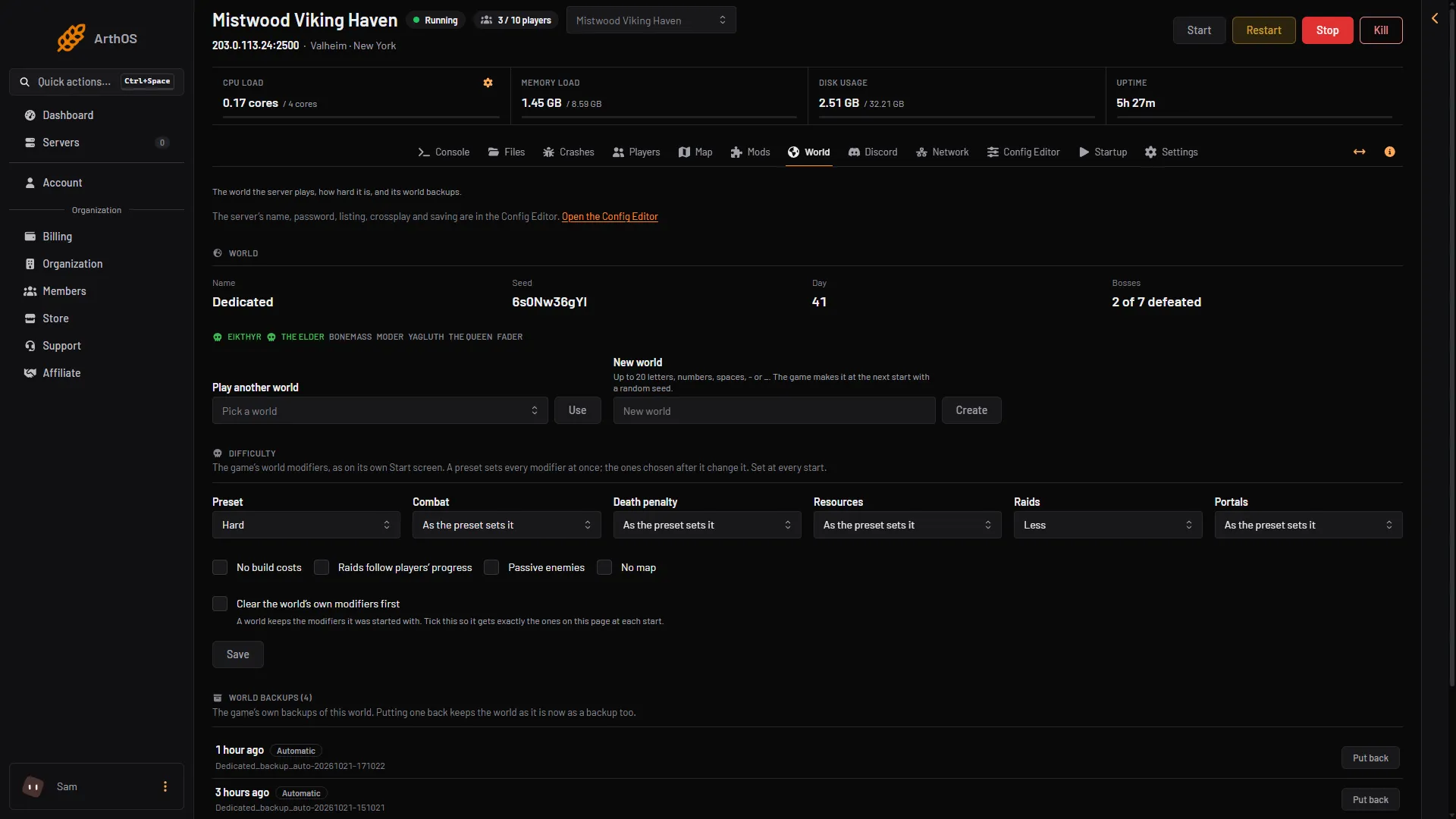
- World backups
- Automatic
- Put back
While the server runs, the foot of the list says “Stop the server to put a backup back.” If a backup does not load either, put back an older one.
Put back a panel backup
If the game’s backups are gone or none load, use a backup made by the panel.
- Stop the server.
- Open Settings and its Backups tab.
- Open the backup’s menu and choose Restore.
- Leave the “delete all files” switch off unless you want to wipe the server first.
- Choose Restore, then start the server when the panel says it is done.
Play another world meanwhile
The World page also lets you play a different world while you sort this out. Type a name in New world and choose Create; the confirm box says the game makes the world at the next start and the current world stays on the server. If the server holds another world, Play another world shows beside it: choose a world in Pick a world and choose Use. The broken world stays on the server as it is. Switch back later from the same place.
A world the game says is “incompatible”
If the line says “incompatible data version”, the game found data it cannot read. Put back a backup as above. Not checked on 1.0.20 as of 21 October 2026: the exact cause of that line.
If it does not work
- You cannot put a backup back. The server is running. Stop it first.
- No backups yet. The game makes its first backup at its first save. Use a panel backup instead.
- A backup made in the old single-file format. Worlds from older versions are two files,
.dband.fwl, and are restored in Files, not on the World page. Keep the two files together. - The world loads but looks different. See progress lost.
More about backups: world backups. More about the game: Valheim servers.