






Squad admin powers are called access levels. You list them after a group name in Admins.cfg, separated by commas. Every player in that group gets those levels and nothing else.
Format of a group line:
Group=Name:level,level,levelThe access levels
| Level | What it allows |
|---|---|
changemap | Map commands, such as changing the layer or setting the next one |
pause | Match commands: pause, unpause, end and restart the match |
balance | Switch teams whatever the team sizes |
chat | Admin chat and server broadcast |
canseeadminchat | See the admin chat and teamkill notices |
kick | Kick commands, and also warn, disband squads, remove players from squads and demote commanders |
ban | Ban commands |
config | Change server settings in game, such as the player limit |
cameraman | Admin spectate camera |
immune | Cannot be kicked or banned |
reserve | Reserved slot access |
forceteamchange | Force other players to change team |
teamchange | Change team without the usual timer |
private | Set a server password in game |
manageserver | Shut the server down |
cheat | Cheat commands, such as changing game speed |
debug | Debug commands and admin stats |
featuretest | Features added for testing, such as the vehicle spawner |
demos, clientdemos | Record demos (see the note below) |
Squad’s own wiki lists the same levels. startvote is also in the file’s header but the file marks it as not used. The stock Admins.cfg header writes the demo levels in lower case, as demos and clientdemos; there is no demo level in it.
Example groups
Group=SuperAdmin:changemap,cheat,private,balance,chat,kick,ban,config,cameraman,debug,pause
Group=Admin:changemap,balance,chat,kick,ban,cameraman,pause
Group=Moderator:changemap,chat,kick,ban
Group=Whitelist:reserve
These are the examples on Squad’s wiki. A good start for most servers:
- Moderator: deals with rule breakers. Can change the map, talk in admin chat, kick and ban.
- Admin: everything a moderator can do, plus team balance, the spectator camera and match pause.
- Whitelist:
reserveonly. It holds seats for chosen players and gives no powers. See Squad reserved slots.
You can make as many groups as you like, with any mix of levels.
In the ArthOS panel
The Admins card on the Players page lists the groups it finds in Admins.cfg and lets you put a player in one. It does not edit a group’s levels. To change what a group can do, edit the file in Files at SquadGame/ServerConfig/Admins.cfg, then run the RCON command AdminReloadServerConfig (see Squad RCON) so the running server rereads the file, or restart between matches. A new server already has two groups there: Admin (kick, ban, changemap) and Moderator (kick, ban).
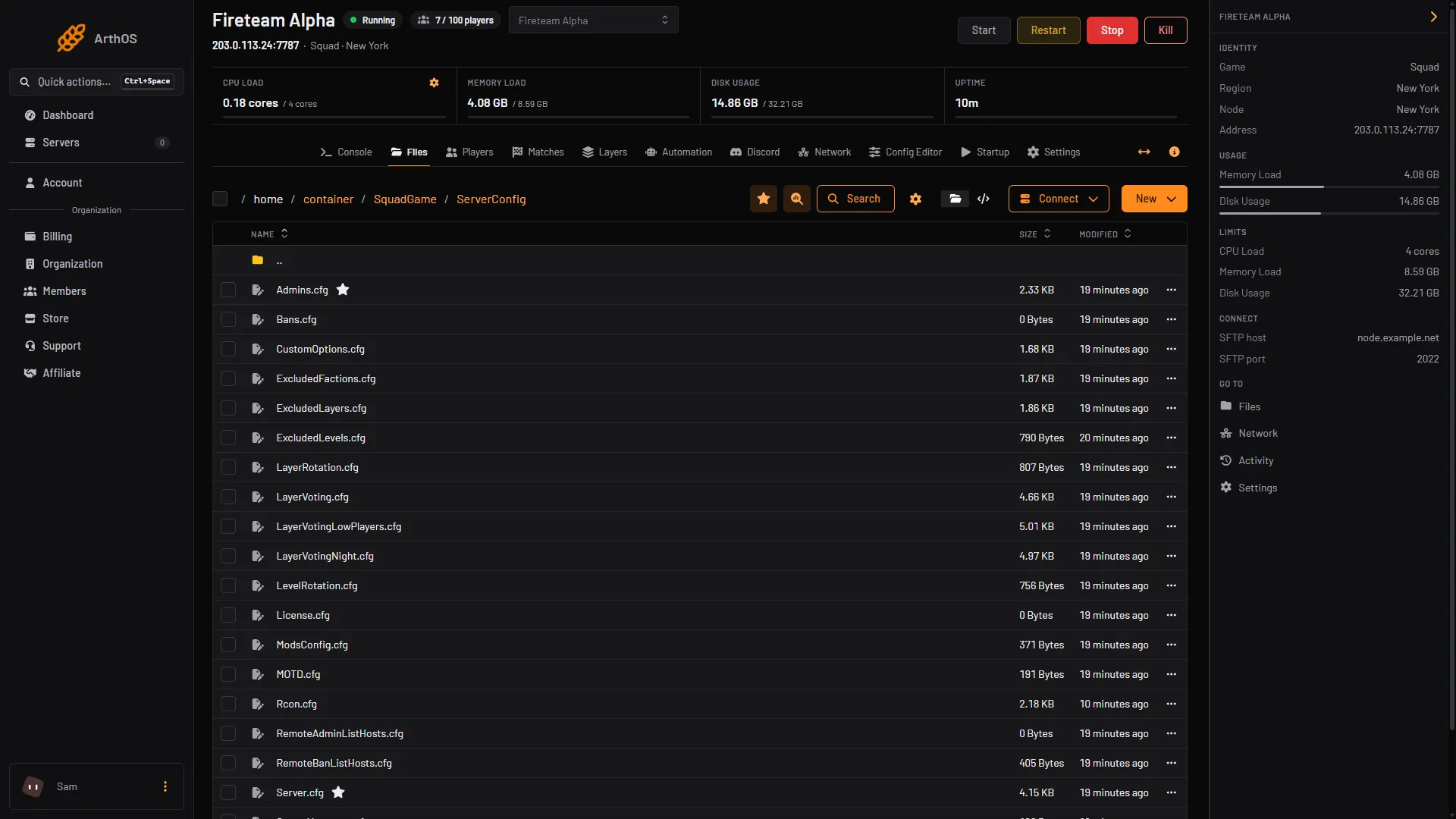
- Open Admins.cfg
The steps for adding people are in How to add admins to your Squad server.
If it does not work
- A command is refused in game. The admin’s group does not hold the level the command needs. Add it to the
Group=line. - A new level has no effect. Check the spelling. Levels are written as in the table above. After a hand edit, reload the file as described under the panel heading.
- A player needs more than one group. The panel’s Admins card keeps one entry per ID. Make a single group that holds all the levels the person needs.
More about the game: Squad servers.
Sources: squad.fandom.com: Server Administration, squad.fandom.com: Server Configuration, squad.fandom.com: Server licensing