
















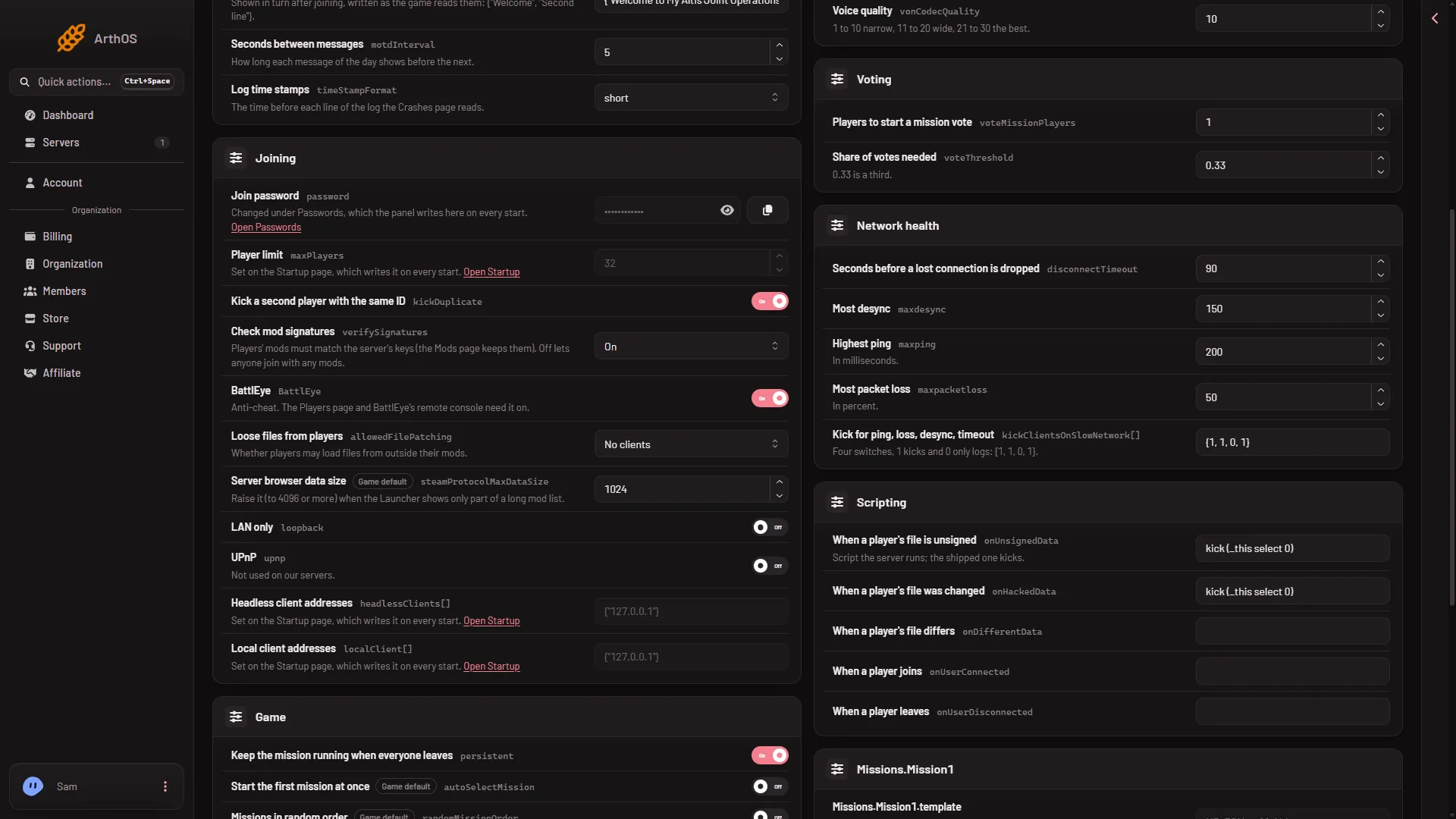
A few settings in server.cfg show as locked in the Config Editor. They are locked because another page of the panel owns them and writes them into the file for you. Change them on that page.
Where each one lives
| Locked field | Change it on |
|---|---|
| Join password (called Server Password under Passwords) | Passwords, in the Config Editor |
| Admin password | Passwords, in the Config Editor |
| Player limit | Startup, field Max Players |
| Headless client addresses | Startup, field Headless Clients |
| Local client addresses | Startup, field Headless Clients |
Each mission’s template and difficulty (the rows named Missions.Mission1.template and so on) | The Missions page |
What the lock says
Under a locked field the editor tells you which page to use.
- For the passwords: “Changed under Passwords, which the panel writes here on every start.” with the button Open Passwords.
- For the player limit and the headless client lists: “Set on the Startup page, which writes it on every start.”
- For missions: “Kept on the Missions page, which reads each mission’s own settings.” with the button Open Missions.
Change them
- Passwords. Open Passwords in the Config Editor, change the field, and save. See the Passwords card.
- Player limit. Open Startup and change Max Players (1). It takes 1 to 256, and the panel’s help says headless clients count too.
- Headless clients. On the same page set Headless Clients (2) from 0 to 5. The panel then writes the two address lists for you.
- Missions. Open the Missions page. It keeps the rotation and each mission’s difficulty and options.
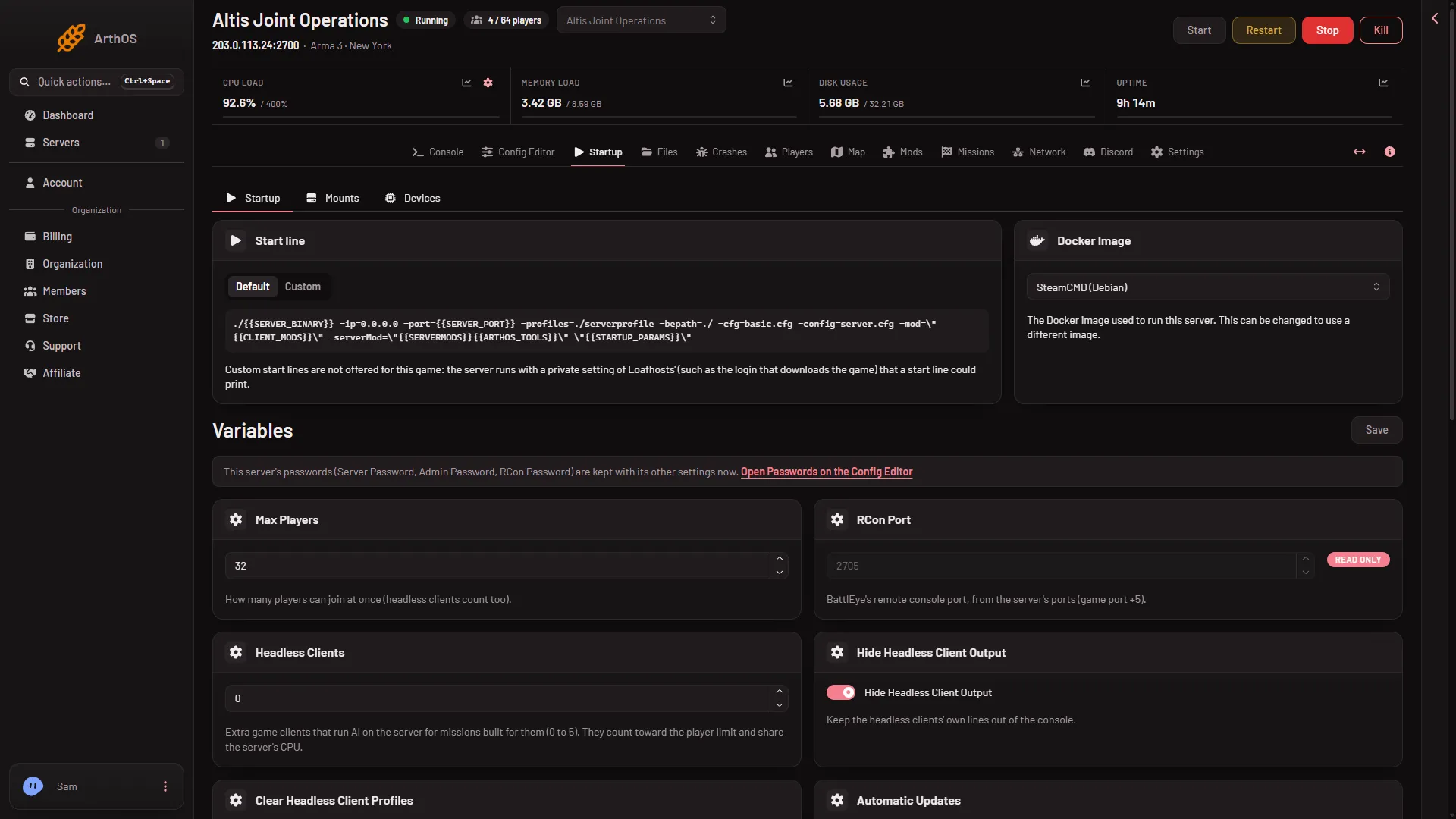
- Max Players
- Headless Clients
All of these apply at the next start. A restart drops everyone who is on, so choose a quiet moment and warn players first with A message to everyone and Send on the Players page.
Why a hand edit does not stick
Fields that are not locked
The rest of the editor is open to you.
If it does not work
- You changed Max Players and nothing changed. The server has not restarted since.
- You cannot find Startup or Missions. Your role may not allow reading them.
- You need a mission setting the Missions page does not show. Edit
server.cfgas text in Files. Take care: the panel will not change a file with a class that does not close, and a mistake stops the game reading the rest of the file.
More about the game: Arma 3 servers.